Keito for Chrome brings time tracking into the browser. Open the toolbar popup to start or stop a timer, or add time manually. You can also start from the GitHub issue, pull request, or Basecamp to-do you are working on.
The time entry stays in Keito, where your team can use its projects, approvals, reports, and billing workflow. The page you started from remains a reference to the work.
A timer you can reach from any tab
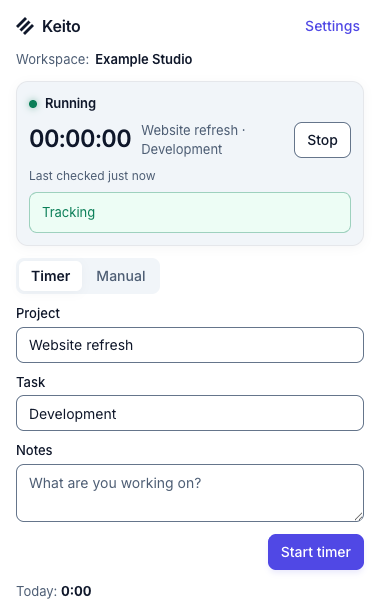
Pin Keito to the Chrome toolbar, connect your Keito workspace, and choose a project and task. The popup shows whether you are tracking, the elapsed time, and a Stop button. The Manual tab lets you save a duration or a start and end time for work you already completed.
Keep the work item with the time
On supported github.com issue and pull request detail pages, Track with Keito opens a preview of the selected item. Confirm it, choose a Keito project and task, and start the timer or save manual time. Keito stores the reference with your time; it does not post time to GitHub.
For Basecamp 5, a Keito timer control can appear beside an open to-do. An administrator first connects the Basecamp account and links the Basecamp project to a Keito project. The extension then resolves the to-do through that connection, so the time goes to the linked Keito project. Keito does not complete the to-do or write a Basecamp timesheet entry.
Each site is optional. Both are off when you install the extension. You choose when to grant Chrome access to GitHub or Basecamp, and you can disable either site later without losing time already saved in Keito.
Get started
- Install Keito Time Tracker from the Chrome Web Store.
- Connect with Keito sign-in, or choose Use an API key instead with a user-bound key and matching company ID if your workspace permits it.
- Start from the toolbar. To use a site button, open Settings and enable that site.
- For Basecamp, ask an administrator to connect the account and link projects before enabling the button.
The extension is available on every Keito plan. The Basecamp button needs the Business plan and a connected Basecamp account. If you do not see the feature, contact Keito.
Read the Keito for Chrome guides for setup, screenshots, permissions, supported pages, and troubleshooting.