Keito for Chrome
Keito for Chrome puts your timer in the browser toolbar. You can start a timer or add manual time without leaving the page. If your workspace has enabled the relevant integration, you can also open a Keito time form directly from a GitHub issue or pull request, or an open Basecamp to-do.
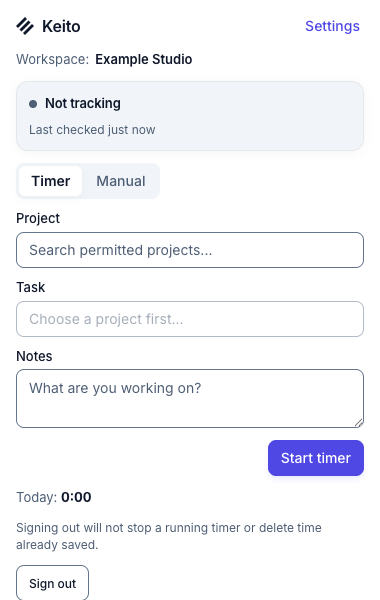
Choose your workflow
| What you want to do | Guide |
|---|---|
| Install the extension, connect your account, or use an API key | Install and connect |
| Start, stop, or switch a timer; record manual time | Track time from the toolbar |
| Link time to an issue or pull request | Track GitHub work |
| Start from an open Basecamp to-do | Track Basecamp to-dos |
| Understand site access, data flow, and sign-out | Permissions and privacy |
| Recover from a missing button, sign-in problem, or uncertain timer result | Troubleshooting |
Where time is saved
Time entries and running timers live in Keito. GitHub supplies an item reference, but Keito does not post time to GitHub. The Basecamp button uses the workspace’s Basecamp integration to resolve a linked to-do; Keito does not write the time to Basecamp or complete the to-do.
Site buttons are optional. You choose which supported sites Chrome may let the extension access. If a site button is unavailable, the toolbar timer still works for an eligible Keito workspace.
Availability
Keito for Chrome requires an enabled Keito workspace and a supported version of Chrome. GitHub and Basecamp buttons depend on their own site access and workspace settings. Basecamp also needs the Business plan, a connected Basecamp 5 account, and linked projects. Contact support if your workspace does not yet offer the extension or Basecamp rollout.