Private beta pending. Toggl importing is not generally available. Production rollout is pending. The example below was verified with fictional data in an isolated test environment. The steps below apply only after Keito confirms that your workspace is enabled. Contact Keito before making a cutover plan or preparing a migration credential.
Moving historical time needs more than a successful connection. You need to know whose history was visible, which dates were selected, how missing projects were handled, and whether the source seconds match the entries now stored in Keito. You also need a separate decision about historical billing.
Keito’s Toggl importer belongs in Settings → Import/Export inside an existing workspace. It reads your confirmed Toggl identity’s history, keeps progress independently of the browser, and retains conflicts for review. It does not change Toggl, send invitations, or establish a complete workspace migration. It is a historical import rather than a continuous two-way sync.
This guide follows that path from preparation to cutover. Its example workspace is Northstar Studio, a fictional business with clients Atlas Creative, Juniper Consulting and Evergreen Publishing. Example projects include Atlas Website Refresh, Atlas Product Launch, Juniper Research, Studio Operations, Archive 2022 and Private Strategy. They are fictional source data, not customer records.
For the concise product reference, use Migrate from Toggl Track. The migration overview explains the wider planning process. If you are comparing systems first, see Harvest vs Toggl.
What this Toggl import covers
The current user journey is deliberately self-only. You confirm that the Toggl user represents your Keito identity, choose a date range, and import that person’s accessible historical time into the selected destination workspace.
| Information | What to expect |
|---|---|
| Stopped time entries | Source description, dates, start/stop values, exact duration and billability, when references resolve |
| Clients and projects | Accessible source references, including records with no time entry in the selected range, subject to conflict checks |
| Project tasks | Accessible task relationships, including tasks unused by the selected entries; source-specific names can include a Toggl ID to keep identities distinct |
| Source entry and workspace IDs | Attribution and repeat-import matching within the destination workspace |
| Tags | Retained with source provenance; not a promise to recreate Toggl’s tag interface |
| Archived projects and tasks | Historical context; importing them does not automatically allow new tracking |
| Missing project/task values | Optional clearly named defaults, only with explicit consent and where the reference is eligible |
Self-only describes the time-entry scope. Reference stages can also copy accessible source clients, projects and tasks that no selected time entry uses; they are not pruned to the selected period’s references. Review those records as part of the migration scope.
Do not treat this as an import of everyone in a Toggl workspace. Expenses, invoices, payments, historical billing rates, complete past costs and the source account’s full permissions model are outside that claim. Source access can also vary by Toggl plan, role, private-project visibility and API behaviour.
Running timers are excluded from historical imported duration. A timer still running during your final comparison is a reason to stop and settle the source window, not a reason to round the expected total until it matches.
Before you start: define the comparison
Choose one migration owner and one administrator responsible for billing review. A solo business can give both responsibilities to the same person, but the decisions are still separate.
Record these facts before starting:
- the intended Keito workspace;
- the Toggl workspace and the person whose history is being imported;
- inclusive start and end dates;
- that person’s Toggl timezone;
- the stopped-entry count and exact source duration for that scope;
- known private, archived, unassigned or inaccessible references;
- where your secure source export is stored;
- who will sign off differences and historical billing.
Keep Toggl available. Do not delete source data, remove projects or reset your destination merely to follow the walkthrough. A source export gives you an independent reference; this importer uses the API rather than asking you to upload that export.
Choose a window that includes normal work and a few useful boundaries. For example, compare an older archived project, a recent week, an entry near midnight, a non-billable entry and a record without a task if your real source contains one. Use the same scope when you compare source and target.
Freeze the selected source history
Stop running timers and agree when edits to the selected history will pause. Keep it unchanged through ingestion and the verification pass. A moving source can introduce new records, change durations or shift records across date boundaries while the importer is reading.
The freeze confirmation records your agreement. It does not take a point-in-time snapshot of Toggl. Even two matching passes must be interpreted with the scope, access and source-change limitations in mind.
Step 1: find the Toggl API token without exposing it
After Keito confirms beta access, select your profile icon in the lower-left corner of the Toggl Track web app and open Profile. Find API Token near the bottom. Toggl maintains the current instructions in Where is my API key located?.

Use your personal API token, not your Toggl password. Copy it directly into Keito’s password field when you reach the connection step. Do not paste it into chat, a ticket, a document, a query-string URL or a screenshot.
You do not need to regenerate the token just to locate it. Rotating a personal token can disconnect other tools using the same credential, so consider those tools before changing it. Likewise, do not use somebody else’s token to make the visible record count larger: the identity you confirm must be yours.
The credential region is excluded from this screenshot. Keep it out of your own screenshots and support attachments too.
Step 2: open the intended Keito workspace
After Keito confirms access, open Settings → Import/Export. The fixed direct address is https://app.keito.ai/imports/toggl; it becomes available with the importer release. Its address does not mean your workspace is enabled.
When the release and your workspace are enabled:
- Open the link and sign in through your normal Keito login if required.
- Complete your normal authentication requirements.
- If Keito asks which workspace to use, select the intended destination explicitly.
- Continue to Settings → Import/Export, where Import from Toggl Track opens and receives keyboard focus.
This is an existing-workspace Settings flow. You do not need to create another account or look for a Toggl step during onboarding.
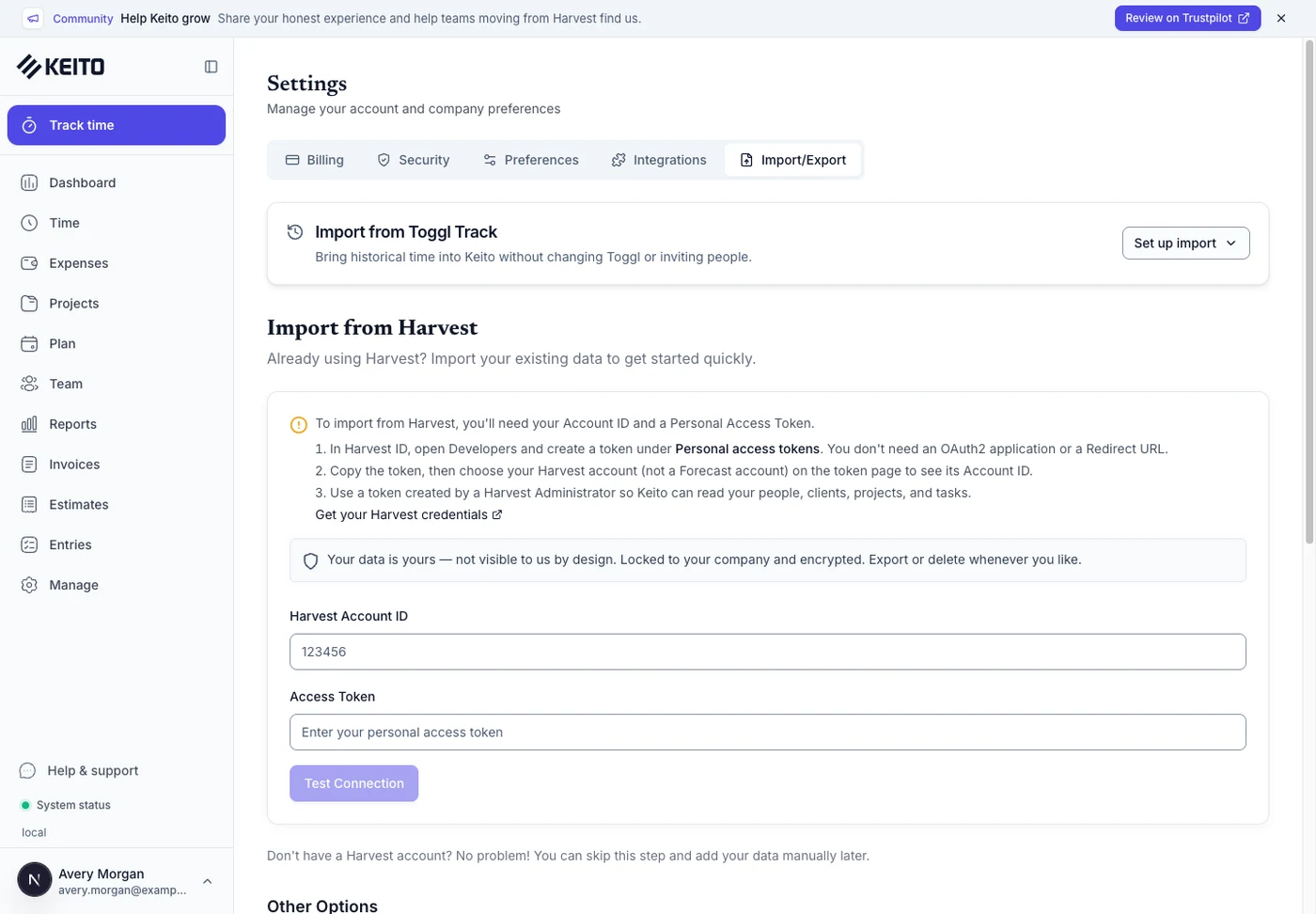
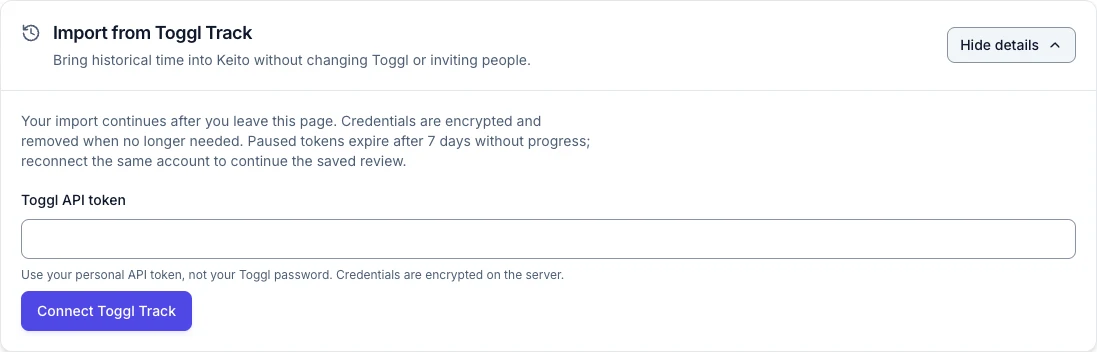
On a normal Settings visit, the card starts closed. Select Set up import to open it. After a run exists, the action is Show import details. Select Hide details to close the setup area while leaving progress and essential notices visible.
If the card says Toggl imports are not enabled for this workspace yet, stop there and contact Keito. Reconnecting, selecting another browser or creating extra workspaces does not grant beta access.
Step 3: connect and confirm the source
Paste the token into Toggl API token and select Connect Toggl Track. The submitted field clears. The credential is encrypted on the server and removed when it is no longer needed; it is not a reason to leave a browser window open.
Choose Northstar Studio in Source workspace for the fictional example, or the correct source workspace for your own migration. Select Review workspace when available.
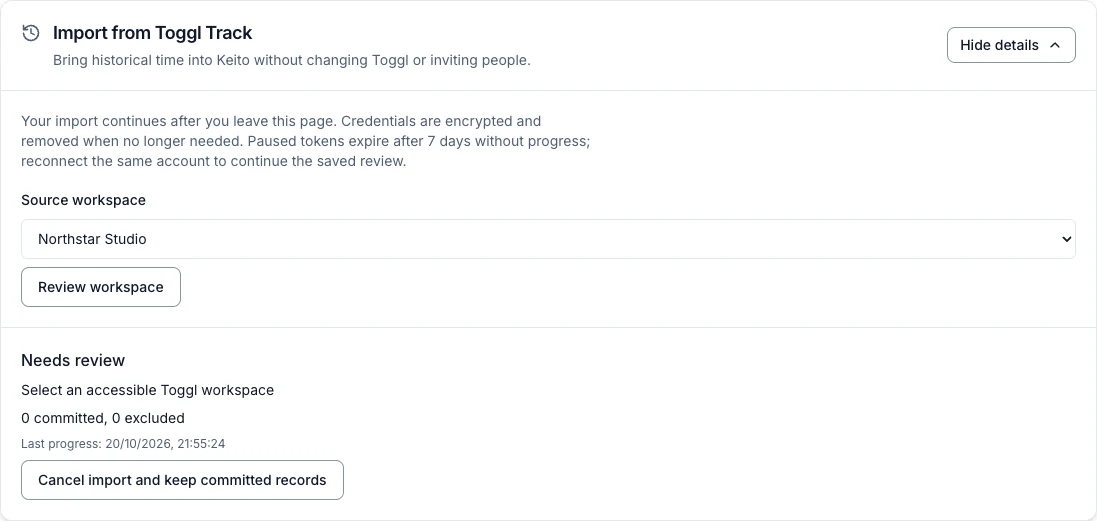
Confirm the source identity carefully. The checkbox identifies the Toggl user that must represent you in the current Keito workspace. An administrator’s token does not make this a whole-team import, and a similarly named account is not sufficient evidence to map another person to you.
Connection and import readiness are separate. If the review says Toggl’s source data format still needs verification, Start reviewed import stays disabled. Keep the source intact and ask Keito to confirm whether your account and migration scope are supported.
Step 4: choose dates, missing-reference handling and update rules
Read the complete review before selecting Start reviewed import. These choices determine what the job can do after you close the page.
Choose scope before mapping references
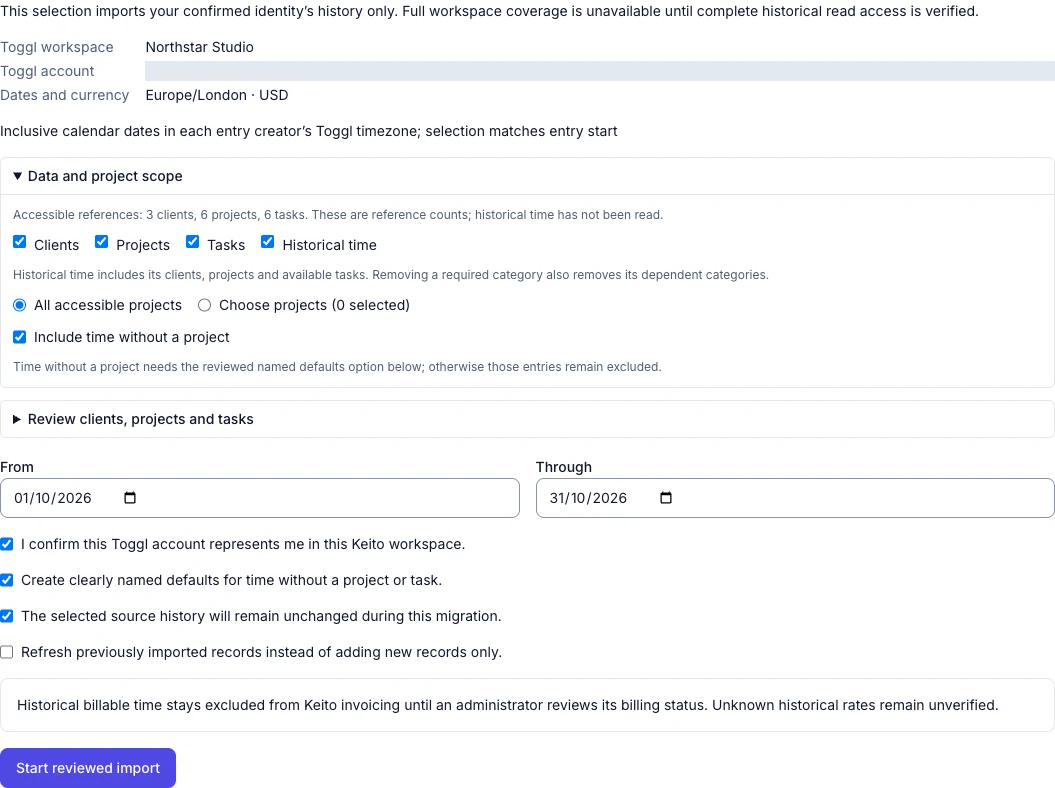
Open Data and project scope. Keep the required categories for historical time, choose All accessible projects or Choose projects, and decide whether to Include time without a project. Category dependencies stay together: removing projects also removes dependent historical time.
Then open Review clients, projects and tasks and use Reference type to review clients, projects and tasks in that order. Each source can create a new Keito record, map to an existing record, or be excluded with its dependent time. You can supply a distinct creation name when an existing Keito client already uses the proposed name.
In the Northstar example, Atlas Creative maps to its existing Keito client. The private projects Private Strategy and Atlas Website Refresh each map to a reviewed existing project. Private source projects cannot be silently created. Select the target after choosing Map to an existing Keito record; a blank target leaves the review incomplete.
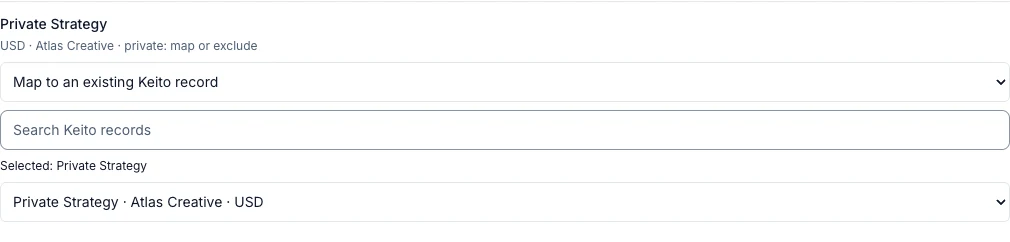
Map clients before projects, and projects before tasks. Matching names do not merge records automatically. Existing source mappings are retained. Changing project scope or categories clears unsaved reference decisions, so set the scope first. Source account details are hidden in these screenshots; confirm your own identity in the live review.
Inclusive dates follow the creator’s timezone
From and Through select inclusive calendar dates using each entry’s start in its creator’s Toggl timezone. Do not substitute a browser timezone or a source report configured to a different UTC boundary.
For example, an entry that starts at 23:50 on the final selected day and ends at 00:20 the next day belongs to its start date. The import retains the source’s exact duration; it does not split the entry at midnight. Around daylight-saving transitions, compare the exact duration and source timestamps rather than subtracting two wall-clock labels.
If the source timezone is uncertain, resolve that before interpreting the dates. Include a boundary entry in your verification sample so a one-day shift cannot hide inside a large total.
Defaults require consent
The checkbox Create clearly named defaults for time without a project or task lets eligible unassigned records use recognisable defaults such as Toggl: no project and Toggl: unassigned task. A source project without a client can use a clearly named currency-specific default client.
Without that consent, affected entries can remain unresolved or excluded. The checkbox does not fix inaccessible/deleted references, a task attached to the wrong project, a private project needing a reviewed mapping, a same-name collision or a currency mismatch.
Review those reasons rather than making an unrelated project available solely to force the import through. Historical assignments also do not grant new tracking rights or manager permissions.
Confirm the source freeze
Select The selected source history will remain unchanged during this migration only when that is true. The verification pass needs the same scope and stable source history to support a useful comparison.
Start with new-only mode
Leave Refresh previously imported records instead of adding new records only off when adding missing history. Keito matches source identities within the source and destination workspace rather than relying only on names. Already mapped identities should not become duplicate time entries on a repeat run.
New-only does not mean “ignore every difference”. A changed source record can be retained for review while the existing Keito value remains in place. Read the result before deciding whether to refresh.
Refresh needs a second confirmation
If you deliberately choose refresh, confirm the listed fields separately: source notes, dates, durations, start/end times, billability, tags and time metadata. It can also refresh names and archive state for references created by this importer. Existing mappings, custom names and local edits remain protected; relationships, currency, rates and budgets are not refreshed.
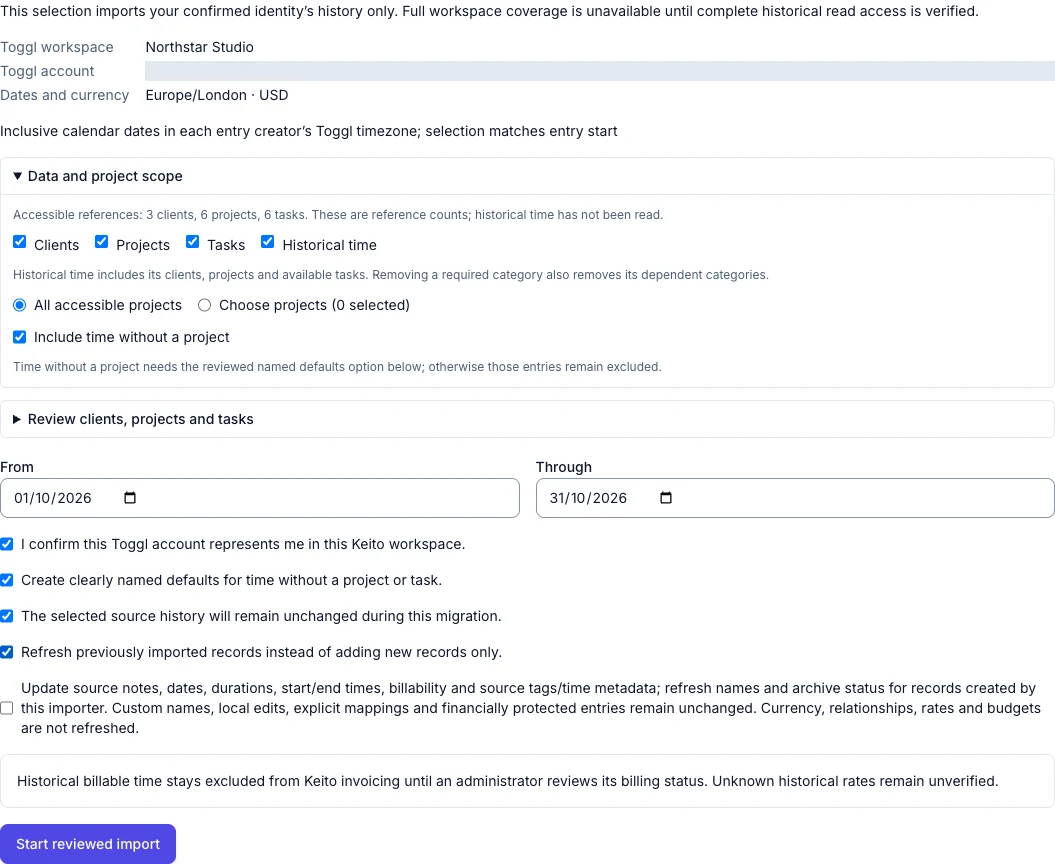
Refresh preserves local edits and financially protected records. It does not silently change an entry’s person, project or task, overwrite unrelated local time, or remove target records because they disappeared from Toggl. Reference changes and deleted targets need a separate reviewed decision.
After checking the identity, source, date range and policy, select Start reviewed import when it is available.
Step 5: follow progress after closing the browser
The import runs in the background independently of the page. You can close the tab and return to Settings → Import/Export. Use the run status, current step, committed/excluded counts and Last progress time to understand where it is.

If more than one run exists, open details and choose Import history. Inspect the relevant run before starting another one. A page reload or a compact card is not proof that the job has disappeared.
Waiting for Toggl quota
Waiting for Toggl quota includes Next eligible time. No action is needed while the source quota resets. You can leave the page closed; repeatedly reconnecting or starting a new run is not a way to increase the quota.
Replacing credentials
If the state becomes Needs credentials and Replace credentials is offered, open details and provide a valid token for the same reviewed source identity and scope. A replacement credential does not switch the run to somebody else’s history. If Keito says the saved review is unavailable, follow Review a new import instead; a token cannot restore the missing review.

The example briefly waited for request spacing during verification. This one-second wait does not show how long an exhausted hourly allowance would take.
Review and display errors
Needs review means the underlying issue needs a decision before processing can continue. Read the reason first. Use Resume reviewed import only when the action is offered for a retryable failure; it does not create a missing mapping or approve a financial conflict.
If the source changed during import, or the saved encrypted review is unavailable, select Review a new import. The old run is cancelled and committed data stays in Keito. Reconnect and review the selection again, choosing new-only or an explicitly confirmed refresh. Repeated Resume or token replacement cannot repair those states.
If the page says Progress could not be loaded, select Retry. That is a display/polling failure, so check the run again before assuming execution stopped.
Cancellation keeps committed records
Cancel import and keep committed records stops further processing as cancellation takes effect. Wait for Cancelled, then read the retained-record message and reconcile what was already written. Credentials are removed from the cancelled run.
Cancellation is not an undo or a bulk-delete operation. Closing the tab, hiding details and refreshing the browser do not cancel the import. Do not delete a partially imported workspace simply because a run was interrupted.
Step 6: read the result without mixing different totals
A completed job is the start of reconciliation. Completed with exclusions and Completed with warnings require a review of omitted records, retained conflicts and partial updates; a green state alone does not sign off historical coverage or financial correctness.
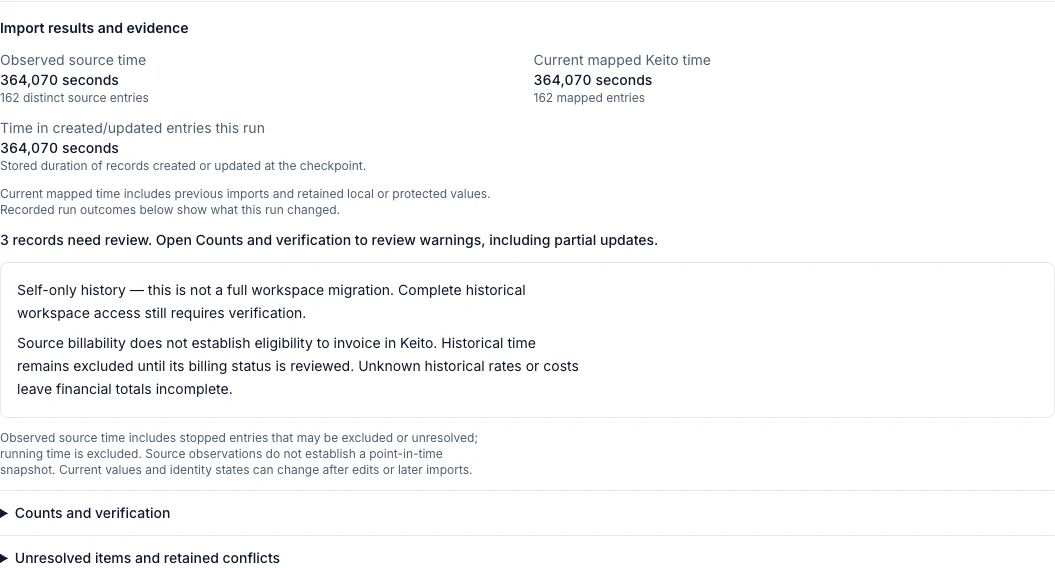
Observed source time
Observed source time is the exact stopped-entry duration seen in the selected source scope. It can include entries that could not be written because of unresolved references or exclusions. Its distinct source-entry count is not the number of new rows created in Keito.
Running time is excluded from the historical duration. Source observations also do not establish a point-in-time snapshot or prove that another person’s history was visible.
Current mapped Keito time
Current mapped Keito time is the duration currently stored on mapped time entries associated with the run. It can include previous imports, retained local values and financially protected entries. Those values may change after local edits or later imports.
Time in created/updated entries this run records the exact stored duration of entries this run created or updated. It excludes unchanged and retained entries. On a partial refresh, it records the duration actually written, which can differ from the source duration. These recorded outcomes stay stable after later edits; current mapped time can change. Older runs may have unavailable or partial history.
If a mapped entry lacks exact seconds, the mapped total is unavailable; rounded hours are not used to invent missing precision.
Counts and verification
Expand Counts and verification to inspect recorded outcomes, verification-pass observations and current identity counts. Time by person, project and day shows exact source and written seconds in pages. Warnings from this run retains warnings even if part of a record was updated successfully. Current display names may change; the recorded IDs, counts and durations remain stable.
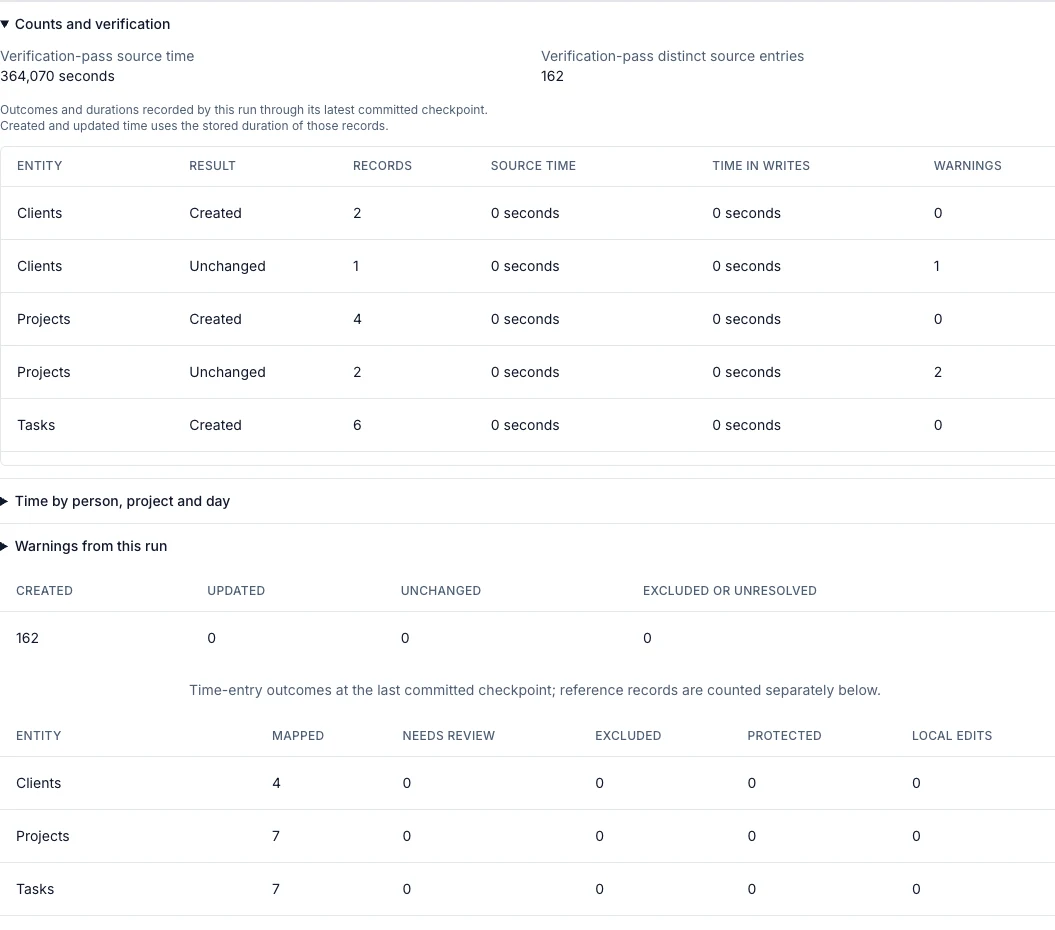
Created, updated, unchanged and excluded/unresolved are time-entry outcomes. Client, project, task and other reference identities are listed separately. A mapped entry may also carry a protected or local-edit conflict, so the flag columns can overlap the mapped count. Adding every column together does not produce a meaningful imported-record total.
The verification pass helps identify source changes. Matching observed counts and seconds are useful evidence only for the same scope, access and stable source window. Resolve drift and unexplained differences before cutover.
Unresolved items and retained conflicts
Expand Unresolved items and retained conflicts to read source IDs and reasons. The table loads pages of 25. Its bounded scroll region supports keyboard scrolling, while Previous review page and Next review page remain outside it. If the next-page request fails, the previous page stays visible and Retry review items retries the request.
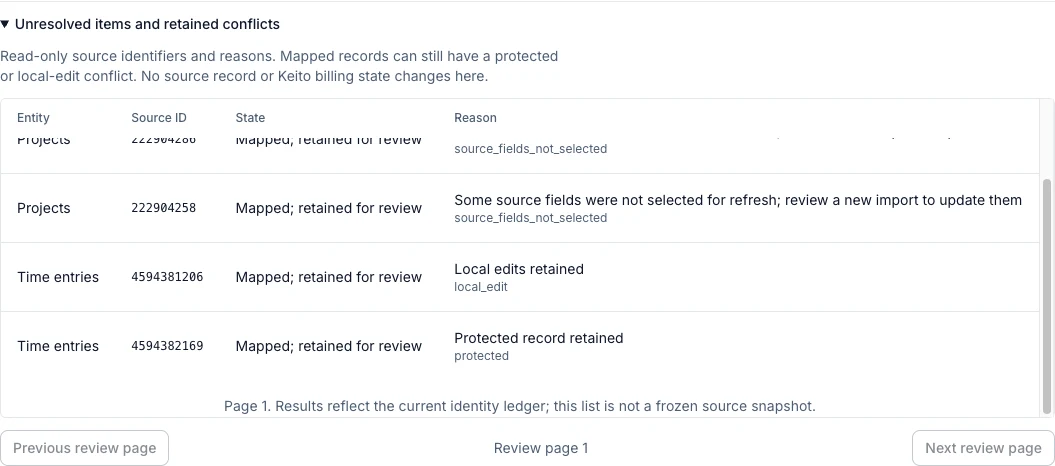
This is a read-only list. Opening it, changing pages or reading a reason does not alter a source record, resolve a mapping, approve billing or release a protected entry.
Step 7: verify the resulting work
Keep a small reconciliation record using the same date range, identity, timezone and source workspace throughout.
The Northstar Studio source baseline
The fictional source was independently checked on a Toggl Premium 30-day trial. For 1–31 October 2026, using the creator timezone Europe/London, the selected source contains 162 stopped entries totalling 364,070 seconds (101 hours, 7 minutes, 50 seconds). Four source report pages contained 50, 50, 50 and 12 entries. Their individual durations and timestamps matched the original source records, with no duplicate identities or pagination gaps.
| Source project | Stopped entries | Exact seconds |
|---|---|---|
| Private Strategy | 37 | 94,868 |
| Studio Operations | 37 | 70,696 |
| Juniper Research | 37 | 96,726 |
| Atlas Product Launch | 38 | 75,196 |
| No project | 13 | 26,584 |
| Selected source total | 162 | 364,070 |
The first completed import created all 162 time entries, with no time exclusions or unresolved time references. Source observations, verification and stored Keito time each matched 364,070 seconds, including each project total above. The three reference warnings preserved one explicitly mapped client and two explicitly mapped projects. They did not exclude time.
The identical new-only repeat created zero entries and kept the same target IDs and exact total. These are measurements from the isolated example, not a promise of completeness for a different source account or selection. Ten separate 2025 boundary entries are outside this October example window. The Premium trial result also does not establish visibility or behaviour for every Toggl plan, role or full workspace.
| Check | Compare | Sign-off |
|---|---|---|
| Scope | Confirmed person, source workspace, target workspace and inclusive dates | Migration owner |
| Source observations | Distinct source identities and exact stopped-entry seconds | Migration owner |
| Verification pass | Same source window, source-change findings and unexplained differences | Migration owner |
| Target time | Current mapped entries, exact seconds and retained differences | Migration owner |
| References | Client/project/task relationships, archived state and any consented defaults | Project owner |
| Conflicts | Missing/inaccessible references, local edits, protected entries and deleted targets | Administrator |
| Billing and valuation | External billing history, future eligibility, unknown rates and incomplete totals | Finance administrator |
Time entries
Open Time and check an imported historical week. Compare the person, project, task, description, date and source duration. Include an older period as well as a recent one.
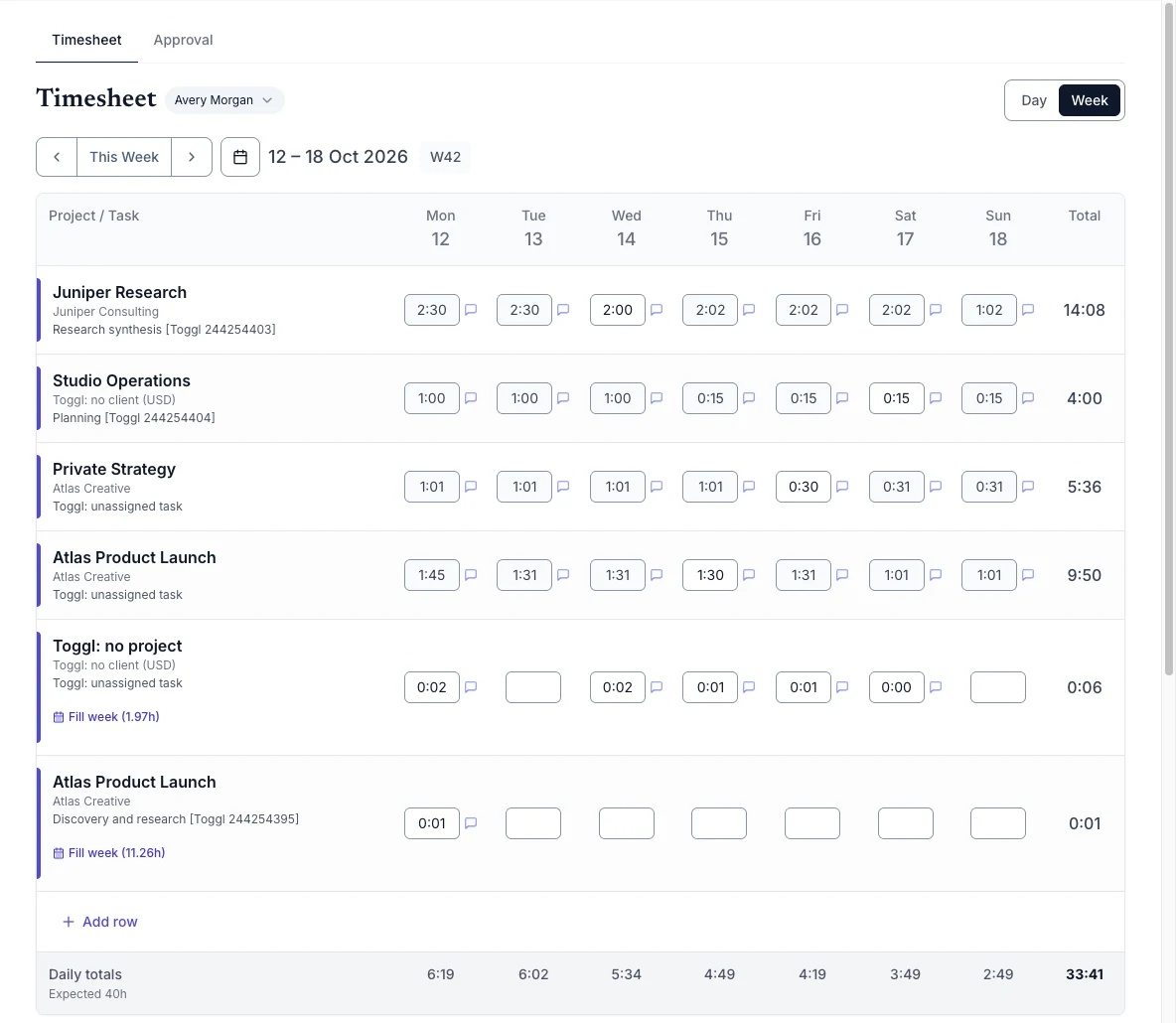
Use exact seconds as the primary duration check before comparing hour displays. A hundred small rounded values can produce a different apparent total even when the retained exact durations are correct. Do not adjust stored durations to make a rounded display agree.
For midnight and daylight-saving samples, compare the source timestamps, creator timezone and exact seconds together. A wall-clock subtraction alone can be misleading.
Clients, projects and tasks
Open Manage → Clients, Projects and each project’s Tasks tab. Check relationships rather than just the grand total. In Northstar Studio, for example, Atlas Product Launch should remain associated with Atlas Creative, while archived history and any consented defaults should be recognisable.
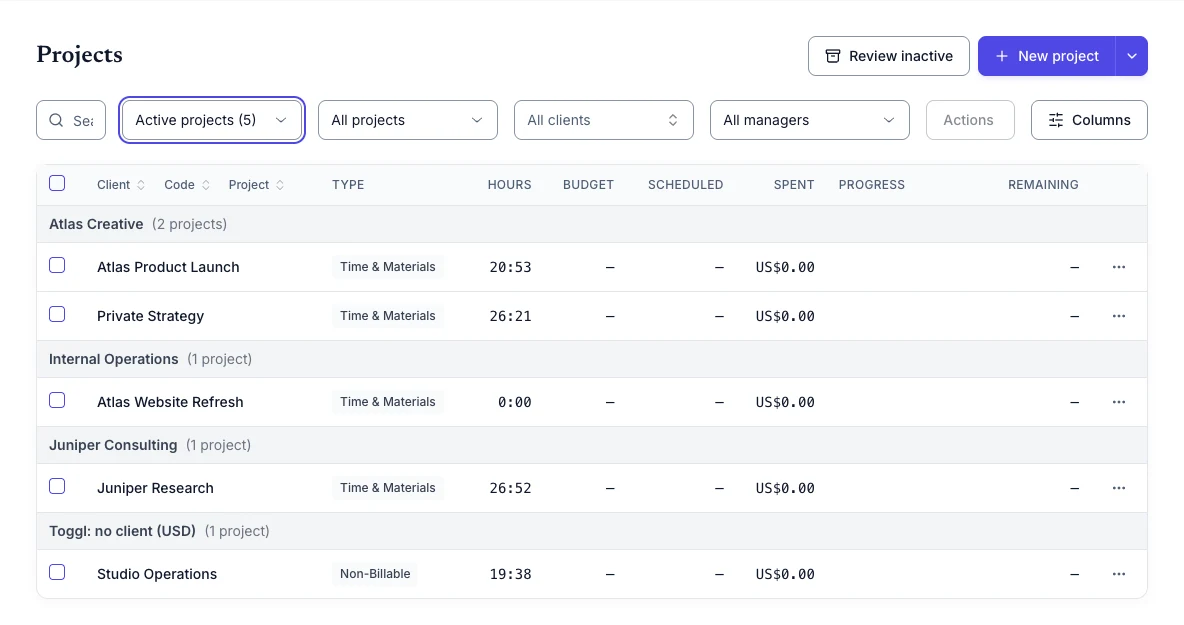
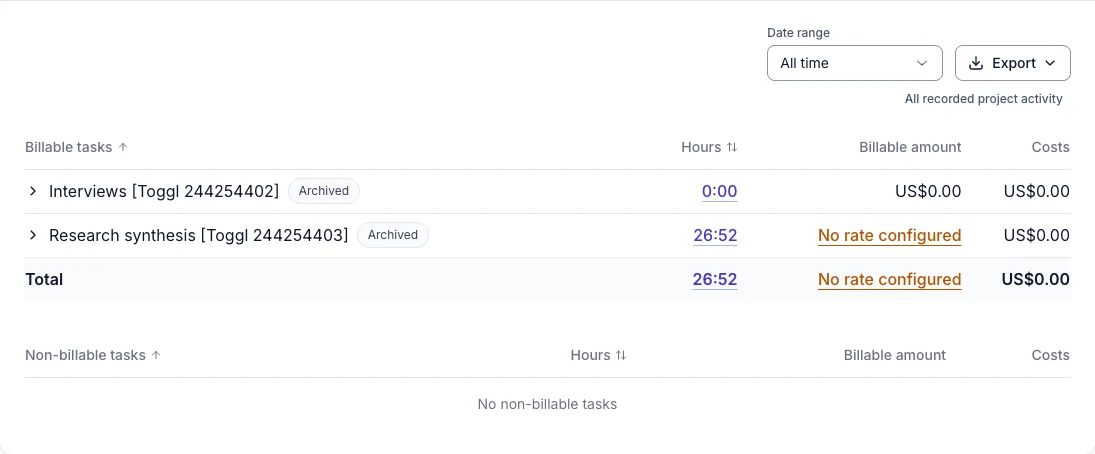
The historical Toggl: no project default appears under Archived projects, alongside archived source projects. Check that view as well as active projects. Project-specific imported tasks appear in the project’s Tasks tab; Manage → Tasks starts with active tasks.
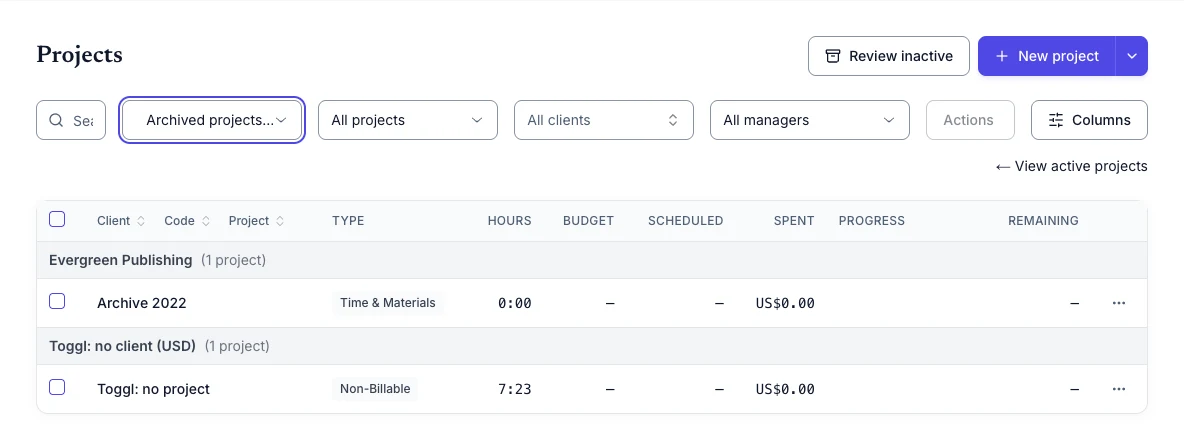
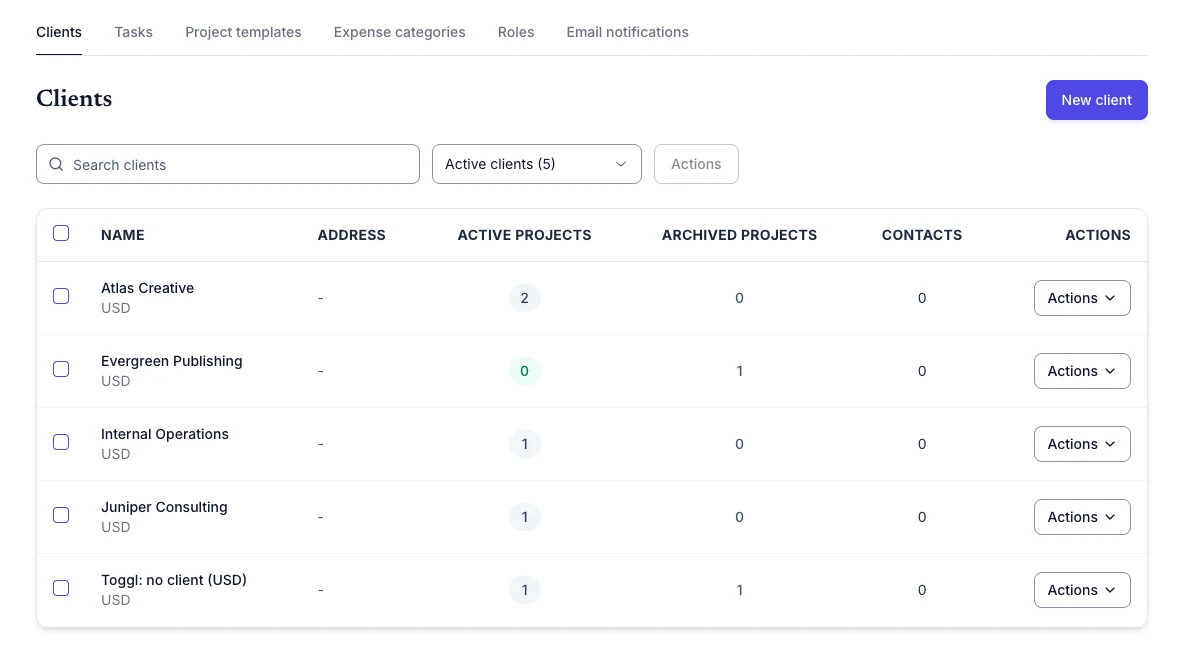
Do not assume a private source project was imported because other projects are visible. Check its review outcome. Also review permissions separately before allowing new work: historical records and assignments are not new access grants.
Historical billing is a separate review
Source billable means the source entry was marked billable. It does not prove that it remains unbilled, that payment is outstanding, or that you can invoice it again in Keito.
Historical time stays excluded from invoicing until its billing status is reviewed. An administrator needs evidence to distinguish externally billed history from time eligible for future invoices. If your beta workspace has no appropriate review control, contact Keito rather than trying to remove the protection by editing time or invoices.
Unknown historical rates and costs also make revenue, cost, profitability and financial totals incomplete. Today’s project or person defaults are not proof of the historical rates. A successful time reconciliation therefore does not establish a financially reconciled migration.
What the controlled refresh changed
After the first import and identical repeat had finished, we changed three fictional source entries, then froze the source again before a new reviewed refresh. One eligible entry gained 60 seconds. A second gained 120 source seconds after its Keito note had been edited locally. A third gained 180 source seconds while its Keito entry was locked.
The refresh updated only the eligible entry. It retained the local note and the locked entry, with both reasons visible in the review list. Source and verification each measured 364,430 seconds; current mapped time was 364,130 seconds. The 300-second difference is the retained 120 + 180 seconds. This is an explained difference, not a reason to remove protections.
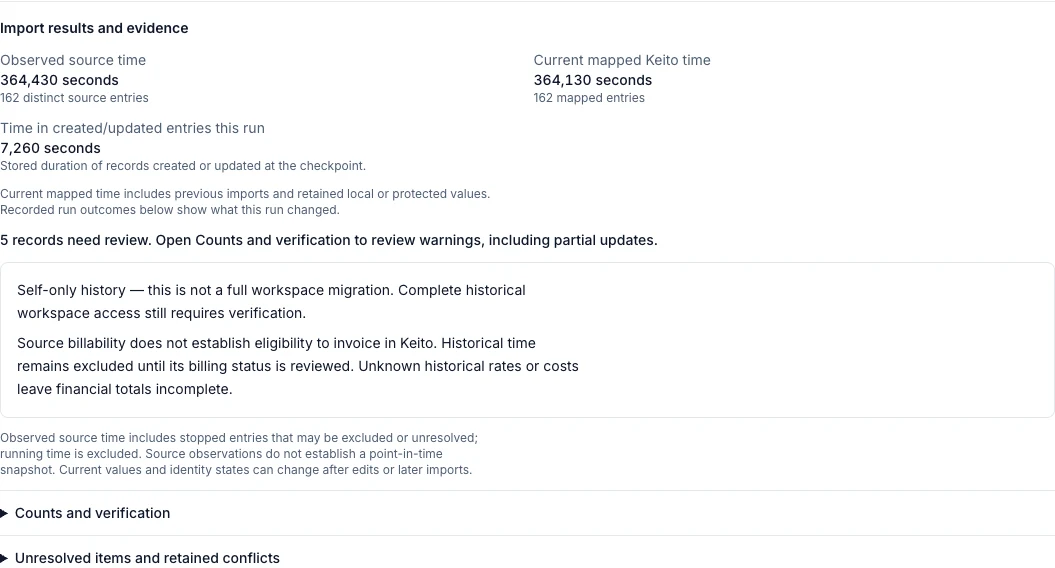
The updated entry now contains 7,260 seconds. That is the stored duration reported under Time in created/updated entries this run, rather than the 60-second increase. The checkpoint shows 0 created, 1 updated, 161 unchanged or retained, and 0 excluded. The immutable ledger separates those 161 into 159 unchanged entries and two retained conflicts.

| Completed run | Observed entries / seconds | Created / updated | Unchanged or retained | Written seconds | Current mapped entries / seconds |
|---|---|---|---|---|---|
| First new-only import | 162 / 364,070 | 162 / 0 | 0 | 364,070 | 162 / 364,070 |
| Identical new-only repeat | 162 / 364,070 | 0 / 0 | 162 | 0 | 162 / 364,070 |
| Reviewed refresh | 162 / 364,430 | 0 / 1 | 161 | 7,260 | 162 / 364,130 |
All three verification passes matched their own source observations, with no source drift or time exclusions. The target ID set stayed unchanged on the repeat and refresh. The original three mapped-reference warnings remained; refresh added the two retained time conflicts. All 162 entries still had pending historical billing review, with unknown historical billing and cost rates. Time reconciliation did not approve them for invoicing.
Step 8: repeat the selection to check duplicate prevention
After checking the first result, repeat the same source workspace, confirmed identity and date range in new-only mode. Compare stable source IDs, mapped counts and the existing target entries. An already mapped source identity should not become a second copy simply because another run saw it.
This check has limits. New source records can legitimately be added; source changes can be retained for review; a local CSV import without matching source identities is not automatically the same record. Do not use names or similar descriptions as evidence that every pre-existing entry will be deduplicated.
In the completed Northstar repeat, the same 162 source entries were unchanged, with 0 created, 0 updated and 0 excluded. Target IDs and the exact 364,070-second total stayed the same.

Use deliberate refresh only when eligible imported fields need to follow changed source values. Review local edits and financial protections instead of expecting refresh to overwrite them. A deleted Keito target remains a review case; rerunning is not a way to silently recreate deleted business data.
A controlled cutover
- Reconcile a trial scope. Confirm source access, dates, identities and references before relying on a wider historical window.
- Agree the freeze. Stop selected Toggl timers and edits for ingestion and verification.
- Complete the final run. Review processing, verification observations, conflicts and retained differences.
- Sign off time and billing separately. Resolve unexplained source/target differences and decide historical billing eligibility with evidence.
- Choose where new work starts. Make the new system and effective date explicit. Review project access before inviting people or enabling tracking.
- Keep the source available. Retain Toggl and your secure export for the agreed reconciliation/retention window.
- Retire the credential safely. Rotate or revoke it after the final refresh is no longer needed, accounting for other tools that share it.
The cutover checklist is reusable planning guidance. Its Harvest-specific invoice, expense and retainer steps do not imply that this Toggl importer migrates those areas.
Troubleshooting a Toggl history import
The importer or fixed link is unavailable
This is a pending private beta. Confirm workspace enablement and release availability with Keito. The website guide and a successful login do not enable the importer.
Connection works but Start reviewed import is disabled
Read the review message. Provider data verification, identity confirmation, valid dates and explicit refresh consent are distinct requirements. A successful API connection does not prove the historical reports contract is qualified.
The source count is lower than expected
Check the selected identity and workspace, inclusive dates, creator timezone, stopped timers, source permissions, and archived/private references. Compare the same source scope. Self-only history cannot prove whole-team coverage.
A project or task is unresolved
Read the source ID and reason in the review list. Optional defaults cover eligible missing references; they do not bypass source access, private mappings, currency mismatches or same-name collisions. If the beta UI has no supported resolution control, contact Keito.
Source time and mapped time differ
Check exclusions, unresolved references, retained local values, financially protected entries and previous imports. Confirm both measures are exact seconds for comparable populations. Do not call current mapped time “imported this run”.
A mapped record still appears as a conflict
The mapping can be valid while its current value is retained for review. A protected/local-edit flag can overlap a mapped count. It is not an extra time entry and does not mean the record was overwritten.
The import is taking longer than expected
Review the last-progress time, quota timing, credential state and any review reason. Keep the source intact. This guide does not establish a maximum supported dataset, processing rate or completion-time guarantee; discuss large or unusually configured migrations before cutover.
You need help
Send Keito support your Keito login email, approximate run time, state and non-sensitive review reason. A small set of source IDs can help when requested. Start with high-level status and counts; do not send a token, raw export, private notes, customer invoice content or screenshots containing credentials and personal data.
Frequently asked questions
Can I import a full Toggl workspace?
The documented flow is self-only. Complete historical workspace access and other contributors are not established by this import. Do not infer whole-team coverage from administrator status or a completed job.
Do I have to use onboarding?
No. Use Settings → Import/Export in an existing Keito workspace. The fixed /imports/toggl entry point preserves that destination through supported sign-in and explicit workspace selection when the release is available.
Can I close the browser?
Yes. Processing is independent of the page. Return to the same workspace’s Settings to inspect progress and history. Hiding details, closing a tab and a polling error do not cancel the run.
Does importing change Toggl or invite people?
No. The import reads source history. It does not send invitations or automatically grant tracking rights, financial access or manager roles.
Will a repeat import duplicate everything?
Already mapped source identities are matched within the same source and destination workspace. Repeat the same new-only scope and verify stable identities and mapped records. New source entries, unrelated local entries and retained conflicts still need to be interpreted separately.
Can imported billable time be invoiced immediately?
No. Historical time remains excluded until billing review. Source billability is not evidence that it was never billed, and unknown historical rates/costs leave financial totals incomplete.
Is the importer generally available?
No. The current guide describes a pending private beta. Contact Keito to confirm your workspace’s access and the production release before preparing a live migration.