Migrate from Toggl Track
Private beta pending. Toggl importing is not generally available. Production rollout is pending. The example below was verified with fictional data in an isolated test environment. Follow the import steps only after Keito confirms that your workspace is enabled. Contact Keito to discuss access before creating or sharing credentials.
This importer brings your confirmed Toggl identity’s historical time into an existing Keito workspace through Settings → Import/Export. It is not an onboarding step, a continuous sync, or a complete workspace migration. It does not change Toggl or send invitations.
For the longer walkthrough, see the Toggl Track migration guide.
What is in scope
| Source information | Import behaviour |
|---|---|
| Your stopped time entries in the selected date range | Imported against the confirmed Keito identity when their references can be resolved |
| Clients, projects and project tasks available through the qualified source connection | Accessible reference records can be copied even when no selected time entry uses them; conflicts require review |
| Source entry ID, description, start/stop values, exact seconds and billability | Retained for attribution and reconciliation; source billability does not authorise invoicing |
| Source tags | Retained with import provenance; not a promise of an equivalent Keito tag-management screen |
| Archived source references | Historical context, without automatically granting permission to track new time |
| Running timers | Excluded from historical imported duration; stop them in Toggl before the final migration |
Other people’s history, a complete workspace population, expenses, invoices, payments, historical hourly costs and complete historical billing values are not established by this self-only import. A successful connection does not prove full historical access.
Self-only applies to the time-entry scope. Reference stages are not restricted to clients, projects and tasks used in the selected date range; review accessible source references as part of the import scope too.
Before you connect
- Confirm beta access with Keito and sign in as an owner or administrator of the intended Keito workspace.
- Keep a secure source export and record your selected Toggl workspace, identity, date range and timezone.
- Choose a period whose source counts and exact duration you can independently check.
- Stop running timers and agree that the selected source history will remain unchanged during ingestion and verification.
- Decide how records without a client, project or task should be handled.
- Assign an administrator to review historical billing and a person to sign off the time reconciliation.
Do not delete source data, reset a workspace or invite teammates to prepare for this import.
1. Find your Toggl API token safely
In the Toggl Track web app, select your profile icon in the lower-left corner, open Profile, then find API Token near the bottom. Toggl documents its current location in Where is my API key located?.
Copy your personal API token directly into the password field in Keito when you are ready to connect. Use the API token, not your Toggl password. Do not paste it into a support message, a document, a URL or a screenshot. Do not regenerate a token merely to follow this guide; doing so can disconnect other tools that use it.

Keito clears the submitted field, encrypts the credential on the server and removes it when it is no longer needed. Closing the page does not revoke your Toggl token. Rotate or revoke it through Toggl only after your migration and any final refresh are complete, considering other integrations that use the same credential.
2. Open the correct Keito workspace
After Keito confirms access, open Settings → Import/Export. The fixed direct address is https://app.keito.ai/imports/toggl; it becomes available with the importer release. It does not grant workspace access.
When enabled:
- Sign in if asked, completing your normal security steps.
- If Keito asks you to choose a workspace, select the intended destination explicitly.
- Keito opens Settings → Import/Export, expands Import from Toggl Track and focuses its heading.
On an ordinary Settings visit, the card stays compact. Select Set up import to open it. With an existing run, use Show import details. Hide details closes setup while progress and essential warnings remain visible.
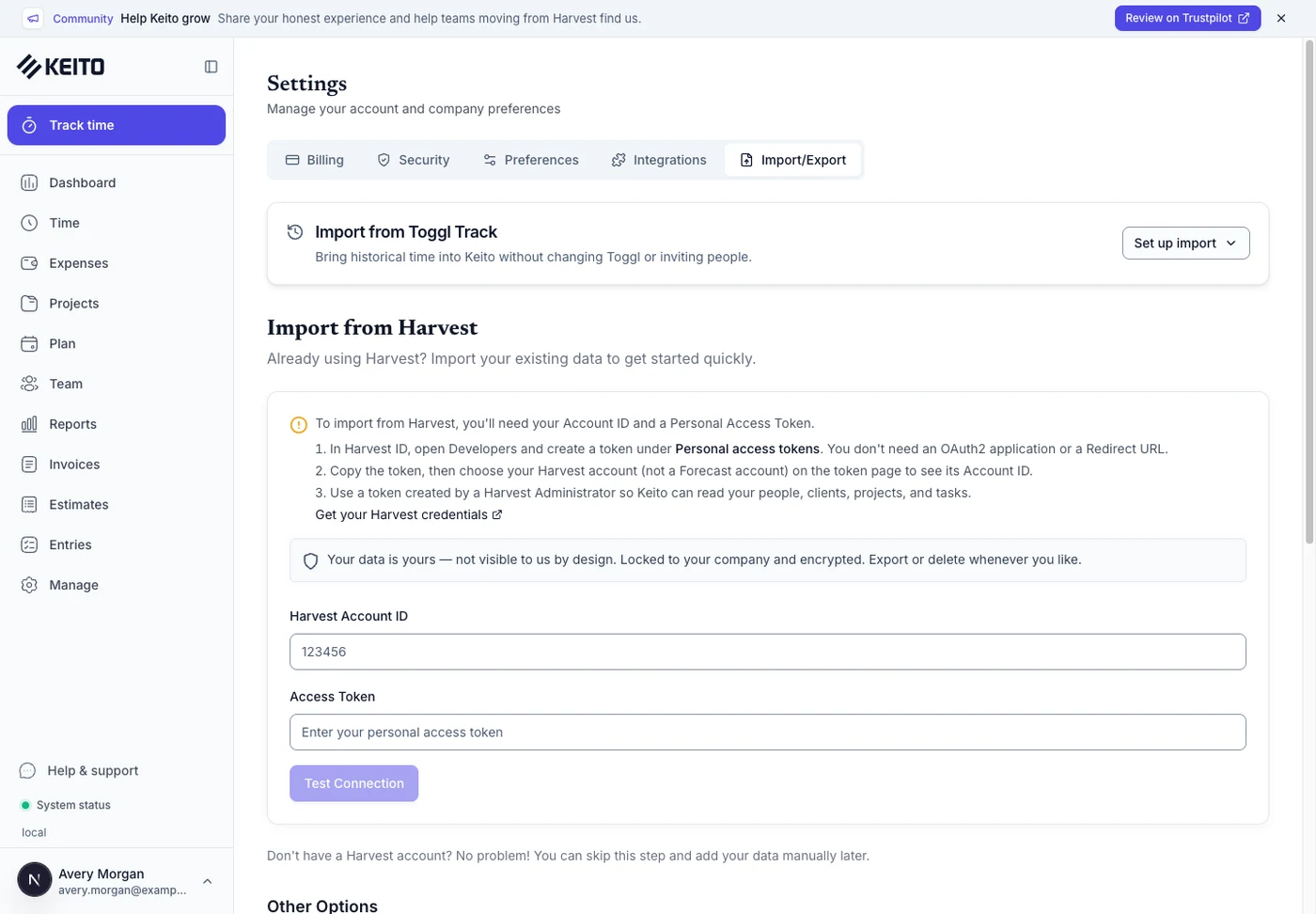
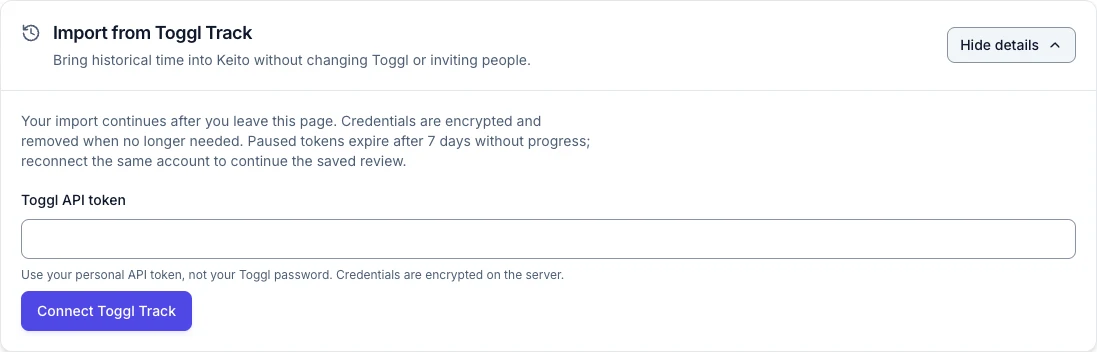
If you see Toggl imports are not enabled for this workspace yet, stop and contact Keito. Creating another workspace or repeatedly reconnecting does not grant access.
3. Connect and review the source workspace
Enter the token in Toggl API token, then select Connect Toggl Track. Choose the correct Source workspace and select Review workspace when that action becomes available.
Check the source workspace and identity before starting. The Toggl user identified in the confirmation must represent you in the current Keito workspace. Do not confirm a colleague’s identity or assume administrator access makes everyone’s time part of this import.
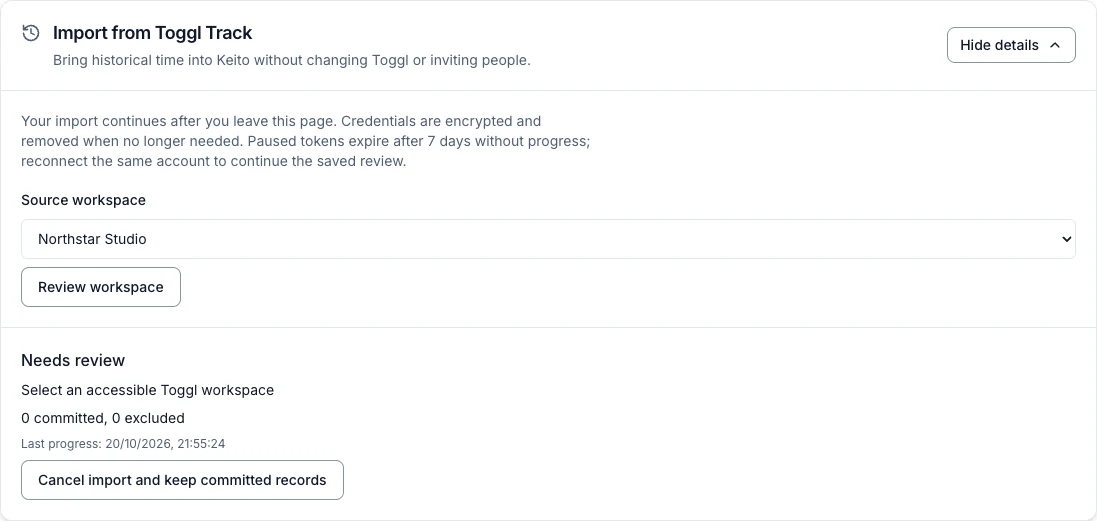
If Keito says Toggl’s source data format still needs verification, Start reviewed import remains disabled. A connection alone cannot satisfy that requirement. Contact Keito rather than changing source permissions or trying another token to bypass it.
4. Review dates and consent
Data, projects and existing records
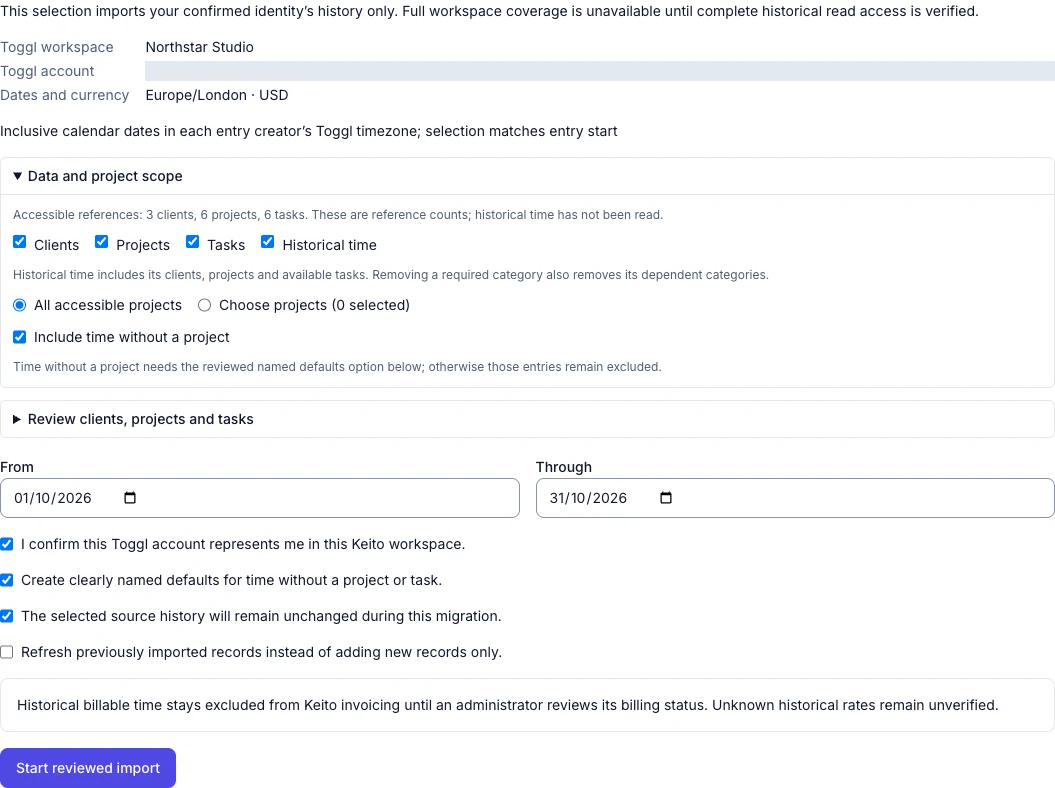
Under Data and project scope, choose the categories and either All accessible projects or Choose projects. Keito includes the required client/project/task dependencies for historical time. Include time without a project is a separate scope choice; those entries also need the named-default consent below.
Open Review clients, projects and tasks. Use Reference type to work through clients, then projects, then tasks. For each source record, keep the proposed creation, choose a distinct creation name, map it to an existing Keito record, or exclude it and its dependent time. A matching name never merges records automatically.
Map clients before mapping their projects, and projects before mapping their tasks. Private projects require an explicit existing-project mapping or exclusion. Complete each Map to an existing Keito record choice by selecting its target. Existing mappings stay in place. Changing categories or project scope clears unsaved reference choices, so finish scope selection first.
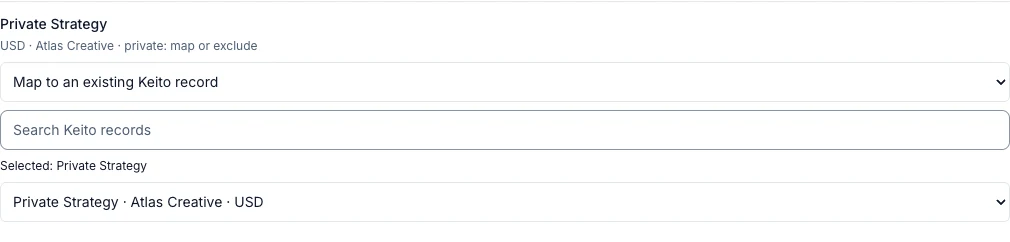
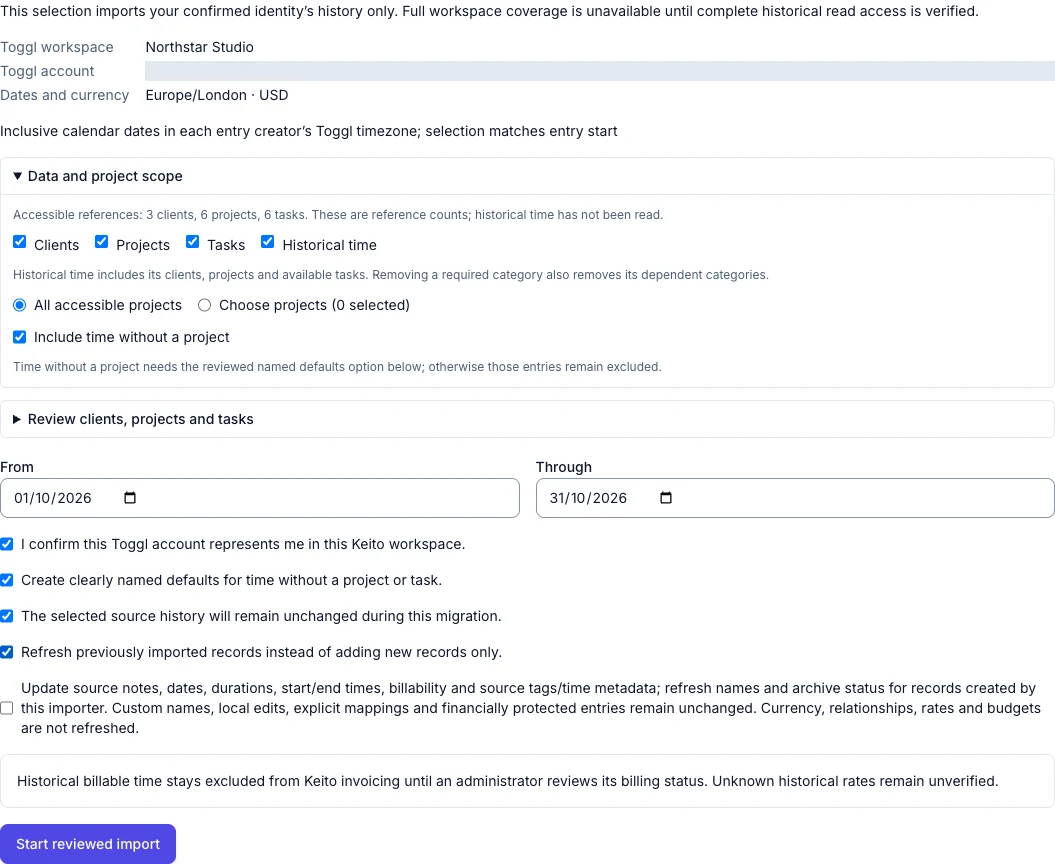
Source account details are hidden in the review screenshots. Check your own account identity before confirming it.
Dates and timezone
From and Through are inclusive calendar dates. Selection follows the entry’s start in its creator’s Toggl timezone, rather than the current browser’s timezone or a UTC report boundary.
An entry that starts late on the final selected day and ends the following day belongs to its start date. Its stored source duration is retained; the import does not split it at midnight. Check entries near midnight and daylight-saving changes against the same source timezone.
Missing references
Create clearly named defaults for time without a project or task is optional. When selected, eligible missing-reference cases can use clearly named defaults such as Toggl: no project and Toggl: unassigned task. A source project without a client can use a clearly named currency-specific client.
This consent does not resolve inaccessible, deleted or mismatched source references, private-project mapping requirements or currency conflicts. Without suitable mappings or consent, affected items remain excluded or unresolved for review. Do not rename unrelated Keito records merely to make them match.
Frozen history
Confirm that the selected source history will remain unchanged only when that is true. Stop timers and source edits during ingestion and verification. The importer reads an evolving API; a checked box does not create a point-in-time snapshot.
New records or refresh
Leave Refresh previously imported records instead of adding new records only off for a new-only run. Existing source identities are matched within the same source and destination workspace, helping prevent duplicate imported records.
A refresh requires a separate confirmation. It can update source notes, dates, durations, start/end times, billability, tags and time metadata on eligible imported time. It can also refresh the name and archive state of references created by this importer. Custom names, explicit mappings, local edits and financially protected entries remain unchanged. Currency, relationships, rates and budgets are not refreshed. It does not delete Keito records removed from Toggl.
Review every choice, then select Start reviewed import when available.
5. Follow progress and recover safely
The import runs independently of the page. You can close the tab and return to Settings → Import/Export. Use Show import details and Import history to inspect a previous run.
| State or action | What to do |
|---|---|
| Queued / Importing / Recalculating totals | Allow processing to continue; use the last-progress timestamp to follow it |
| Waiting for Toggl quota | Read Next eligible time. No action is needed while quota resets; avoid starting another run |
| Needs credentials | Use Replace credentials when offered, with a valid token for the same source identity and scope. If the saved review is unavailable, use Review a new import instead |
| Needs review | Read the reason. Use Resume reviewed import only when offered after resolving a retryable issue. Source changes require Review a new import |
| Progress could not be loaded | Select Retry. A display/polling error does not prove the import stopped |
| Cancel import and keep committed records | Requests cancellation of further work while retaining records already committed |
| Cancelled | Confirm the retained-record message and reconcile the partial result; cancellation is not an undo |


The example briefly waited for request spacing during verification. This one-second wait does not show how long an exhausted hourly allowance would take.
If the source changed during the run, or the saved encrypted review is unavailable, select Review a new import. This cancels the old run while retaining committed records. Reconnect and review the scope again; replacement credentials cannot restore missing review data.
Cancel and resume controls are deliberate actions. Reopening the page, refreshing the browser or closing details does not cancel the job. Cancellation does not remove historical records already in Keito.
6. Reconcile the results
Open the completed or paused run. Compare like-for-like measures:
| Display | What it means |
|---|---|
| Observed source time | Exact stopped-entry seconds seen in the selected source scope, including entries that may remain excluded or unresolved |
| Distinct source entries | Source identities observed; not the number of new Keito rows |
| Current mapped Keito time | Exact duration currently stored on mapped time entries associated with this run, including previous imports and retained local/protected values |
| Time in created/updated entries this run | Exact stored duration of records created or updated by this run; unchanged and retained records do not add written time |
| Counts and verification | Recorded create/update/unchanged/excluded/unresolved/protected outcomes, exact time breakdown, run warnings, verification observations and current identity counts |
| Unresolved items and retained conflicts | Read-only source IDs and reasons, in pages of 25; reviewing a row does not change the record |
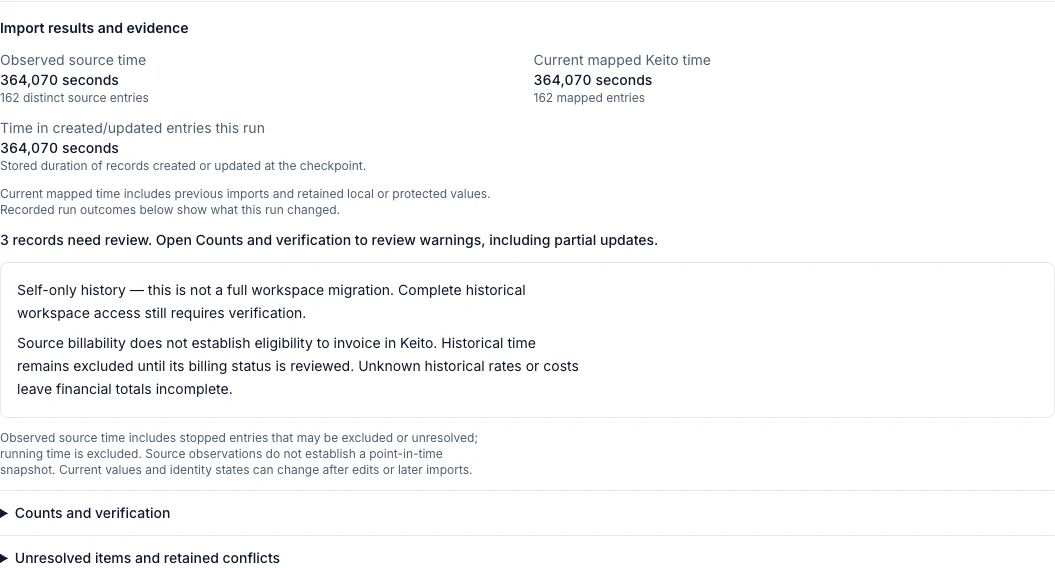
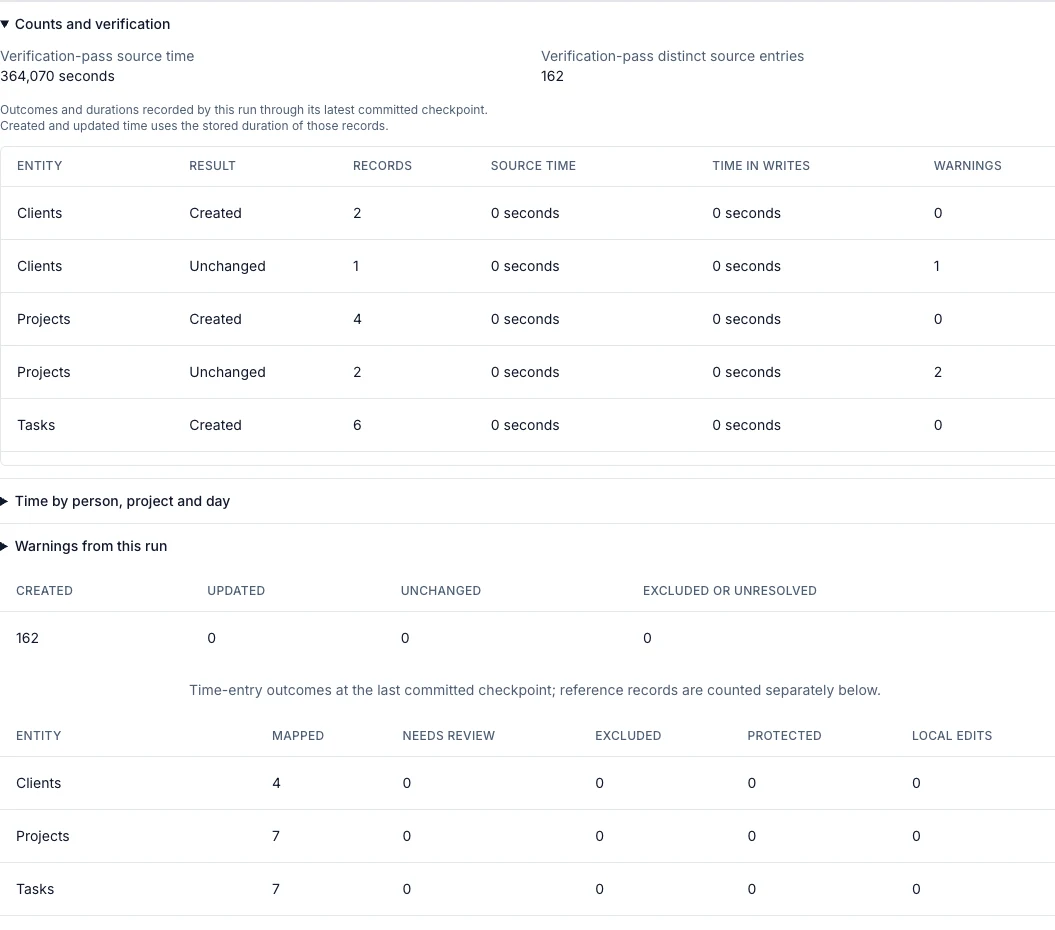
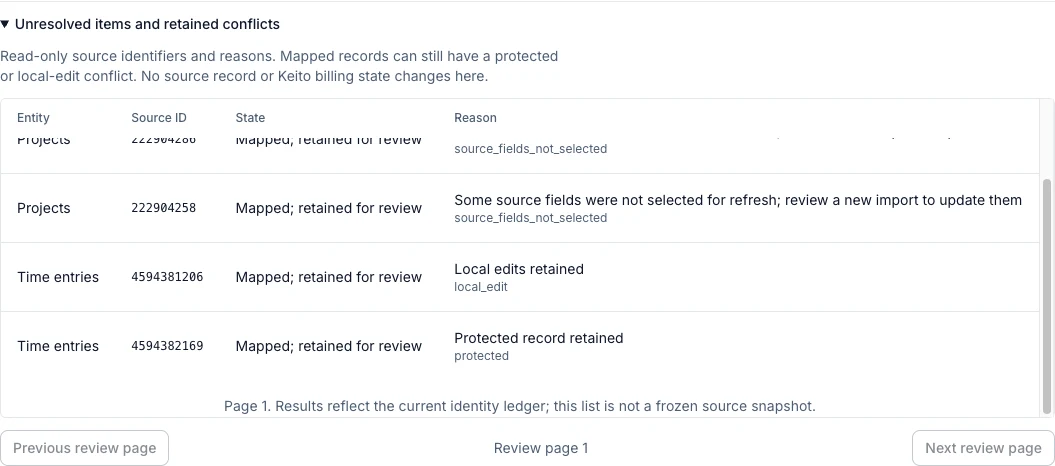
Use exact seconds to reconcile before comparing rounded hour displays. If a mapped entry lacks exact seconds, Keito reports the mapped total as unavailable; it does not reconstruct precision from rounded hours.
Source time and current mapped time can differ when entries are unresolved, local edits are retained, financially protected entries are left unchanged, or a previous import is part of the mapped population. Protected/local-edit flags can overlap mapped counts, so do not add every table column into a single total.
Check source changes and verification-pass differences. Matching observations alone do not prove a point-in-time snapshot or a full workspace migration. Keep the source unchanged and resolve unexplained differences before cutover.
7. Check time, references and billing
In Time, compare a recent week, an older week, midnight boundary entries and exact source durations. In Projects, Manage → Clients and each project’s Tasks tab, check relationships and archived/default records. Imported historical assignments do not grant new tracking access or manager permissions.
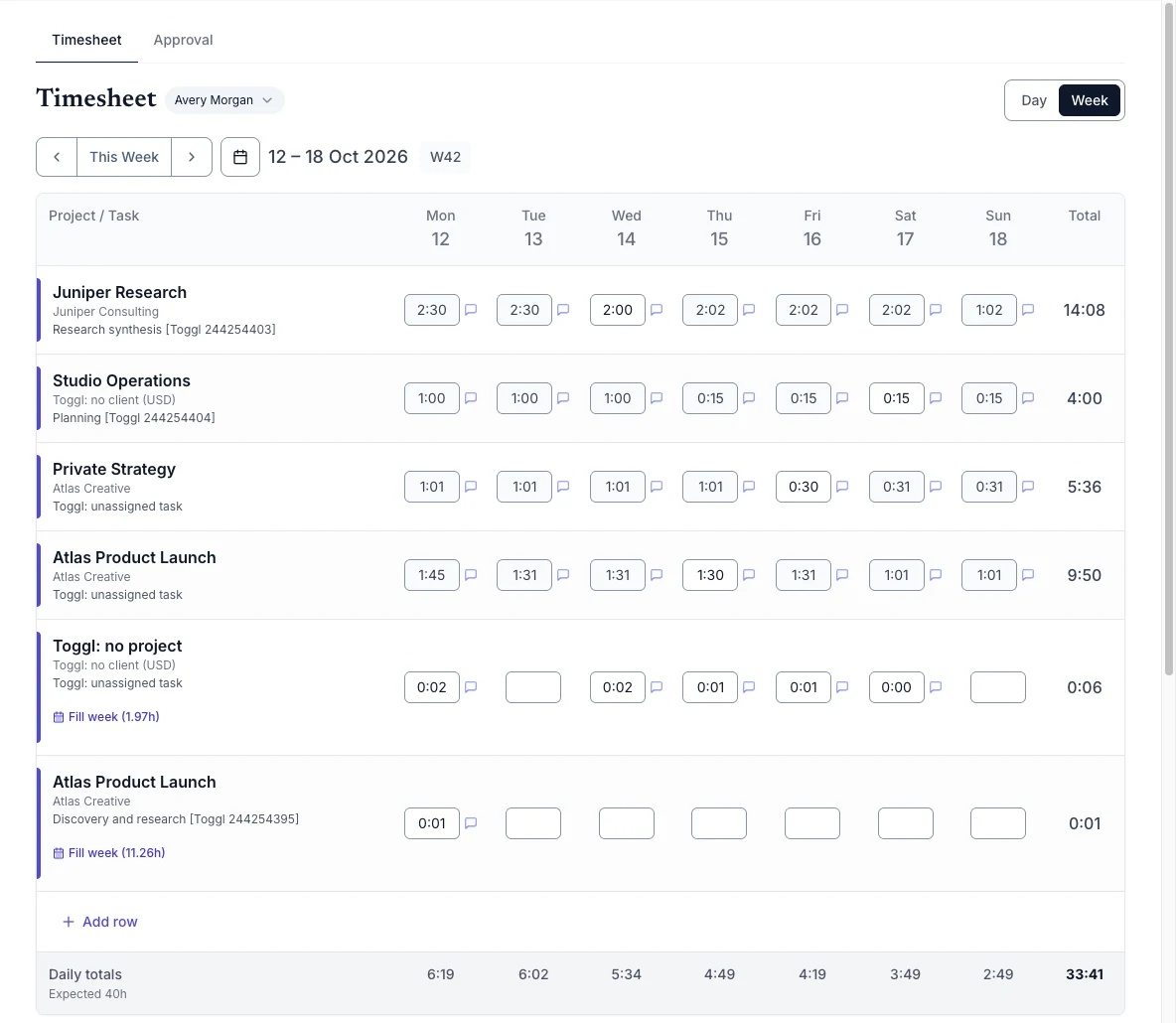
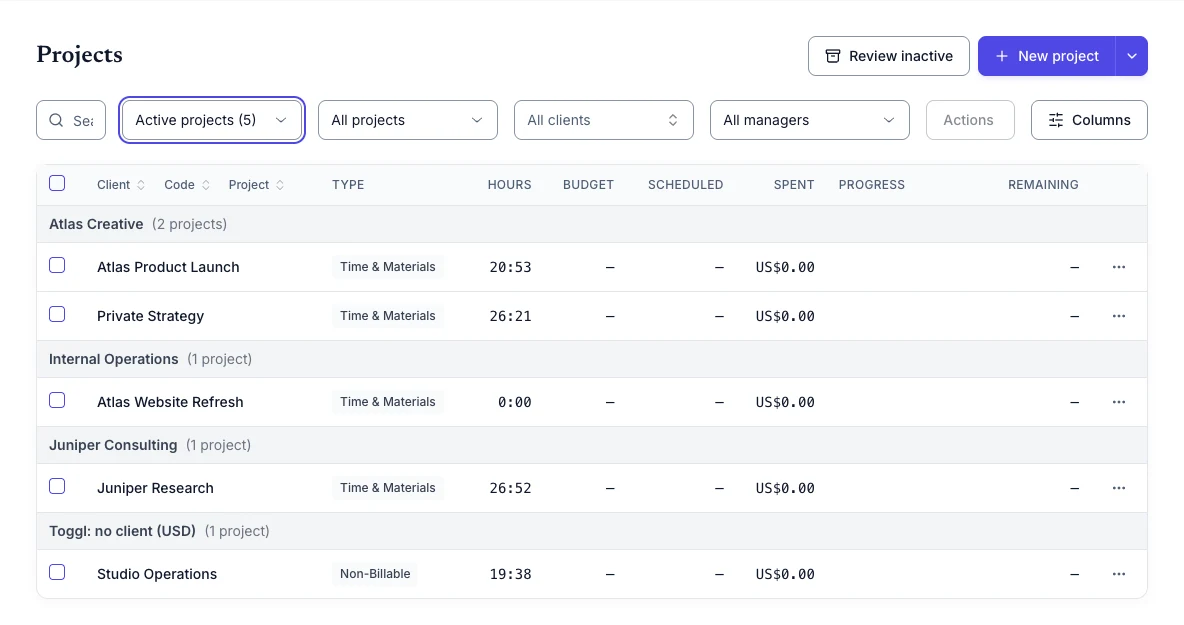
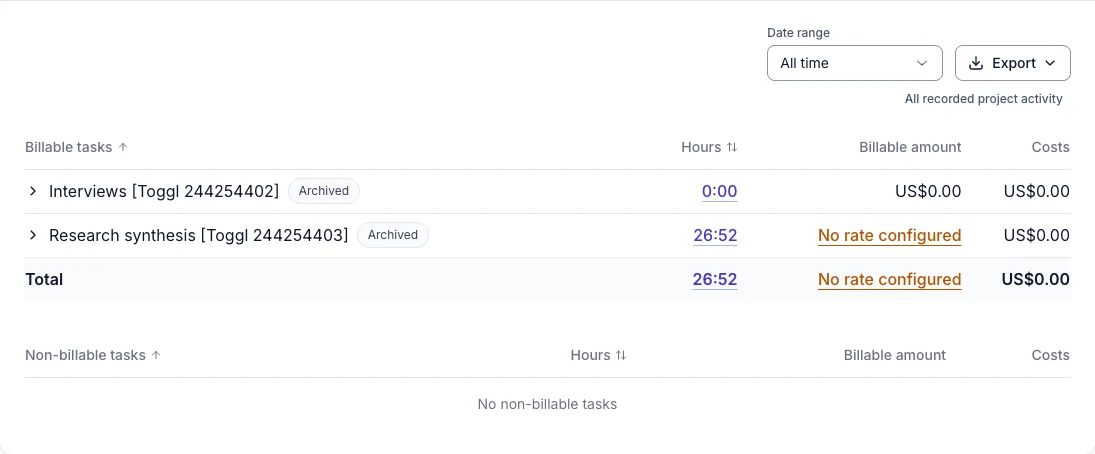
Historical time stays excluded from invoicing until its billing status is reviewed. A source billable flag does not establish that the time is unbilled, paid or eligible to invoice again. Unknown historical rates and costs leave revenue, cost, profitability and financial totals incomplete; today’s default rates are not evidence of past rates.
An administrator must determine which entries were billed externally and which are eligible for future invoicing, with supporting evidence. If an appropriate review control is not available in your beta workspace, contact Keito. Do not mark an invoice paid, remove protections or edit provenance merely to make imported time selectable.
Re-run without duplicating history
Repeat the same source workspace, identity and date scope using new-only mode, then compare the stable source IDs, mapped counts and existing entries. A repeat run should not create another copy of an already mapped source identity. New source entries can still be added.
In the completed Northstar repeat, the same 162 source entries were unchanged, with 0 created, 0 updated and 0 excluded. Target IDs and the exact 364,070-second total stayed the same.

Use refresh only for an intended update of eligible imported time. Review protected records, local edits and changed references separately. Deleted Keito targets are retained as review cases rather than silently recreated.
In the controlled refresh, one eligible entry gained 60 seconds while a locally edited entry and a locked entry stayed unchanged. Source and verification measured 364,430 seconds; mapped time was 364,130 seconds. The explained 300-second difference is retained source changes, not a duplicate or a reason to remove protections. All 162 entries still required billing review. See the full reconciliation walkthrough.
Troubleshooting
- Fewer source records than expected: verify identity, workspace, dates, creator timezone, running timers, archived/private references and Toggl access. Do not interpret self-only history as a whole-team result.
- Missing project or task: inspect the read-only reason. Consent to defaults only applies to eligible missing references; it does not bypass access or mapping conflicts.
- Mapped but still listed for review: a retained local or protected value can remain mapped and need a decision. A review row is not an extra time entry.
- Large or long-running import: leave the source intact and contact Keito before cutover. This guide does not promise an import rate, maximum dataset size or completion time.
- Repeated failure: keep the run time, state, non-sensitive reason and affected source IDs. Contact Keito without sending the token, raw exports, notes, invoice details or screenshots containing personal data.
Keep Toggl available until time reconciliation, reference checks and financial review are signed off. Then agree where new work will be recorded and retire the migration credential when safe. The cutover checklist is reusable, but its Harvest-specific financial-document steps are outside this Toggl import’s scope.