Connect Keito to ChatGPT
Connect Keito to ChatGPT to find clients, projects, and tasks, check or control a timer, record completed work, and review time and expenses. You authorize your own Keito account in a browser; you do not paste a password or API key into ChatGPT.
ChatGPT can only perform the Keito actions available to your authorized account and workspace. The integration does not automatically monitor your conversations, track time in the background, or measure your ChatGPT token usage.
Availability: Keito for ChatGPT is in developer beta. Keito is not yet listed in the ChatGPT plugins directory; connect it through ChatGPT’s developer mode as described below. This page will change to the directory path once the public listing is verified.
Before you connect
- Keito access: You need a Keito account and workspace on a paid plan with access to the API and integration features used by this connector.
- Workspace permissions: Your Keito role must allow the records and actions you want to use; connecting does not grant administrator access.
- ChatGPT availability: Your account, region, and workspace policy must permit the integration. A workspace administrator may need to approve it.
- Multiple workspaces: Keito binds each ChatGPT connection to one workspace. Check the workspace before creating or changing records, and change it under Settings → Integrations → Connected AI apps if it is wrong.
If access is unavailable, check your account permissions or ask your workspace administrator. Do not send your password, API key, one-time code, or session token to Keito support or paste it into a chat.
Connect from the directory
Keito is not yet available in ChatGPT’s plugins directory. When the listing is live, this section will show the verified directory entry and the steps to connect from it. Until then, use the developer connection below.
Do not substitute an unrelated listing or enter credentials into a page that is not part of the expected authorization flow.
Developer or beta connection
These steps were verified in the live ChatGPT interface on 23 September 2026. Developer mode depends on your ChatGPT plan and, in business workspaces, on workspace policy. If a label differs, follow OpenAI’s developer connection guide.
1. Turn on Developer mode
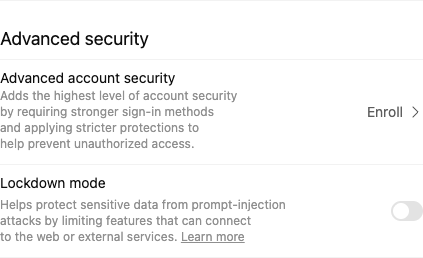
In ChatGPT, open Settings → Security and login, scroll to Advanced security, and turn on Developer mode.
2. Create the Keito connection
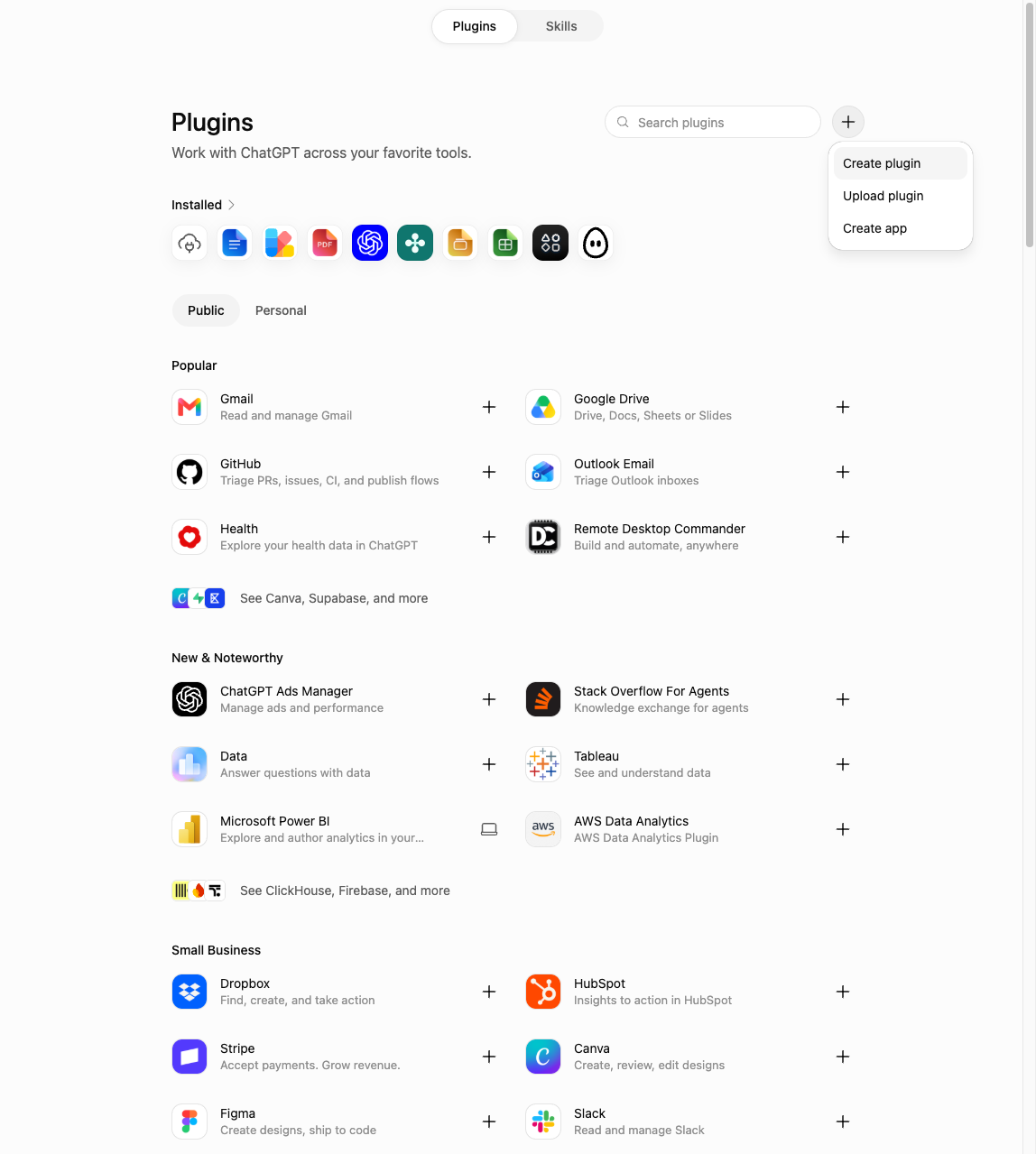
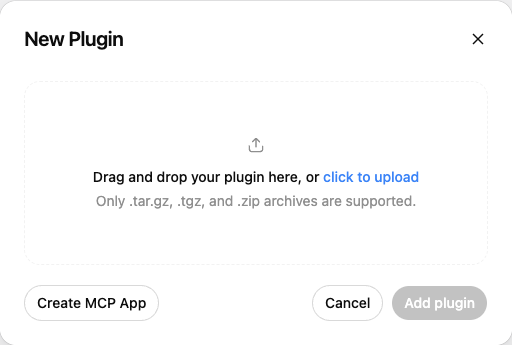
Open Plugins at chatgpt.com/plugins, select the + button beside the search box, and choose Create app, then Create MCP App.
Use Create app, not Create plugin. “Create plugin” opens ChatGPT’s conversational Plugin Creator, which builds packaged plugins and cannot create a developer MCP connection; “Upload plugin” is for packaged plugin archives.
3. Fill in the connection form
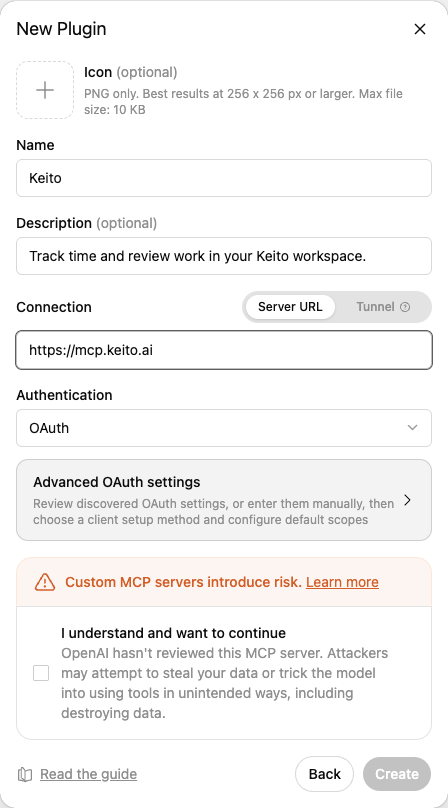
- Name:
Keito - Description: optional, for example “Track time and review work in your Keito workspace.”
- Connection: Server URL
- MCP Server URL: the root URL below
- Authentication: OAuth
https://mcp.keito.aiChatGPT discovers Keito’s OAuth settings from the server. Leave Advanced OAuth settings alone: it shows the registration method (Client ID Metadata Document), the scopes openid, profile, email, and offline_access, and Keito’s authorization endpoints. Never invent a client ID or paste an API key into an OAuth field.
Tick I understand and want to continue (OpenAI shows this notice for every MCP server it has not reviewed), then select Create.
Use the root URL above for new Keito connections. Existing Keito clients may use /mcp, but do not add that path simply because another provider’s example uses it.
4. Sign in and approve
Select Sign in with Keito, sign in on Keito’s authorization page with your email and one-time code, and approve the consent for ChatGPT. Back in ChatGPT, the Keito plugin page shows Connected accounts with your Keito account, a Permissions setting, the connection’s Developer mode status, and the discovered Tools.
With the default permission, Allow low-risk tools, ChatGPT runs read-only Keito tools without asking and asks you to confirm before a tool creates or changes records.
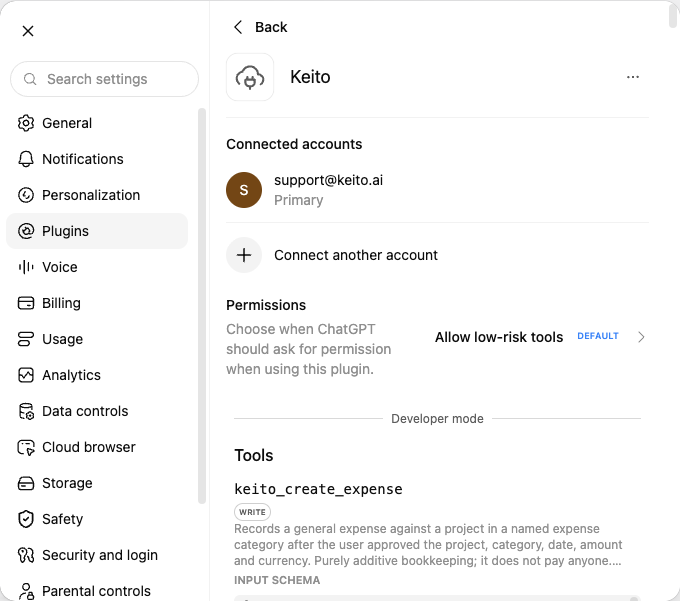
Developer access is not the same as public directory approval. If Developer mode is unavailable, ask your workspace administrator or use the public listing once it is available to you.
Interface labels checked on 28 September 2026 in the live ChatGPT interface.
Verify the connection
In a new chat, type @Keito, pick the plugin from the suggestions, and send a read-only request:
Use Keito to show my current user, workspace, timezone, and running timer.
Do not change anything.
ChatGPT replies with your Keito user, the workspace the connection is bound to, that workspace’s timezone, and whether a timer is running.
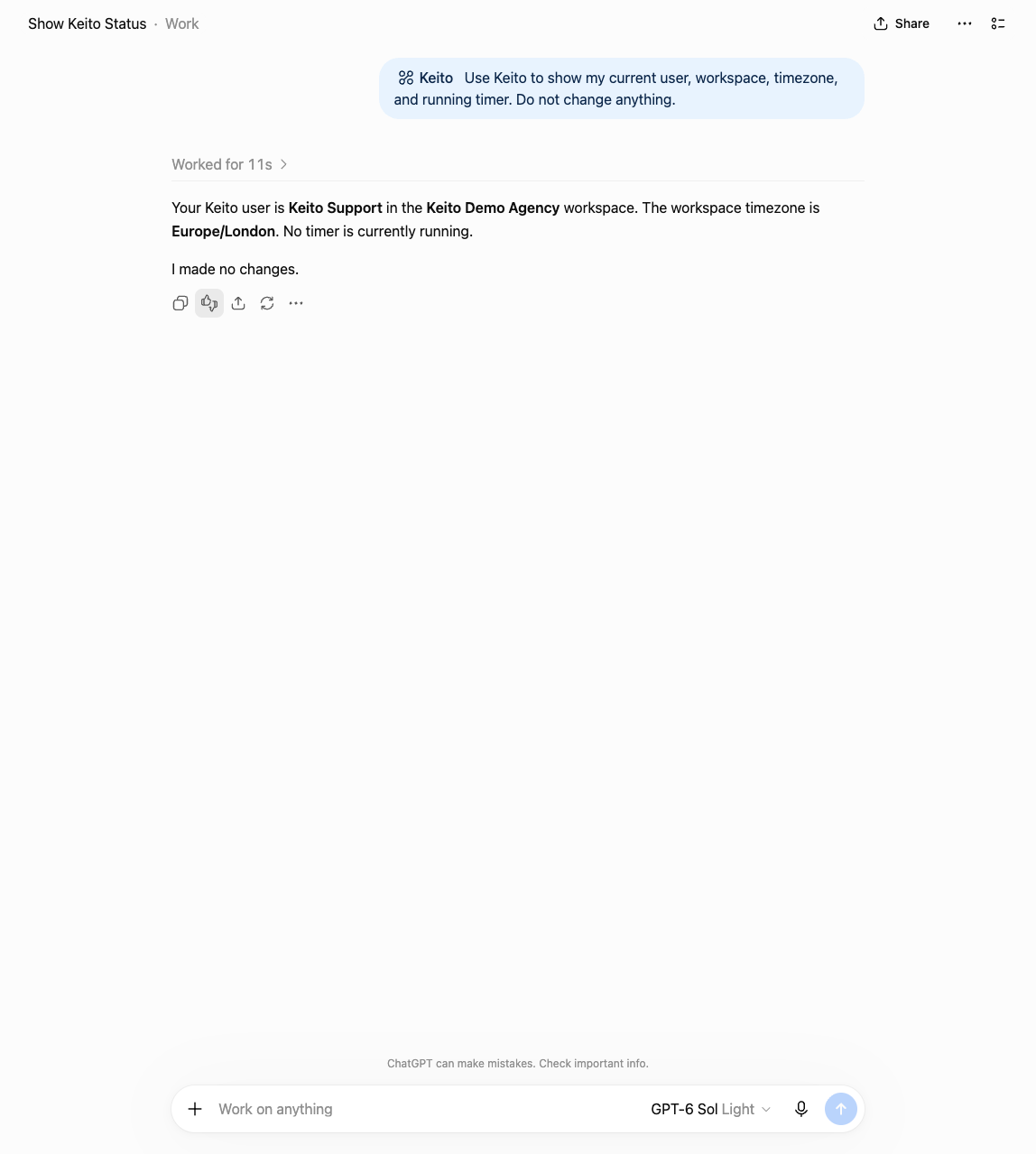
Check the workspace name before continuing. “No timer is running” is a successful response; a different workspace is a reason to stop and correct the connection, not to create a test entry.
If Keito tools are not available in the conversation, enable the integration or start a fresh chat after connecting. If authorization has expired or been revoked, reconnect through the normal authorization flow.
Find the right project and task
Use Keito to list active projects for the client Acme.
Show the client, project name, project ID, and available tasks.
Do not create or change anything.
Use exact names when you know them and confirm the target when several records match. ChatGPT should ask for clarification rather than choose the first project with a matching name.
Review active projects for archiving
Ask ChatGPT to find active projects that may be ready to archive. The review uses the last tracked time as its inactivity signal; the default is 365 days. A quiet project is only a candidate, not an automatic archive decision.
Use Keito to review active projects with no time tracked in the last year
that may be ready to archive. Show every page, the client and project name,
last tracked date, and all warnings. Do not archive anything yet.
keito_review_projects_for_archive returns pages of candidates. You can change the inactivity window or narrow the review by client, search term, start date, Harvest import status, or readiness. Ask ChatGPT to inspect every page before choosing a project; a first page is not a complete workspace review.
When you have chosen projects, ask ChatGPT to preflight their exact project IDs with keito_preflight_project_archive. This read-only check shows which are eligible and which have since changed, no longer meet the inactivity rule, been archived, or become inaccessible. Warnings can include uninvoiced work, running timers, active retainers, recurring invoices, and future schedules. Review those effects in Keito before approving an archive; archiving a project with a running timer can stop that timer.
Preflight only the project IDs I selected. Show each status and warning,
then ask me to approve the exact list. Do not archive anything until I
confirm the project IDs and accept any warnings.
Only after you approve that list and its warnings should ChatGPT call keito_archive_projects. Keito checks the selection again before changing it. If a project has changed, a new warning appears, or the review expires, ask for a fresh review and confirmation. Archived project history remains in Keito; the tool does not delete projects. Owners and admins can review the workspace. Managers need Edit projects permission and can act only on projects they manage.
Record completed work
Prepare a Keito time entry for 1.25 hours on 2026-09-21.
Client: Acme. Project: Website Platform. Task: Documentation.
Notes: Wrote the onboarding guide.
Show the workspace, project, task, date, hours, and notes before creating it.
Review the proposed record and approve the change explicitly if it is correct. After creation, check the returned record and ID; if a response is interrupted, ask ChatGPT to check whether the entry exists before attempting another create.
This records the duration you supplied. It does not prove how long you spent in ChatGPT or automatically classify the work as autonomous AI labor.
Start and stop a timer
Check my running Keito timer first.
If none is running, prepare to start a timer for Acme,
Website Platform, Development.
Do not replace another running timer without asking me.
Approve the intended start when prompted. When finished, target the same timer:
Stop the Keito timer we started for Website Platform.
Show its ID and project first. Set the notes to:
Implemented the onboarding flow.
A timer may continue running in Keito after you close the chat. Check Keito directly if you are unsure whether a stop succeeded.
Review time and expenses
Use Keito to summarize Website Platform time and expenses
from 2026-09-14 through 2026-09-20.
Show the workspace, filters, timezone, totals, and whether any
results are incomplete or excluded. Do not change records.
Specify dates when precision matters and keep amounts in their original currencies. Google Calendar data and records derived from it are excluded from the MCP integration, so these totals may differ from broader views elsewhere in Keito.
The integration can help prepare an internal summary or a draft client update. It does not send that update. To bill the work, see Bill a project from ChatGPT; the integration never records a payment and never deletes a record.
Bill a project from ChatGPT
Invoice, estimate, and billing-summary tools work when your Keito role is manager or admin with invoice access. Other members still see the tools listed, but receive a permission message instead of data.
See what has been invoiced
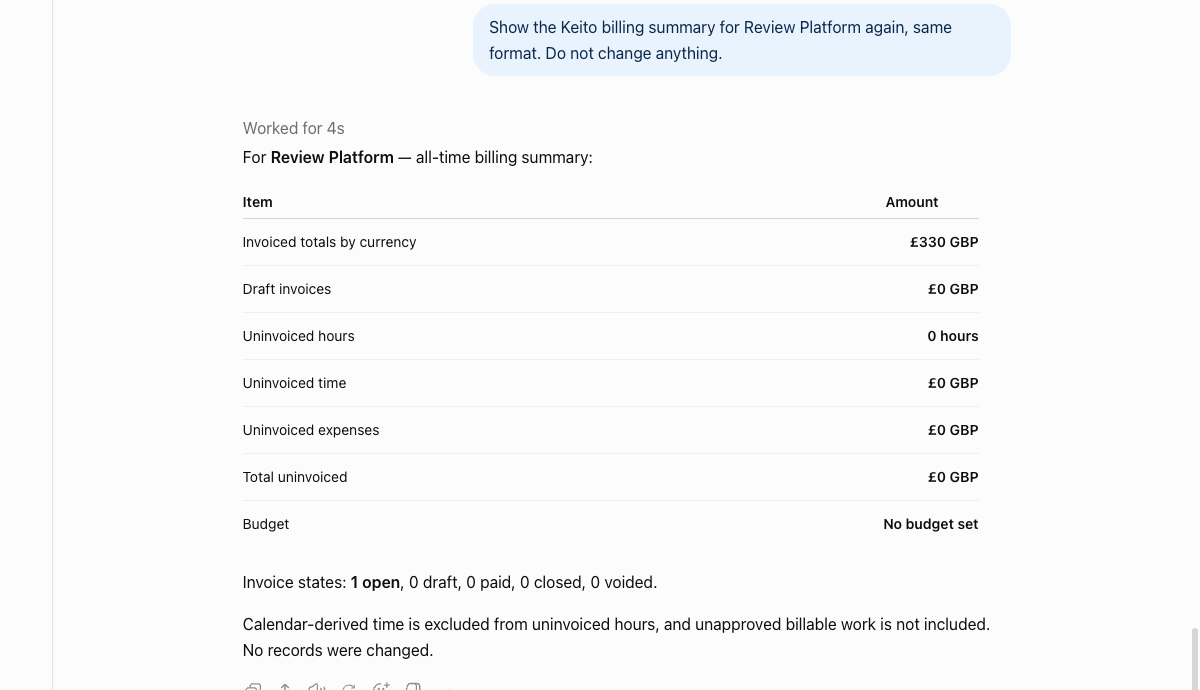
Use Keito to show the billing summary for the project Website Platform.
Show invoiced totals by currency, drafts separately, uninvoiced hours
and expenses, and the budget if there is one. Do not change anything.
The summary reports issued invoices (open, paid, and closed) separately from drafts, keeps each currency apart, and excludes time imported from Google Calendar. Ask for keito_list_invoices to see the invoices behind the totals, or keito_report_uninvoiced for unbilled work across clients.
Draft an invoice
Prepare a draft Keito invoice for Acme covering uninvoiced time on
Website Platform from 2026-09-01 to 2026-09-30, summarised by task.
Show the client, currency, line items, and totals before creating it.
keito_create_invoice creates drafts only. Review the draft in Keito, or ask ChatGPT to show it with keito_get_invoice, before sending. It cannot edit the lines of an existing invoice, and it cannot record a payment.
Send an invoice
Show the draft Keito invoice for Acme created today, with the
recipients on file. If it is a draft with a non-zero total, prepare to
send it to finance@acme.example and confirm the exact total and
currency with me first.
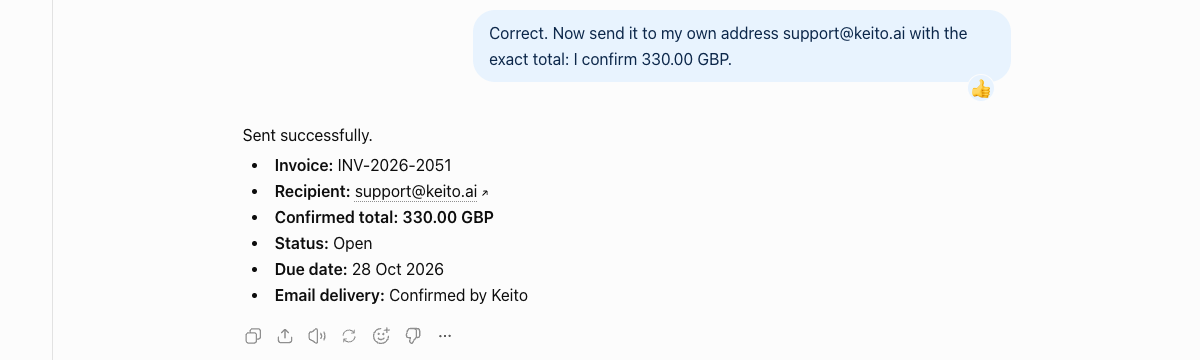
Sending is a two-step action. ChatGPT reads the invoice, shows the total, the currency, and the client’s contacts on file, and asks you to confirm the exact total. The send tool, keito_send_invoice, accepts only recipients who are already contacts of that client, or your own address, and Keito refuses the send if the confirmed total no longer matches the invoice. Sending assigns the invoice number and moves the invoice to open, which cannot be undone from ChatGPT. Reminders and thank-you messages use the same confirmation. Mark as sent records an invoice as issued without emailing anyone.
Estimates and contacts
keito_create_estimate drafts an estimate for a client and keito_mark_estimate_sent records it as sent without emailing it. keito_list_contacts and keito_create_contact manage the people an invoice can be addressed to.
Set up clients, projects, and tasks
Create a Keito client called Northwind Traders billed in GBP, then a
project "Data Platform" for it, and add the task "Discovery" with a
20-hour budget. Show each record before creating it.keito_create_client, keito_create_project, keito_create_task, keito_add_task_to_project, and keito_set_task_budget create and configure records. They do not rename or delete existing ones. Project archiving uses the separate review and approval flow. Keito refuses a new client whose name already exists so a typo cannot create a duplicate.
Record known AI usage expenses
You can record independently measured usage or a known expense amount against a project. For example:
Prepare an LLM Usage expense for Website Platform on 2026-09-21.
Use the verified amount GBP 1.50 from my usage report.
Show the project, category, currency, amount, and notes before creating it.
Do not ask the integration to infer the token count or true cost of the current ChatGPT conversation. A ChatGPT subscription charge is not automatically a measured project API expense, and any model-price estimate must be labeled as an estimate rather than a provider invoice.
Correct an entry
Show Keito entry [entry ID].
Prepare to change its notes to "Reviewed onboarding documentation".
Leave the project, task, date, and hours unchanged.
Do not apply the change until I approve it.
Review the target and changed fields carefully. Entry updates overwrite existing values; deleting entries is not supported. Project archiving has its own review and approval flow.
What is shared
When ChatGPT invokes a Keito tool, Keito returns the authorized data needed for that operation. Depending on the tool, this can include your workspace identity, project and task names, time records, permitted notes, report totals, or expense amounts. For managers with invoice access it can also include invoice and estimate details and the names and email addresses of client contacts.
Keito does not receive your entire ChatGPT history merely because you connect it, but information you ask ChatGPT to send as tool arguments can be received and stored by Keito. Do not include passwords, API keys, card details, health information, or other restricted information in notes or expense descriptions.
Keito does not use Customer Data to train or improve generalized or shared AI models and does not send it to a model provider on its own initiative. Your use of ChatGPT, including OpenAI’s retention and training settings, is governed by your OpenAI account, workspace settings, and agreement; Keito’s policy cannot change those separate terms. See the Keito privacy policy.
Google Calendar data and data derived from its events are excluded from Keito’s AI-agent and MCP interfaces. See the privacy policy and terms for the full data-handling commitments.
Disconnect Keito
To stop using the integration in ChatGPT, remove or disconnect it from the Keito plugin page in ChatGPT’s settings. For a Keito-side access block, open Keito → Settings → Integrations → Connected AI apps. The page lists the connection as ChatGPT with its client name and connection date, the Workspace it acts in, and a Disconnect action.
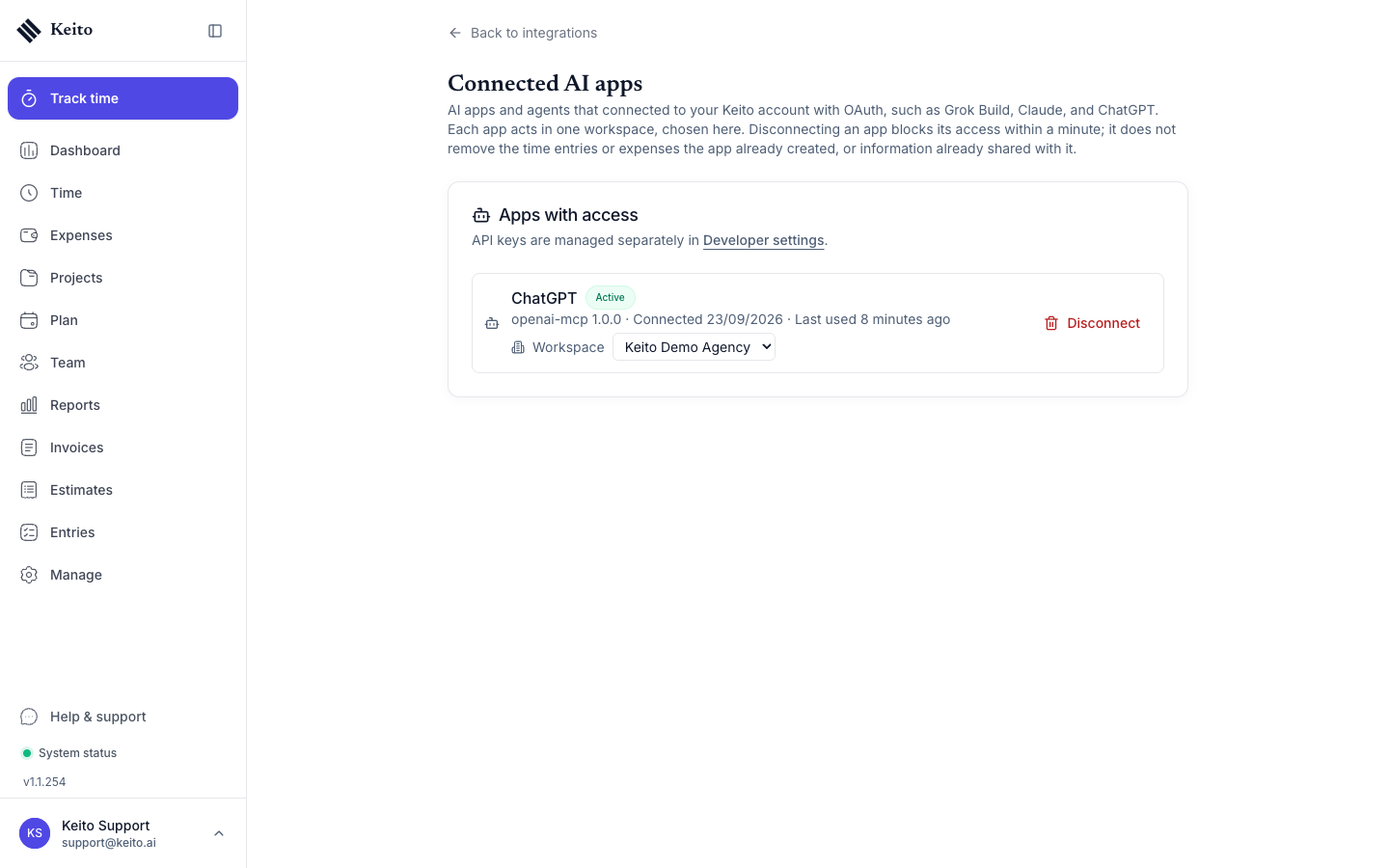
Each connected app acts in exactly one workspace. If you belong to several, change the workspace here before creating or changing records; ChatGPT never picks a workspace on its own.
Select Disconnect and confirm.
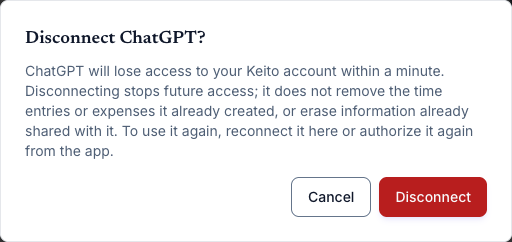
Disconnecting stops future authorized access; it does not remove time entries or expenses already created in Keito, or erase information already shared with ChatGPT. Within a minute ChatGPT stops receiving Keito data and shows a Reconnect Keito prompt instead. Access returns only when you select Reconnect in Keito or complete a new authorization from ChatGPT; an old authorization that refreshes itself is refused. After reconnecting, verify your workspace again.
Troubleshooting
| Symptom | What to do |
|---|---|
| Keito is not listed | Check publication state, account and region availability, and workspace policy. During the developer beta, use the developer connection above. |
| Developer mode is missing | Your account or workspace may not permit it; ask the administrator rather than trying to bypass policy. |
| Connection fails during OAuth | Restart the normal connect flow. If it repeats, share the time, error text, and request ID with support, never the callback’s code or token. |
| Browser shows HTTP 401 at the MCP URL | The MCP endpoint requires authenticated protocol requests; use the ChatGPT connection flow. |
| Connected but no tools appear | Enable Keito in the current conversation or start a new one; reconnect if authorization is stale. |
| The wrong workspace is shown | Stop before writing and change the workspace for the ChatGPT connection under Connected AI apps. |
| An action is forbidden | Confirm your Keito role, workspace policy, and feature access; repeated sign-in may not fix a permission denial. |
| Invoice tools report that access is required | Invoice, estimate, and billing-summary tools need a manager or admin role with invoice access in Keito. Ask a workspace admin. |
| Project archive tools are missing | In Plugins → Keito → Manage, refresh Keito’s tools, check that the new tools are enabled, and start a new chat with Keito selected. |
| A project archive is refused | Check your Edit projects permission, review all candidate pages, preflight the exact IDs again, and acknowledge any warnings before approving. If the selection changed or expired, start a new review. |
| An invoice send is refused | Sends go only to contacts already on file for the client and only after you confirm the exact total and currency. Check the draft in Keito, add the contact, and confirm again. |
| Several projects match | Supply the client and project ID after reviewing the candidates. |
| A timer is already running | Review it; do not replace it automatically. |
| A create request timed out | Check for the record before retrying; do not repeatedly ask for a new create. |
| Report totals differ from Keito | Check filters, pagination, timezone, permissions, and calendar exclusions. |
| An expense amount is uncertain | Use a measured amount or provider usage report; do not guess current-chat token usage. |
Contact Keito support through the contact page and include a non-sensitive description of the problem, approximate time, tool name if known, and request ID. Never include credentials or unnecessary customer records.