Keito reporting follows work from recorded hours through capacity, billable value, invoices, and payments. Pro is designed for teams that need utilisation, approvals, manager access, and team-level reporting. Business adds entry-level detail, repeatable saved views, contractor cost reporting, audit history, and advanced exports.
This guide uses 4 fictional people, 4 clients, 4 projects, 15 time entries, 4 expenses, 3 invoices, and 2 payments in an isolated local workspace. No customer or production data appears in the screenshots.
For a compact plan matrix and permission reference, use the Reporting Overview.
What reporting is included on each plan?
| Capability | Solo | Pro | Business |
|---|---|---|---|
| Time by client, project, and task | Yes | Yes | Yes |
| Project budget progress and standard exports | Yes | Yes | Yes |
| Team time, capacity, and utilisation | No | Yes | Yes |
| Manager permissions and approvals | No | Yes | Yes |
| Detailed time and expense reports | No | No | Yes |
| Saved/shared reports, contractor report, and audit log | No | No | Yes |
| Advanced report exports | No | No | Yes |
Every plan can run a summary time report for the data its user is permitted to see. A Solo workspace has one licensed person. Pro adds the team features most organisations need for weekly operations. Business is for organisations that also need granular review and control.
Start with time by client, project, or task
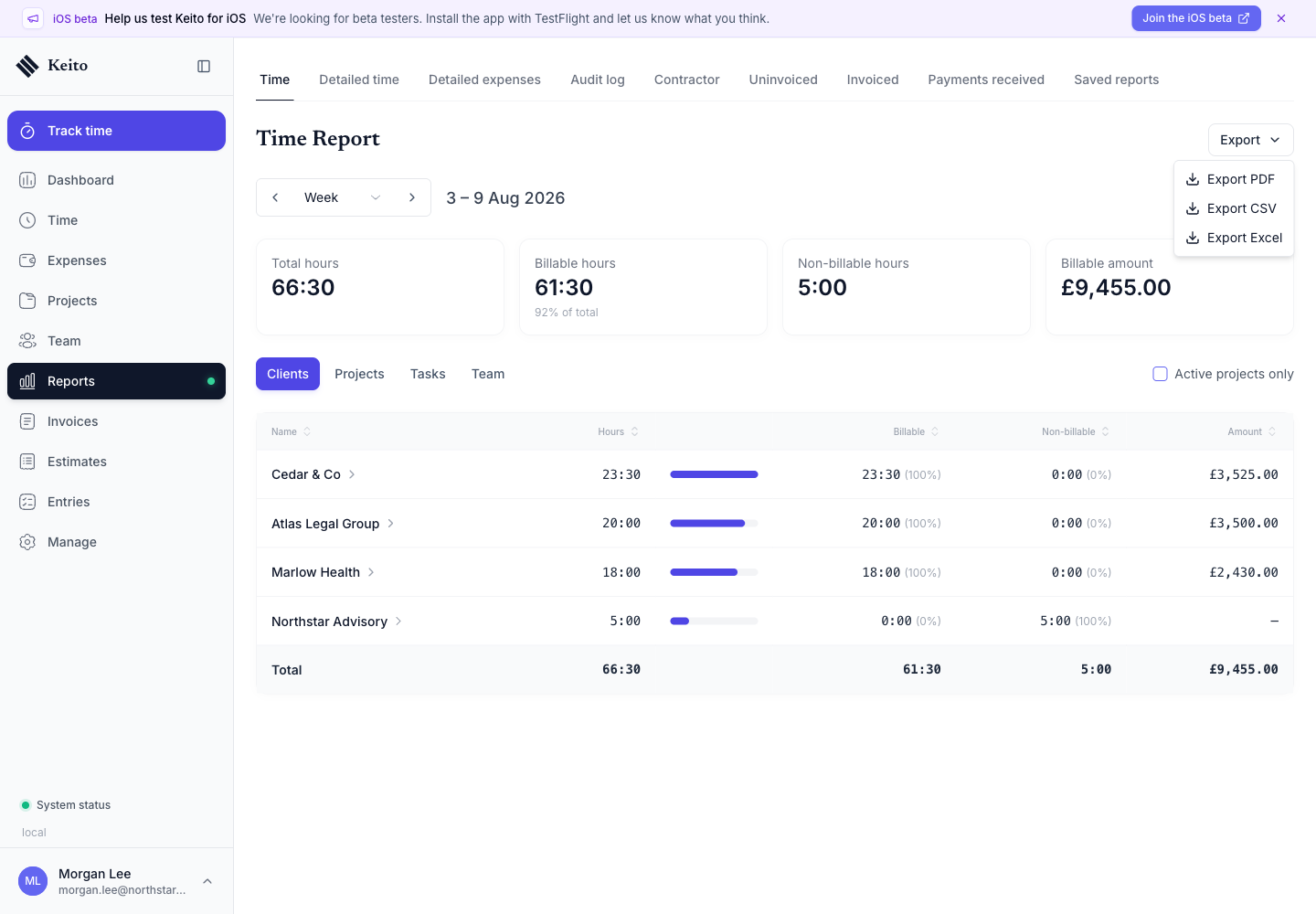
The Time Report summarises a selected week, month, quarter, year, or custom range. Headline metrics show total hours, billable hours, non-billable hours, and billable value.
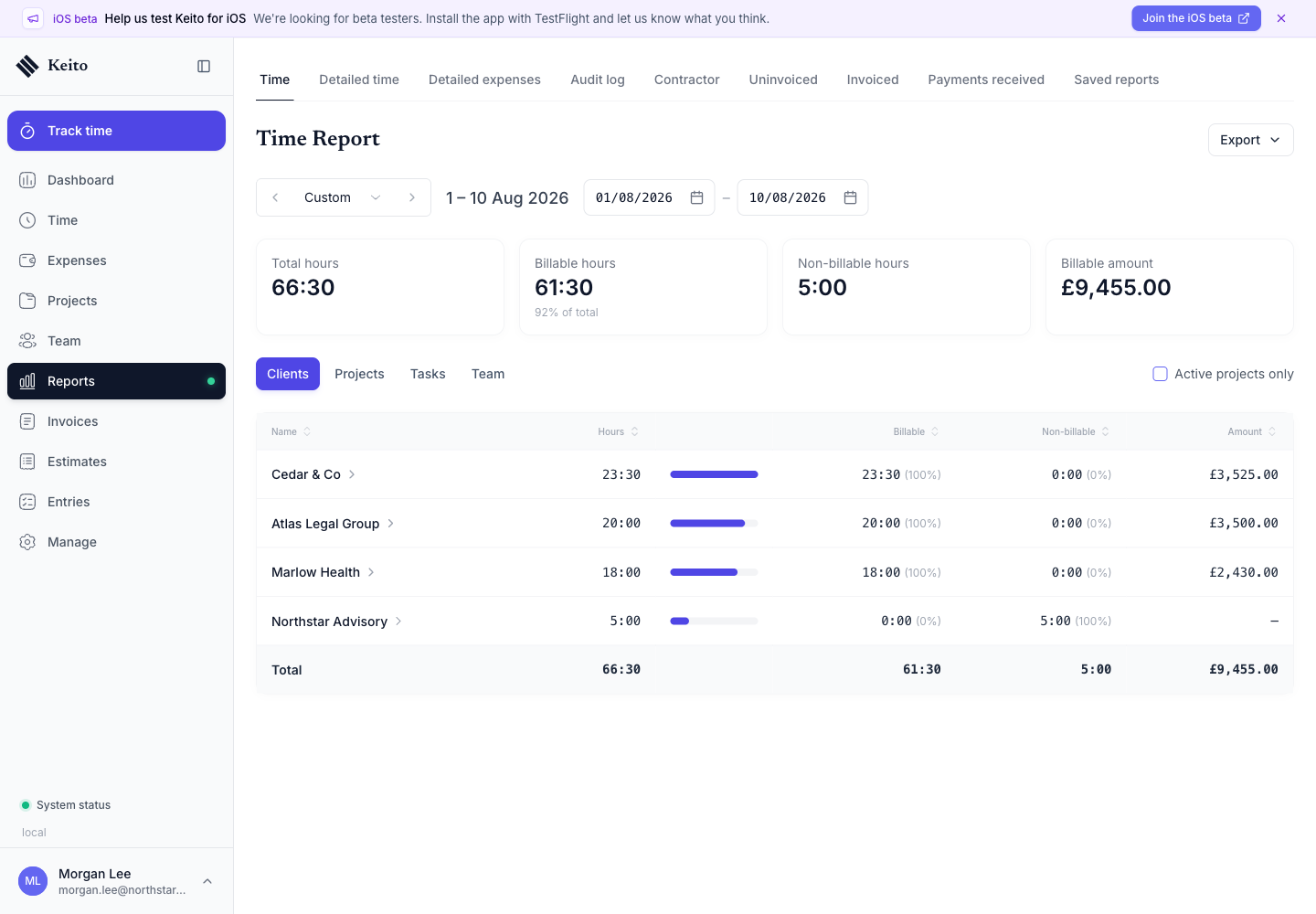
The client view answers which accounts consumed the team’s time and generated billable value. Select a client to drill into its projects.
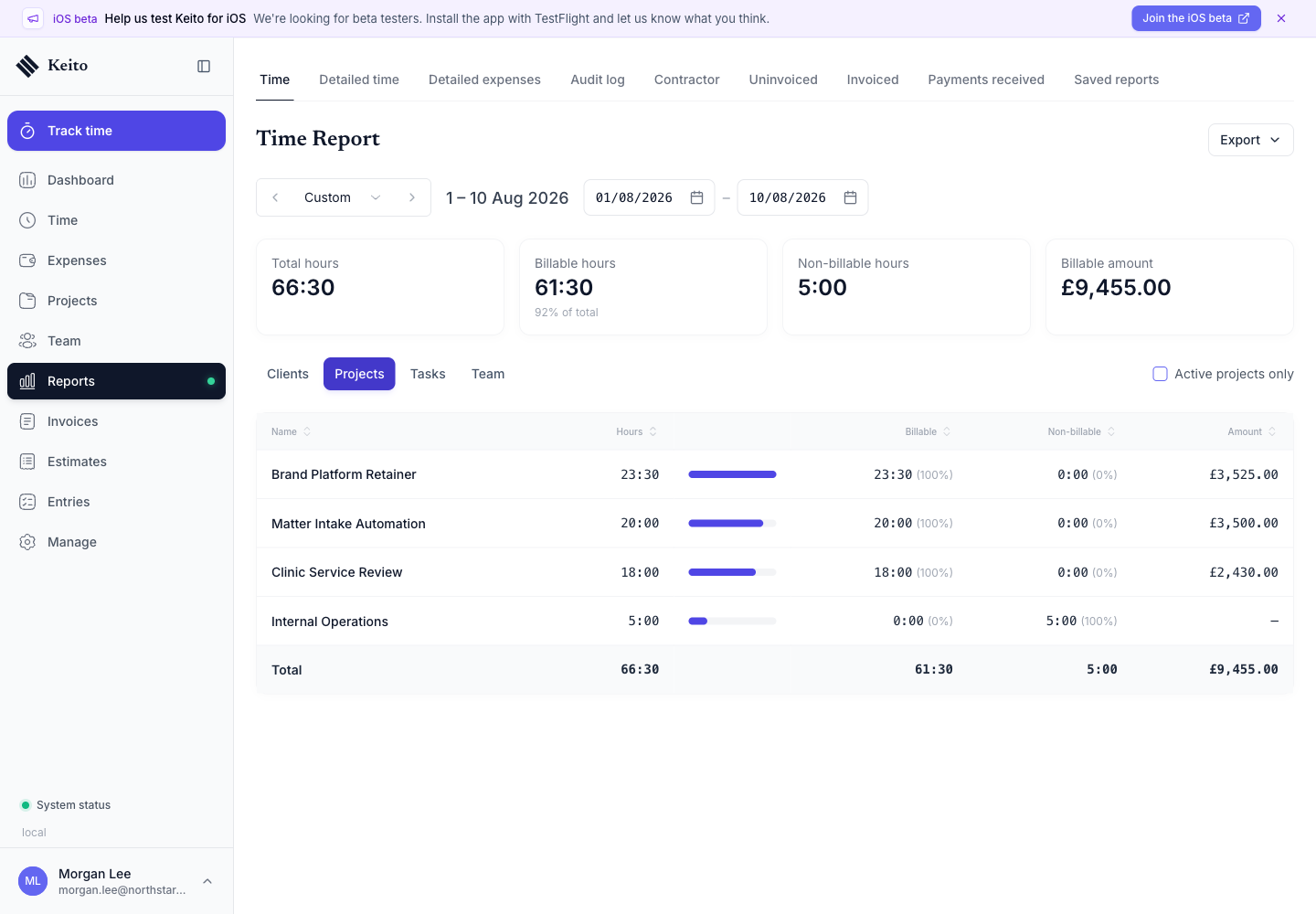
Switch to Tasks when the question is about the type of work rather than the account. This is useful when comparing delivery, research, meetings, support, or internal work.
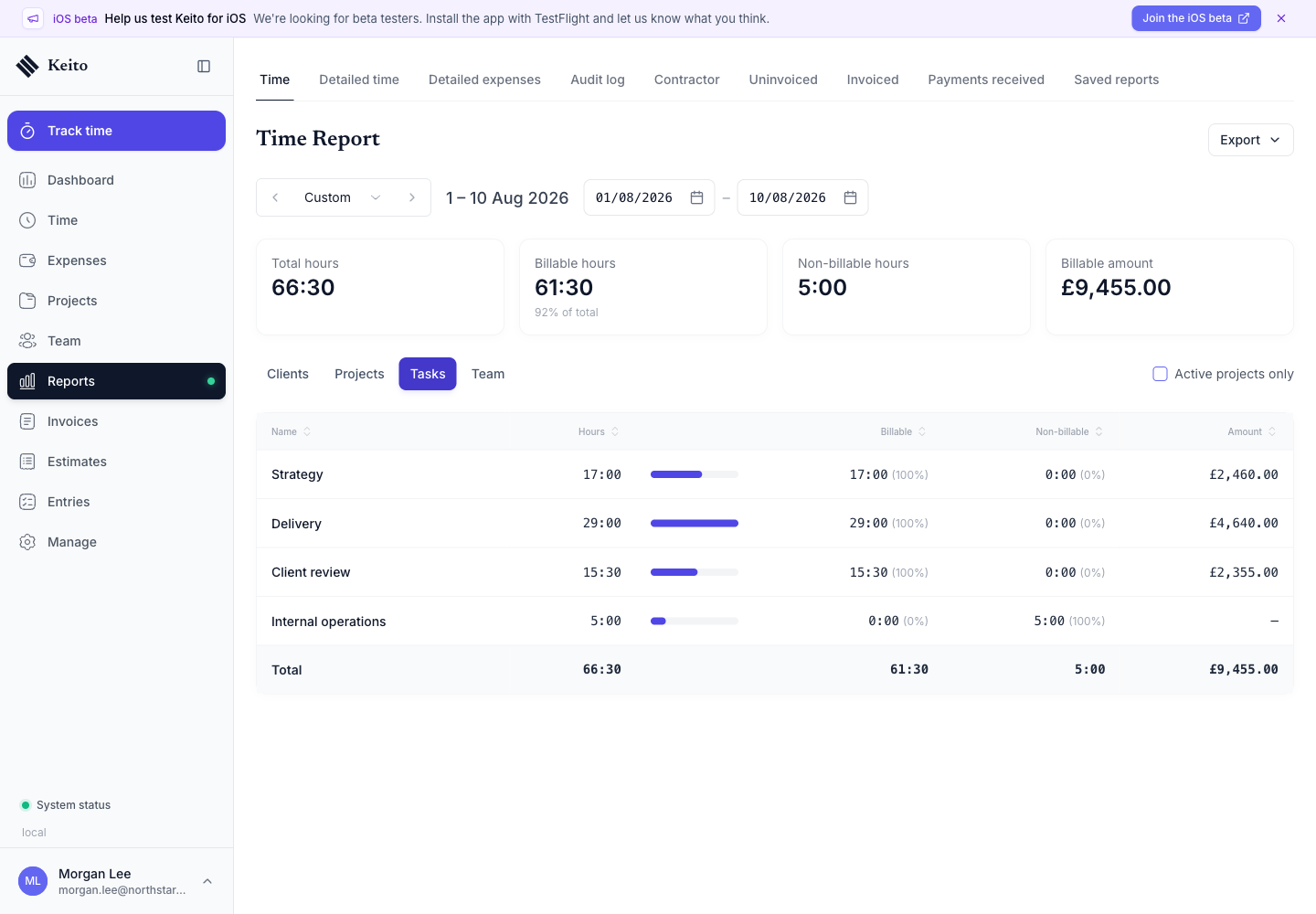
These groupings are only as reliable as the attribution behind them. When a team tracks time by task and project automatically from git branches, tickets, and calendar events, every hour arrives in these reports already assigned to the right client, project, and task.
Review utilisation and capacity on Pro
Pro adds the Team view. It separates billable and non-billable hours for each person and calculates utilisation from the hours recorded in the selected period.
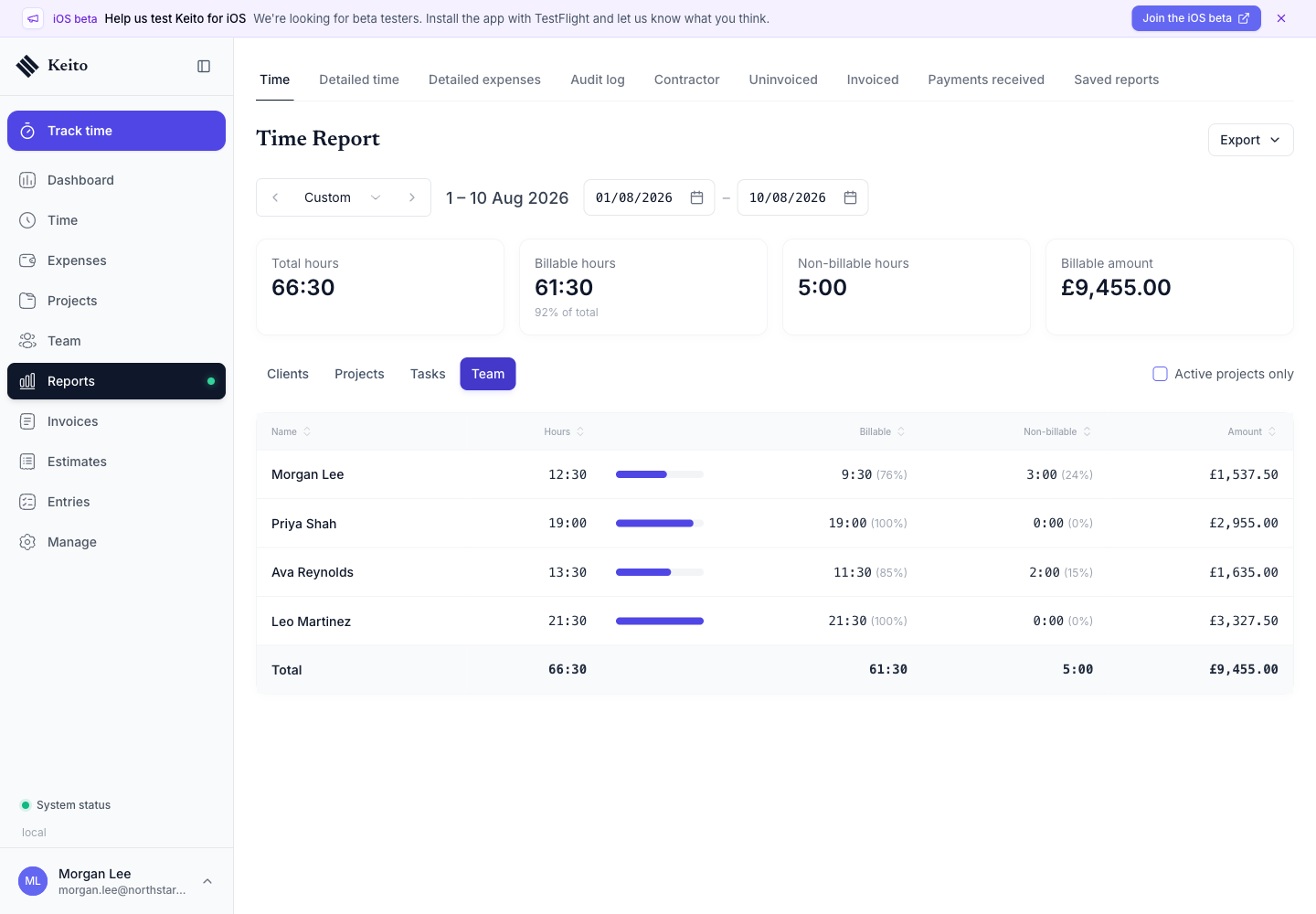
Capacity provides a second perspective: how recorded hours compare with each person’s configured weekly availability. A person can be busy but mostly non-billable, or lightly utilised despite having billable work. Looking at both prevents either metric being treated as the whole story.
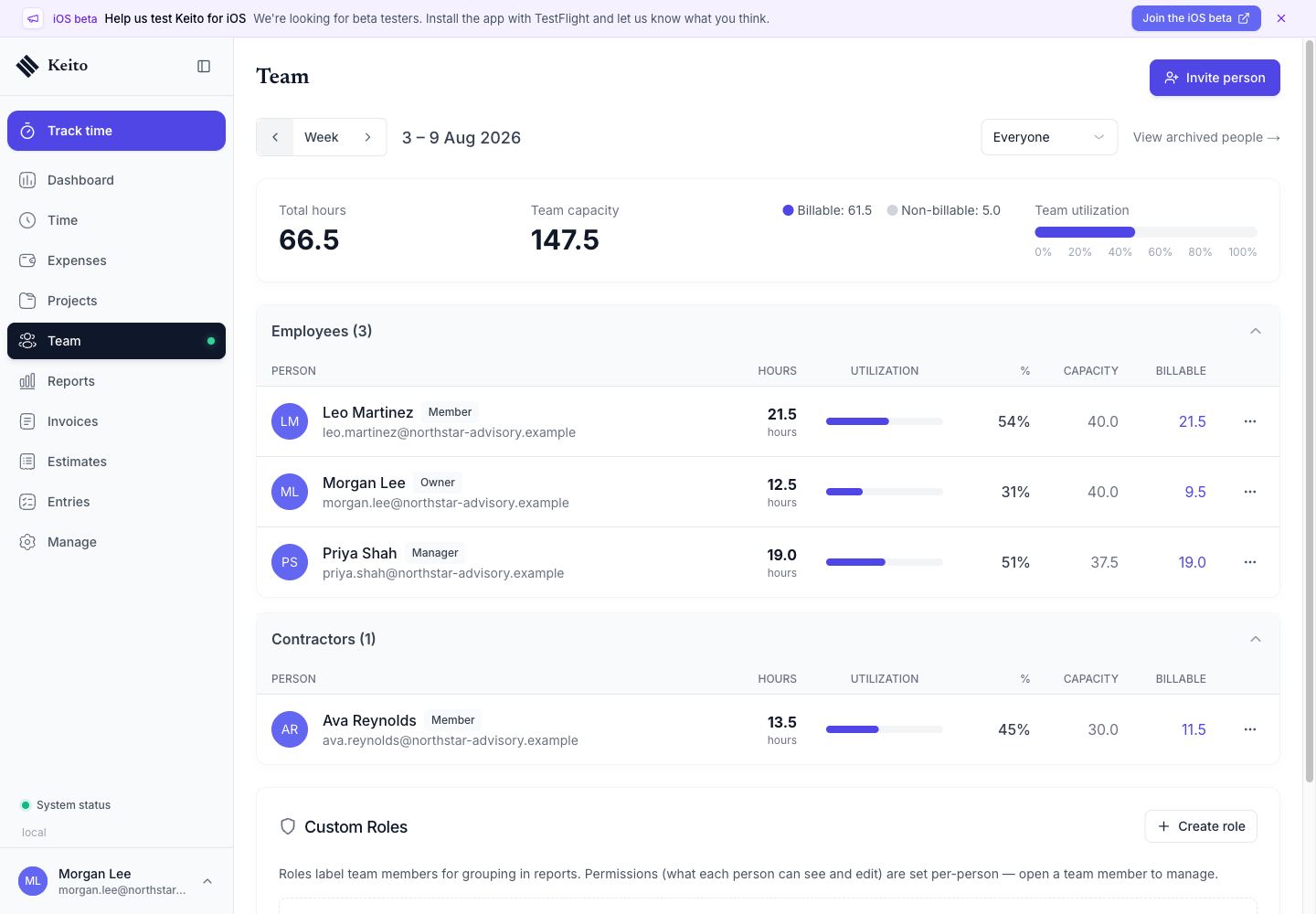
Managers see only the people and projects included in their manager permissions. Administrators and owners can report across the workspace, while financial values remain limited to roles allowed to view rates and amounts.
Follow billing from uninvoiced work to payment
The Uninvoiced report collects billable time and expenses that have not yet been placed on an invoice. It is the practical starting point for a billing run because it shows the value waiting by client.
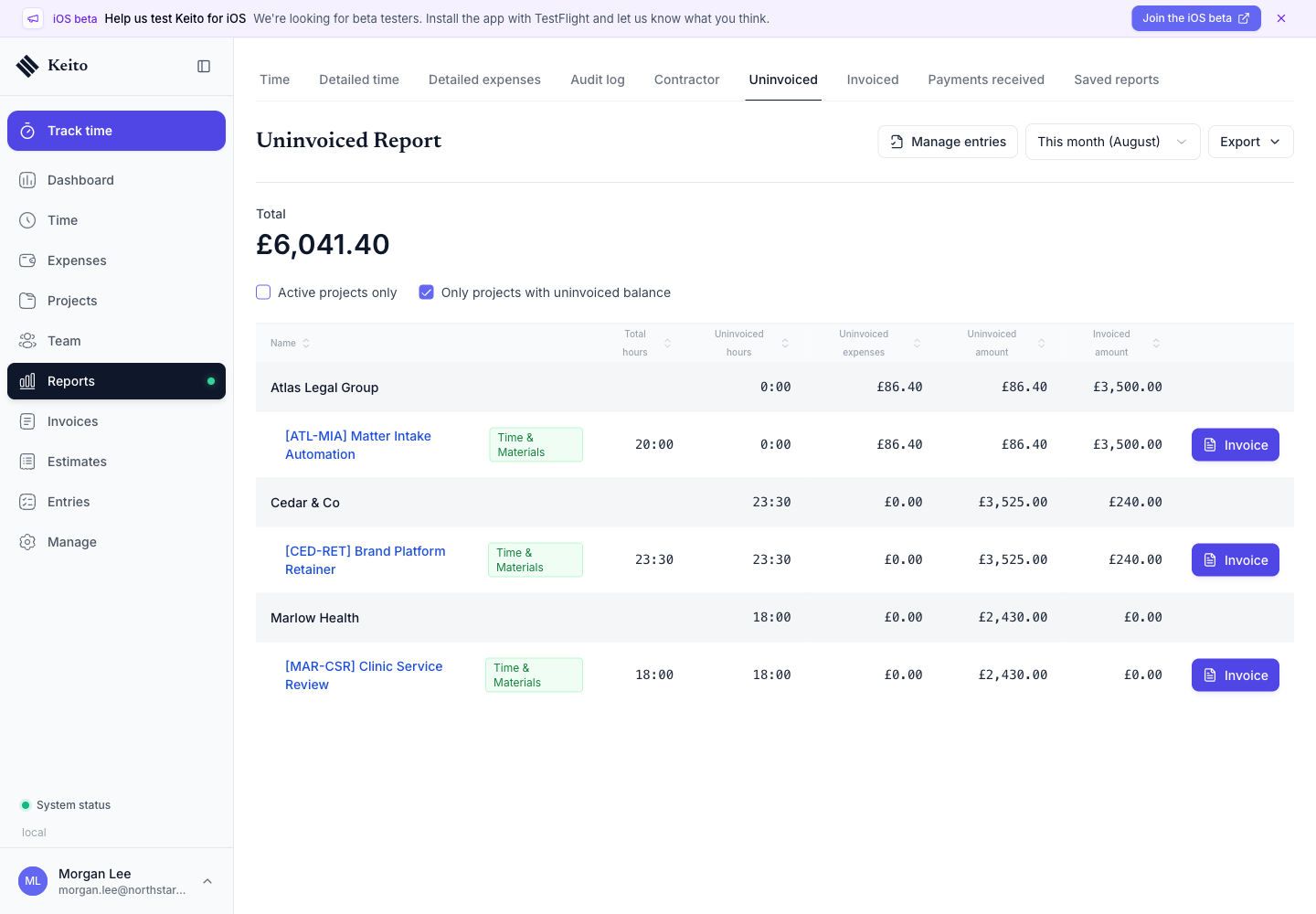
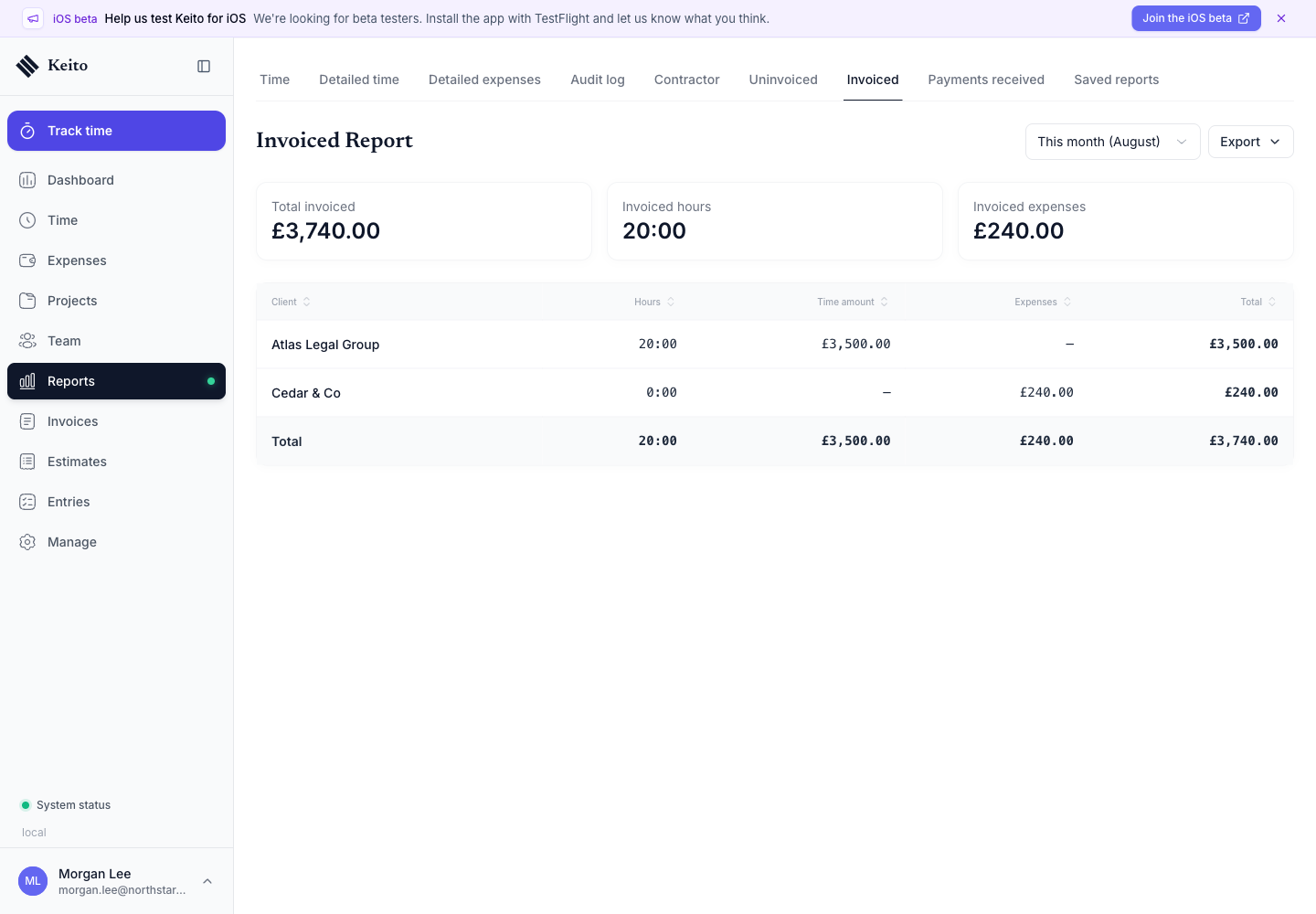
The Invoiced report shows work already included on invoices during the period. This lets an administrator reconcile invoiced hours, time value, expenses, and totals without opening every document.
Payments received closes the loop by showing money recorded against invoices, grouped by client with payment count and amount.
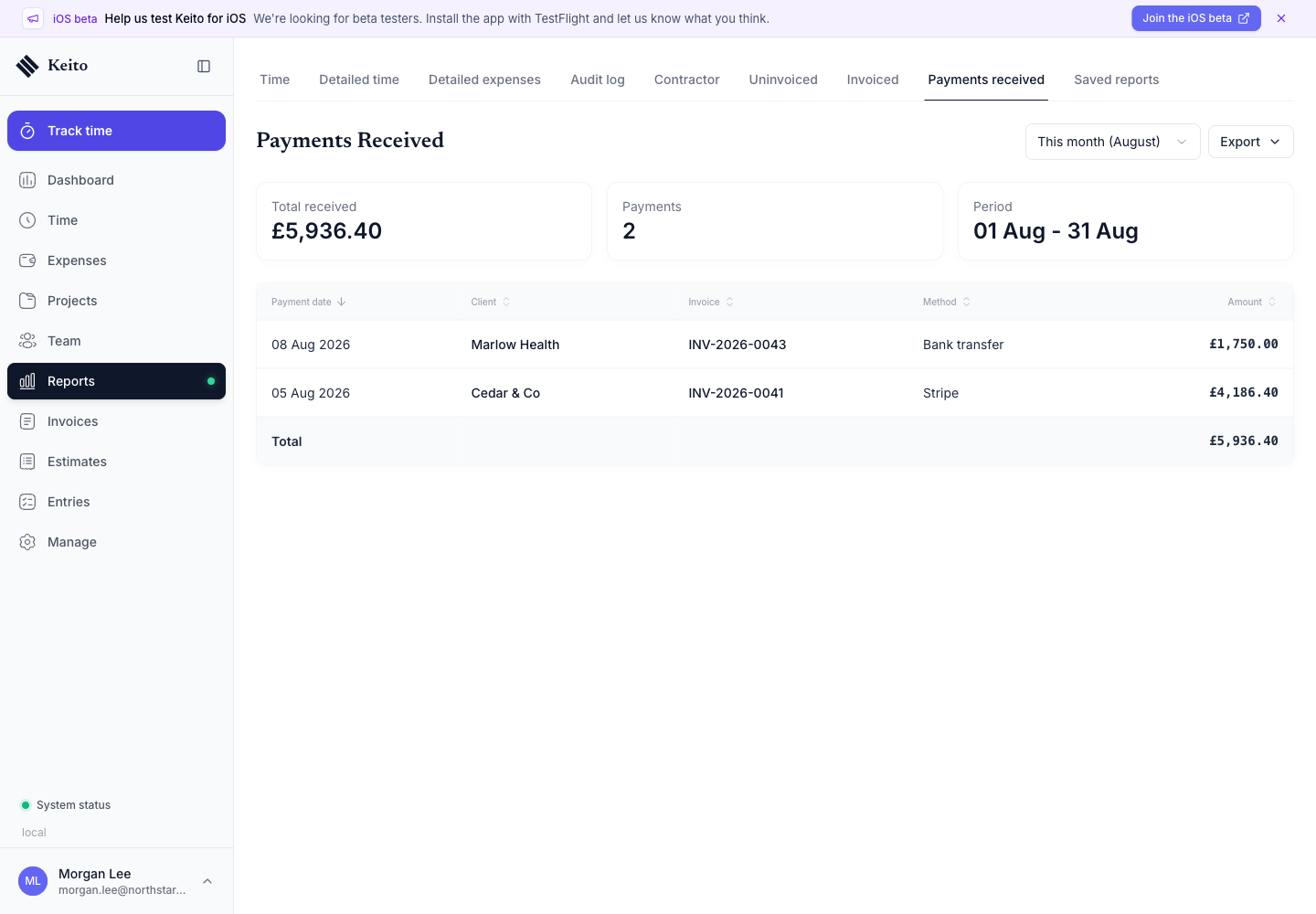
Together, these reports answer three different questions: what is ready to bill, what has been billed, and what has been paid.
Inspect individual records on Business
Business adds a Detailed Time Report for cases where a summary is not enough. Filter by client, project, task, person, billable status, invoice status, or approval status, then group the result for the review you are conducting.
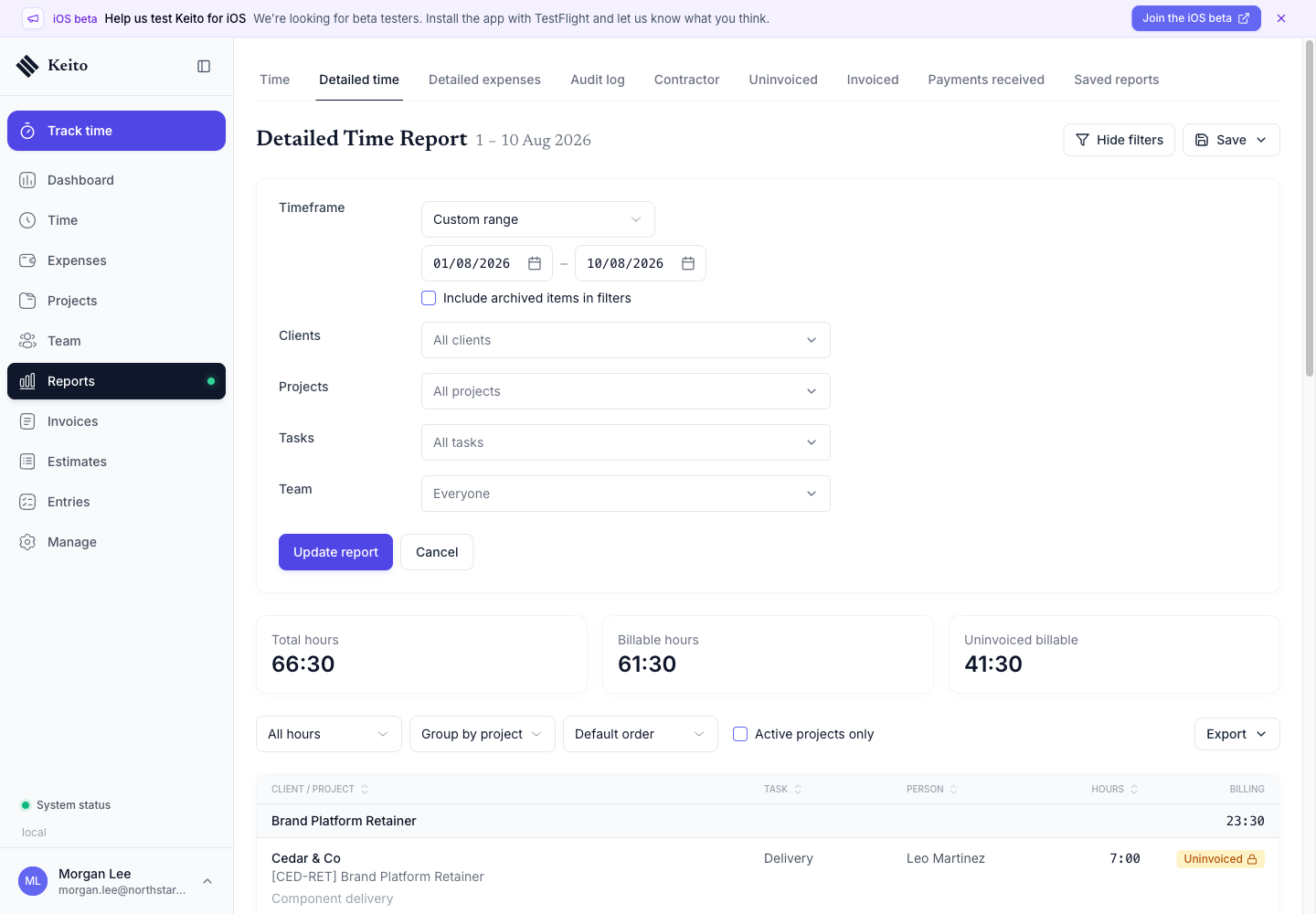
The headline figures keep total, billable, and uninvoiced hours visible while the rows explain exactly which entries produced them. Use this for invoice readiness, approval reconciliation, or a client-level work breakdown.
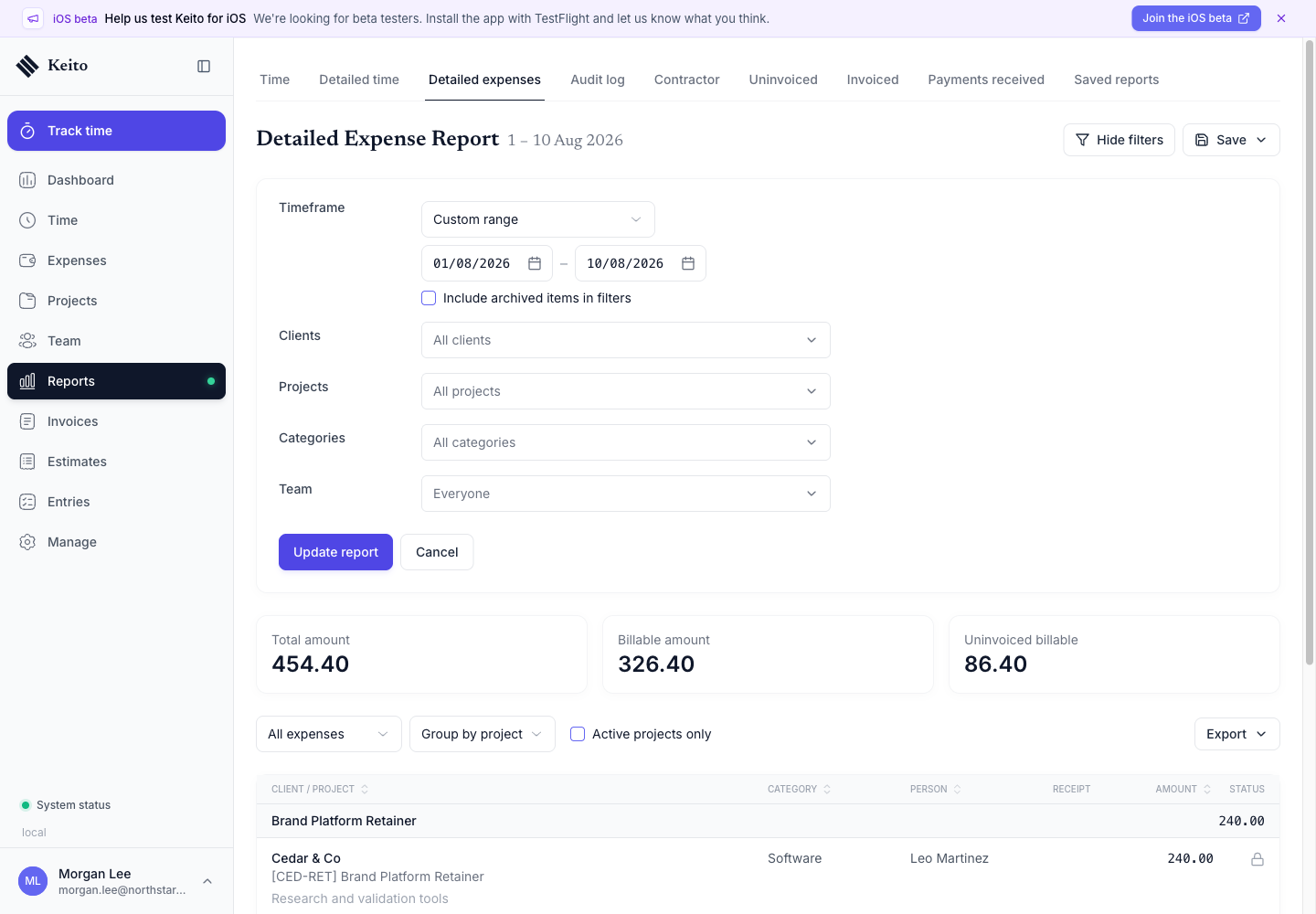
Detailed Expenses applies the same pattern to spending. Filter by client, project, category, person, billable state, invoice state, or approval state and see total, billable, and uninvoiced billable value.
Save recurring reviews on Business
When a review uses the same filters every week or month, save it instead of rebuilding it. Saved reports can remain private or be shared with selected teammates.
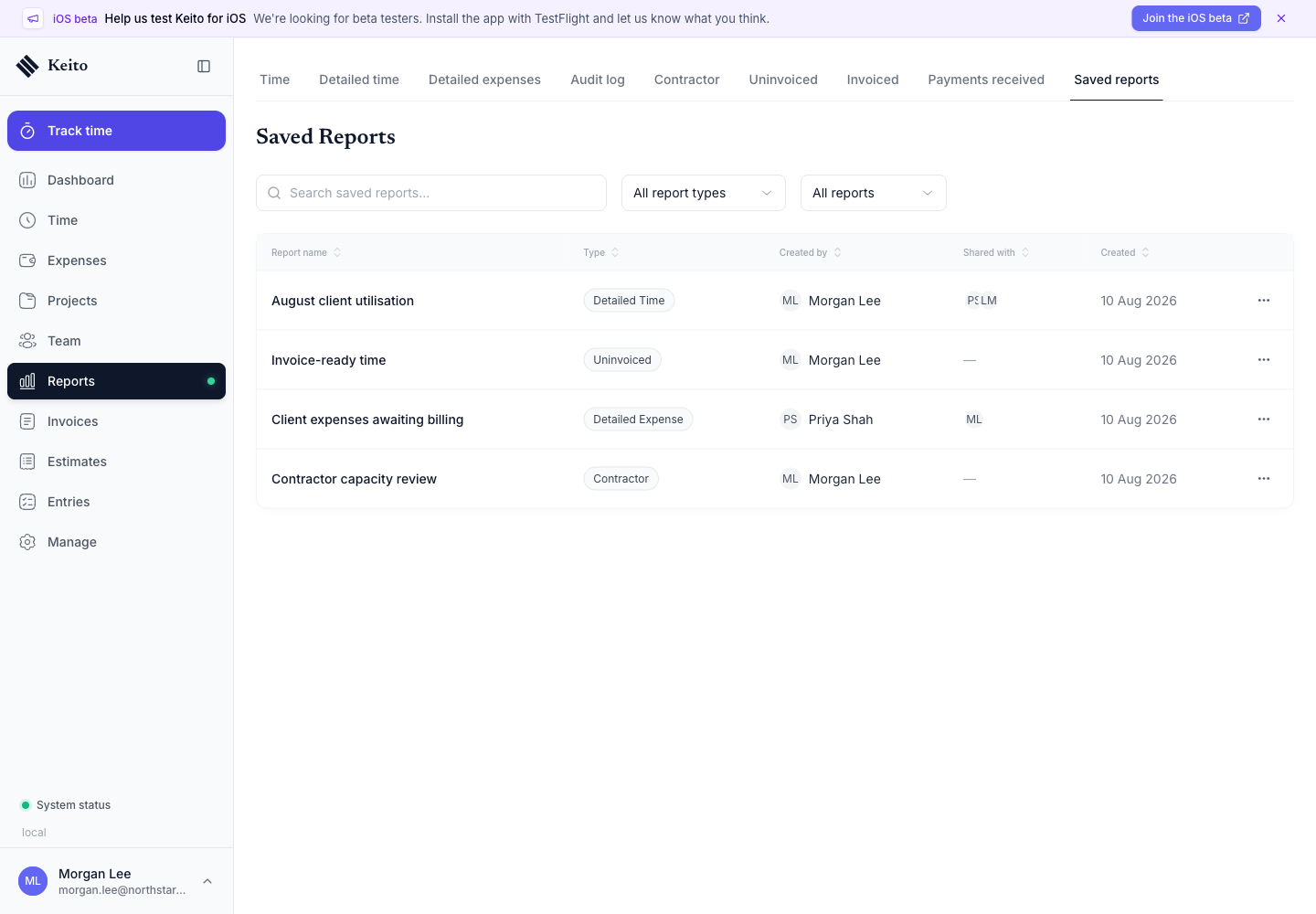
Examples include invoice-ready time, client expenses awaiting billing, monthly utilisation, or a contractor capacity review. Sharing preserves the reporting setup; each viewer still remains subject to their own data permissions.
Audit activity and contractor cost on Business
The Audit Log records timesheet, approval, settings, project, and invoice events. Administrators and owners can filter by event category, client, project, task, owner, or person who performed the action.
On Business, owners and administrators can export those events as CSV with recorded before this change and after this change values, plus audit event and record IDs. Before means immediately before each event; original creation values are available only where a creation snapshot was recorded. See Audit Log Exports for instructions and missing-history limits.
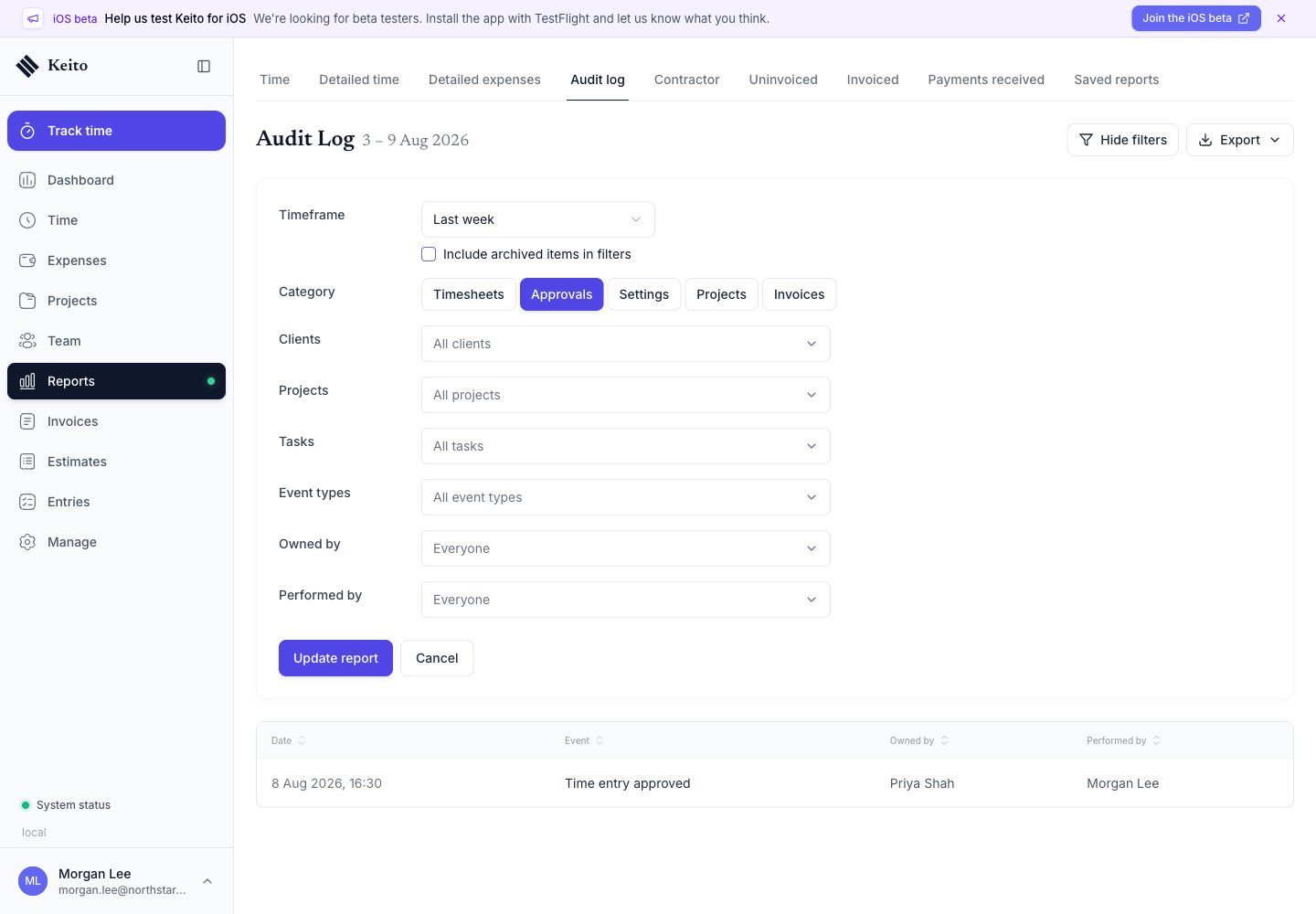
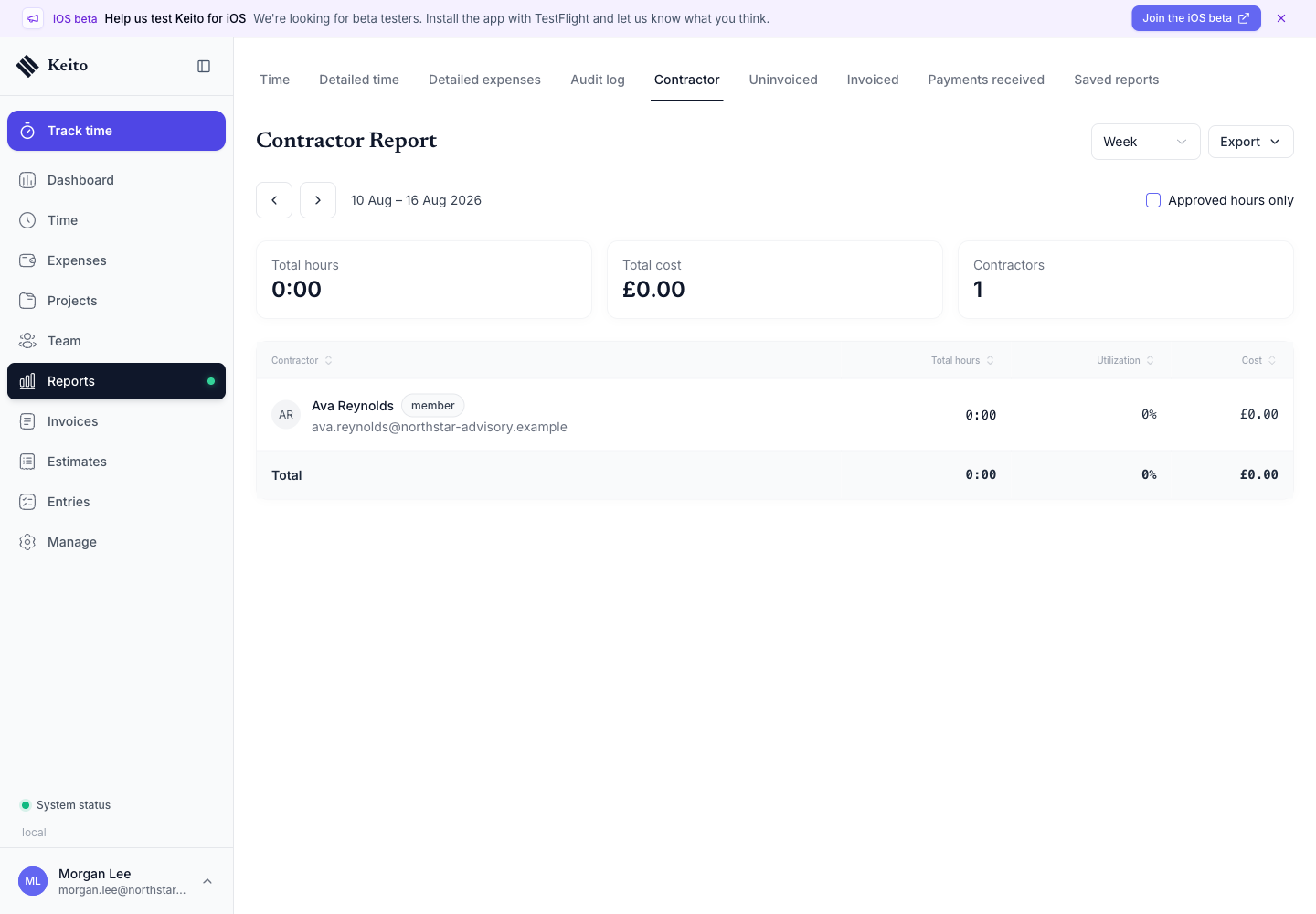
The Contractor report combines recorded hours, configured capacity, utilisation, and internal cost. It is intended for the operational question of how external capacity is being used and what it costs.
Export the result
The summary time report downloads as PDF, CSV, or Excel. PDF works well for a fixed presentation; CSV and Excel are better for additional analysis.
Solo, Pro, and Business also include standard CSV and Excel downloads from the workspace export centre. Business adds exports from the advanced detailed reports and audit log. See Exporting Data for record types, row limits, and access rules.
Which plan should a team choose?
Choose Pro when the central requirement is team reporting: hours by person, utilisation, capacity, manager access, timesheet and expense approvals, and per-member rates. It is the natural evaluation plan for a team moving from Harvest when they want to test day-to-day reporting and billing operations.
Choose Business when the requirement includes individual-record investigation, reusable and shared report definitions, contractor cost analysis, an administrator audit trail, or exports from those advanced report screens.
Start with the plan comparison, read the Reporting Overview, or start a Keito trial and run the reports against your own workflow.