
Clockify to Keito importClockify to Keito
Choose whose time, which projects and which people to include, then bring your Clockify history into Keito. Rolling out to approved workspaces.

Overview
Bring your Clockify history into Keito
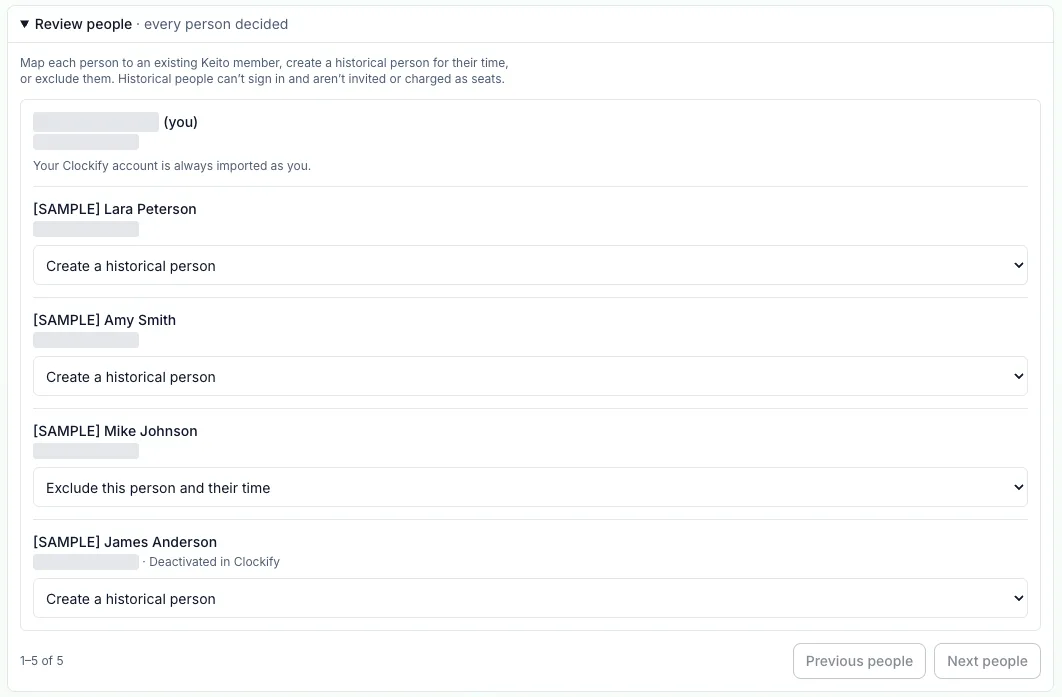
Connect your Clockify workspace and choose whether to import only your own time or everyone’s. Clients, projects, tasks and time entries arrive in an existing Keito workspace, and teammates become historical people who are not invited or charged as seats.
Keito only reads Clockify and does not keep syncing after the import. The importer is rolling out to approved workspaces first. Importing everyone also needs a Pro or Business plan and a Clockify owner or administrator account.
Key features
- Import your own time or your whole team’s
- Create, map or exclude each person, client and project
- Close the page while the import runs
- Run it again without duplicating imported entries
How it works
Import Clockify history in three steps
- 1
Connect Clockify
Choose your Clockify region, add an API key, and pick the workspace that holds your history.
- 2
Review the import
Choose whose time to bring and decide what happens to each person, client, and project.
- 3
Import and check
Follow the progress, compare the result with Clockify, and review billing.
Clockify to Keito
Bring your Clockify history with you
Clockify stays unchanged while you review exactly what arrives in Keito.
Importing from
Clockify
76%
Imported
1,940 entries
Remaining
610 entries