
Owners and administrators can open the Clockify importer. Like the Harvest importer, it brings across your whole team’s history, including people who have since left.
When you move from Clockify, your history should come with you: the clients and projects your work belongs to, the time your team recorded, and the people who recorded it. Keito’s Clockify importer reads that history from one Clockify workspace and adds it to an existing Keito workspace. You decide who and what to include before anything is imported, and nothing in Clockify changes.
This walkthrough uses Northstar Studio, a fictional Clockify test workspace. Its [SAMPLE] people and clients are sample data, and account names and email addresses are masked in the screenshots. For every option and state, see the reference guide, Migrate from Clockify. If you are still comparing tools, start with Clockify alternatives.
What moves across
- Clients, projects and tasks, created in Keito or matched to records you already have.
- Time entries, from all your history or a date range you choose.
- Team members, when you import everyone. They arrive as historical people: they are not invited, cannot sign in and are not charged as seats.
- Hourly and cost rates, when they are verified and in the same currency as the Keito project or person.
Breaks, holidays, time off and running timers are skipped and reported. The importer is a one-time copy rather than an ongoing sync, and imported time stays out of invoicing until an administrator reviews its billing.
Before you start
- Check your Keito role. You need to be an owner or administrator of the Keito workspace.
- Find your Clockify region. In Clockify, it’s under Workspace settings → Security → Data region. Keito supports Global, EU and UK workspaces; USA and Australia are coming.
- Generate an API key as a Clockify owner or administrator. In Clockify, open your profile menu, choose Preferences, go to the Advanced tab, then select Manage API keys and Generate new. Use the API key rather than your password, and paste it only into Keito.
- Prepare private projects. Private Clockify projects can only be mapped to an existing Keito project or left out. If you want to keep one, create its Keito client and project first, in the same currency.
Keito encrypts the key, clears the field once you submit it, and deletes the key when the import no longer needs it. A paused import’s key expires after 7 days.
Step 1: Connect Clockify
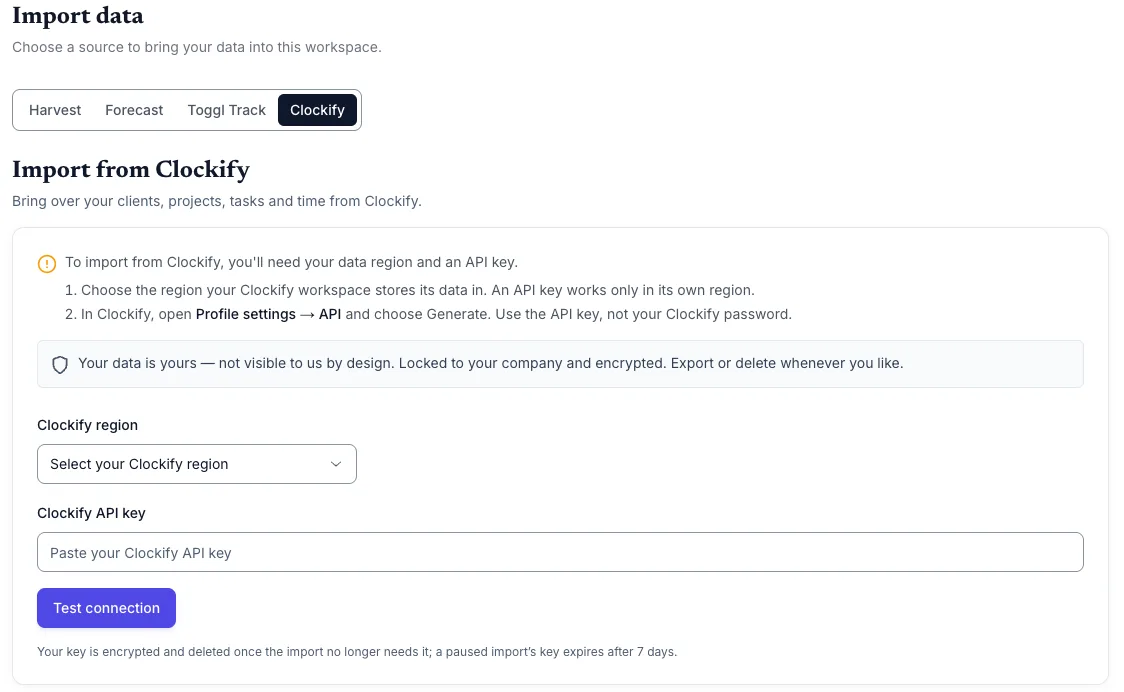
In Keito, open Settings → Import data and choose Clockify. The direct link, app.keito.ai/imports/clockify, opens the same tab after you sign in and pick a workspace.
Choose your region, paste the API key and select Test connection. If your account belongs to more than one Clockify workspace, pick one and select Review workspace. Keito scans its clients, projects, tasks and people, and finds how far back your history goes.
Step 2: Confirm the connection
Keito always imports the whole team’s history, including people who have since been deactivated, just like the Harvest importer. Nobody is invited. Confirm that the connected Clockify account represents you, so your own time is imported as you.
The API key must come from a Clockify owner or administrator, because only they can read everyone’s time. If the key belongs to a regular member, Keito stops and asks for an owner’s or administrator’s key.
Each data type shows how many records Keito found. Time entries default to all history since the oldest month in Clockify. For a shorter period, open Advanced options and set a custom date range.
Step 3: Decide on people and projects
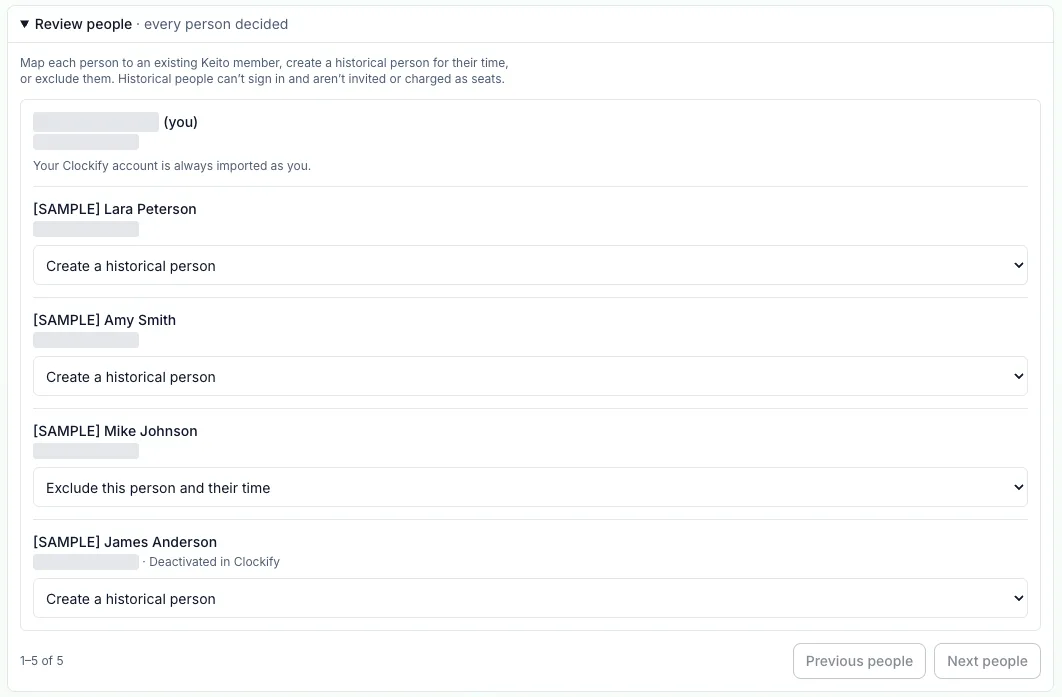
When you import everyone, Review people lists each Clockify member. Map them to an existing Keito member, create a historical person for their time, or exclude them and their time. Your own account is always imported as you. If an email address matches a Keito member, Keito treats that as a suggestion and never applies it on its own.
Under Advanced options → Matches, decide what happens to each client, project and task: create it, map it to a Keito record, or exclude it. Excluding a client or project also leaves out its time, and records with matching names are never merged automatically. Every private project needs a mapping or an exclusion.
Some time may have no project, or sit in a project without a client. You can keep it under clearly named defaults, or leave it out. Until every choice is made, Import selected data stays disabled and the panel tells you what is missing.
Step 4: Start the import and let it run
Select Import selected data. Progress moves through People → Clients → Projects & tasks → Time entries → Verify, and you can close the page while it runs.
Clockify’s Free plan allows about 30 API requests an hour, so a long history from a Free workspace can take hours. Paid Clockify plans are much faster. When Keito is waiting on that limit, the panel shows when it will resume.
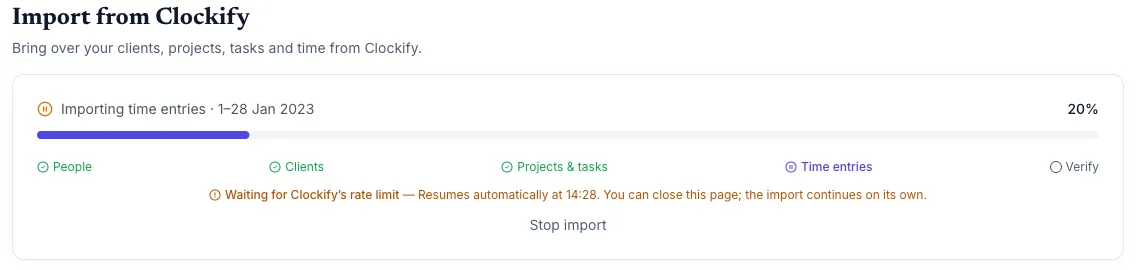
You stay in control while it runs. Stop import ends the run and keeps what has already been imported. If Keito pauses because Clockify returned something it cannot safely use, Review a new import cancels the run, keeps the imported records and lets you reconnect and review again. If Clockify rejects the key, use Replace API key.
Step 5: Check what arrived
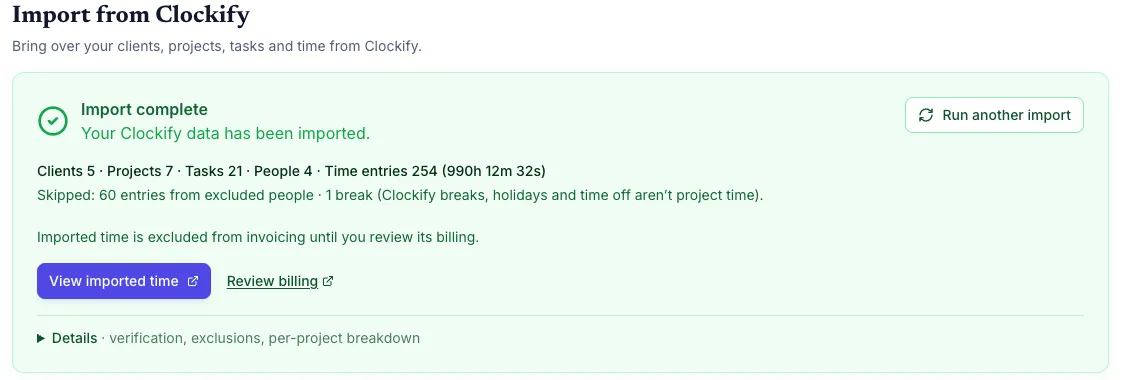
The completed import shows how many clients, projects, tasks, people and time entries arrived, the total duration, and what was skipped. View imported time opens the entries, Review billing starts the billing review, and Details shows verification, exclusions and a per-project breakdown.
Rates follow a simple rule. Verified Clockify billable rates are imported when they match the project’s currency, and cost rates when they match the person’s cost currency. Keito does not convert currencies or substitute today’s rates, so any other amount stays unknown. Before imported time can be invoiced, an administrator reviews its billing.
What our test import showed
We ran the importer against Northstar Studio in the Global region on 6 November 2026, importing everyone:
- Keito observed 315 source entries and imported 254, totaling 990h 12m 32s.
- 60 entries belonged to a person we excluded in review, and 1 break was skipped.
- Verification matched Clockify at 315 entries and 4,446,752 seconds.
- Each person’s entries, seconds and rates reconciled against Clockify.
- Running the same import again created and updated nothing.
- A refresh applied one description change made in Clockify and kept an edit we had made in Keito.
Your numbers will differ. Compare entries and durations per person and per project against Clockify in the same way.
Running it again
A second, new-only import never duplicates entries that are already in Keito, and people imported earlier show Keep the existing Keito member. That makes it safe to pick up time recorded after your first import.
If you want Keito to catch up with edits made in Clockify, choose Refresh previously imported records under Advanced options and confirm it a second time. Refresh updates source notes, dates, durations, start and end times, billability, and source tags and time metadata. Your custom names, local edits, explicit mappings and financially protected entries stay as they are. Currency, relationships, rates and budgets are not refreshed, and deletions in Clockify are not copied to Keito.
Switching over
Keep Clockify available until your time reconciliation and billing review are signed off. Then agree on a date when new work starts in Keito, and invite the people who will track time there. The cutover checklist helps you plan the switch; its Harvest-specific invoice and expense steps do not apply to a Clockify import.
Frequently asked questions
Can I import my whole Clockify team?
Yes. Keito always imports everyone’s history from the Clockify workspace, including people who have left. Connect with an API key from a Clockify owner or administrator.
Will my teammates be invited or charged?
No. Imported teammates become historical people. They cannot sign in, are not invited and are not charged as seats. You can also map a Clockify member to someone already in your Keito workspace.
Does the import change anything in Clockify?
No. Keito only reads your Clockify data, and the importer does not keep syncing after the import.
Which Clockify regions are supported?
Global, EU and UK workspaces are supported; USA and Australia are coming. Choose the region where your Clockify workspace stores its data (Workspace settings → Security → Data region in Clockify).
How long does an import take?
It depends on your history and your Clockify plan. Clockify’s Free plan allows about 30 API requests an hour, so a large Free history can take hours, while paid plans are much faster. You can close the page while it runs.
Can I invoice imported time straight away?
Not until an administrator has reviewed its billing. Imported time stays out of invoicing until then.