Recurring invoices remove the repetitive parts of monthly billing while keeping the financial controls that matter. In Keito, a schedule can gather each period’s billable time and expenses or repeat a set of fixed line items, then create the next invoice for review.
This guide follows a complete test in an isolated local Keito workspace. We created 2 fictional clients, 3 projects, and 2 recurring templates, then generated a real draft invoice from tracked time and expenses. The resulting invoice combined £4,100 of billable time with an £86.40 expense for a £4,186.40 total. The second template demonstrated a fixed £850 care plan with 20% tax, producing a £1,020 expected total.
Important: The screenshots contain only fictional local data. No client or production account was used.
For a compact reference, including every template variable and troubleshooting check, use the Recurring Invoices documentation.
What a recurring invoice does
A recurring invoice is a reusable invoice template plus a schedule. On each issue date, Keito creates a new invoice, advances the schedule, and records the generated invoice in the template’s history.
It does not keep editing one invoice. Every occurrence is a separate financial document with its own number, dates, state, line items, reminders, and payment lifecycle.
Open Invoices and select Recurring to see the feature.
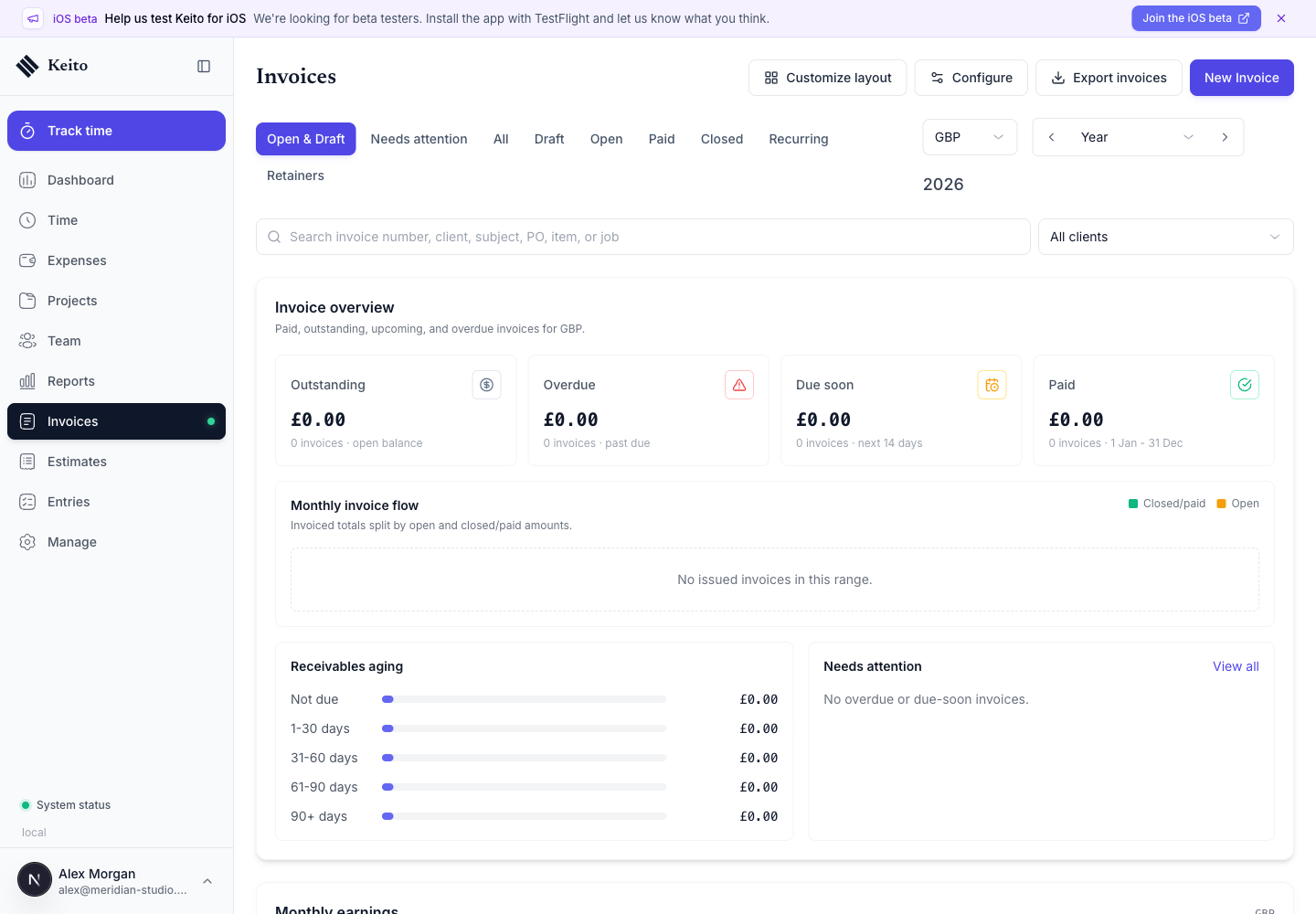
The setup has three steps:
- choose the client, invoice type, and projects;
- define when and how invoices should be generated;
- configure the reusable invoice template.
Choose between variable and fixed billing
The most important decision is whether the value should come from work recorded during each period or from charges fixed in advance.
| Use case | Choose | What changes each occurrence |
|---|---|---|
| Hourly client work | Tracked time & expenses | Hours, rates, and total |
| Billable expenses and usage | Tracked time & expenses | Eligible items in the period |
| Monthly retainer | Free-form | Usually only dates and invoice number |
| Website maintenance plan | Free-form | Usually only dates and invoice number |
| Annual licence or membership | Free-form | Issue/due dates and invoice number |
Tracked time and expenses
After selecting the client, choose one or more of its active projects. Keito displays each project’s uninvoiced value before you continue.
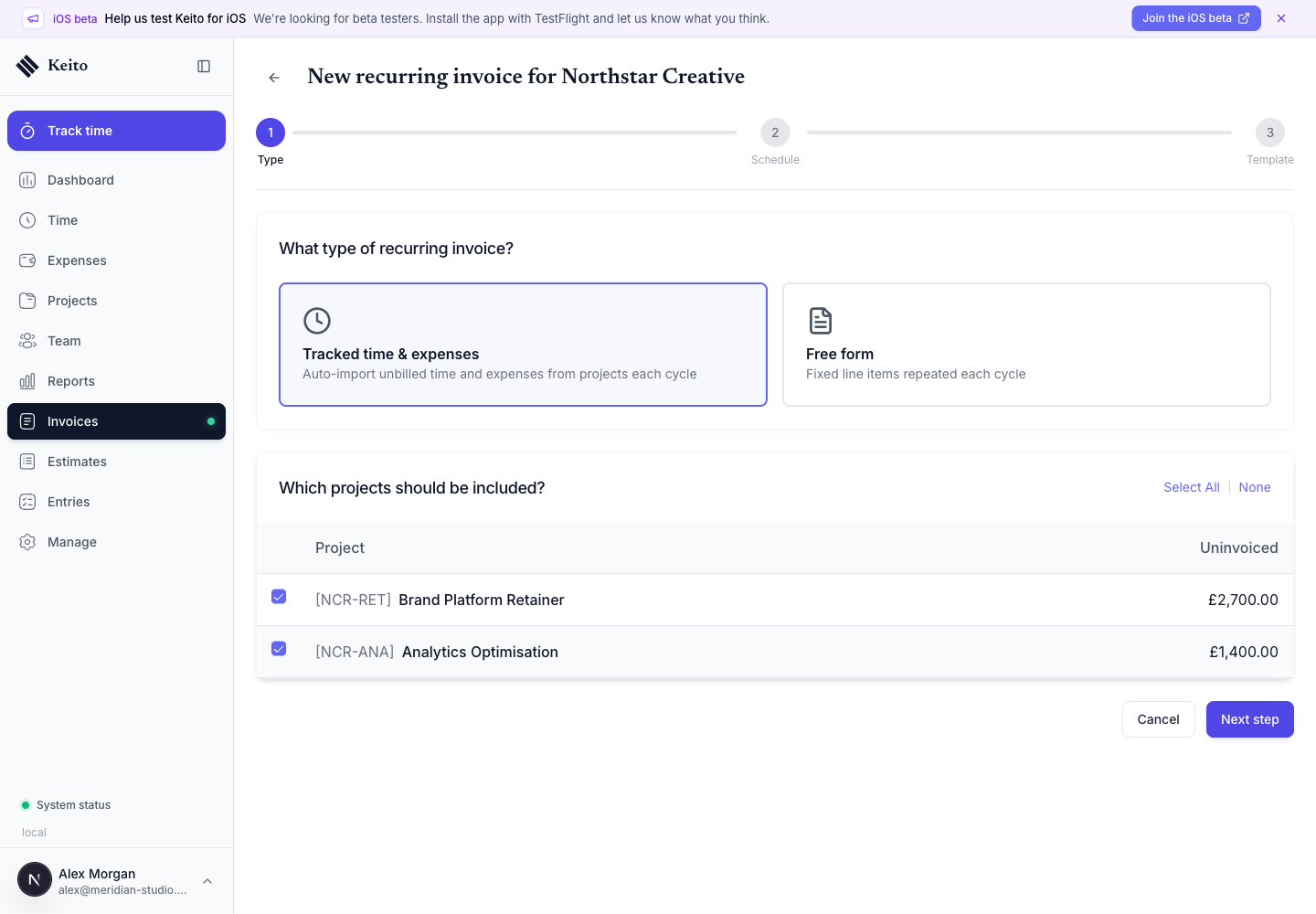
Our Northstar Creative example selected two projects:
- Brand Platform Retainer, with £2,700 of billable time;
- Analytics Optimisation, with £1,400 of billable time.
On the issue date, Keito looks at those projects and imports eligible work from the calculated billing period. By default, that means approved, billable, completed, and not-yet-billed time and expenses. If the workspace allows documented work before approval, eligible unsubmitted and submitted work can also be included. Rejected work, running timers, and already billed items stay out.
Once imported, the source work is marked as billed and linked to the generated invoice. That protects the next run from picking it up again.
Free-form charges
Choose free-form when the price is defined by the agreement rather than the time recorded. Each recurring line item can have a type, description, quantity, unit price, tax treatment, and optional project association.
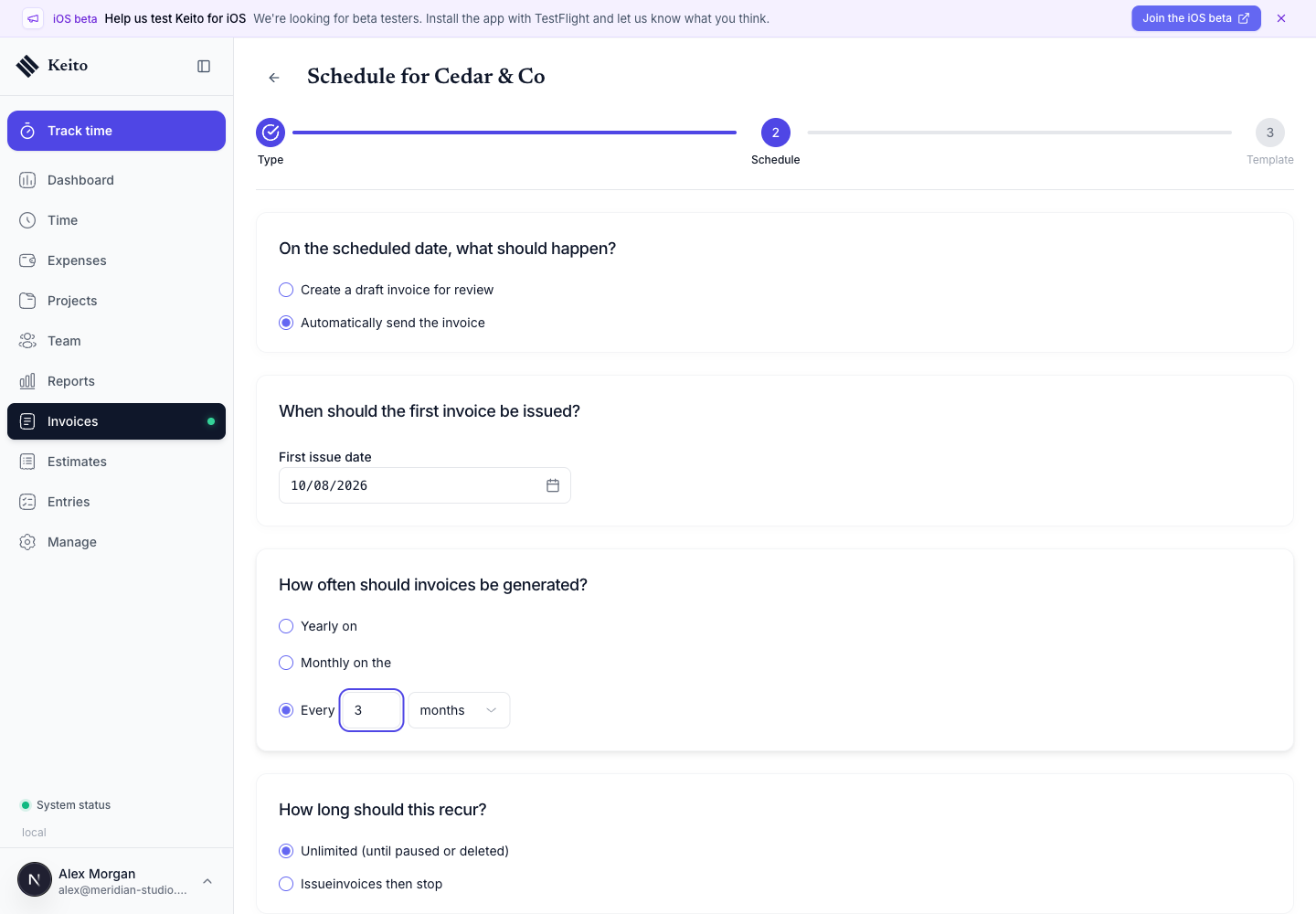
Our Cedar & Co example repeated a £850 website care plan with 20% tax.
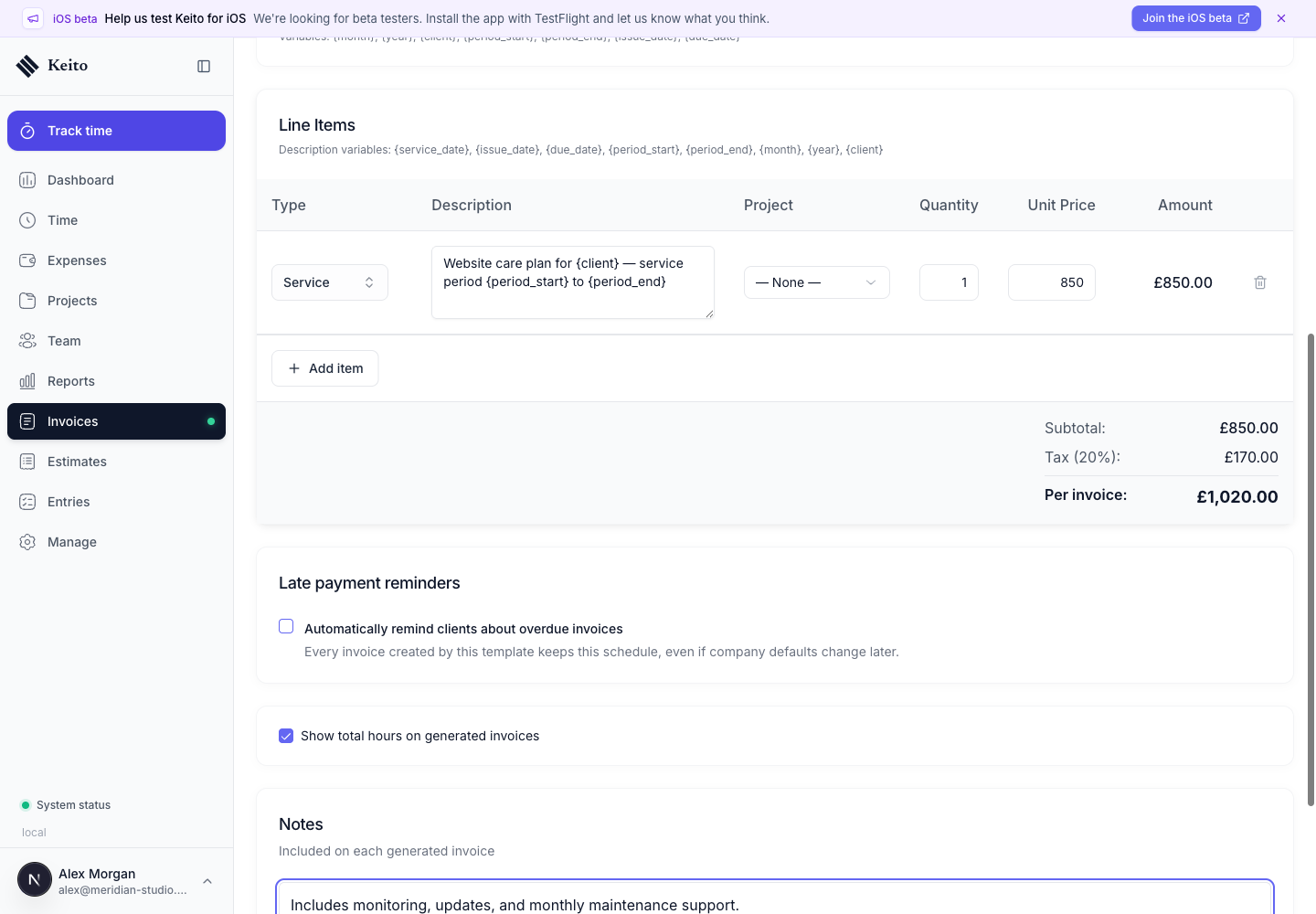
The description uses {client}, {period_start}, and {period_end}, so every generated invoice explains exactly who and which service period the charge covers.
Build a schedule that matches the contract
Keito supports three schedule styles:
- monthly on day 1–28 or on the last day of the month;
- yearly on a selected month and day from 1–28;
- custom every set number of days, weeks, or months.
You can keep a template unlimited or set an exact number of invoices. The latter is useful for a 12-month engagement or a fixed instalment plan because the template completes after the last occurrence.
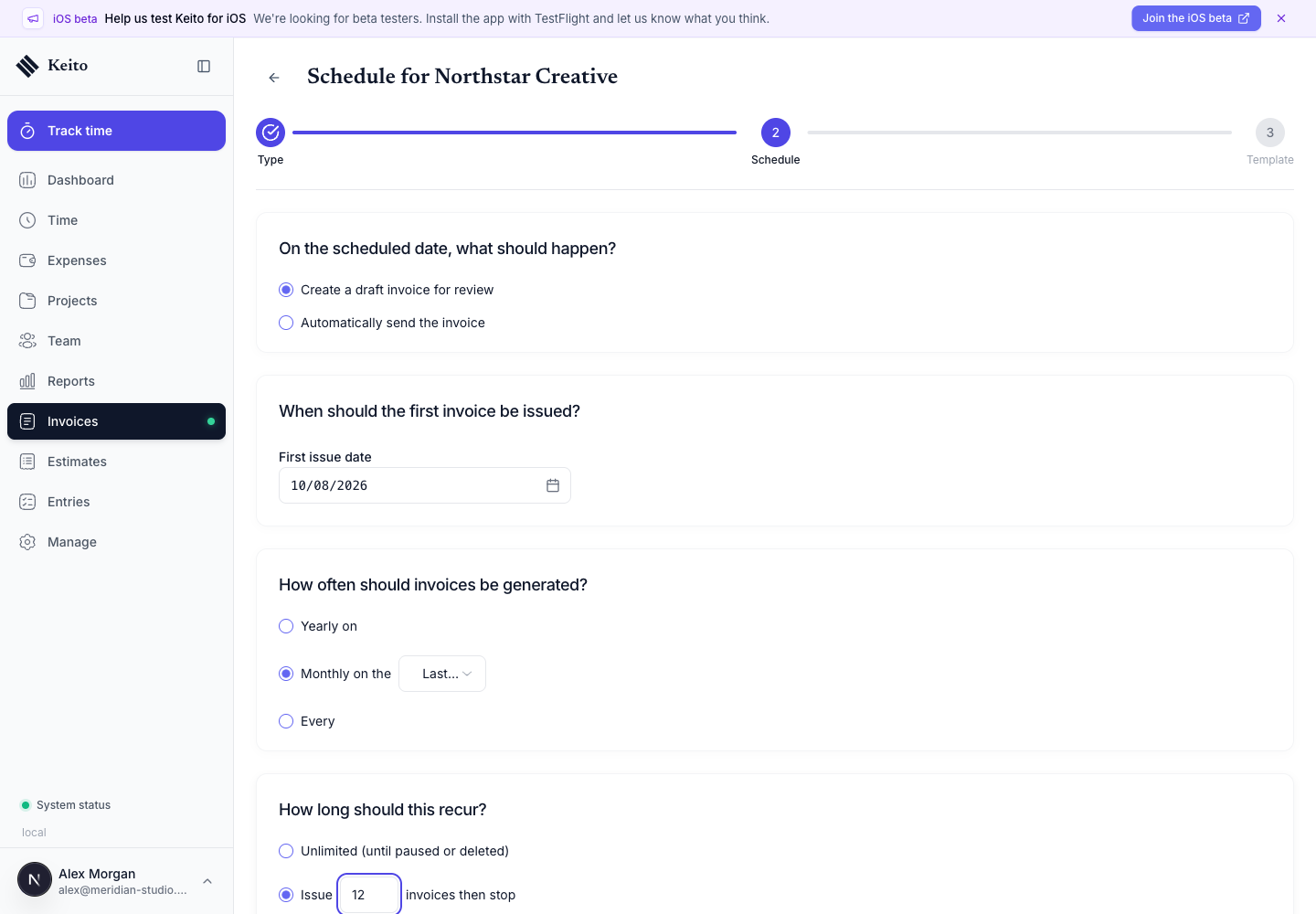
Our tracked-time example creates a draft monthly on the last day and stops after 12 invoices. Our free-form example demonstrates a custom three-month cadence.
Treat the first issue date as a billing boundary
For tracked work, the billing period ends the day before the issue date and begins one schedule interval earlier. A monthly invoice issued on 10 August therefore covers 10 July through 9 August. A weekly invoice issued on Monday covers the previous Monday through Sunday.
The first occurrence uses the same calculation; it does not start on the day you created the template. Align the first issue date with the schedule you intend to keep. For example, if every later invoice should be issued on the last day of a month, make the first issue date a month-end date as well.
Keito checks due schedules daily. After it generates an invoice, it calculates the next date from the selected frequency. Monthly last day schedules automatically adapt to February and 30-day months.
Draft versus automatically send
The schedule asks what should happen on the issue date:
- Create a draft invoice for review creates a normal draft. A team member can check the dates, work, expenses, taxes, recipients, and total before sending.
- Automatically send the invoice creates the invoice in the Open state and records it as sent.
There is a crucial delivery detail in the current implementation:
Automatically send does not currently email a client contact. It marks the generated invoice Open/sent. To deliver the invoice by email, open it and use Send Invoice to choose the recipient and message.
For most service businesses, creating a draft is the safer default. It provides a clean checkpoint for missing timesheets, unusual expenses, purchase-order changes, or a client-specific note. Read Sending Invoices for the delivery workflow.
Design the reusable template
The final step controls what every occurrence inherits:
- purchase order and discount;
- payment terms and currency;
- up to two tax rates;
- subject and notes;
- total-hours visibility;
- late-payment reminder policy;
- time grouping or free-form line items.
Keito takes the initial values from the client and workspace defaults. The recurring template then keeps its own configuration. Changing a workspace default later does not silently rewrite an existing template.
Choose the right time summary
A tracked-time invoice can group its imported work:
- by task for task-based contracts;
- by person when the client expects consultant-level detail;
- by project for a compact multi-project invoice;
- by work source to distinguish human and agent work;
- as detailed individual entries for maximum traceability.
You can also include unbilled expenses from the selected projects.
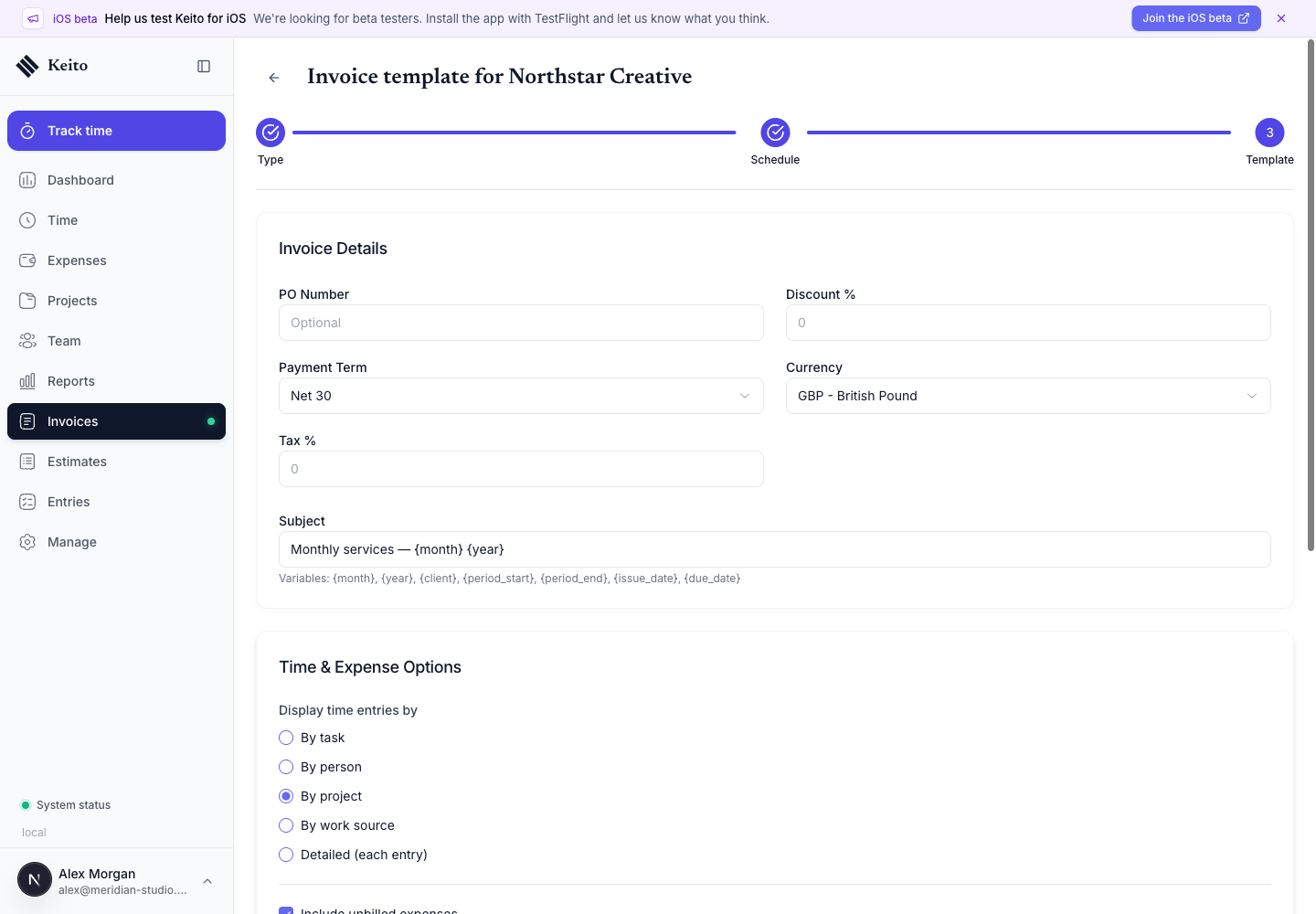
In our test we grouped time by project and enabled expenses. That converted £4,100 of selected project time plus an £86.40 expense into a £4,186.40 draft.
Make subjects and line items self-explanatory
Template variables keep each occurrence readable without manual edits.
| Variable | Replaced with |
|---|---|
{month} |
The billing-period end month |
{year} |
The billing-period end year |
{client} |
The client name |
{period_start} |
The period’s first day |
{period_end} |
The period’s last day |
{issue_date} |
The generated invoice issue date |
{due_date} |
The generated due date |
Free-form descriptions also support {service_date}, which uses the issue date. Dates respect the workspace date-format setting.
For a 10 August 2026 issue date, Monthly services — {month} {year} renders as Monthly services — August 2026, while {period_start} to {period_end} describes the 10 July–9 August service period.
One subtle point: {month} and {year} use the period end, not the date the template was created. If the document should name the issue date explicitly, use {issue_date}.
Add a repeatable overdue policy
Late-payment reminders can be configured inside the recurring template. Choose how many days after the due date the first reminder should go out, how often it should repeat, and optionally provide a custom subject and message.
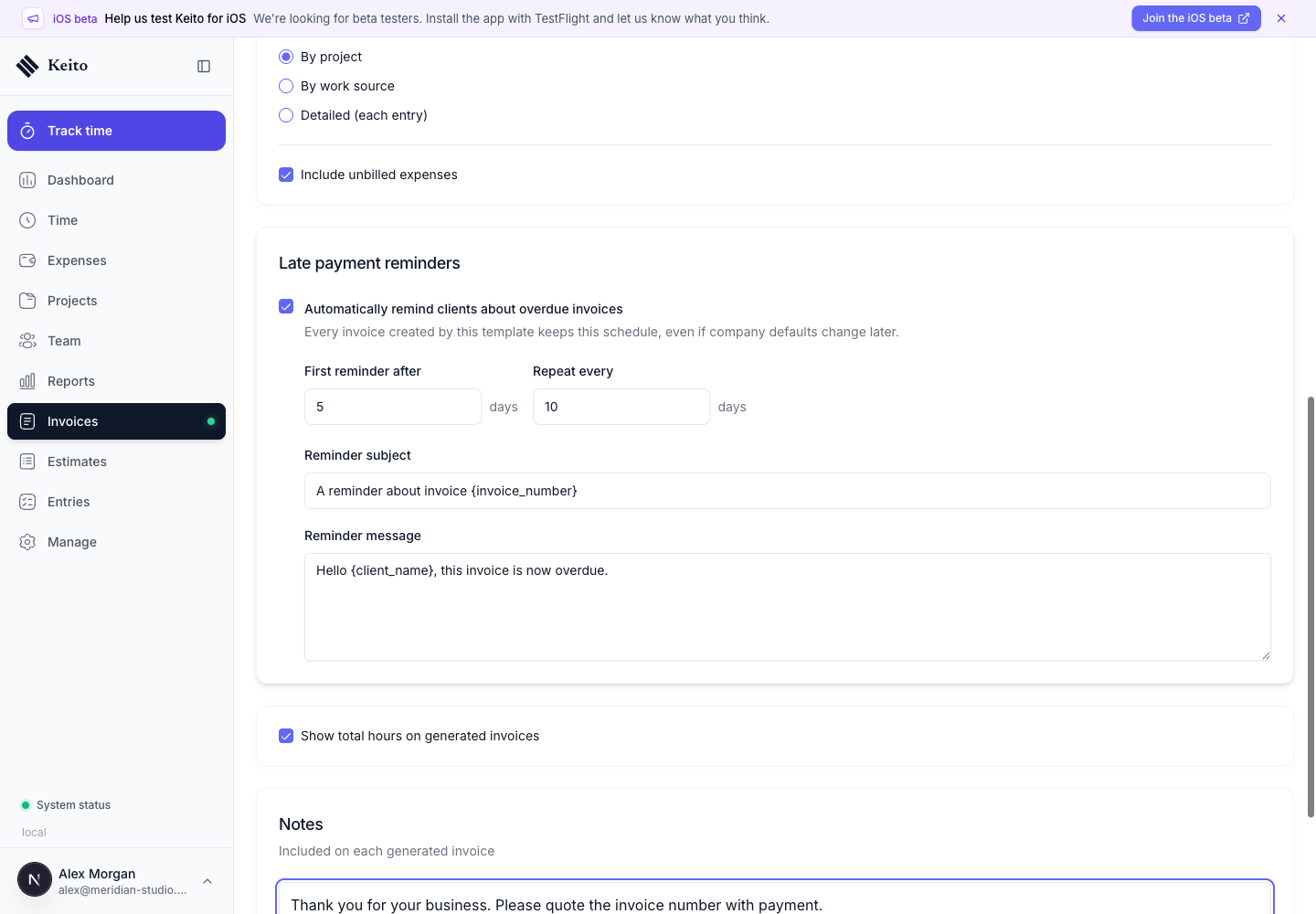
The reminder policy is copied to each generated invoice. Those existing invoices keep the policy even if the template or workspace defaults change later. This is useful when an agreed collection schedule must remain stable for the life of a document.
Review the template before the first run
The detail screen provides a compact preflight check. Confirm the frequency, next invoice date, action, occurrence limit, payment terms, currency, projects or line items, subject, and notes.
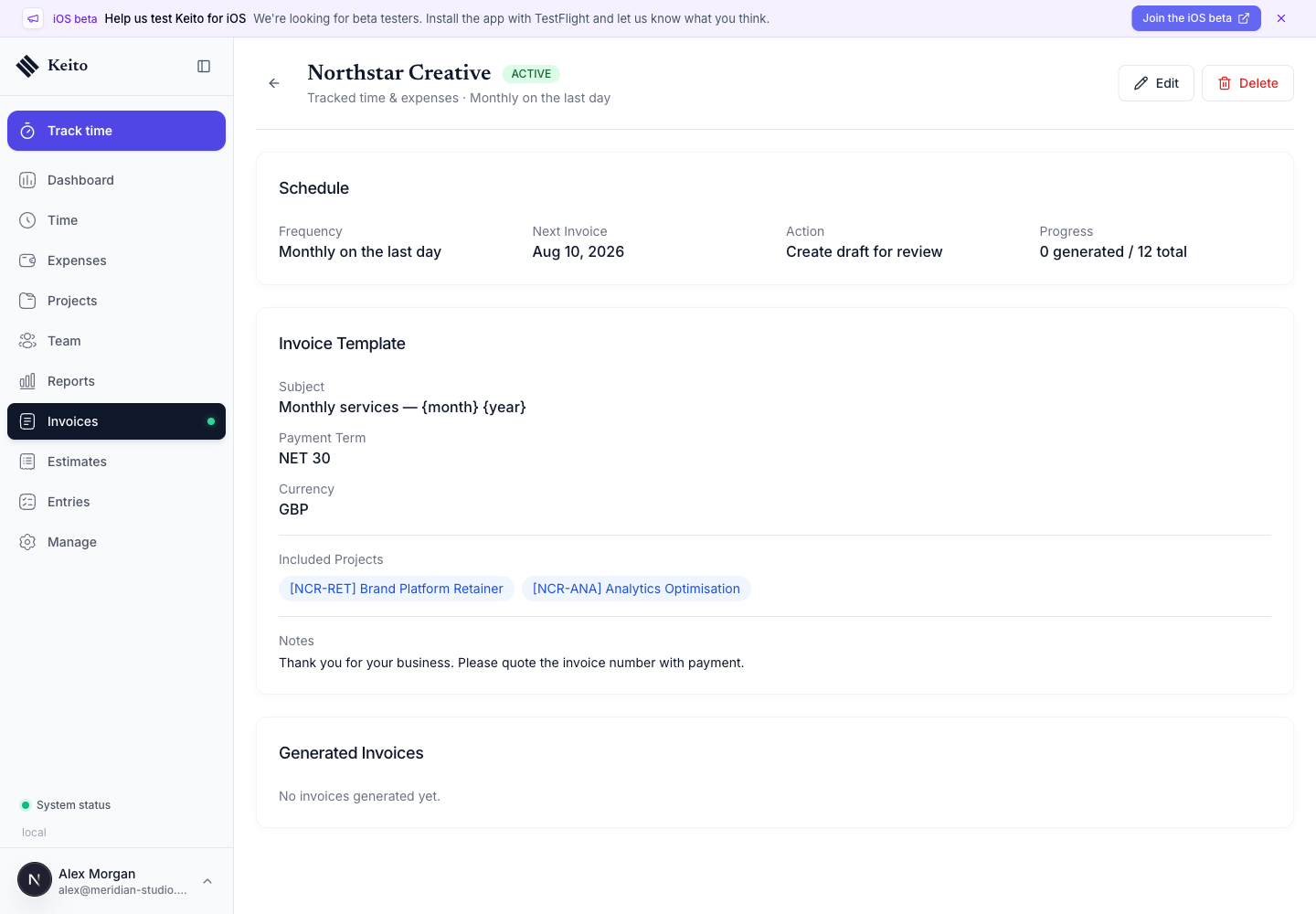
In the test workspace, the template correctly showed:
- monthly on the last day;
- create draft for review;
- 0 of 12 invoices generated;
- two included client projects;
- Net 30 terms and GBP currency.
If any field is wrong, edit the template before its first due date. Future edits affect later invoices, but they do not rewrite invoices already generated.
What happens after generation
When the Northstar schedule ran, Keito created invoice INV-2026-0001 as a £4,186.40 draft, added it to the template history, advanced the next issue date, and changed progress from 0/12 to 1/12.
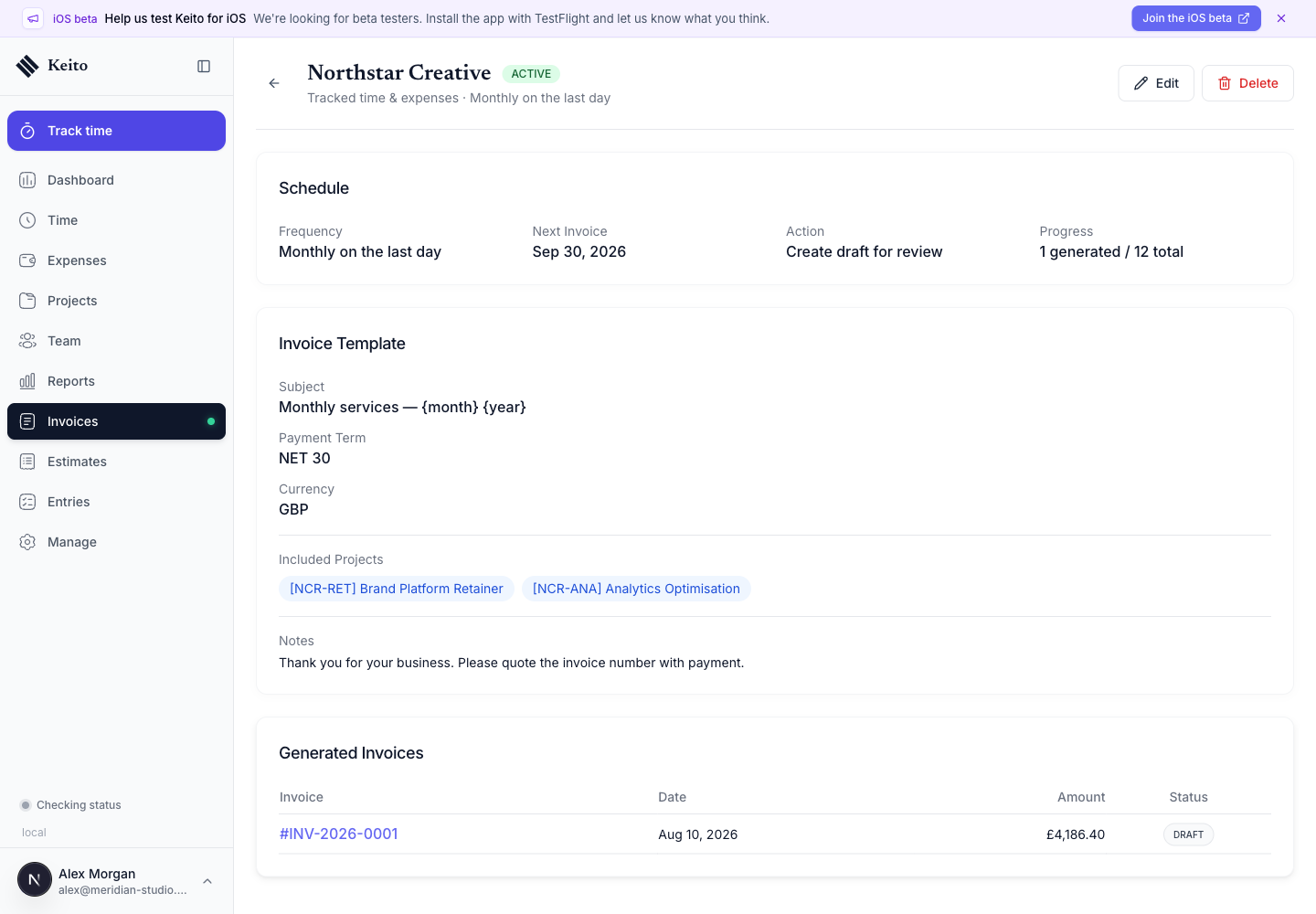
The history link opens the actual invoice, where the team can review line items, edit an eligible draft, and send it to the client. Each generated invoice continues through the usual Draft, Open, Paid, or Closed lifecycle.
The recurring list then shows both templates in one place. Fixed free-form templates have an expected amount; tracked-time templates show Varies.
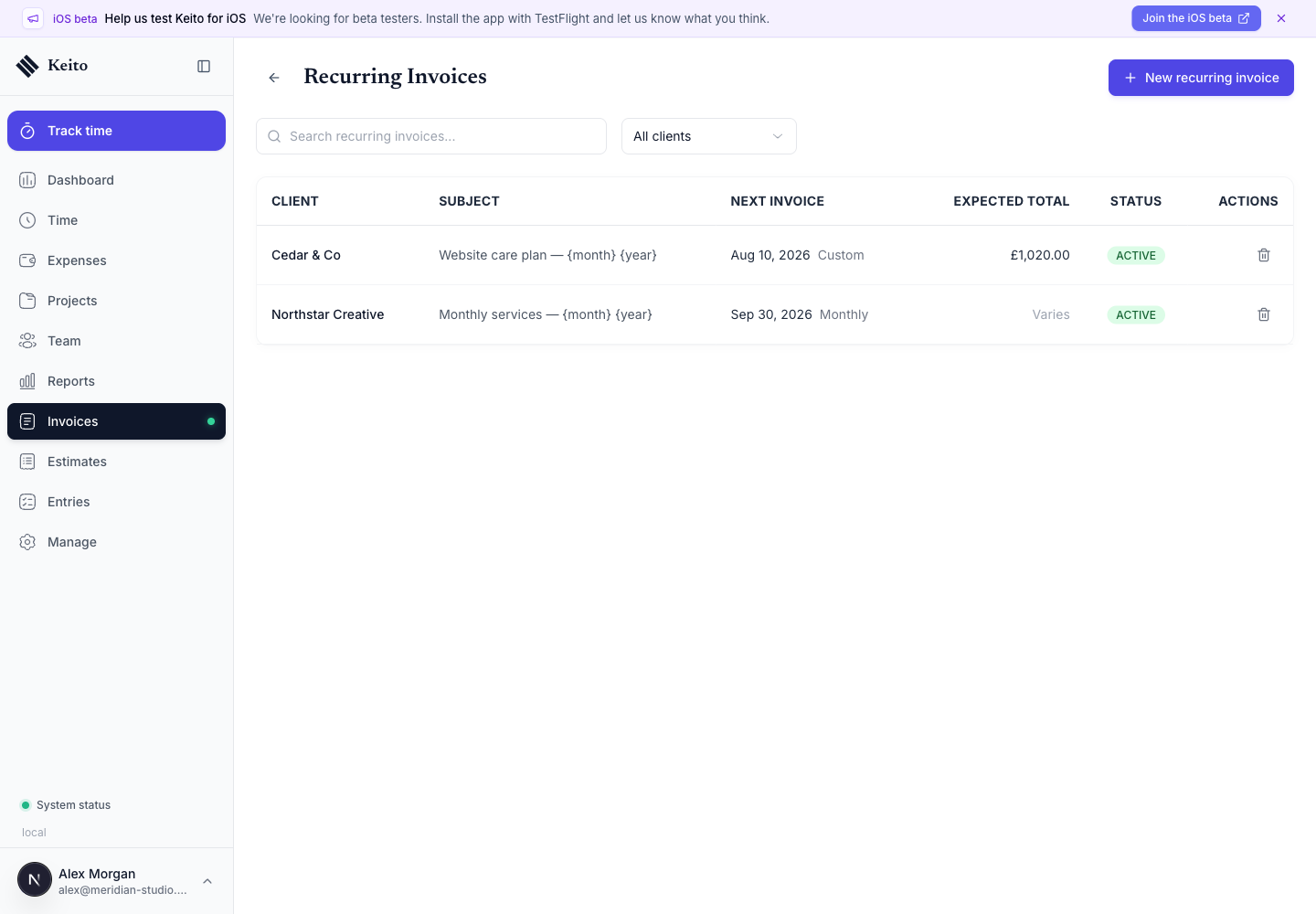
You can search by subject or client, filter by client, compare statuses, and choose a default sort of next invoice first, newest first, or client A–Z under Invoices → Configure → Default Values.
A practical recurring billing checklist
Before enabling a client schedule:
- Confirm the client currency, tax treatment, payment terms, and purchase-order requirements.
- For tracked billing, confirm every selected project is active and uses the intended rates.
- Decide whether documented but unapproved work is allowed on invoices.
- Align the first issue date with the period boundary in the contract.
- Choose a summary level the client can understand.
- Decide whether expenses belong on the same invoice.
- Use subject and description variables so the service period is unambiguous.
- Prefer draft generation when a person should check the invoice or email recipient.
- Review the first generated invoice against the source time and expenses.
- Check the next issue date and generated count after that first run.
If a tracked period contains no eligible work, Keito can still create an invoice from the template. Draft review is particularly valuable when empty periods are possible.
Editing, completing, and deleting schedules
An active template can be edited to change its future schedule, action, invoice fields, selected projects or line items, and reminder policy. Generated invoices are independent snapshots and are not retroactively updated.
A template with a fixed occurrence count completes automatically after the final invoice. Deleting a template stops future generation, while invoices it already created remain available.
Keito does not currently have a separate pause action. If billing must stop, delete the template and recreate it when the agreement resumes.
Moving recurring invoices from Harvest
Harvest’s public API does not expose future-only recurring templates. During a migration, Keito can reconstruct a recurring template only when an imported historical invoice contains a Harvest recurring-invoice identifier.
Keito blocks those reconstructed templates from generating invoices until an administrator reviews and confirms the schedule, amounts, taxes, and source settings. If a Harvest template has never produced a historical invoice, recreate it manually in Keito.
The Harvest migration documentation explains the wider import and verification workflow.
Common questions
Why is a project missing?
The project must be active and belong to the client selected for the recurring invoice.
Why does the expected total say “Varies”?
Tracked-time invoices calculate their value from eligible work in each billing period, so the template cannot promise a fixed amount.
Why was time not included?
Check the billing-period dates, selected projects, billable and approval state, running timers, and whether the entry was already billed. Then review the workspace setting for documented work before approval. If the period’s entries were never captured at all — for example a tool crash or browser reset wiped them before they were submitted — recover the lost week from git, calendar, and email evidence first, so the billing period reflects the work before the invoice is issued.
Why did the client not receive an email?
The current Automatically send action marks the invoice Open/sent but does not dispatch an email. Open the invoice and use Send Invoice.
Can I pause a recurring invoice?
There is no separate pause action today. Delete the template to stop future invoices; invoices already generated remain intact.
Start with one controlled billing cycle
The best rollout is one real client and one reviewed cycle. Create the recurring template, generate a draft, reconcile its dates and source work, send it through the normal invoice workflow, and check the next scheduled date. Once that first cycle is predictable, repeat the pattern for the rest of your recurring clients.
Use the complete recurring invoice reference while configuring the template, or start a Keito trial and build the first schedule from your own client and project structure.