Recurring Invoices
Recurring invoices turn a saved schedule and invoice template into new invoices automatically. Use them to bill a client on a regular cadence without rebuilding the same invoice every month.
Keito supports two kinds of recurring invoice:
| Type | Best for | Amount on the schedule |
|---|---|---|
| Tracked time & expenses | Hourly work, usage-based services, and reimbursable expenses | Varies with eligible work in each billing period |
| Free-form | Retainers, subscriptions, maintenance plans, licences, and other fixed charges | Calculated from the template’s repeating line items |
Administrators and invoice managers with the appropriate invoice permissions can create and maintain recurring templates.
Before you start
Create the client before creating its recurring invoice. For a tracked-time template, you also need at least one active project for that client.
Before automating a real billing cycle, check:
- project billable rates and billable tasks;
- the workspace currency, taxes, and default payment terms;
- whether invoicing should include only approved work or also documented work before approval;
- the intended first issue date and billing-period boundary;
- the generated-invoice action described below.
Open recurring invoices
Go to Invoices, then select the Recurring tab.
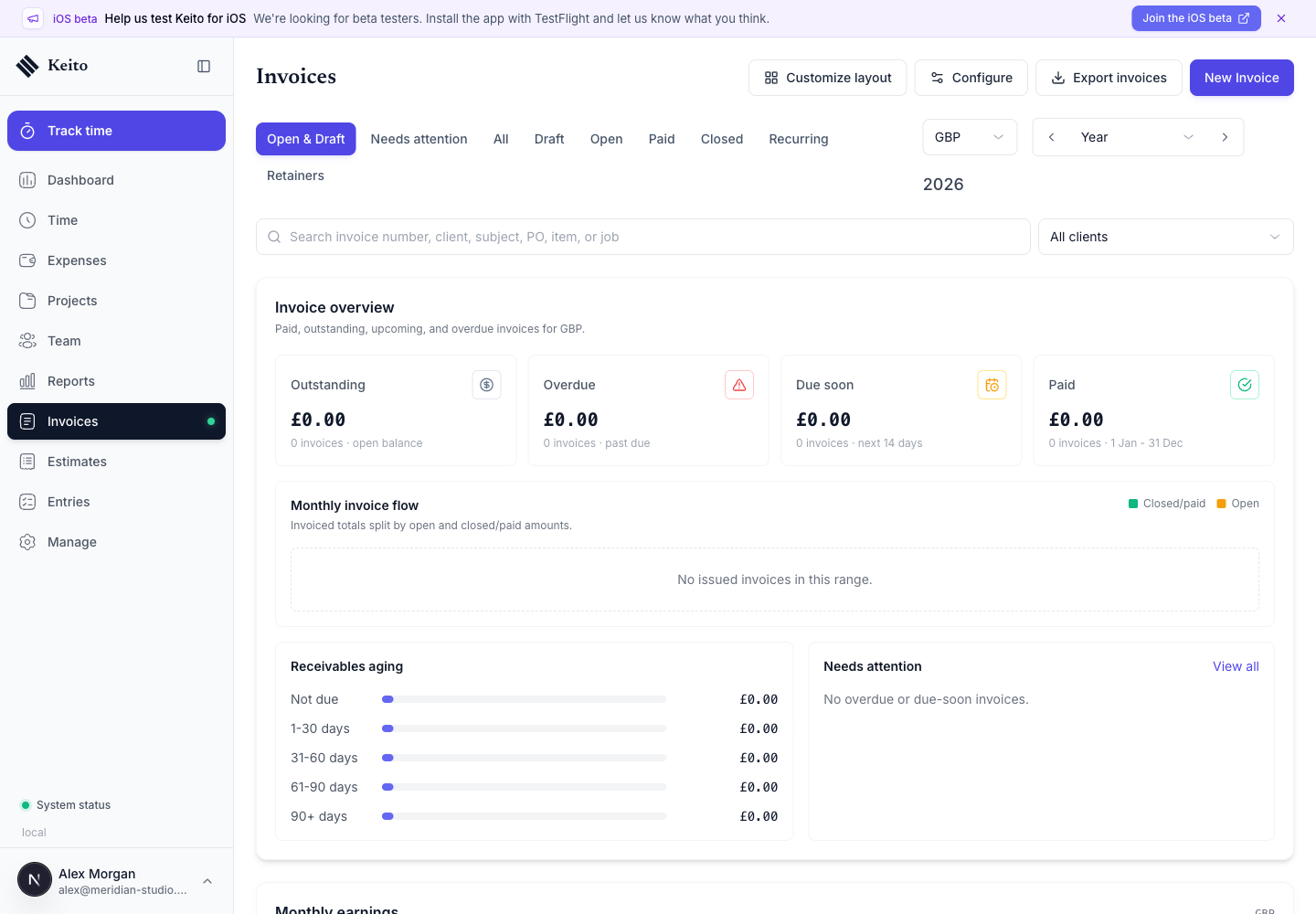
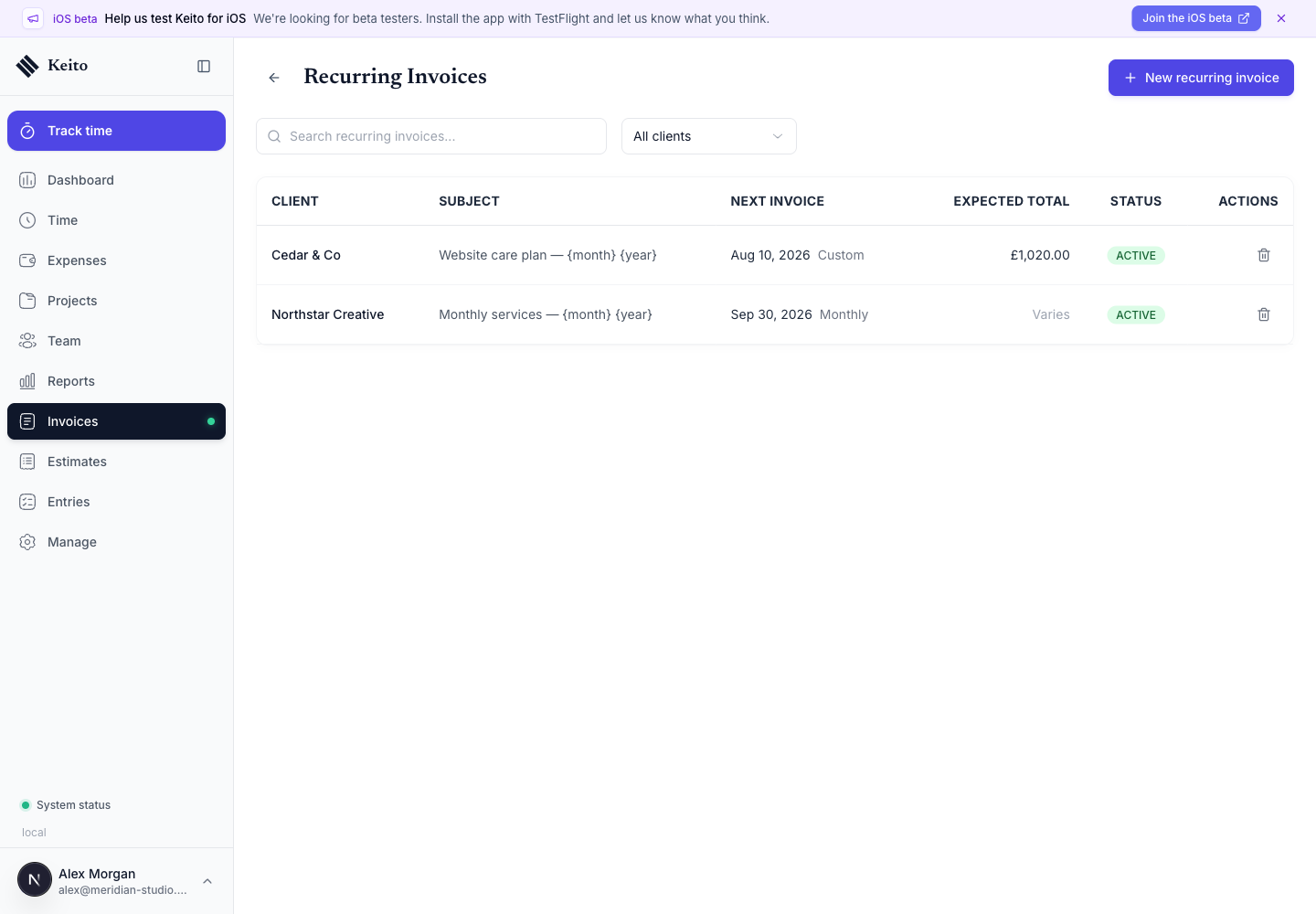
The recurring list shows each template’s client, subject, frequency, next issue date, status, and expected total. Tracked-time totals display as Varies because the value depends on the eligible work found when an invoice is generated.
Select New Recurring Invoice to start the three-step setup.
Step 1: choose the client and invoice type
Choose an active client, then select Tracked time & expenses or Free-form.
Tracked time & expenses
Select one or more active projects belonging to the client. Keito shows the current uninvoiced value for each project as a planning aid.
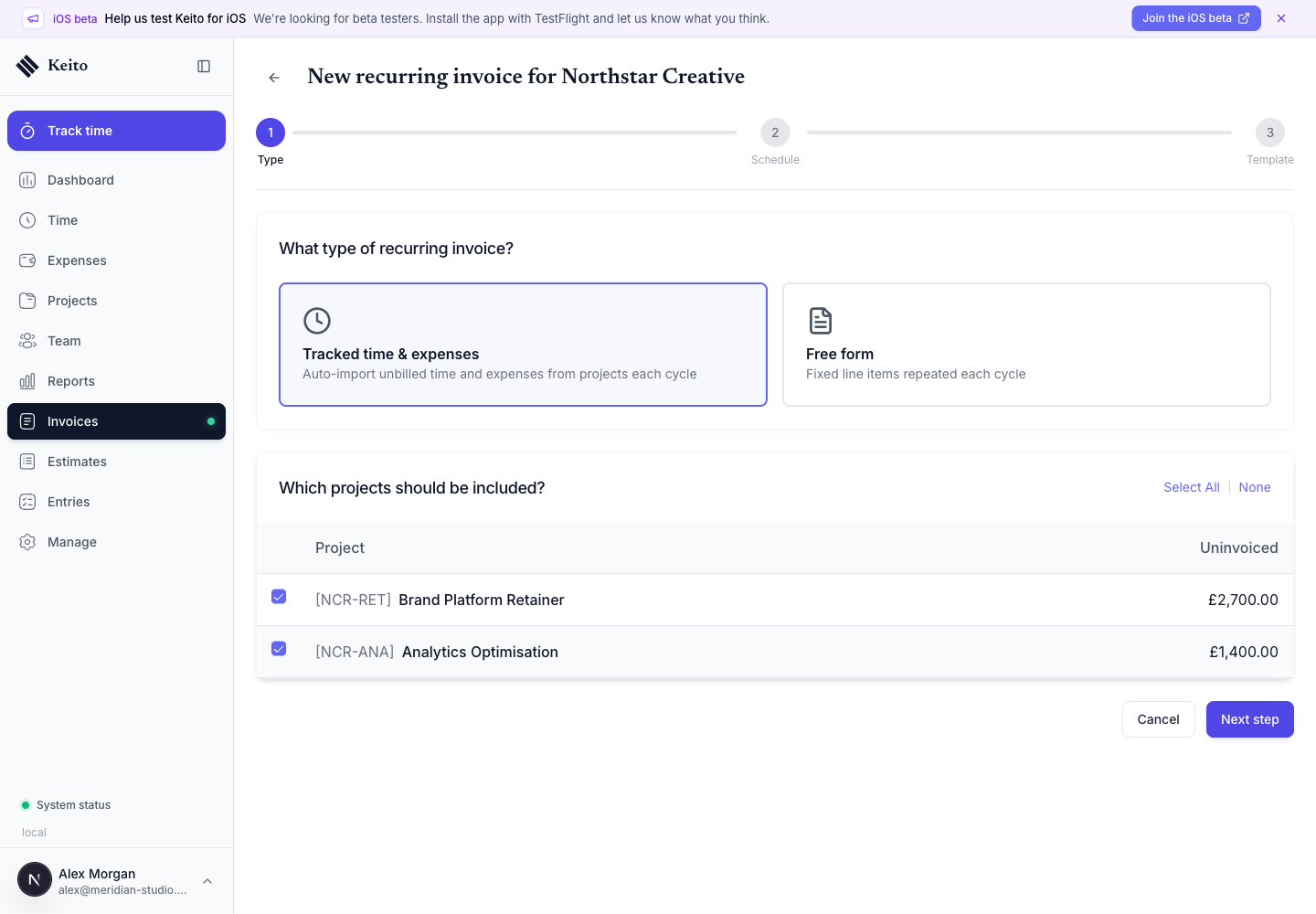
When each invoice is generated, Keito imports eligible billable time from those projects for that billing period. You can also include eligible billable expenses.
By default, eligible work must be approved, billable, complete, and not already billed. If an administrator enables Include documented billable time and expenses before approval under Invoices → Configure → Default Values, unsubmitted and submitted work can also be included. Rejected work, running timers, and already billed items remain excluded. See Documented Work Before Approval.
Imported time and expenses are marked as billed and locked against the generated invoice, so they are not offered for a later invoice.
Free-form
Free-form templates repeat the line items you define. Each item has:
- a type, description, quantity, and unit price;
- optional first-tax and second-tax treatment;
- an optional project association.
Use this type when the charge should repeat even when no time or expenses were recorded.
Step 2: set the schedule
The first issue date determines when Keito first generates an invoice and where its first billing period ends.
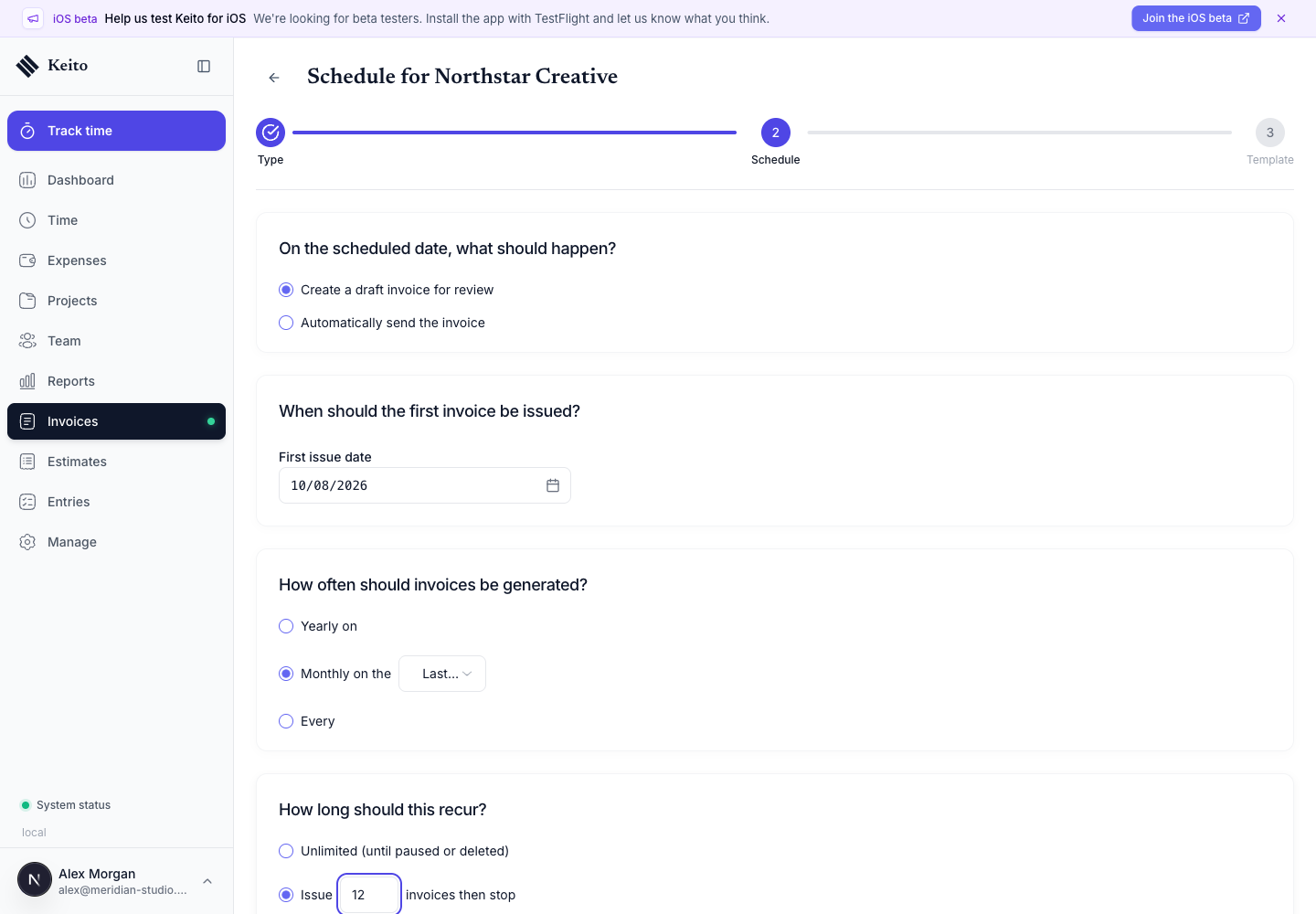
Choose one of these frequencies:
| Frequency | Options |
|---|---|
| Monthly | Day 1–28 or the last day of every month |
| Yearly | A specific month and day from 1–28 |
| Custom | Every 1 or more days, weeks, or months |
The monthly last day option adapts to short months. A custom schedule is useful for weekly, fortnightly, quarterly, or other non-standard billing cadences.
Then choose when the schedule ends:
- No end date keeps generating invoices until the template is deleted.
- After a number of invoices completes the template after the final occurrence.
Keito checks due recurring schedules daily. After generating an invoice, it advances the next issue date. A limited template changes to Completed when it reaches its maximum number of invoices.
Understand the generated-invoice action
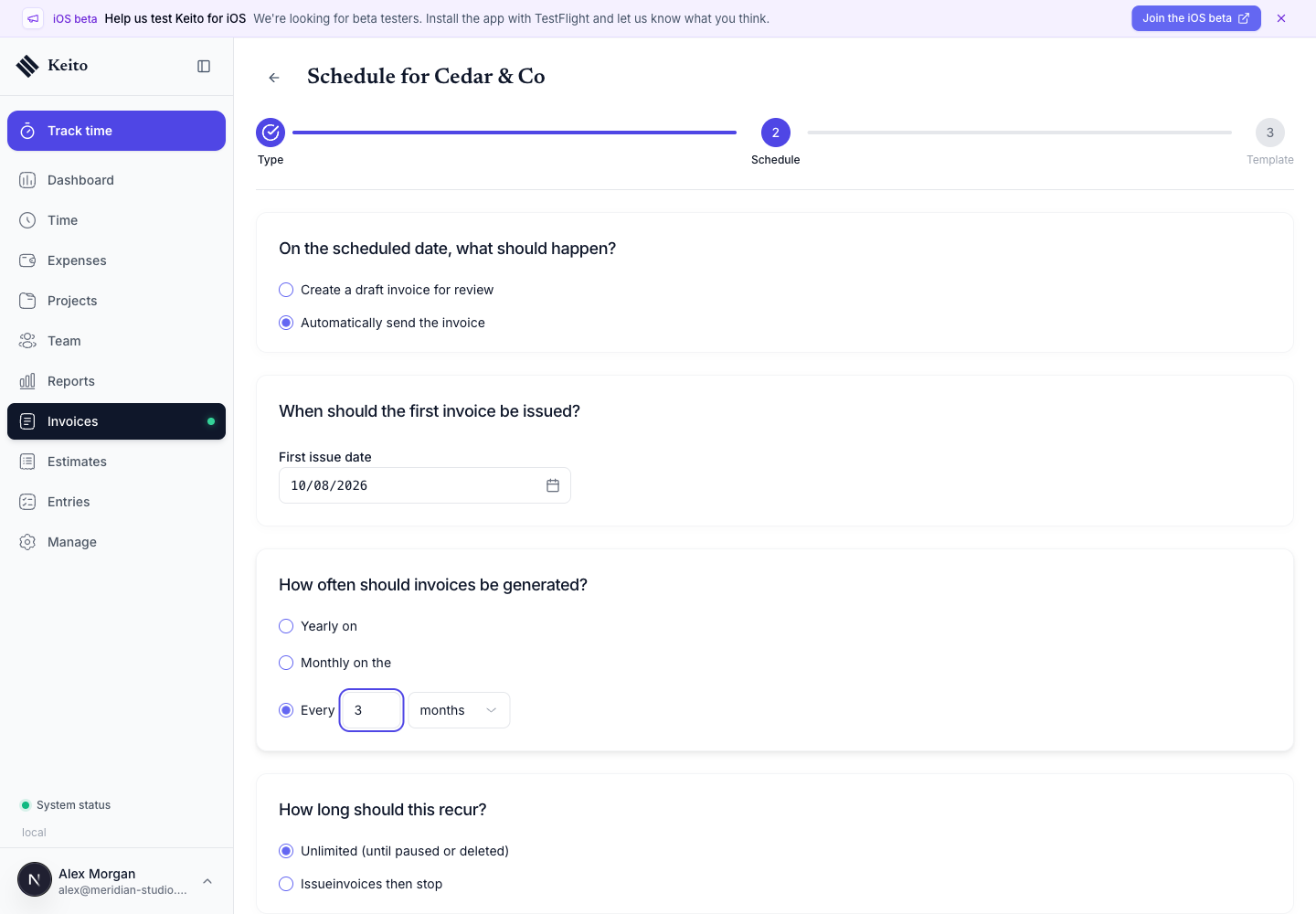
| Action | What Keito does on the issue date |
|---|---|
| Create as draft | Creates a draft for review, editing, and delivery |
| Automatically send | Creates the invoice in the Open state and records it as sent |
Important: The current recurring generator does not email a client contact when Automatically send is selected. It marks the new invoice as Open/sent. If the client must receive an email, open the generated invoice and use Send Invoice. Choose Create as draft when your process requires a human review before delivery.
See Sending Invoices for recipient, message, PDF, and client-portal options.
How billing periods work
For tracked-time templates, each invoice covers the period immediately before its issue date. The period starts one schedule interval before the issue date and ends on the day before the issue date.
For example, a monthly invoice issued on 10 August covers 10 July through 9 August. A weekly invoice issued on Monday covers the previous Monday through Sunday.
This calculation also applies to the first invoice. Pick a first issue date that matches the boundary you want; Keito does not start the first period on the day the template was created.
If no eligible work is found for a tracked-time billing period, Keito can still create an invoice from the template. Review draft invoices before sending if empty billing periods are possible.
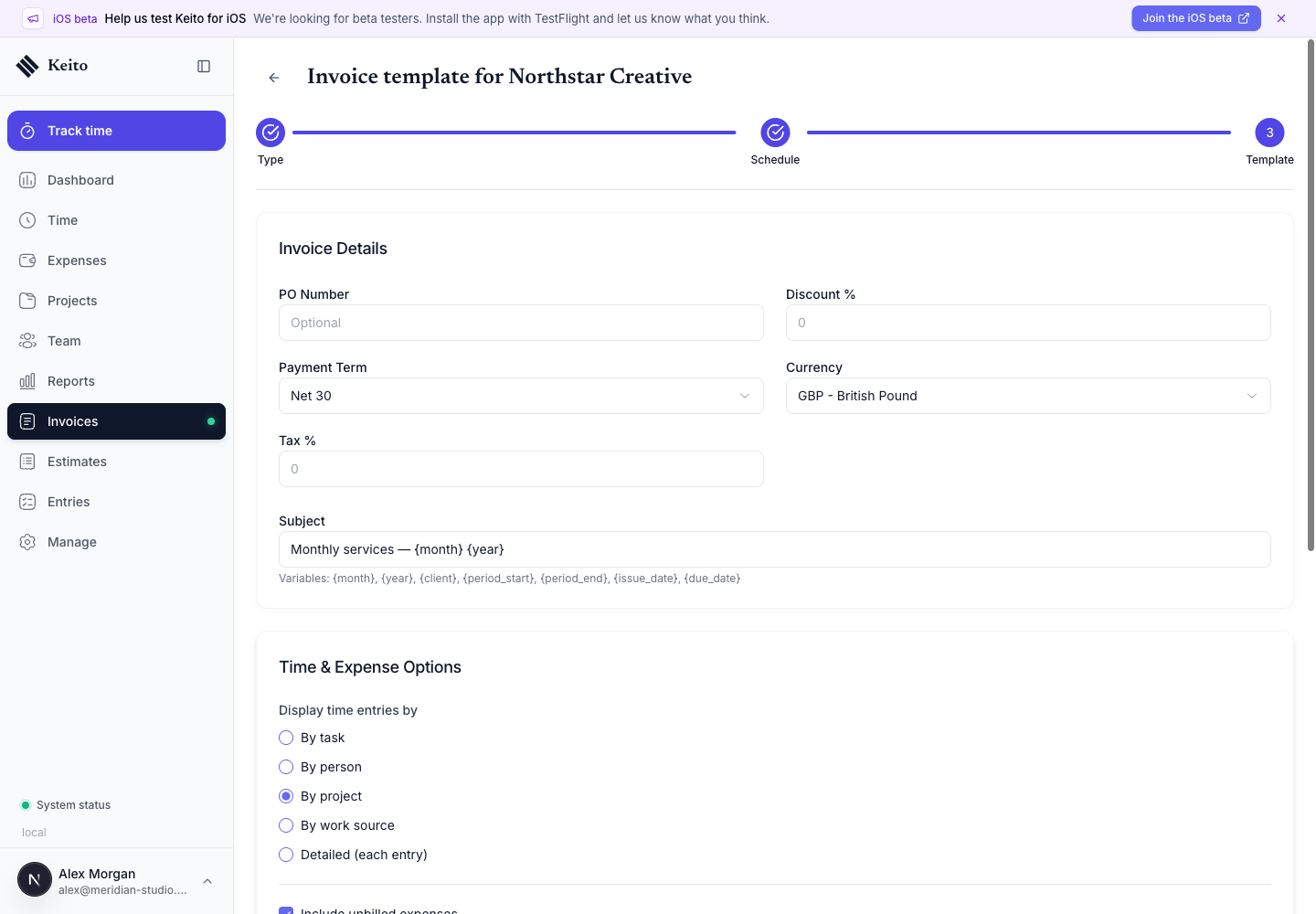
Step 3: build the invoice template
The template supplies the fields copied to every generated invoice:
- purchase order number;
- discount;
- payment terms: Upon Receipt, Net 15, Net 30, Net 45, Net 60, or a custom 1–365 days;
- currency;
- up to two tax rates;
- subject and notes;
- whether to show total hours;
- late-payment reminder policy.
Client and workspace defaults are copied into the template when it is created. Editing those defaults later does not retroactively change an existing recurring template.
Tracked-time display and expenses
Choose how imported time appears on the generated invoice:
- By task;
- By person;
- By project;
- By work source;
- Detailed, with each entry shown separately.
Turn on Include unbilled expenses to import eligible expenses from the selected projects for the same billing period.
Free-form line items
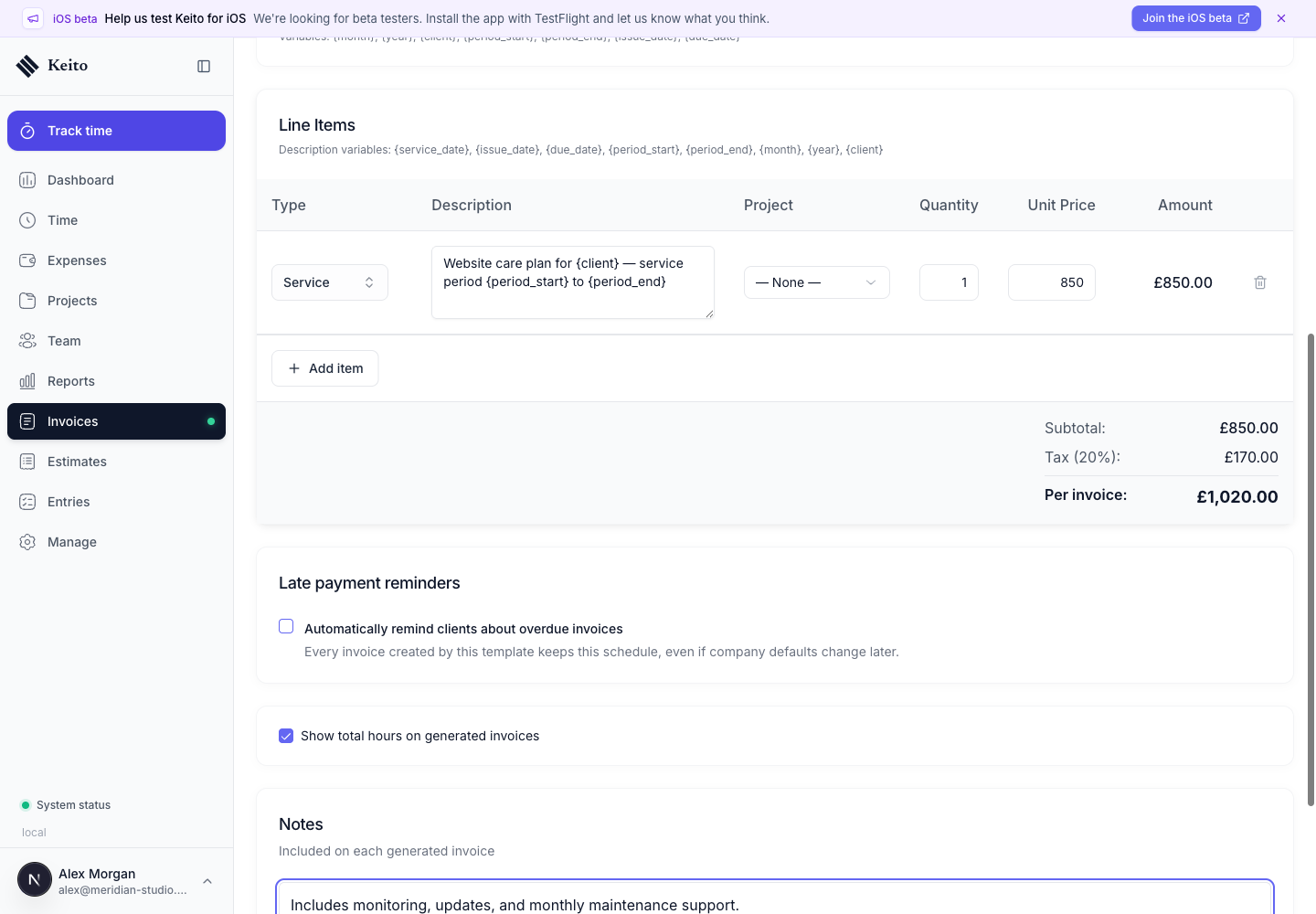
Add the line items that should repeat on every occurrence. Description variables can make a fixed charge specific to its service period.
Template variables
Use these variables in the subject. Keito replaces them when it generates an invoice:
| Variable | Value |
|---|---|
{month} |
Billing-period end month |
{year} |
Billing-period end year |
{client} |
Client name |
{period_start} |
First day of the billing period |
{period_end} |
Last day of the billing period |
{issue_date} |
Generated invoice’s issue date |
{due_date} |
Due date calculated from the payment terms |
Free-form line-item descriptions support the same variables plus {service_date}, which uses the issue date. Dates follow the workspace’s configured date format.
For an invoice issued on 10 August 2026, a subject of Monthly services — {month} {year} becomes Monthly services — August 2026, and {period_start} to {period_end} becomes the formatted equivalent of 10 July to 9 August.
Configure late-payment reminders
Turn on Automatically remind clients about overdue invoices to attach a reminder schedule to every invoice generated from the template.
Set:
- the first reminder, from 1–90 days after the due date;
- the repeat interval, from 1–90 days;
- an optional reminder subject and message.
Custom reminder text supports {invoice_number}, {invoice_id}, {company_name}, {client_name}, {invoice_amount}, {due_date}, {issue_date}, {days_past_due}, and {invoice_url}.
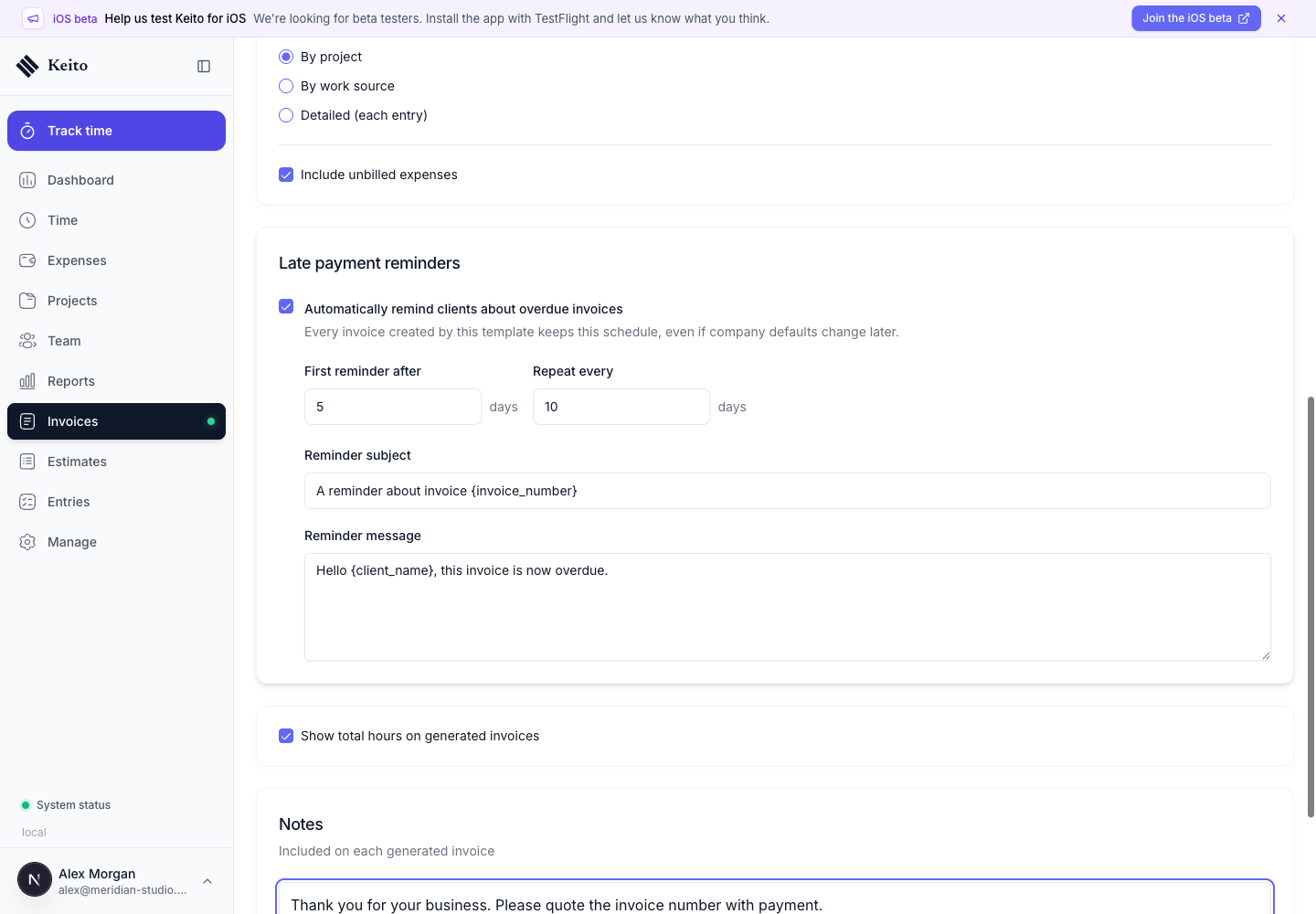
The reminder policy is copied to each generated invoice. Existing generated invoices keep that policy even if the recurring template or workspace defaults change later.
Review and manage a template
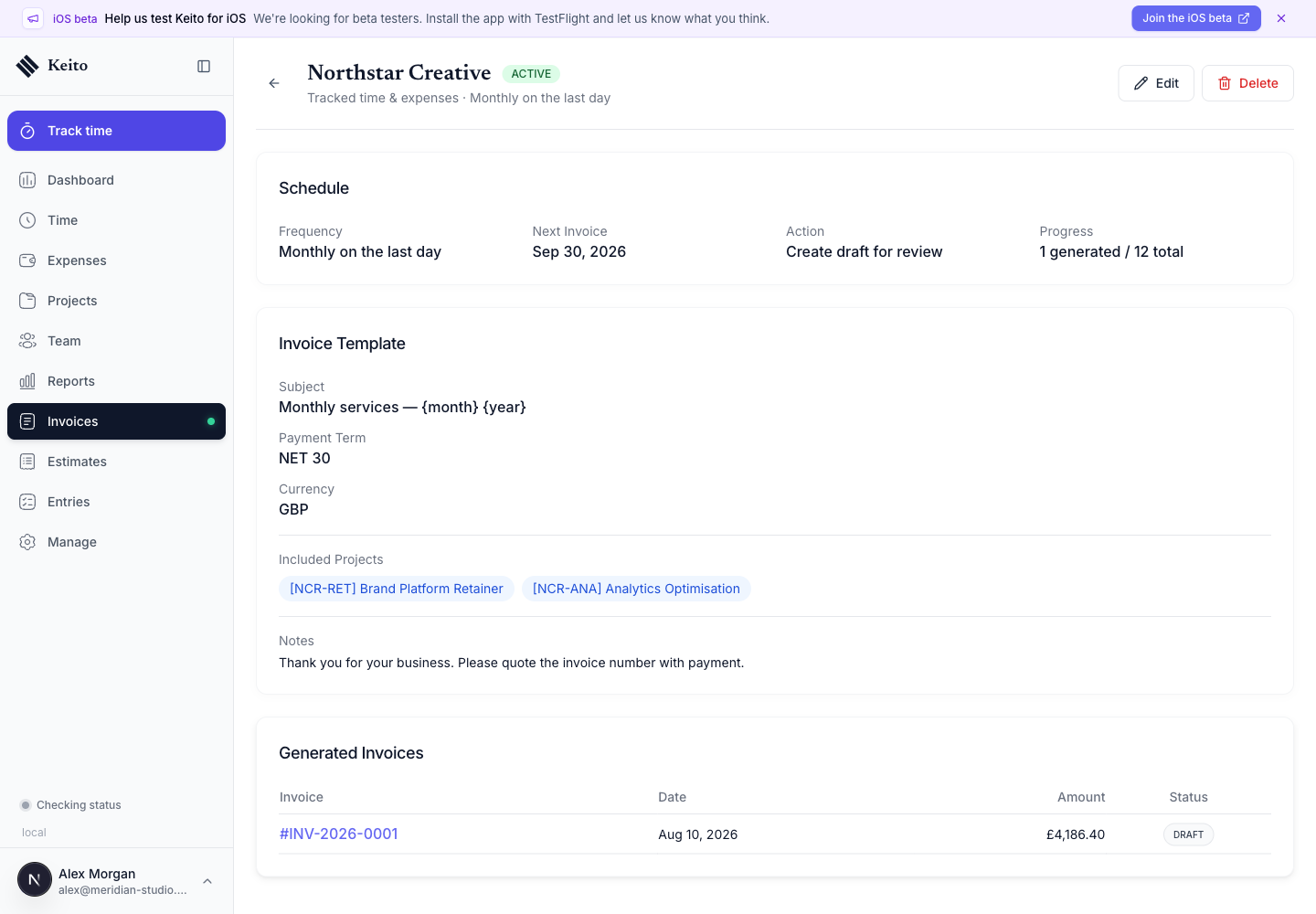
After saving, the template detail shows its status, schedule, next issue date, action, progress, client, selected projects or repeating line items, and invoice settings.
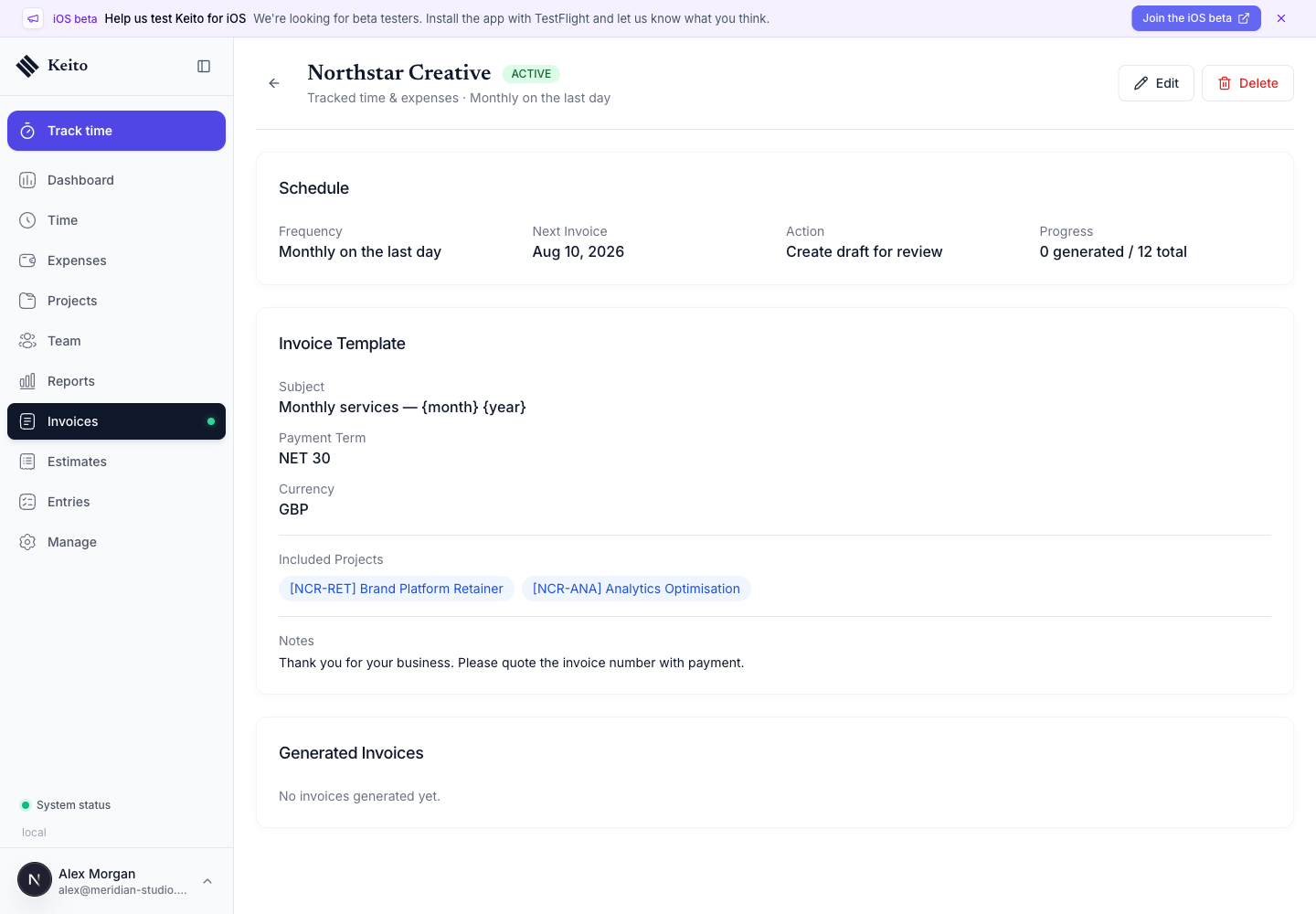
Use Edit to change an active template’s schedule, action, invoice fields, projects or line items, and reminder policy. Changes affect future generated invoices; they do not rewrite invoices that already exist.
The detail page also shows the 20 most recently generated invoices, with links to each invoice and its issue date, state, and total.
The recurring list makes it easy to search by subject or client, filter by client, and compare upcoming schedules and statuses.
Under Invoices → Configure → Default Values, the recurring list can be sorted by next invoice first, newest first, or client A–Z.
Completion and deletion
- A limited template completes automatically after its final occurrence.
- Deleting a template stops future generation and removes it from active use.
- Invoices already generated from a deleted or completed template remain available.
Keito does not currently provide a separate pause action. To stop a schedule, delete the template; recreate it when billing should resume.
Recurring invoices imported from Harvest
Harvest’s public API does not expose future-only recurring templates. Keito can reconstruct a recurring schedule only when an imported historical invoice contains a Harvest recurring-invoice identifier.
Reconstructed templates require an administrator to review their schedule, amounts, taxes, and source settings before generation is enabled. Keito skips them until the review is confirmed. Future-only Harvest templates with no historical invoice must be recreated manually in Keito.
See Migrate from Harvest for the full import workflow.
Troubleshooting
A project is missing from the picker
Confirm that the project belongs to the selected client and is active. Recurring templates cannot select projects from another client.
The expected amount says “Varies”
That is normal for tracked-time templates. The final total is calculated from eligible time and expenses in each billing period.
Time or expenses were not imported
Check the generated invoice’s billing-period dates, the selected projects, billable state, approval state, running timers, and whether the work was already billed. Also review the workspace’s documented-work-before-approval setting.
The client did not receive an email
The Automatically send action currently opens and marks the invoice as sent; it does not dispatch an email. Open the generated invoice and select Send Invoice to choose recipients and deliver it.
The subject variable shows an unexpected month
{month} and {year} come from the billing period’s end date, not the template creation date. Use {issue_date} when the issue date is the intended reference.