Verify imported data
Validate the migration before the wider team starts work in Keito. Use the preview counts recorded before import, source-system reports, and financial totals rather than relying only on the completion message.
Record-count checks
Compare each selected source type with its result:
| Data | Where to check in Keito | What to compare |
|---|---|---|
| Clients | Manage → Clients | Count, name, address, project relationships |
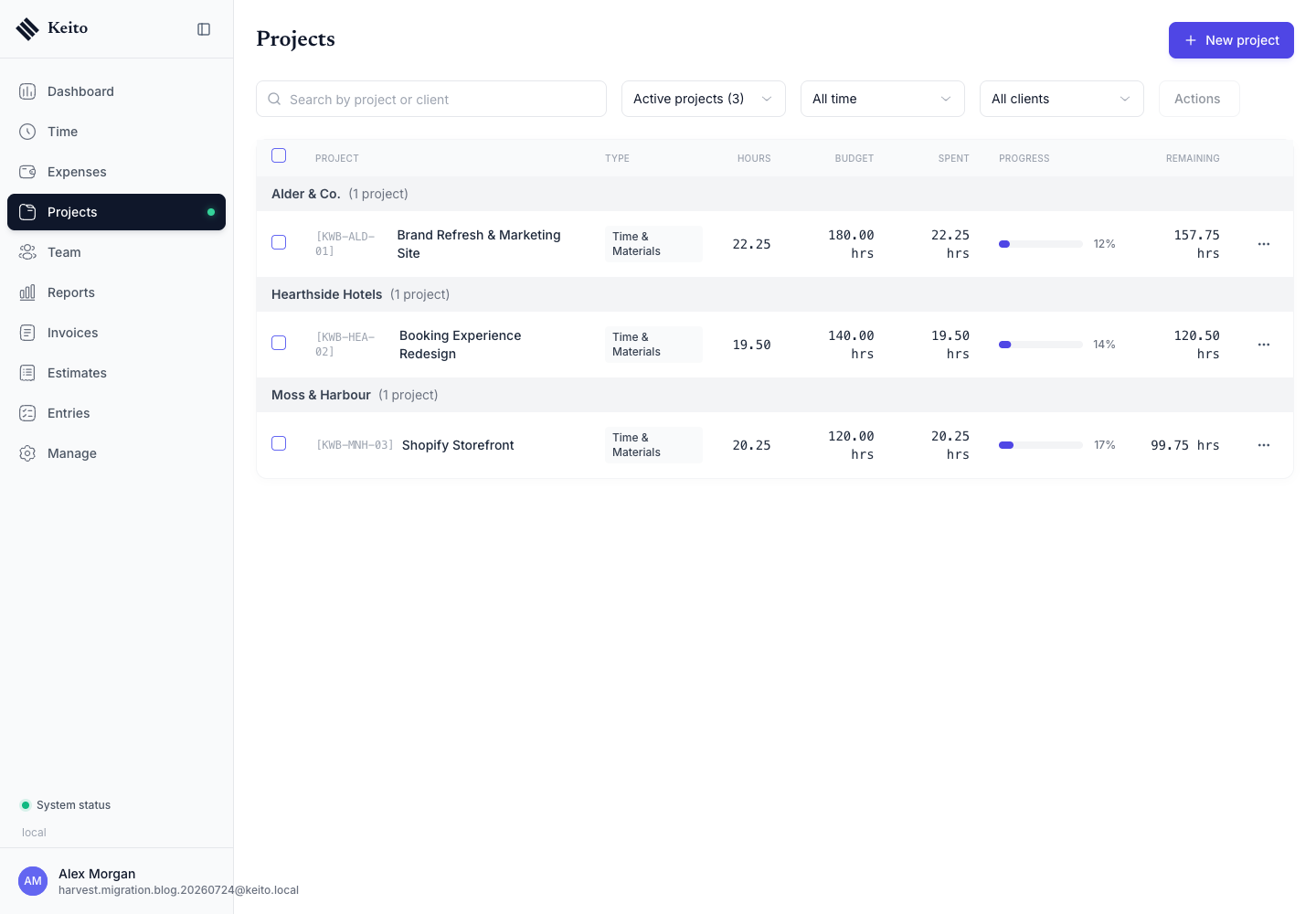
| Projects | Projects | Count, client, code, budget, assignments |
| Tasks | Manage → Tasks | Names, default rates, project availability |
| Team | Team | Identity, role, workspace access, invitation state |
| Time entries | Time and Reports | Count, date, person, project, task, duration, billable state |
| Expenses | Expenses | Count, date, project, category, amount, billable state |
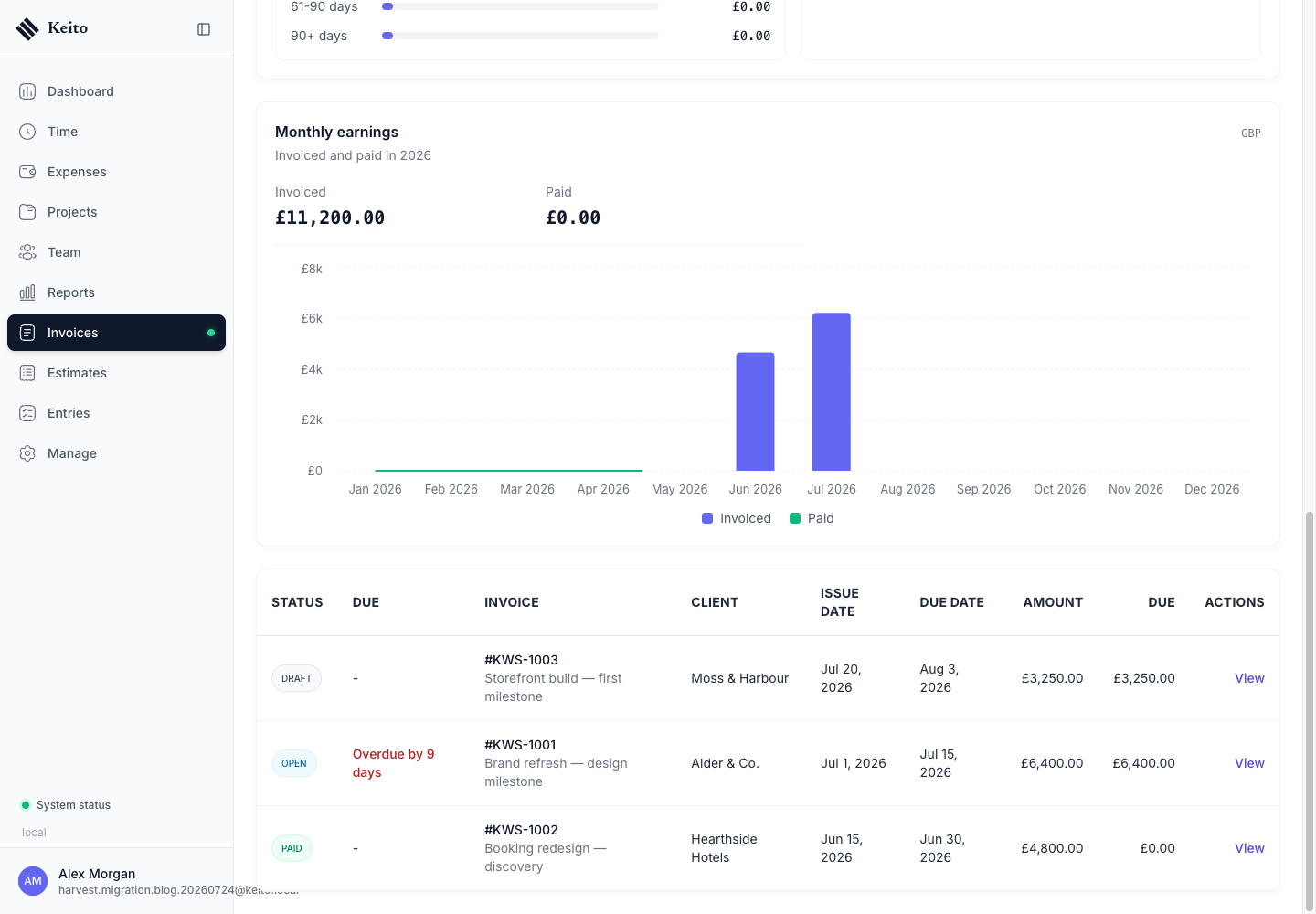
| Invoices | Invoices → All | Number, client, dates, state, amount, outstanding balance. Use Find and filter invoices for historical records. |
| Estimates | Estimates → All | Number, client, dates, state, line items, amount |
| Settings | Settings | Currency, timezone, time preferences, working week |
Keito includes default tasks and expense categories. Matching defaults can be reused during import, so final target totals may not equal the number of new records created. Validate names and relationships as well as totals.
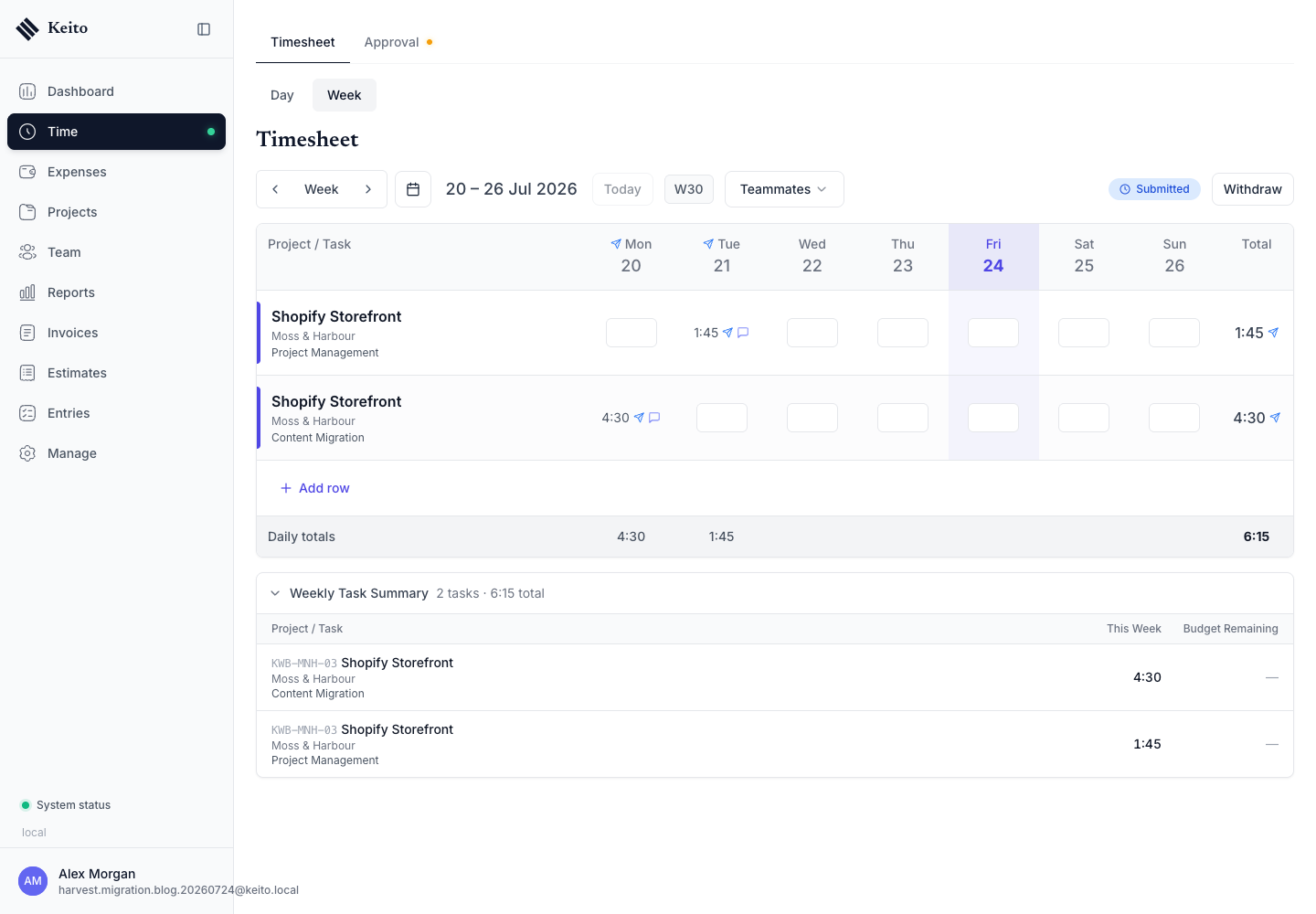
Time and project checks
Select at least:
- one recent week;
- one older historical week;
- one billable project;
- one non-billable entry when the source contains one;
- one project with a budget.
Confirm the person, project, task, date, duration, notes, and billable state.
Then compare project codes, client relationships, recorded hours, and remaining budgets.
Financial checks
Financial validation needs totals as well as record counts.
For invoices:
- compare total invoice value;
- compare outstanding balance;
- spot-check draft, open, paid, and cancelled states present in the source;
- compare document numbers, issue dates, due dates, taxes, and line items;
- confirm each invoice belongs to the correct client and project.
For expenses, compare total value by currency and spot-check categories, project relationships, notes, and billable states. For estimates, select All so accepted, declined, and expired documents are included.
People and permissions
Imported teammates are added without automatically receiving invitations.
Before inviting anyone:
- match each person to the correct identity;
- review administrator and manager roles;
- check project assignments;
- confirm hourly and billable rates;
- remove access that should not carry into the new workspace.
Sign-off record
Record the result outside the migration token or credentials:
| Check | Owner | Result |
|---|---|---|
| Source and target record counts | Migration owner | Pass / follow-up |
| Total imported hours | Operations owner | Pass / follow-up |
| Project and task mappings | Project owner | Pass / follow-up |
| Expense totals | Finance owner | Pass / follow-up |
| Invoice values and balances | Finance owner | Pass / follow-up |
| User roles and permissions | Workspace administrator | Pass / follow-up |
| Currency, timezone, and working week | Workspace administrator | Pass / follow-up |
Resolve every follow-up before making Keito the system for new work. If a phase repeatedly fails, record the phase and non-sensitive error message, then contact Keito support. Include the Keito login email plus two or three missing invoice numbers and issue dates when the problem concerns invoices. Never send the Personal Access Token or invoice contents.
Next step
When verification is signed off, use the cutover checklist.