Time Reports
Use time reports to understand where hours went, what can be billed, and how much team capacity remains. See the Reporting Overview for the complete Solo, Pro, and Business comparison.
Summary time report
The summary time report is available on every plan. Solo shows the licensed person’s data. Pro and Business add team reporting for managers and administrators.
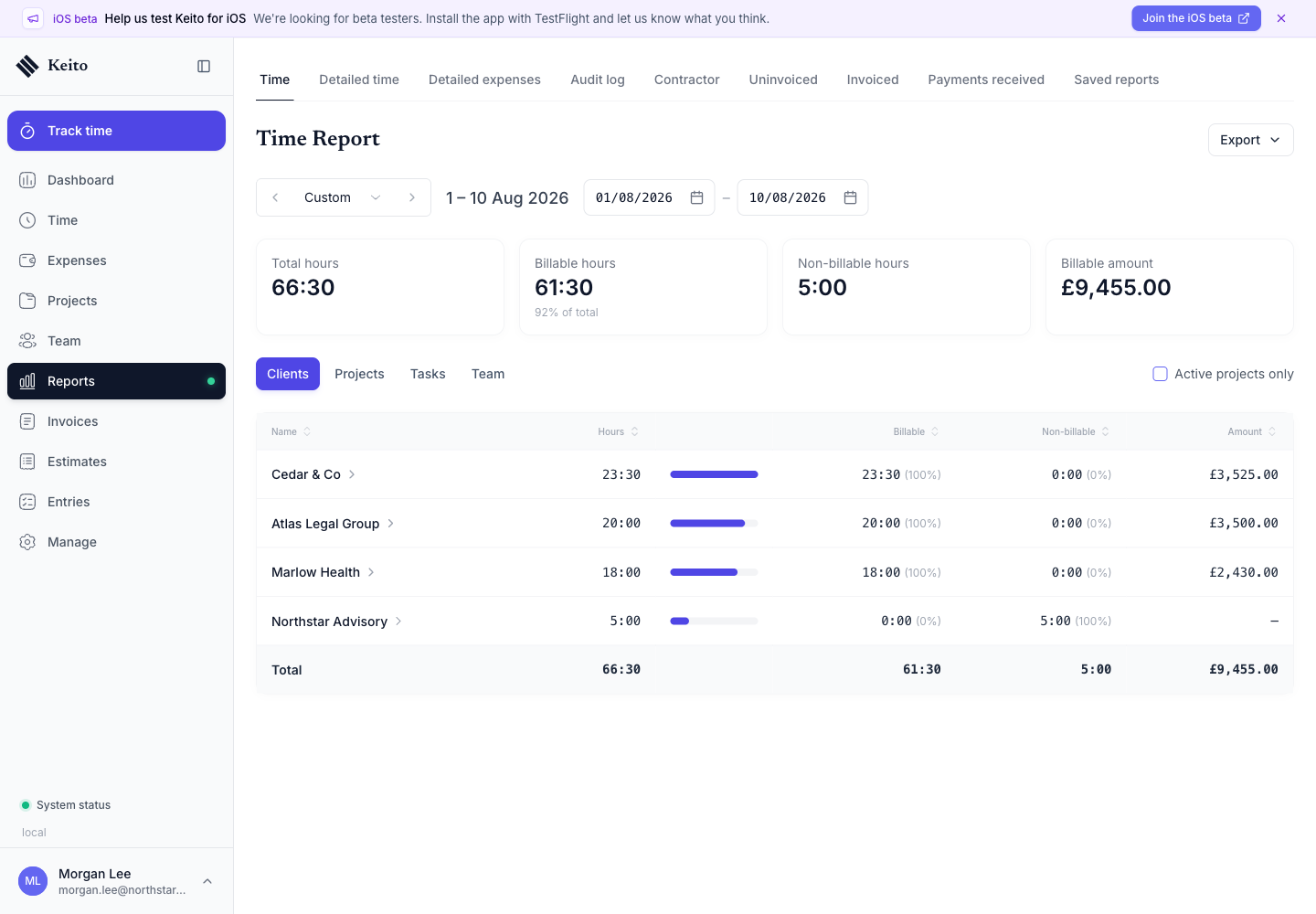
Choose one of these views:
By Client
See total hours and billable amounts per client. Useful for understanding client revenue distribution and identifying your most active accounts.
By Project
Break down hours by project to understand where effort is being allocated. Shows billable hours, non-billable hours, and billable amounts per project.
By Task
View time distribution by task type (e.g., Design vs Development vs Meetings). Helps identify how much time goes to productive work versus overhead.
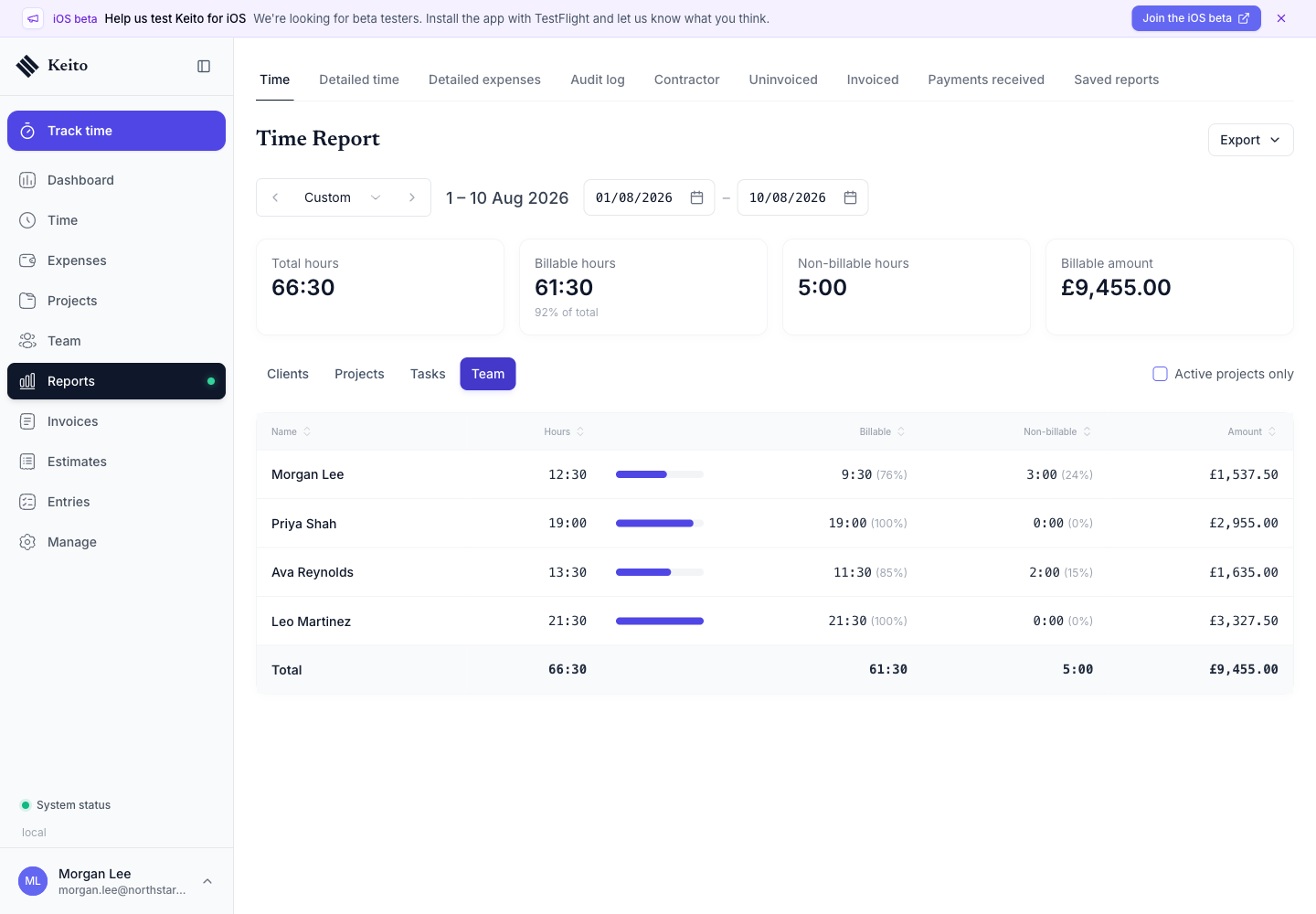
By Team
Compare total, billable, and non-billable time by person. Pro and Business can also compare recorded hours with weekly capacity and inspect utilisation.
Detailed time report on Business
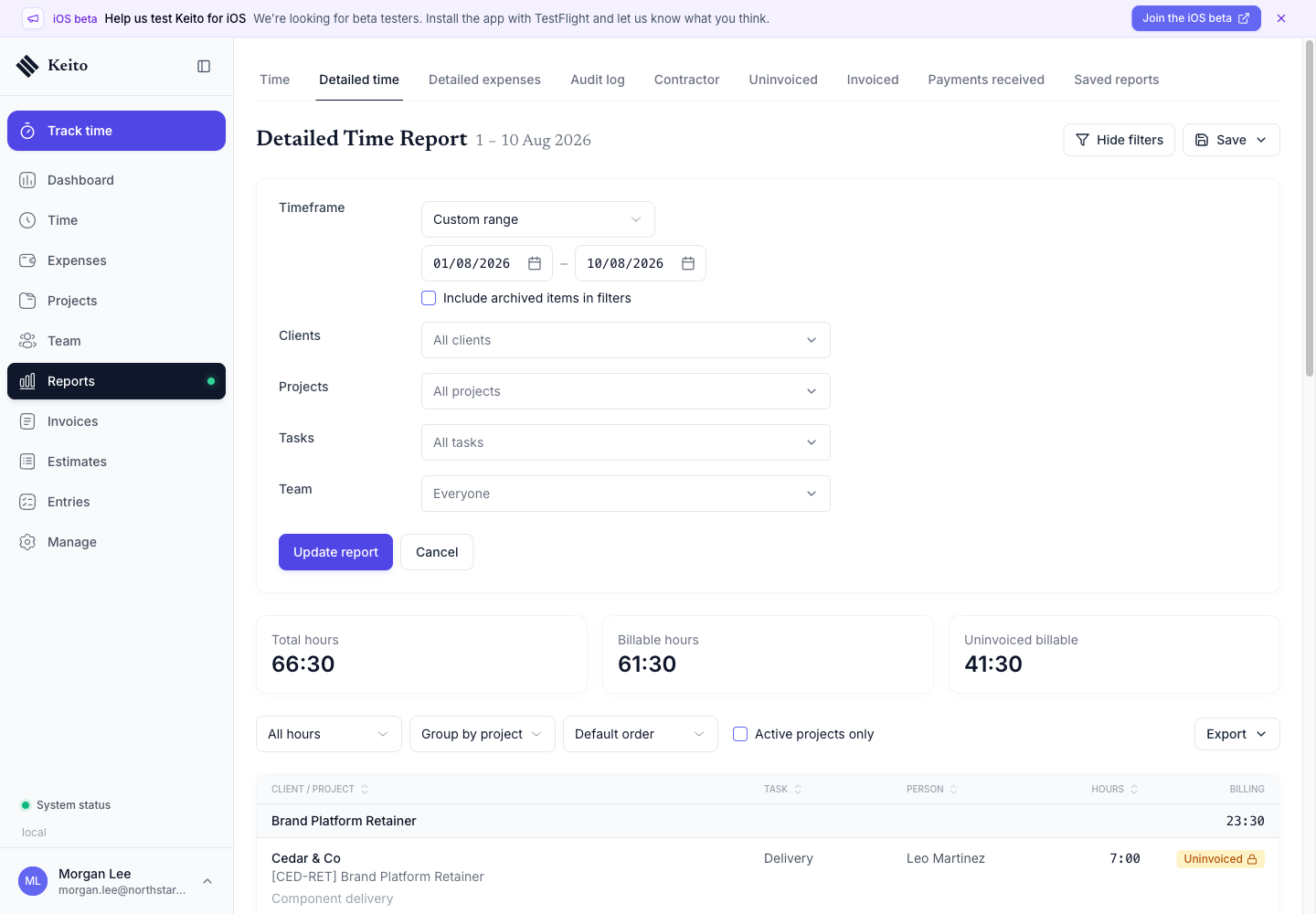
The detailed time report requires Business. It shows individual entries with their full reporting context:
- Date
- Team member
- Client and project
- Task
- Notes
- Hours (billable and non-billable)
- Billable amount
- Invoice status
Use it for reconciliation, checking invoice readiness, reviewing approval status, or preparing an entry-level client breakdown.
If workspace time rounding is enabled, the report displays separate Actual and Rounded values for every entry. Group totals, report totals, billable amounts, budgets, and new invoice quantities continue to use rounded time. The actual duration remains available for audit and payroll workflows.
Report Metrics
Every time report includes these key metrics:
| Metric | Description |
|---|---|
| Total Hours | All hours tracked in the period |
| Billable Hours | Hours marked as billable |
| Non-Billable Hours | Hours not billable to clients |
| Billable Amount | Total value of billable time (hours × rates) |
| Uninvoiced Billable | Billable value not yet included on an invoice; shown in the detailed report |
Filtering
The summary report provides period navigation, active-project filtering, grouping, and drill-down. Business detailed time adds combinations of:
- Date range — Preset ranges (This Week, Last Month, This Quarter, etc.) or custom dates
- Client — One or more clients
- Project — Specific projects
- Task — Specific task types
- Team member — Individual people or groups
- Billable status — Billable, Non-billable, or All
- Invoice status — Invoiced, Uninvoiced, or All
- Approval status — Approved, Submitted, Unsubmitted, or All
Saving reports on Business
Business workspaces can save frequently used advanced-report filters:
- Configure your filters.
- Click Save.
- Give it a name (e.g., “Q1 Client Utilization” or “Weekly Team Hours”).
- Access saved reports from the Saved Reports section.
Saved reports can be private or shared with selected teammates.
Saved reports can also remember a JSON set of presentation preferences for CSV, Excel, and PDF downloads. See Report Export Settings for the supported labels, filename variables, and access rules. Because this preference belongs to Saved Reports, it is Business-only; Solo and Pro keep their standard report exports.
Permissions
- Members see their own time.
- Managers see their own time plus the people and projects included in their manager permissions.
- Administrators and owners see time across the workspace.
- Rates and billable amounts remain hidden from roles without financial access.
Exporting
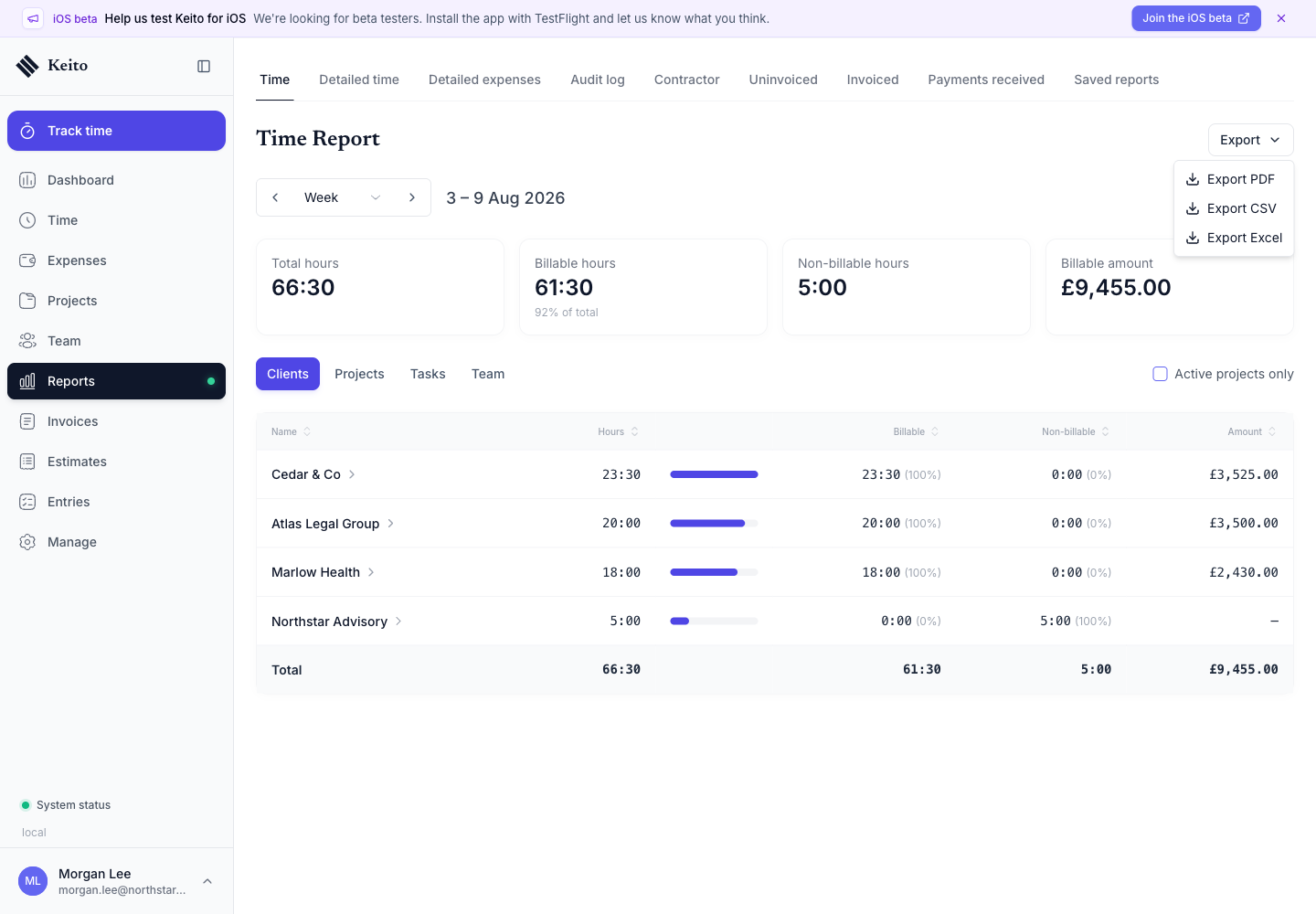
The summary time report can be downloaded as PDF, CSV, or Excel. Exports from the Business detailed time report require the advanced report-export capability.
Show or hide timer times in Detailed Time exports
By default, Keito shows a timer entry’s start and end time before its description in the exported Notes field. For example, an entry can appear as [12:57 PM - 2:11 PM] Team meeting.
Workspace administrators can hide these times from new exports:
- Open Settings → Preferences.
- Find Reporting.
- Set Detailed time export clock times to Hidden. Choose Shown to include them again.
This workspace setting applies to new Detailed Time CSV and Excel downloads, table PDFs, and entry-list PDFs. It does not change descriptions shown on screen or generated time-report attachments added to invoices. Existing downloaded files are not changed.
Business saved reports can customise export titles, filenames, worksheet names, and existing column labels without changing the data or permissions in the report. See Report Export Settings.