
Enabling the Portal
Project access and portal access are set in two different places:
| What you control | Where | Who can change it |
|---|---|---|
| Which projects a client can open, and whether they see hours and billable totals | Project member permissions on the project’s Edit page | Workspace owners and administrators |
| Whether a client user can see the client’s invoice history and retainer balances | Manage → Clients → Edit client → Client portal card | Workspace owners and administrators |
A client who has been assigned to projects but never enabled in the Client portal card still has a working portal with Dashboard and Projects, just without Invoices or Retainers.
Before you start
- The person must already be a Client member of your workspace.
- They must be assigned to at least one of this client’s projects. The Portal user list only offers client users who are assigned to one of the client’s projects, or who have been enabled here before, so another client’s user cannot be handed this client’s billing history by mistake.
If the card reads “No client users yet. Invite one from a project’s People section with the Client member type, then enable the portal sections here.”, invite the person from a project first. See Client Project Access.
Enable Invoices and Retainers
- Go to Manage → Clients and open the client.
- Find the Client portal card on the right of the Edit client page.
- Choose the person under Portal user. Their email address and their Assigned projects for this client are listed so you can confirm you have the right person.
- Under Portal sections, tick Invoices, Retainers, or both. For a person who has not been enabled before, Invoices starts ticked and Retainers unticked.
- Click Save portal access.
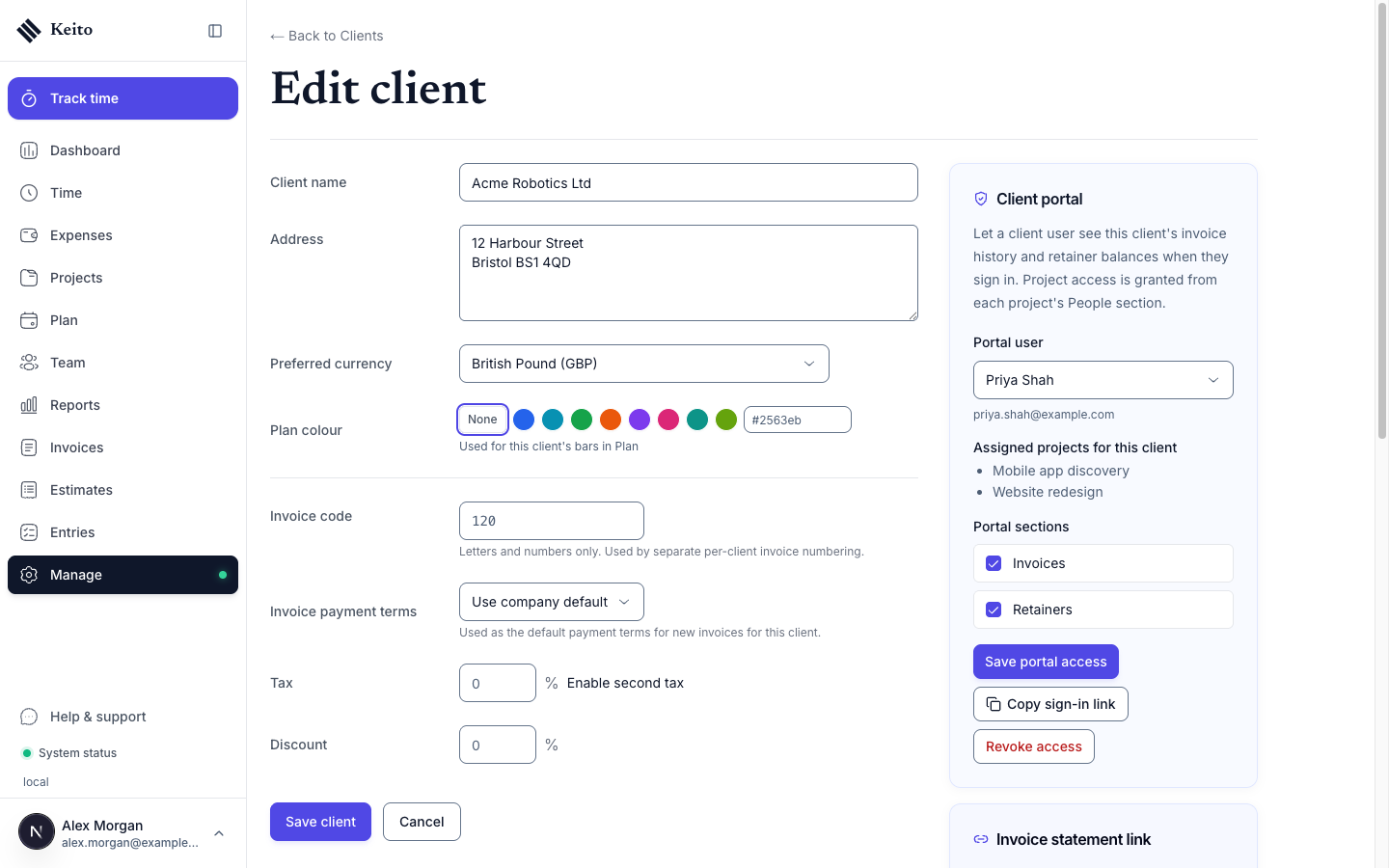
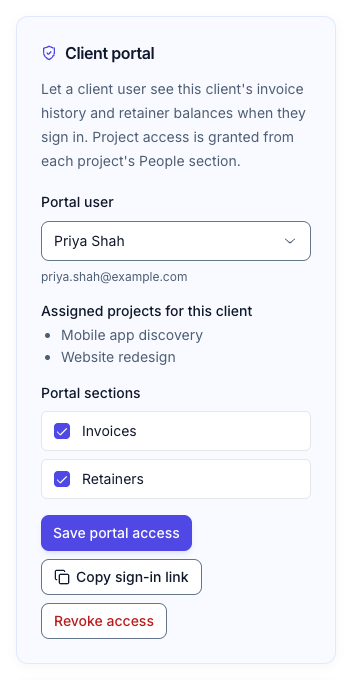
The change applies the next time the client loads a page; they do not need to sign out. Invoices and Retainers appear in their sidebar only for the sections you ticked.
Repeat for each client user who needs the portal. Each person has their own settings, and one person can be enabled for more than one client organisation.
Copy a sign-in link
Once a portal user has been saved, Copy sign-in link puts a link on your clipboard that opens the Keito sign-in page and, after sign-in, lands on that client’s Invoices → Outstanding list.
The link is an ordinary sign-in address with no token or password in it. The client still signs in with their own Keito account, and anyone else who opens the link is asked to sign in as themselves. This is different from the Invoice statement link card below, which is a bearer link that shows outstanding invoices to anyone who has it.
Change or remove access
- To change sections, adjust the ticks and click Save portal access again. Unticking both sections keeps the person’s Dashboard and Projects and hides Invoices and Retainers.
- Revoke access closes the Invoices and Retainers sections for that person. It does not touch their project assignments; remove someone from a project in the project’s Project member permissions section. You can enable them again later with Save portal access.
- Archiving the person in Team, or archiving the client organisation, closes the portal for them automatically.
Invoice statement link
The Invoice statement link card on the same page is the older, sign-in-free way to share outstanding invoices. It creates a link that anyone who has it can open. It is independent of the Client portal card, and you can use both. When a client with the portal enabled opens a statement link while signed in, Keito shows their portal Invoices list instead; see Invoices & Retainers.
Who can do this
Only workspace owners and administrators see the Client portal card. Managers who can edit clients do not see it, and client members can never configure their own access. See Permissions Reference for the full matrix.