
Client View Sections
The per-assignment Client view permission decides whether a client member sees a project’s activity, hours, and billable totals at all. Client view sections refine what that view includes: you can keep the activity chart and hours while hiding the money.
Two sections can be hidden:
| Section | What it hides from clients |
|---|---|
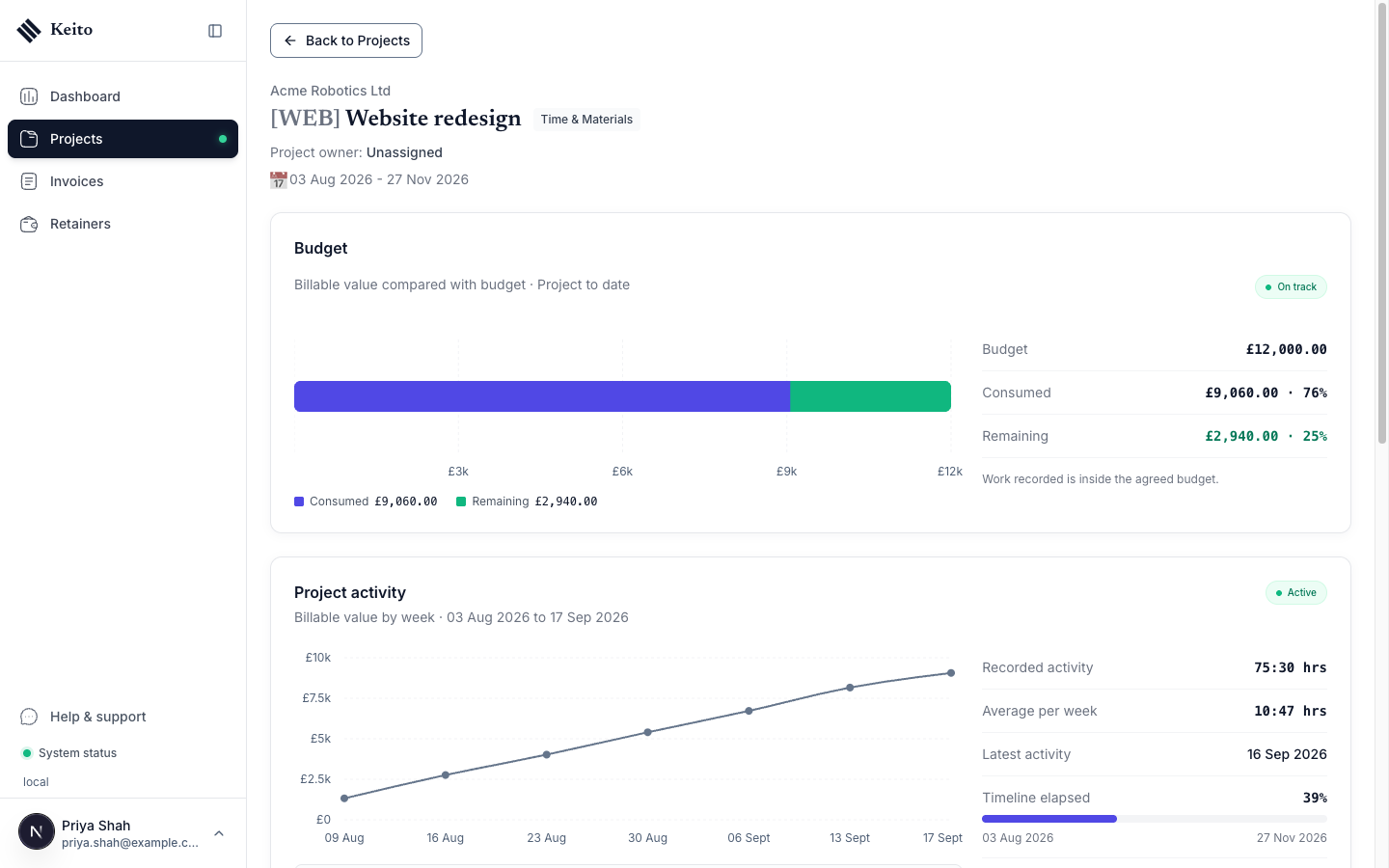
| Budget remaining | The Budget remaining card, the Budget progress and trajectory panel, the Budget remaining column in the activity data table, budget columns in the task and person tables, fixed-fee analysis, hour-budget breakdowns, and the monthly budget comparison |
| Uninvoiced amounts | The Uninvoiced amount card (Uninvoiced amount, Uninvoiced hours, and Total invoiced), invoiced and uninvoiced totals in time summaries, and the Uninvoiced billable tile and invoiced markers on the project’s time details |
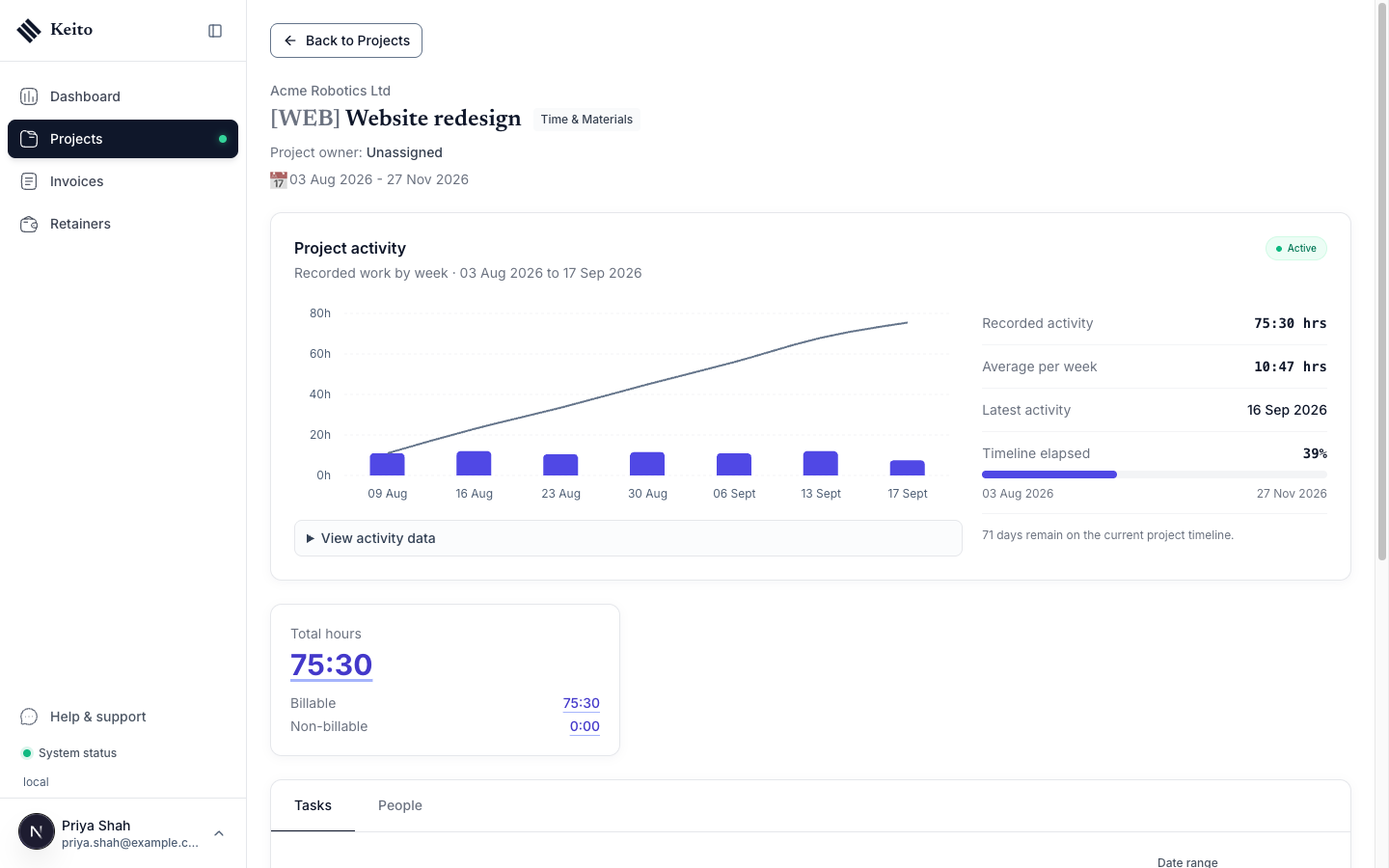
Total hours, billable and non-billable hours, the Project activity chart, tasks, people, and project dates stay visible to clients with Client view.
These settings apply to external client members only. Employees, contractors, managers, and administrators see every section they are entitled to, whatever these settings say.
Workspace defaults
Set the default for all projects in Settings → Preferences → Workspace preferences:
| Setting | Options | Default |
|---|---|---|
| Client view: budget remaining | Shown, Hidden | Shown |
| Client view: uninvoiced amounts | Shown, Hidden | Shown |

To change one:
- Open Settings and select the Preferences tab.
- Scroll to Workspace preferences.
- Hover over the row and click the pencil icon.
- Choose Shown or Hidden, then click the tick to save.
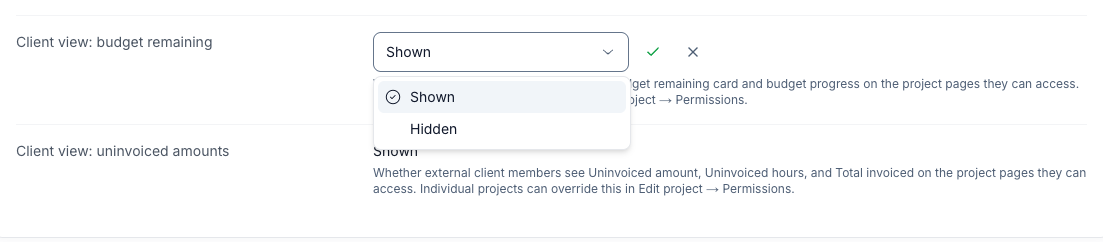
Only workspace owners and administrators see Workspace preferences.
Per-project override
Each project can follow the workspace default or set its own value:
- Open the project and click Edit.
- In the Permissions card, find Client view.
- Set Budget remaining and Uninvoiced amounts to one of:
- Workspace default (Shown) or Workspace default (Hidden) — follow the workspace setting. The current default is shown in brackets.
- Show to clients — always show this section on this project.
- Hide from clients — always hide this section on this project.
- Save the project.
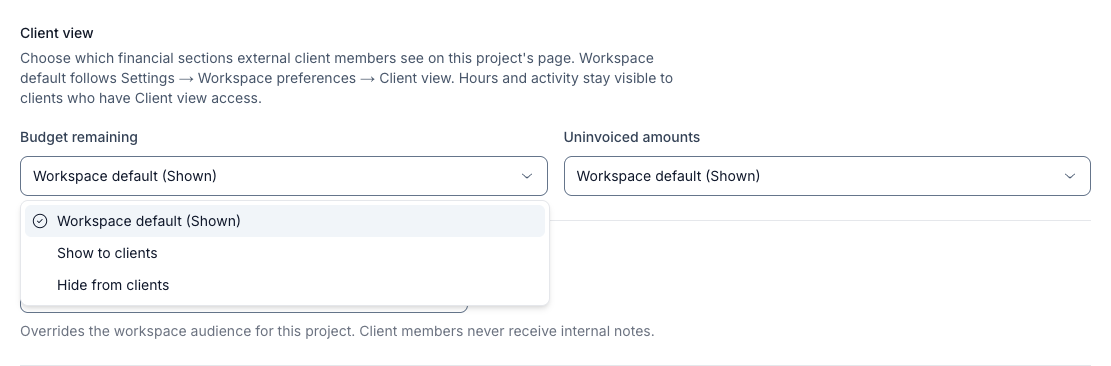
When the workspace default is Hidden, the first option reads Workspace default (Hidden):

The Client view controls appear for administrators, and for managers who can edit the project and have the See and edit billable rates and amounts for projects and people they manage permission. Duplicating a project copies its overrides.
Precedence
| Workspace default | Project setting | Client sees the section |
|---|---|---|
| Shown | Workspace default | Yes |
| Hidden | Workspace default | No |
| Shown or Hidden | Show to clients | Yes |
| Shown or Hidden | Hide from clients | No |
Each section is resolved on its own, so a project can hide the budget while still showing uninvoiced amounts. Showing a section never grants anything extra: a client without the Client view permission sees no financial view at all, whatever these settings say.
What the client sees
With both sections shown, the client’s project page includes the Budget panel and the three summary cards:

With both hidden, the same page keeps the activity chart and hours and drops the budget and uninvoiced figures:

The change is enforced on the server. A client’s project data omits the hidden figures rather than just hiding them in the page, so they cannot be recovered with the browser’s developer tools. Internal members, including the workspace owner, continue to see every figure.
Where budgets are not shown
The portal’s Dashboard, Invoices, and Retainers pages never show budgets or uninvoiced work. These settings only affect the project pages a client opens from Projects.