
Client Portal Overview
The client portal is what an external client member sees when they sign in to Keito. It gives client stakeholders one signed-in place for the projects you have shared with them and, when you enable it, their organisation’s invoice history and retainer balances. It does not change how project access is granted.
Who gets the portal
Anyone whose member type is Client signs in to the portal instead of the internal workspace. You create client members by inviting them from a project with Invite as set to Client, or from Team → Invite person with the Client member type. See Client Project Access for the invitation flow and per-project permissions.
Client members remain regular workspace members with project-level access only. They cannot be administrators or managers.
Signing in
Clients sign in at app.keito.ai with their own Keito account, the same way as everyone else. After sign-in they land on the portal Dashboard. If you sent them a sign-in link from Manage → Clients, they land on their Invoices list instead.
Navigation
The portal sidebar replaces the internal navigation entirely:
| Item | What it opens | Shown |
|---|---|---|
| Dashboard | A summary of what has been shared with them | Always |
| Projects | The client’s assigned projects, using the ordinary client project view | Always |
| Invoices | Issued invoices for the client organisation | Only when Invoices is enabled for that client user |
| Retainers | Retainer balances and recent activity | Only when Retainers is enabled for that client user |
Clients keep access to Settings (their own preferences) and their Profile from the account menu. Internal pages such as Time, Expenses, Reports, Manage, and Team are not available; opening one of those addresses returns the client to the Dashboard.
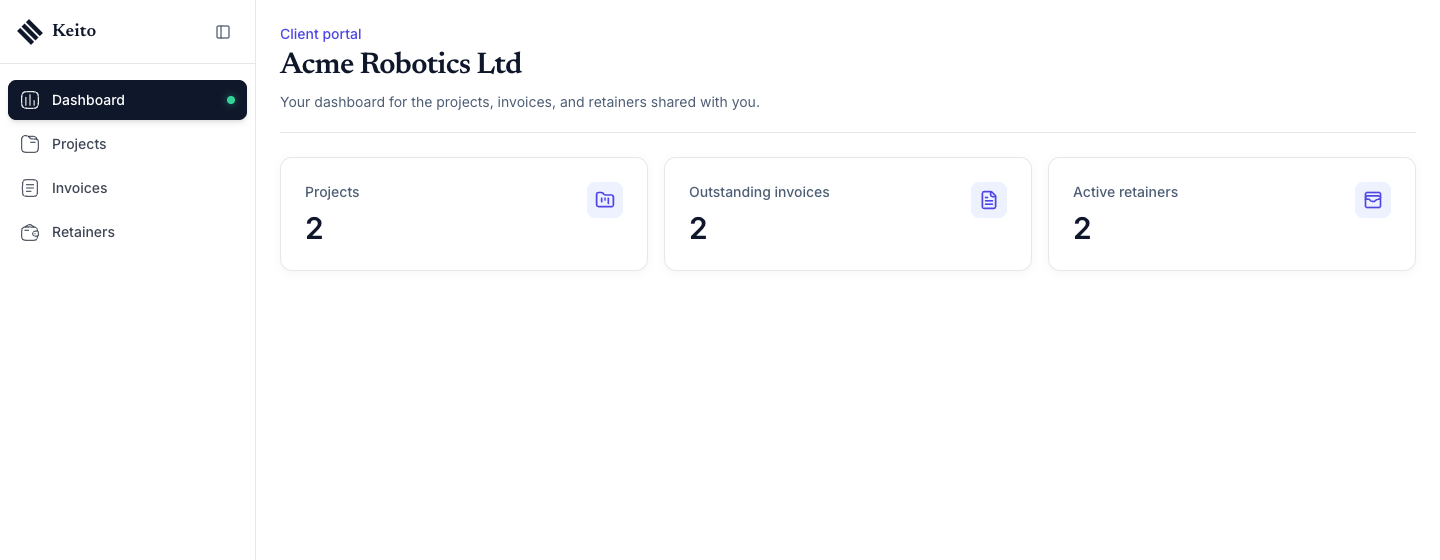
Dashboard
The heading is the client organisation the person belongs to. Each card links into its section:
- Projects — the number of that client’s projects the person is assigned to.
- Outstanding invoices — open invoices with a balance still due. Shown only when Invoices is enabled.
- Active retainers — active retainers in scope for this person. Shown only when Retainers is enabled.
If neither section has been enabled yet, the Dashboard shows a Projects card and the message “Invoices and retainers are not shared with you yet. Your Keito contact can enable them for your account.”
A client user who has been given the portal for more than one client organisation gets a Choose client account selector in the header and can switch between them.
Projects
Projects works exactly as it did before the portal existed. The list contains only projects where the client has an active assignment, and each project page shows activity, hours, and client-facing financial totals when the per-assignment Client view permission is on.
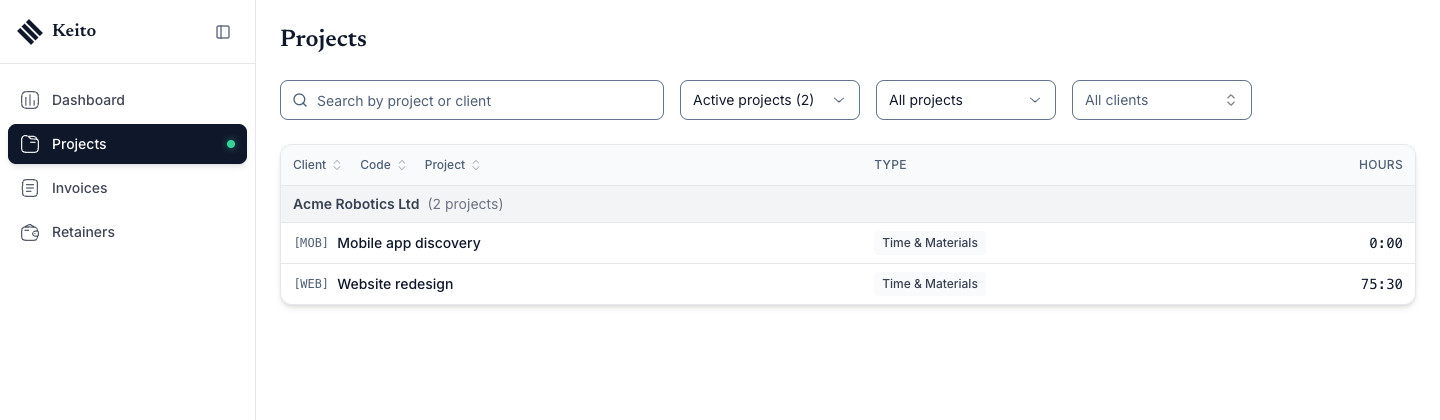
Workspace administrators can additionally hide budget and uninvoiced figures from clients, per workspace or per project. See Client View Sections.
What clients never see
- Internal costs, cost rates, or cost budgets.
- Draft, closed, or voided invoices, or invoices for any other client.
- Retainers on projects they are not assigned to.
- Reports, exports, team management, integrations, invoice management, or workspace settings.
- Internal time-entry notes.
Every portal read is checked on the server for the signed-in person, their workspace, and their client organisation, so a client member cannot reach hidden data by changing an address.
Next steps
- Enabling the Portal — turn on Invoices and Retainers for a client user.
- Invoices & Retainers — what each section shows and how emailed links behave.
- Client View Sections — hide budget and uninvoiced figures from clients.
- Permissions Reference — who can configure what, and every default.