Invite and Manage an Accountant
Only the workspace’s actual Owner can invite an accountant, convert an existing member to accountant access, change operational grants, return an accountant to standard access, or revoke the accountant’s membership. Administrators and Managers cannot perform these actions.
Accountant access is configured independently in every workspace. If one accountant serves three clients, each client owner sends or manages their own invitation.
Before you invite
Confirm that:
- you are signed in as the workspace Owner;
- the intended workspace name is shown in Keito;
- the workspace has an active Business plan and Accountant access is enabled for it;
- the email address belongs to the individual accountant; and
- you have chosen the least privilege they need.
Start with Audit unless the accountant needs to change local records. You can add Operational grants later.
Send an Audit invitation
- Open Team.
- Select Invite person.
- Enter the accountant’s name and work email.
- Keep the person type as Employee or Contractor. Client members cannot also be accountants.
- Enable Accountant access.
- Leave Access level set to Audit — read only.
- Review the summary explaining financial visibility, downloads, and the permanent integration and administration restrictions.
- Select Send invitation.
The invitee follows the normal Keito invitation link. They sign in or create an account, then join this exact workspace with the profile and grants shown when the invitation was sent.
If they already use Keito for another client, use the same email address. Accepting the new invitation adds another workspace; it does not merge client data or copy permissions between workspaces.
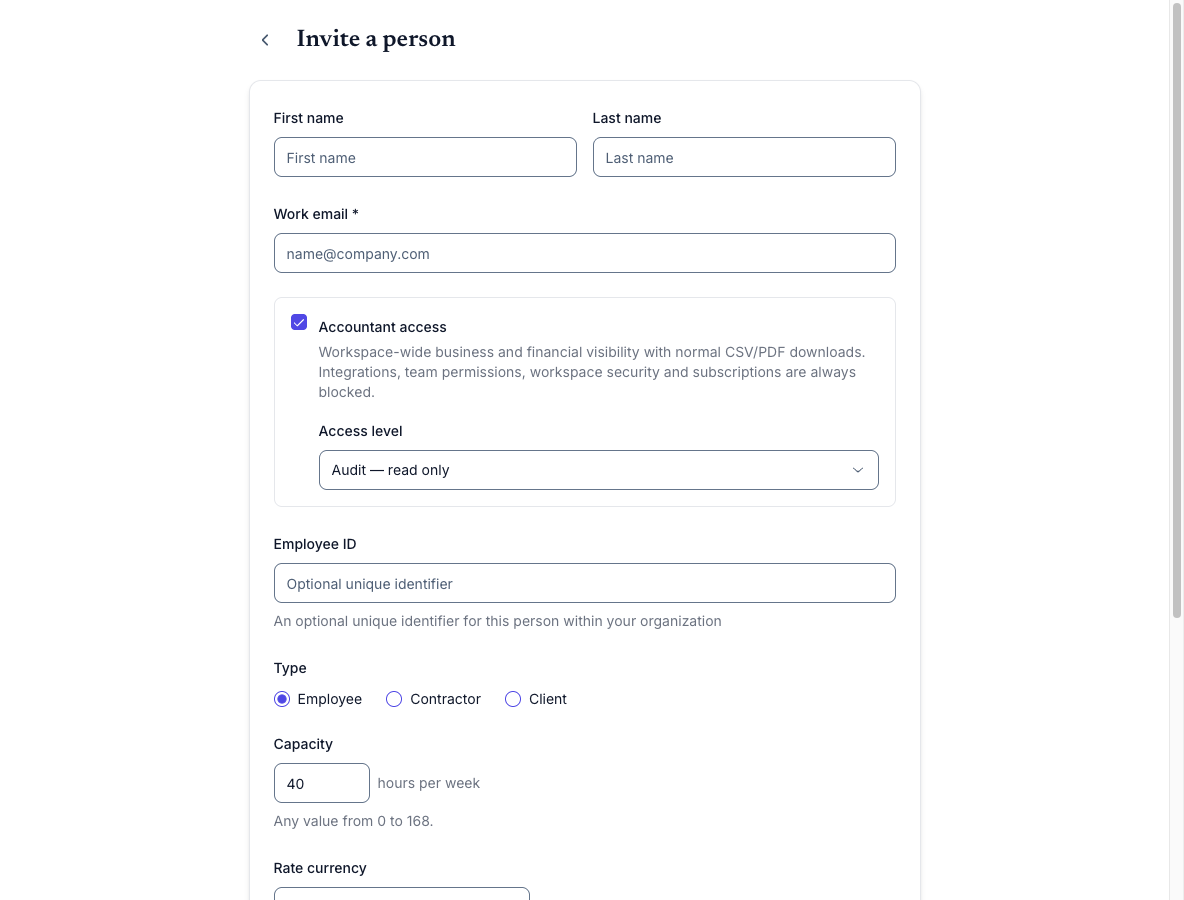
Audit is selected by default and does not expose any optional mutation grants.
Invite an Operational Accountant
Follow the same steps, then choose Operational Accountant and enable only the actions they need:
- Edit existing time and expenses
- Approve time and expenses
- Create and edit draft invoices
All three grants default to off. A grant does not permit related high-risk actions: accountants still cannot create time or expense records, send invoices, record payments, delete records, run bulk imports, or operate integrations.
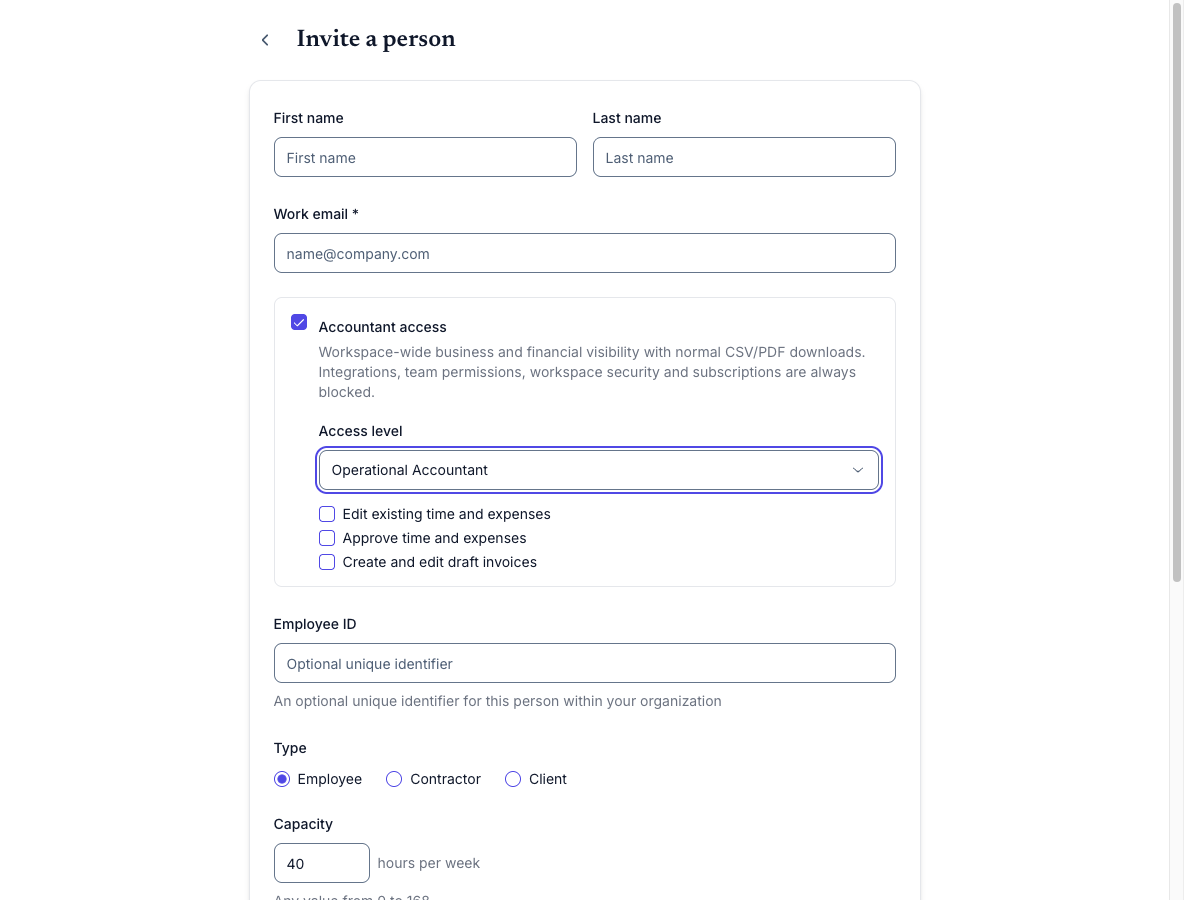
Operational access shows only the three supported grants. The owner enables each one separately.
Change an accountant’s access
- Open Team and select the accountant.
- Open Permissions.
- Review the current profile and effective actions.
- Choose Audit or Operational Accountant.
- For Operational access, enable or disable the three grants individually.
- Select Update accountant access.
Changes apply to current requests. Open tabs and previously issued credentials do not preserve the old permission level.
Changing a restricted accountant back to ordinary Member, Manager, or Administrator access is a separate, explicit owner action. Keito does not silently remove the restriction when another permission form is used.
Revoke access
Use the accountant’s Team profile to archive or revoke their membership. Revocation affects only the selected workspace; their Keito account and memberships in other client workspaces remain intact.
After revocation:
- protected pages stop displaying the workspace’s records;
- stale browser tabs are rejected when they request current data;
- old credentials cannot continue an accountant-initiated action; and
- audit history is retained.
To restore access later, the owner must deliberately restore the membership and review its accountant profile and grants.
When Keito blocks an Operational action
The owner may have granted an action but Keito can still block a particular record because it is connected to an external system. This includes records imported from or previously synced with a provider, as well as domains covered by an active integration.
Keito blocks the action before saving anything. The accountant should not retry or disconnect an integration. The workspace owner should review the message and make the change using their independently authorized account if appropriate.
Owner checklist
- Use Audit first.
- Enable only the Operational grants needed for the engagement.
- Never share the owner’s account or integration credentials.
- Review access when the engagement changes or ends.
- Revoke each client workspace separately.
- Keep sensitive customer documents out of support screenshots.