Track Basecamp to-dos from Chrome
Keito for Chrome can show a small timer control beside an open Basecamp 5 to-do. Selecting it opens a Keito time form for the linked project. Your time stays in Keito; the extension does not complete, edit, or comment on the Basecamp to-do.
Administrator setup
Before members use the button, a Keito owner or administrator must:
- Confirm the workspace has the Business plan and Basecamp rollout enabled.
- Connect a Basecamp 5 account in Settings > Integrations > Basecamp.
- Link each Basecamp project to a Keito project.
The account that authorises Basecamp must be able to see the projects and to-dos. Each Basecamp account can connect to one Keito workspace. Members still need permission to record time on the linked Keito project.
Enable the site button
- Connect Keito for Chrome to the same Keito workspace.
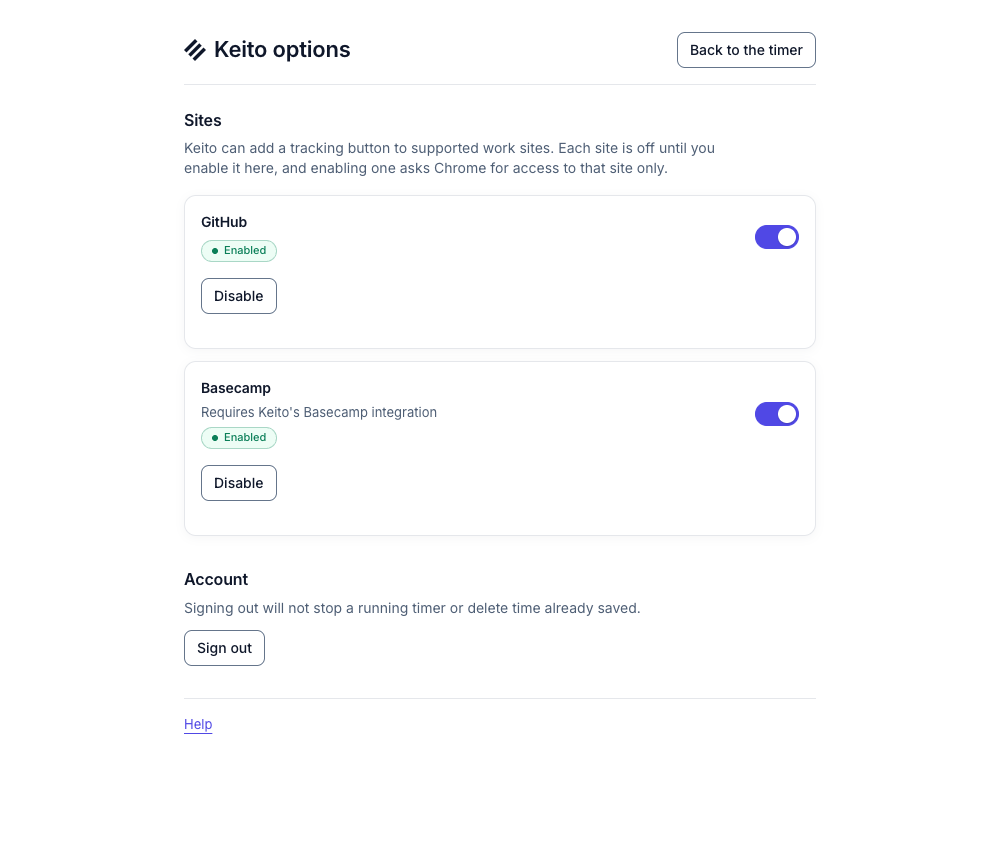
- Open the popup’s Settings, turn on Basecamp, and select Enable.
- Grant Chrome access to
app.basecamp.comand3.basecamp.comwhen prompted. - Check that Basecamp says Enabled. If it says Not connected yet, ask an administrator to finish the Keito connection, then choose Check again in settings.
Track an open to-do
- Open a supported to-do list or to-do detail page in the connected Basecamp account.
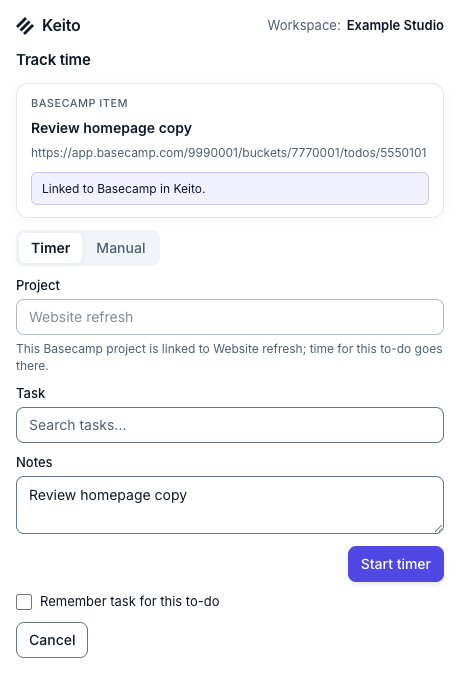
- Select the Keito timer control beside an open to-do. It does not tick the Basecamp checkbox.
- Review the to-do title and the linked Keito project. Select a permitted Keito task if one is not already suggested.
- Start a timer or select Manual to save a duration. You can choose Remember task for this to-do to suggest the task next time.
The control is for open to-dos on supported Basecamp 5 list and detail pages. It is not shown for completed to-dos, steps, Card Table cards, My Assignments, public links, or older Basecamp products. If the project is not linked or the connected account differs from the one in the page, the extension explains why it cannot start from that item. You can still use the toolbar timer for eligible Keito projects.
For connection health, cache refresh, unlinking, and data retention, see the full Basecamp integration guide.