monday.com Integration
Use the monday.com integration when your team manages work in monday.com but keeps time, approvals, budgets, reports, and billing in Keito. An administrator maps monday.com boards or individual items to Keito projects and tasks. Members can then search their accessible monday.com items and attach one as a verified reference while recording time in Keito.
Limited beta: The monday.com integration requires the Keito Business plan and must be enabled for your workspace. Contact Keito if the monday.com card in Settings > Integrations offers early access instead of a connection.
At a glance
| monday.com with Keito | |
|---|---|
| Connection | One monday.com account for the whole Keito workspace, plus a personal connection for each member |
| Set up by | Keito owner or administrator |
| Everyday data flow | Accessible monday.com boards and top-level items are read when needed; the selected reference is saved with a Keito time entry |
| monday.com writes | None |
| Keito plan | Business, with beta access enabled for the workspace |
| Supported items | Top-level items only; subitems are not supported in this beta |
What the integration does
- Lets an owner or administrator bind one monday.com account to one Keito workspace.
- Lets every member connect their own monday.com identity, preserving monday.com’s board permissions as the access boundary.
- Maps a monday.com board to one active Keito project and an active task assigned to that project.
- Lets an exact item mapping override its board mapping.
- Adds an optional monday.com item search to Keito time-entry forms.
- Automatically selects the mapped Keito project and task when a member chooses an item.
- Verifies the member’s access, item, hierarchy, and current mapping again when the entry is saved.
- Stores the selected item’s name, board, URL, and stable reference with the Keito time entry.
- Keeps saved reference details visible if the source is renamed, becomes inaccessible, or the integration is disconnected later.
What it does not do
- It does not send time, durations, timers, effort, comments, statuses, or approvals to monday.com.
- It does not update monday.com’s native time-tracking column or any Numbers column.
- It does not import monday.com items as Keito tasks.
- It does not synchronise project budgets, rates, invoices, or people.
- It does not support subitems in this beta.
- It does not make inaccessible or private boards visible to a Keito member.
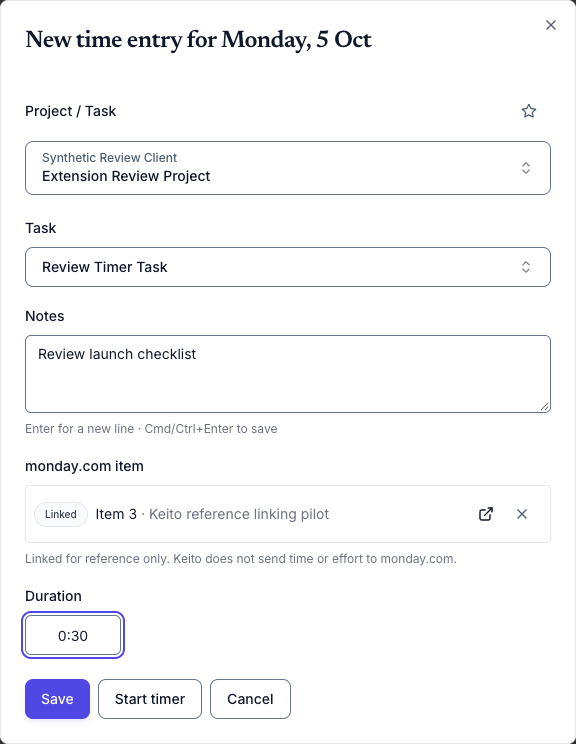
Keito remains the source of truth for time, approvals, budgets, reports, billing, and invoices. A saved item is labelled Linked. That means Keito has retained a verified reference; it never means time was sent or synchronised to monday.com.
Before you connect
Confirm all of the following:
- The Keito workspace is on the Business plan and enabled for the monday.com beta.
- A Keito owner or administrator is available to make the first connection.
- The monday.com login belongs to the account the workspace intends to use.
- That login can see the boards the administrator needs to map.
- The matching Keito projects are active and the target tasks are active and assigned to those projects.
- Every team member who will link items can sign in to monday.com with their own account.
Choose the monday.com account carefully. One monday.com account is bound to one Keito workspace. Keito rejects a later connection from a different monday.com account instead of silently changing the binding.
Connect the workspace
The first connection establishes which monday.com account belongs to the Keito workspace.
- In Keito, open Settings > Integrations > monday.com.
- Select Connect monday.com in the company connection section.
- Sign in to monday.com and approve Keito’s read-only access.
- Return to Keito and confirm the connected monday.com account shown on the settings page.
- If the account is wrong, disconnect it before creating mappings.
The first company connection must be completed by a Keito owner or administrator. Other members cannot establish or replace the workspace binding.
Keito requests these read-only monday.com OAuth permissions:
me:readboards:readworkspaces:readusers:read
These permissions let Keito identify the connected account and user, find boards and top-level items the user can access, and verify a selected item. They do not grant Keito permission to write to monday.com.
Connect each member
After the company connection is active, each member connects their own monday.com identity.
- Open Settings > Integrations > monday.com.
- In Your monday.com access, select Connect your account.
- Sign in as yourself and approve the same read-only permissions.
- Return to Keito and confirm your monday.com name is shown.
Do not share an administrator’s monday.com login. Personal connections are deliberate: search results must follow the permissions of the person recording the time. A member who cannot open a private board in monday.com cannot discover its items through Keito.
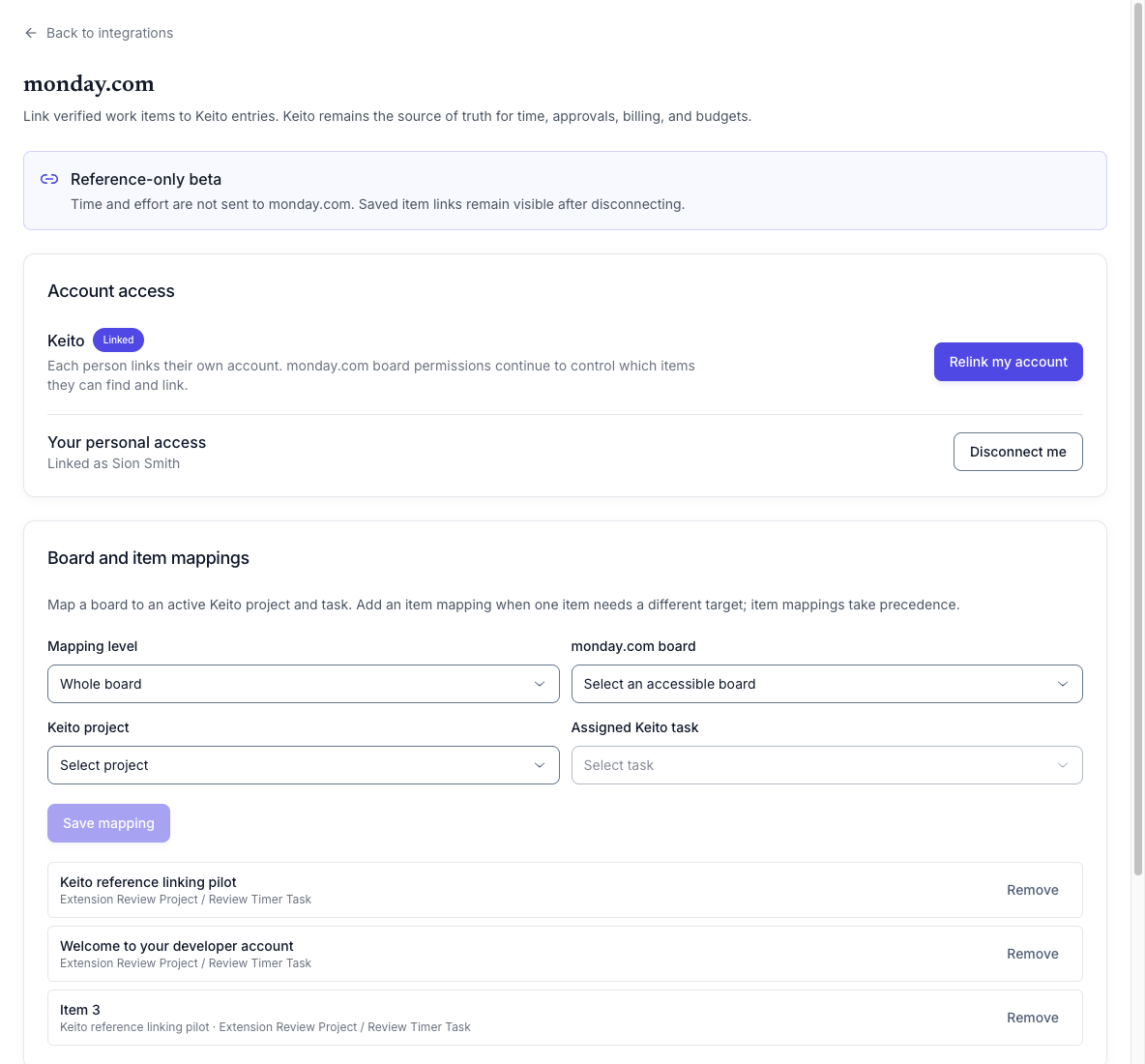
Map a board to a Keito project and task
A board mapping supplies the default Keito project and task for every supported item on that board.
- Open Settings > Integrations > monday.com as an owner or administrator.
- Under Add mapping, choose Board.
- Find a board visible to your personal monday.com connection.
- Choose the matching active Keito project.
- Choose an active Keito task assigned to that project.
- Save the mapping.
Members can select items from that board only while the mapping and its Keito target remain active and valid. Mapping a board does not give anyone access to it; each member still needs permission in monday.com.
Override one item
Use an exact item mapping when one top-level item belongs against a different Keito project or task from the rest of its board.
- Under Add mapping, choose Item.
- Search for the top-level item using your own monday.com access.
- Choose the desired active Keito project and assigned active task.
- Save the mapping.
The exact item mapping takes precedence over the board mapping. Removing or changing the exact mapping affects future selections; it does not rewrite historical time entries.
Link an item while recording time
Members link monday.com work from the normal Keito time-entry form.
- Start a new time entry or open an editable entry.
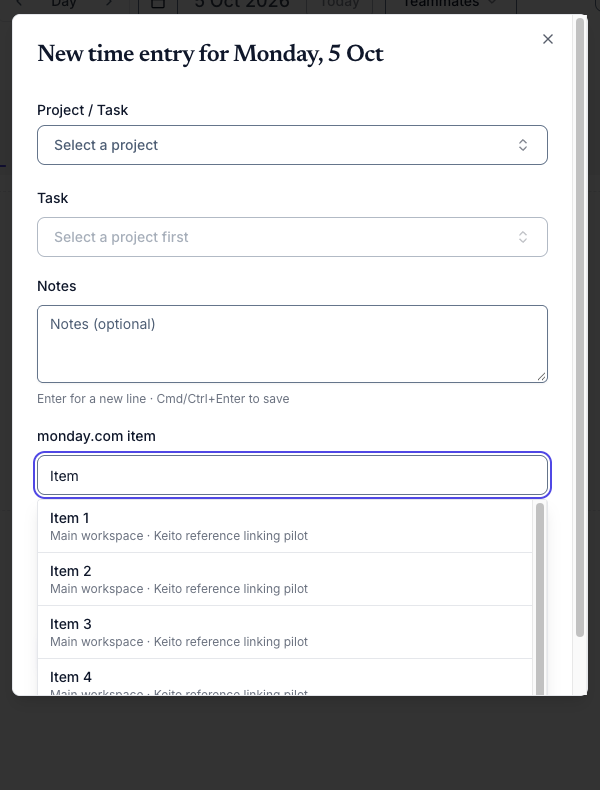
- In monday.com item, search by item name.
- Choose a result. Keito automatically selects the project and task from the winning item or board mapping.
- Add notes and a duration, or start the timer as usual.
- Save the entry.
Search is deliberately bounded and may load additional board or item pages as you continue. Results include only accessible, mapped, top-level items. Keito checks the selected item and mapping again at save time, so a result cannot be used after access is removed or a mapping becomes invalid.
Recording time for another person
When an authorised manager or administrator records or changes managed time for somebody else, both people must have personal monday.com access:
- The acting user needs access so Keito can validate the action they are taking.
- The time-entry owner needs access because the saved reference belongs to their entry.
If either personal connection is missing or cannot access the item, remove the monday.com selection or have both people connect before saving a new link.
Edit, replace, or clear a link
- Edit unrelated details: changing notes, duration, date, or another compatible field preserves the existing monday.com link and makes no new monday.com request.
- Replace the link: search for and select another valid item. Keito verifies the new selection and applies its current mapping.
- Clear the link: clear the monday.com item field before saving.
- Change project or task: clear or reselect the monday.com item first. Keito prevents a saved reference from being paired with a project or task that conflicts with its verified mapping.
The same restrictions apply across supported Keito interfaces. An API request cannot forge a monday.com snapshot or bypass the verified project and task relationship.
Saved and historical links
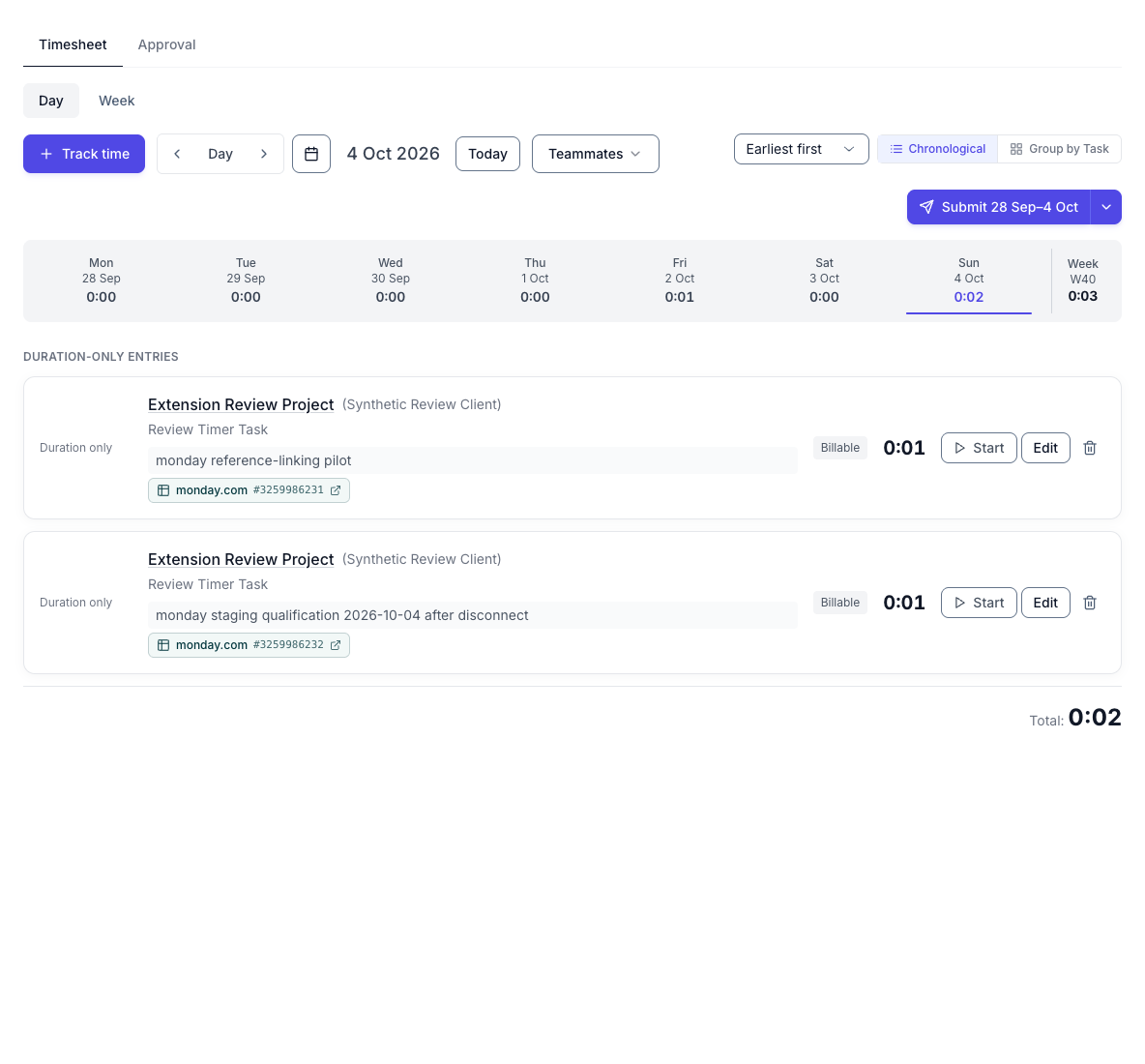
The time entry stores a snapshot of the item’s name, board, and safe monday.com URL at the moment it is linked. The saved entry continues to show that information when:
- the member disconnects their personal access;
- an administrator disconnects the company connection;
- the item or board is renamed or moved;
- the item later becomes unavailable to the member; or
- a mapping is changed or removed.
Historical links are not live synchronisation. Keito does not continuously refresh saved names, and it never changes time because monday.com changes.
Disconnect monday.com
Disconnect your personal access
In Your monday.com access, choose Disconnect. Keito removes your stored monday.com credentials. You can no longer search for or newly link items until you connect again, but references already saved on time entries remain visible.
Disconnect the company connection
A Keito owner or administrator can disconnect the company connection. Keito removes the company’s and every member’s stored monday.com credentials. Board and item mapping history and references already saved on time entries are retained, but no one can make a new selection until an administrator reconnects the same monday.com account and members reconnect personally.
Keito clears its local credentials even if monday.com’s remote revocation request is temporarily unavailable. You can also review or revoke the app from monday.com’s own app management settings.
Security and access boundaries
- Sign-in uses OAuth 2.1 with PKCE; Keito never asks for or stores a monday.com password.
- Stored credentials are encrypted.
- The company connection, mappings, and time entries are scoped to one Keito workspace.
- Each member’s monday.com board permissions are enforced during search and save.
- Private-board access is never inherited from the administrator who created a mapping.
- Item URLs are validated before they are stored or displayed.
- Keito applies provider-wide rate controls and honours temporary monday.com quota limits.
Troubleshooting
The card says early access
The integration is in a limited Business beta and has not been enabled for this workspace. Contact Keito to request access.
Keito says the Business plan is required
The workspace is on Solo or Pro. A Keito owner or administrator can review the Business plan under Settings > Billing. See Plans & Pricing.
A member cannot connect
An owner or administrator must make the company connection first. After that, each member connects their own monday.com account from the same settings page.
A board or item is missing
Check that the current member can open it in monday.com, that an active board or exact item mapping exists, and that the item is top-level. Private boards follow monday.com’s member permissions, and subitems are not supported in this beta.
Selecting an item reports a mapping mismatch
The mapping may have changed since the search result appeared, or the Keito project, task, or assignment may no longer be active. Ask an administrator to review the mapping, then search again. An exact item mapping overrides its board mapping.
Managed time cannot be linked
For a new or changed link on somebody else’s entry, both the acting user and the entry owner need personal monday.com connections and item access. Existing links are preserved when unrelated fields are edited.
Keito reports the wrong monday.com account
The connected account does not match the account already bound to the Keito workspace. Reconnect with a login from the original monday.com account. Keito will not silently move a workspace to a different account.
Search is temporarily rate-limited
Wait briefly and retry. Keito limits monday.com requests across the account and follows the provider’s quota response rather than continuing requests that are likely to fail.
A link still appears after disconnect
That is expected. Disconnect removes credentials and prevents new searches; it does not remove reference snapshots from historical Keito time entries.
Beta rollout checklist
Before inviting the whole team:
- Confirm the correct monday.com account is shown in Keito.
- Create a board mapping to an active Keito project and assigned active task.
- Add an exact item override and confirm it wins over the board mapping.
- Test with two members who have different monday.com board permissions.
- Confirm each member sees only accessible, mapped, top-level items.
- Save an entry and confirm the reference is labelled Linked.
- Verify the mapped project and task are selected automatically.
- Disconnect a test member and confirm the historical reference remains visible.
- Remind the team that this beta does not update time or effort in monday.com.
Frequently asked questions
Does Keito send tracked time to monday.com?
No. The integration is read-only. It saves a verified monday.com reference on a Keito time entry but does not update native time tracking, effort, comments, status, or any monday.com column.
Does every team member need to connect monday.com?
Yes. An owner or administrator connects the company account first, then every member connects personally. This keeps monday.com’s board permissions in effect for search and save.
Can I link subitems?
No. The beta supports classic top-level items only.
Which mapping wins?
An exact item mapping wins over the mapping for its board. Keito rechecks the winning mapping when the time entry is saved.
What happens to links after disconnect?
Saved item names, board names, URLs, and IDs remain visible on historical time entries. Disconnect removes credentials and stops new selections; it does not erase the references already stored in Keito.
Can one monday.com account connect to multiple Keito workspaces?
No. The beta binds one monday.com account to one Keito workspace and rejects an account mismatch during reconnection.