Two-factor authentication
Two-factor authentication asks for a 6-digit code from an authenticator app on every new sign-in, on top of the usual email code or Google sign-in. A workspace Owner turns it on for the whole workspace, and every member then sets up an authenticator. It is available on every plan.
How it works
- It is a workspace setting. When an Owner turns it on, every member of that workspace must add an authenticator app and enter a 6-digit code from it on each new sign-in. Keito verifies the code itself before opening the workspace.
- Any authenticator app works. Google Authenticator, 1Password, Authy, Microsoft Authenticator or any other app that generates time-based one-time (TOTP) codes.
- It applies to the web app. Personal API keys are not affected, so the CLI, SDKs and integrations keep working as before.
- It is included on every plan. There is no extra charge.
- Microsoft Entra SSO workspaces do not use it. They keep multi-factor authentication with their identity provider and do not use this switch. See Configure Microsoft Entra SSO.
Note: The Keito iOS app needs its next update before it can ask for authenticator codes. Until that update ships, members of a two-factor workspace use Keito on the web.
Before you turn it on
Important: The switch is workspace-wide and takes effect immediately. Read this section before you change it.
- Every member will be asked to set up an authenticator the next time they open Keito, and must enter a code on each new sign-in from then on.
- You must set up your own authenticator first. The switch stays disabled until you have, so you can never lock yourself out.
- Tell your team beforehand, and make sure everyone has their phone to hand.
- People who are already signed in on other devices will be asked for a code there too.
- You can turn it off at any time.
Turn on two-factor for your workspace
Only the workspace Owner can turn two-factor on or off. Administrators can see the status but cannot change it.
- Open Settings → Security and find the Two-factor authentication card.
- If you have not set up your own authenticator yet, the card shows Set up two-factor for your own account first with a Set up now link. Follow it, scan the QR code with your authenticator app, and enter the 6-digit code it shows.
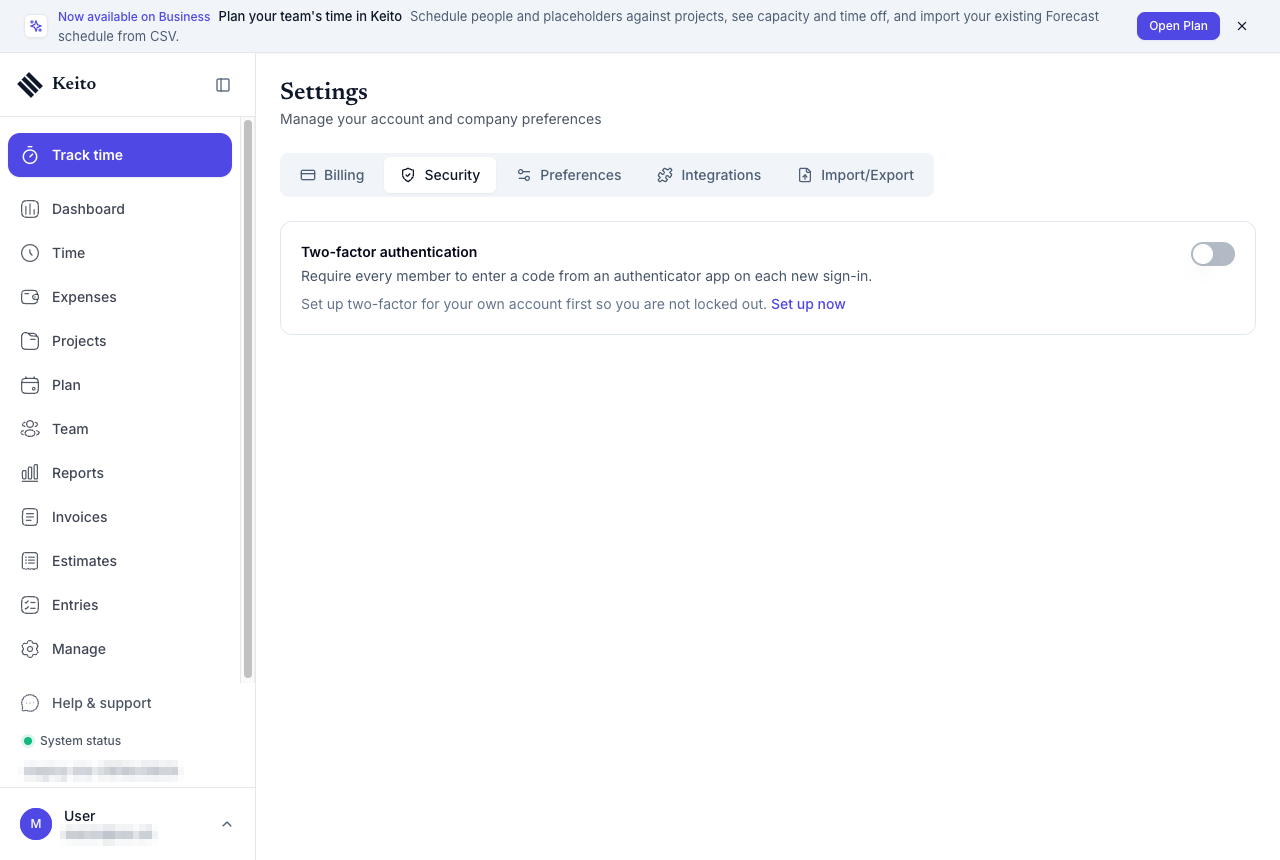
- Turn on Require two-factor authentication.
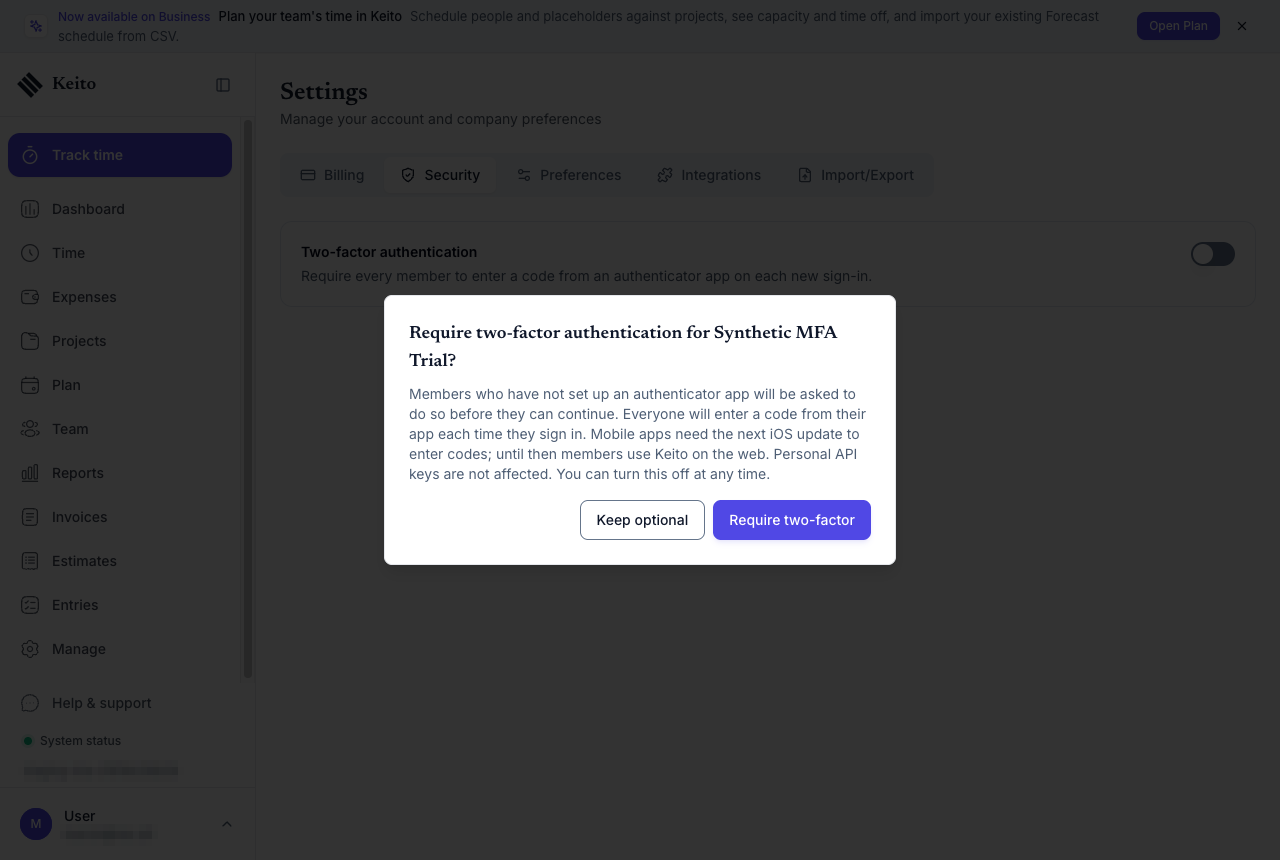
- In the dialog Require two-factor authentication for {workspace}?, confirm.
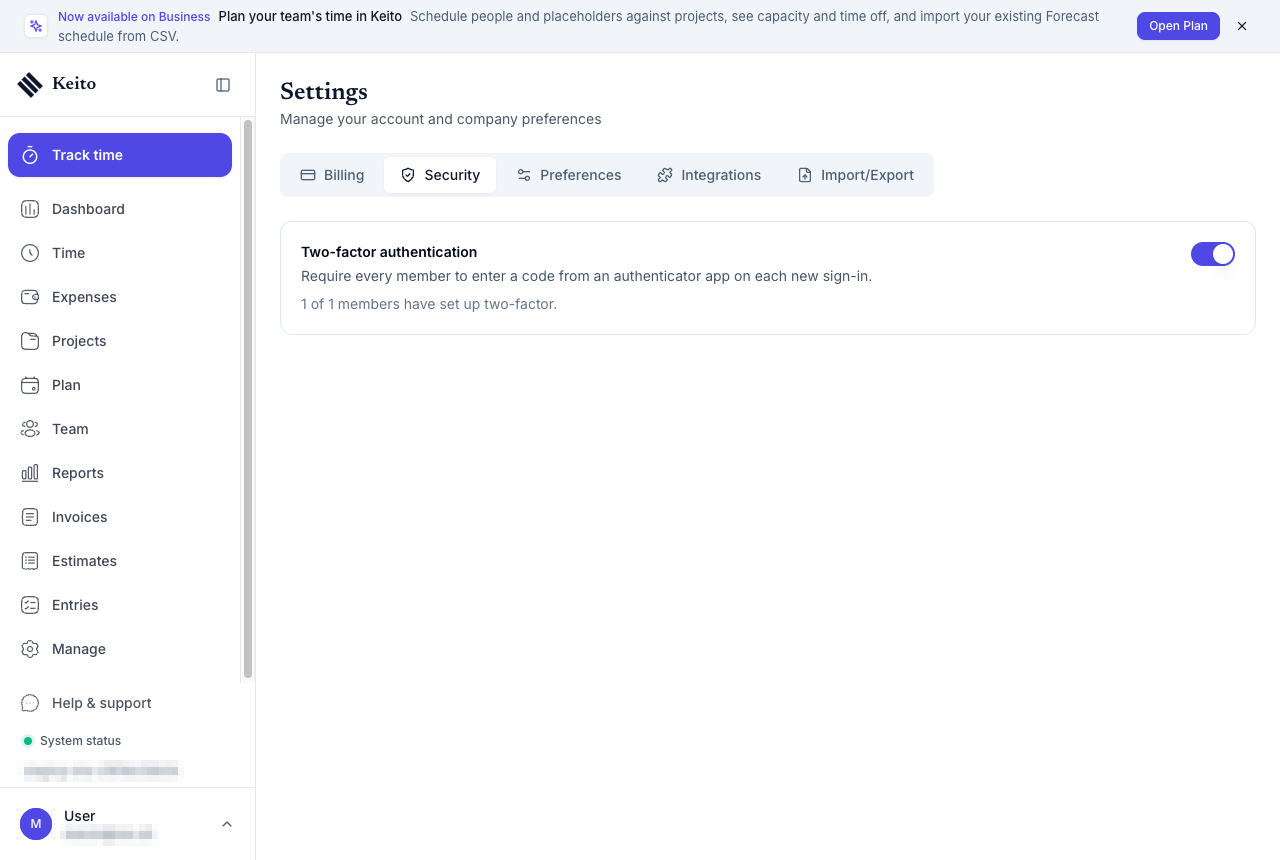
- The card now shows how many members have finished, for example 1 of 1 members have set up two-factor, so you can see who still needs to set up an authenticator.
Set up your authenticator
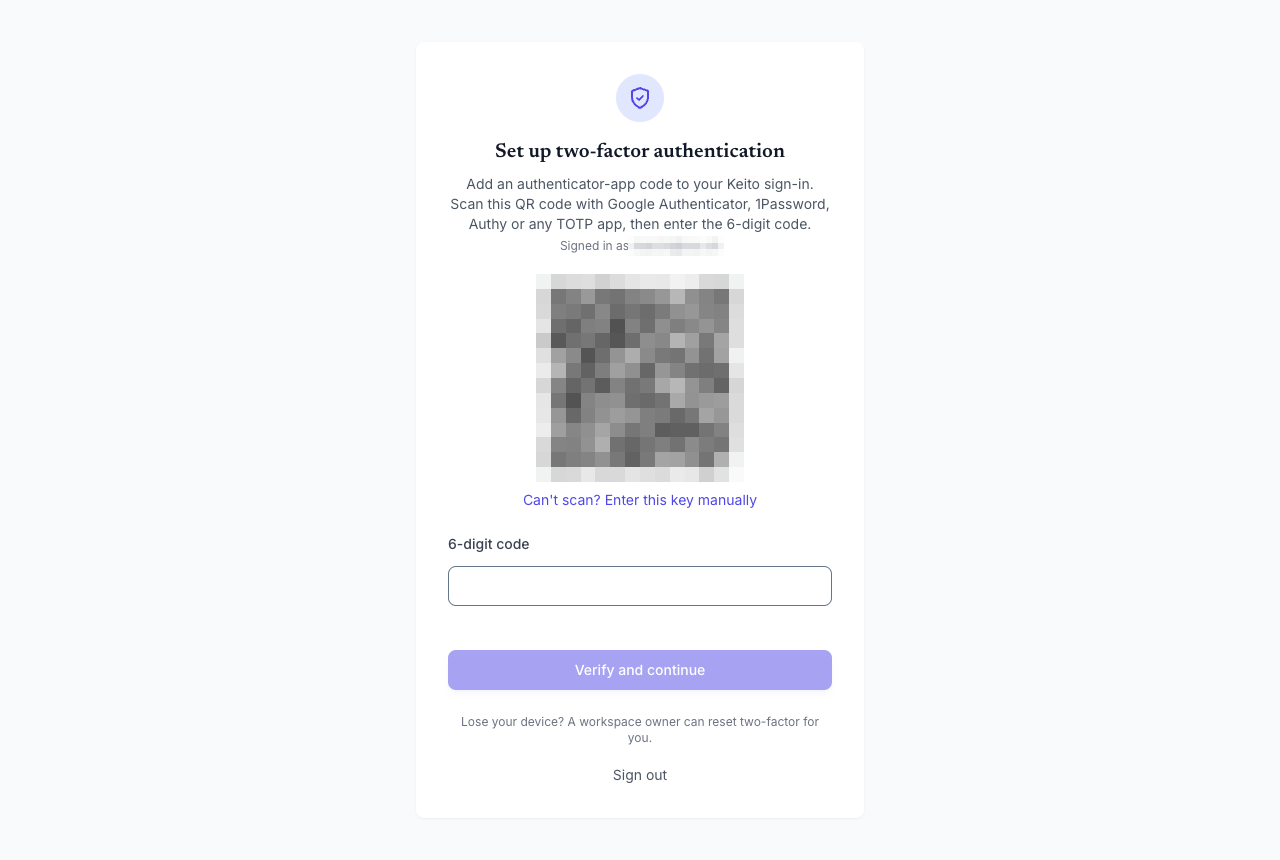
If your workspace requires two-factor, the first time you sign in Keito shows Set up two-factor authentication.
- Open your authenticator app and scan the QR code. If you cannot scan it, choose Can’t scan? Enter this key manually and type the key into the app.
- Enter the 6-digit code the app shows.
- Select Verify and continue. Keito opens as normal.
On every later sign-in, after your email code or Google sign-in, Keito shows Enter your authenticator code. Enter the current code from your app to continue.
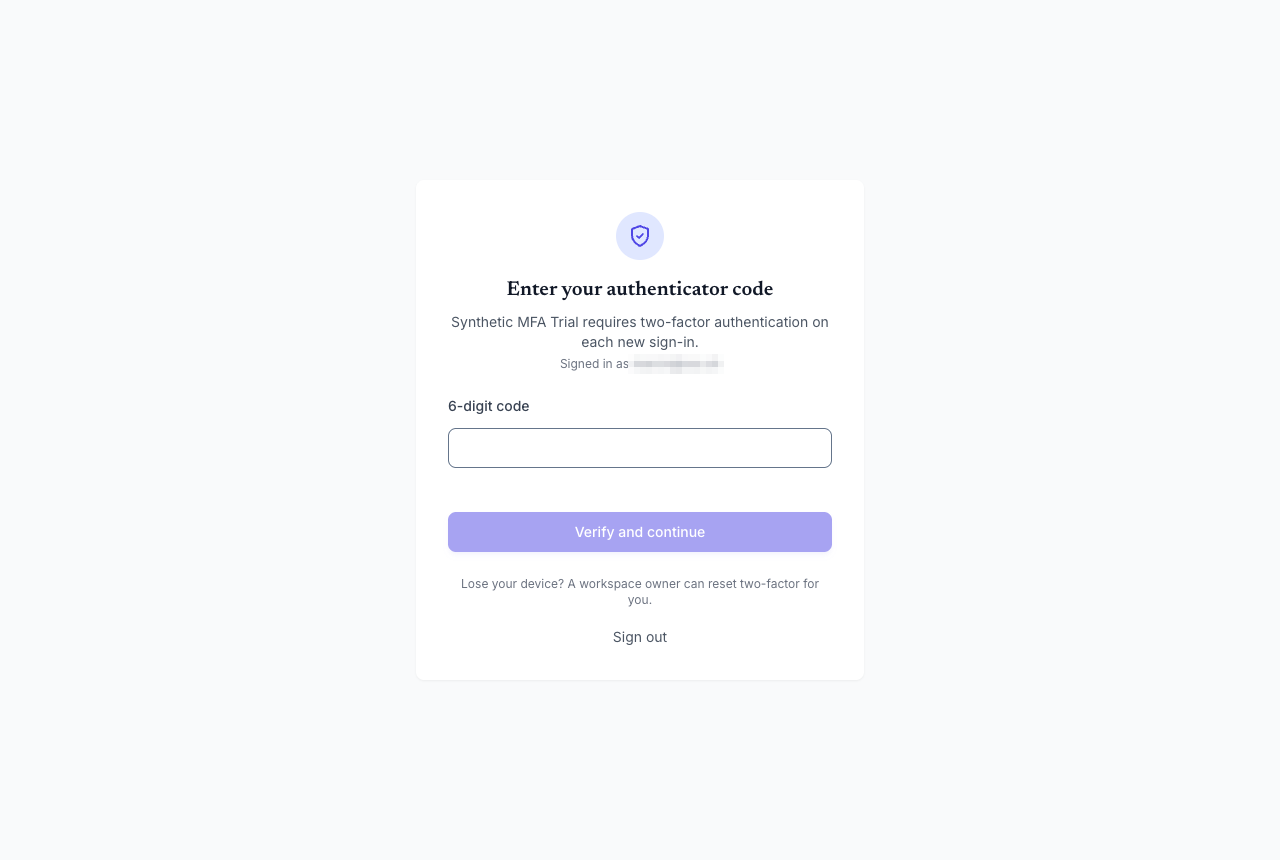
If a code is rejected:
- Codes change every 30 seconds. Wait for a fresh one and try again.
- After five wrong codes, Keito pauses sign-in for 10 minutes.
- If codes keep failing, check that your phone’s date and time are set automatically. Authenticator codes depend on the clock being right.
Manage your own two-factor
Your Profile has a Two-factor authentication row. It shows On since {date} when an authenticator is registered, or Off.
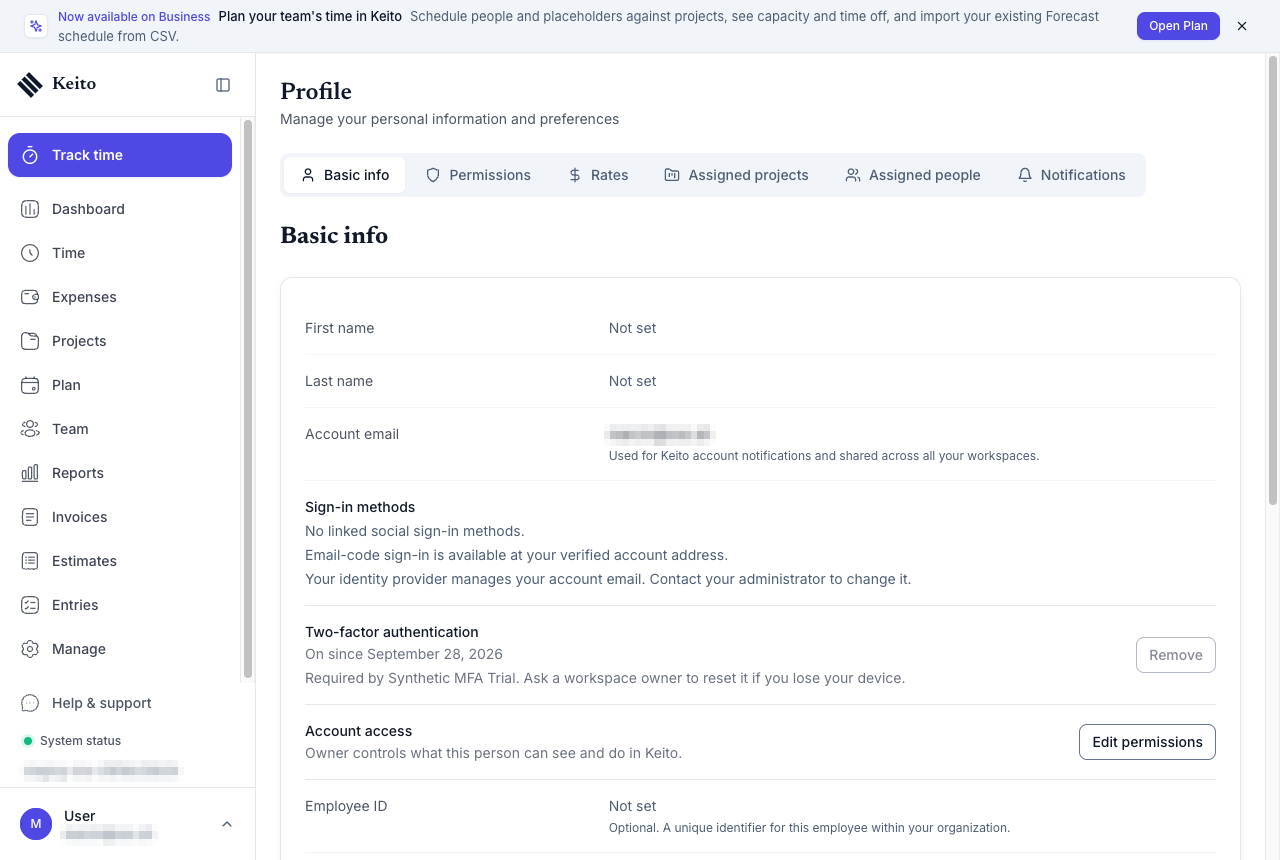
- Set up adds an authenticator to your account. You can do this before any workspace requires it.
- Remove takes it off again. Remove is unavailable while any workspace you belong to requires two-factor; the row shows Required by {workspace}. Ask a workspace owner to reset it if you lose your device.
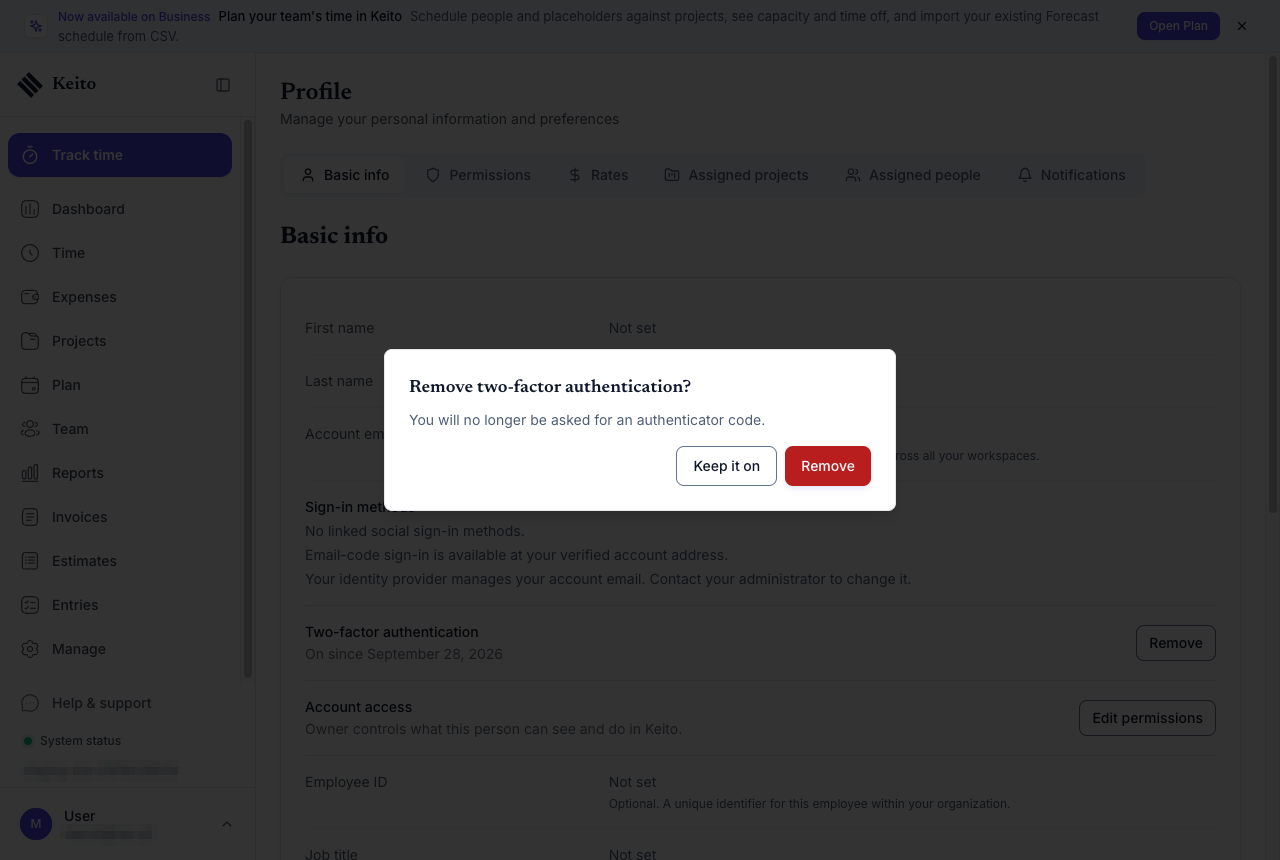
Your authenticator belongs to your account, not to a workspace. One set-up covers every workspace you are a member of.
Lost or new phone
If you still have your old phone, move your accounts to the new one with your authenticator app’s transfer feature before you wipe it. No reset is needed.
If the phone is gone:
- Members: ask a workspace Owner to reset your two-factor.
- Owners: open Team, open the menu for the member, choose Reset two-factor, and confirm. The dialog reads: “Their authenticator will stop working and they will set up a new one the next time they open Keito. Only do this after confirming their identity.” The member is asked to set up a new authenticator the next time they open Keito.
If the only Owner of a workspace loses their device, email support@keito.ai. Keito support verifies your identity before resetting two-factor on your account.
Turn it off
Open Settings → Security and turn off Require two-factor authentication. Members stop being asked for codes straight away. Their authenticators stay registered until they remove them from their Profile, so turning the requirement back on later does not need anyone to set up again.
Frequently asked questions
Does it work with Google sign-in?
Yes. The authenticator code is asked for after any sign-in, whether you used an email code or Google.
Is it per workspace or per person?
The requirement is per workspace: an Owner turns it on for everyone in that workspace. The authenticator is per person: you set it up once and it works for every workspace you belong to.
What about API keys and integrations?
Unaffected. Personal API keys, the CLI, SDKs and integrations continue to work without a code.
Does it work in the mobile app?
Not yet. The next iOS update adds authenticator codes. Until then, members of a two-factor workspace use Keito on the web.
Can I get codes by SMS?
No. Keito supports authenticator apps only.
Does it cost extra?
No. Two-factor authentication is included on every plan.