Install and connect Keito for Chrome
Install
- Open Keito Time Tracker in the Chrome Web Store and select Add to Chrome.
- Open Chrome’s Extensions menu and pin Keito Time Tracker if you want the timer icon visible in the toolbar.
- Select the Keito icon. You can connect through Keito sign-in or an API key.
Install the item named Keito Time Tracker. A separate item whose name ends in BETA is used for release testing.
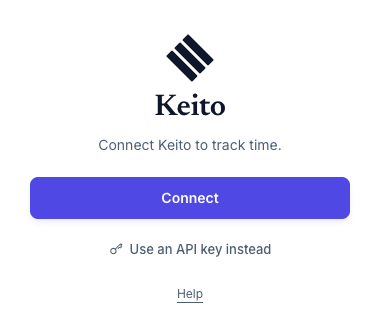
Connect with Keito sign-in
- Select Connect in the popup.
- Finish sign-in in the Keito window, including your organisation’s SSO or verification step if required.
- Return to the popup and choose the Keito workspace where you will save time, if you belong to more than one.
Closing the sign-in window cancels that attempt. Open the popup and select Connect again. Your Keito role and project permissions determine which projects and tasks you can use.
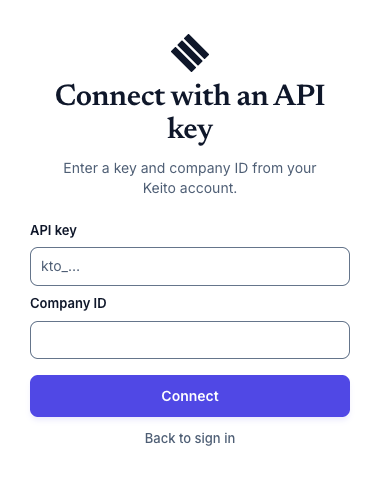
Connect with an API key
Select Use an API key instead if your Keito workspace permits this method. Enter a user-bound, full-access Keito integration key and the matching company ID, then select Connect. The key identifies a Keito member; it does not create a shared browser account. A company ID alone cannot authenticate.
A workspace administrator creates this key under Settings > API & Developers > Integration keys, binds it to your active member identity, and selects All permitted operations. The administrator shares the key and company ID securely with you; the secret is shown only once. See API key setup and revocation. Keep the key private and revoke it if it is exposed. If your workspace requires SSO or another sign-in policy, use Connect instead.
After connecting
The popup shows your selected workspace and timer controls. Open Settings in the popup if you also want a button on GitHub or Basecamp; both sites start off until you enable them and grant Chrome access. See Permissions and privacy.
The extension stores its session in the browser profile you connected. If you switch Chrome profiles or reinstall the extension, connect again. Sign out before leaving a shared computer.