Working as an Accountant
Accountant access is granted by each client workspace. You use your own Keito identity and keep each client’s data isolated.
Accept a client’s invitation
- Open the invitation sent by the client’s workspace owner.
- Sign in to your existing Keito account, or create an account with the invited email address.
- Complete any identity or multi-factor checks shown during sign-in.
- Confirm the workspace you are joining.
The invitation uses Keito’s standard acceptance flow. It does not ask you to share a client owner’s password, API key, provider token, or accounting-platform credentials.
Confirm your current workspace and level
The application identifies the active workspace and shows whether you have Audit accountant or Operational accountant access. Check this before reviewing or changing records.
If your account has access to several client workspaces, use the workspace switcher to move between them. Permissions are evaluated again after every switch; access in one workspace does not carry into another.
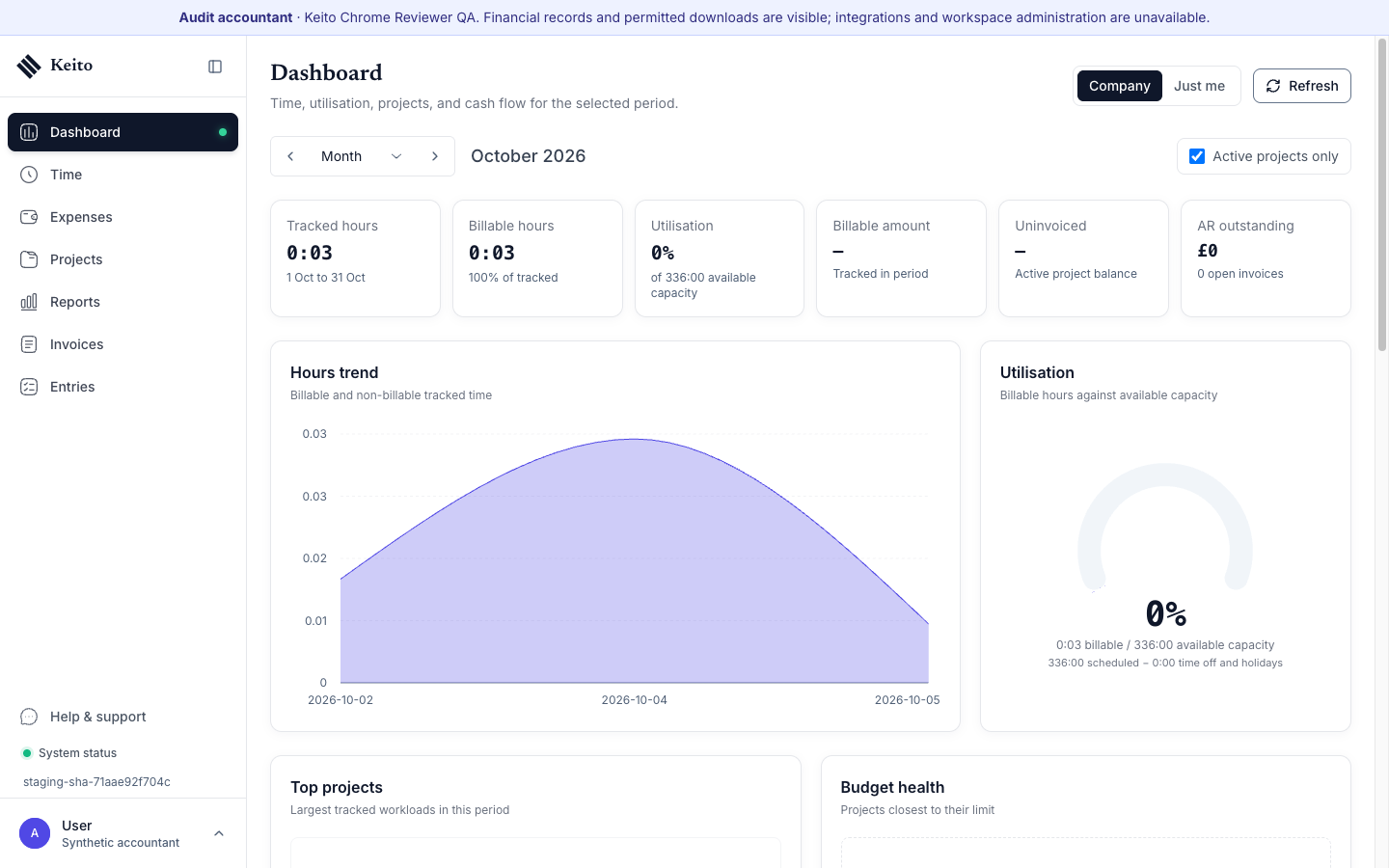
The persistent banner confirms the current workspace, accountant level, financial visibility, and permanent restrictions.
Audit workflow
Audit access is read-only. You can:
- review workspace-wide time, expenses, invoices, projects, tasks, and reports;
- see rates, costs, profitability, and other financial amounts;
- open permitted receipts and business attachments; and
- download the CSV and PDF reports available on the client’s plan.
You cannot edit, approve, send, pay, delete, import, administer, or connect anything.
Operational workflow
An Operational Accountant has the same visibility. The owner may additionally enable any combination of:
- editing existing time and expenses;
- approving time and expenses; and
- creating and editing draft invoices.
If a control is missing, the owner has not enabled that action or the action is permanently unavailable to accountant profiles.
Operational grants do not include creating time or expenses, sending an invoice, recording a payment, deleting records, running imports, or changing integration state.
Connected records stay owner-controlled
Keito prevents accountant mutations that could affect a connected or externally sourced record. For example, a time entry linked to Jira or Basecamp, an imported expense, or an invoice synced with Xero or QuickBooks remains owner-controlled even if you have the matching Operational grant.
The block happens before Keito saves the change or contacts a provider. Ask the workspace owner to review and perform the change. Do not work around the block by asking for provider credentials or by disconnecting an integration.
Downloads and attachments
Normal business downloads are available where the client’s plan permits them. Accountant download access does not include:
- database or workspace backups;
- credential or API-key exports;
- provider-side exports;
- creating public links; or
- security and subscription records.
Treat downloaded records according to your agreement with the client. A client’s workspace revocation does not remove copies you already saved outside Keito.
Your own account security
You can manage your own profile and account-security settings. Client workspace owners cannot see your password or authenticator secrets, and you cannot manage theirs.
Use a unique account, enable multi-factor authentication where available, and never share browser sessions between client engagements.
Troubleshooting
“The workspace owner has not enabled this accountant action”
Your profile is valid, but the specific Operational grant is off. Ask the workspace owner to review your accountant permissions.
“This change is blocked because the affected records can sync with a connected integration”
The action could affect externally connected data. The owner must review and make the change.
“Accountant access does not permit this operation”
The operation is permanently outside accountant access, such as integration, team, security, billing, sending, payment, deletion, or import activity.
“Accountant access is configured inconsistently”
Keito has failed closed because the stored membership combination is not valid. Ask the workspace owner to review the membership; do not ask an Administrator to bypass the restriction.
The workspace is no longer available
The owner may have revoked or archived your membership. Contact that client. Access to other client workspaces is unaffected.