Slack Integration
Keito lets your team start and stop timers, log completed time, check timer status, and view hourly project budgets from Slack. The integration is in a private beta for selected Keito Business workspaces. A Keito owner or administrator must connect the Slack workspace before members can link their accounts. Time recorded from Slack appears in the same Keito timesheets and timer views as time recorded on the web.
The beta has separate switches for time-changing commands and channel sharing. If your workspace can connect but an action says it is paused, ask your Keito administrator or contact Keito support. The Slack app is not yet a public Marketplace listing.
Before You Start
- Your Keito workspace must be on the Business plan and enabled for the Slack private beta.
- A Keito owner or administrator needs permission to install apps in the Slack workspace. Slack may require its own app approval.
- Each person who records time needs an active Keito membership and must link their own Slack account. An administrator cannot link accounts on someone else’s behalf.
- Create the Keito projects, tasks, team assignments, and hourly budgets you want to use before opening Slack.
One Slack workspace connects to one Keito workspace at a time. Keito requests Slack’s commands, chat:write, and channels:read bot scopes. It does not request message history or read channel messages. Your organisation’s Slack retention and administrator policies still apply to content shown in Slack.
Connect A Slack Workspace
- In Keito, open Settings → Integrations → Slack as an owner or administrator.
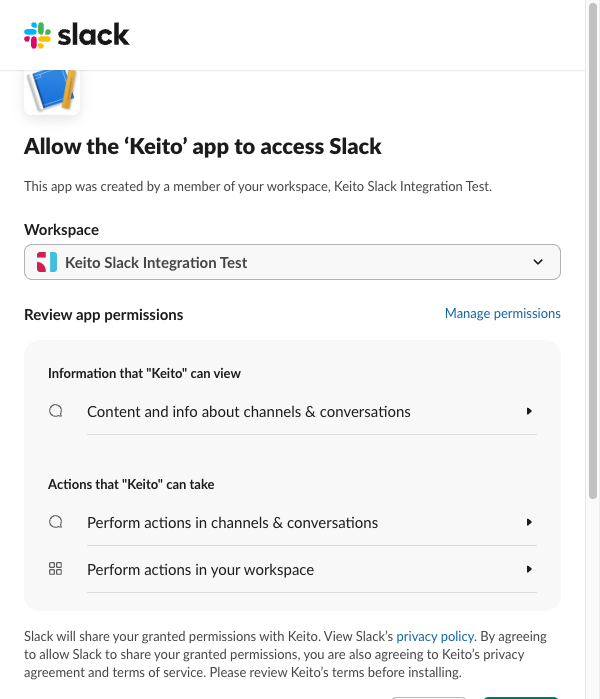
- Select Add to Slack. Review the workspace and permissions on Slack’s consent screen, then select Allow.
- Return to Keito. The Slack settings page should show Connected, the Slack workspace name, and the number of connected members.
- Ask each member to run
/keito connectin Slack to link their own account.
Cancelling Slack consent leaves the Keito workspace unconnected. Start again from Add to Slack. If Slack requires app approval, complete that approval in Slack before retrying.
Link Your Own Account
- In Slack, run
/keito connect. - Open the short-lived link in a browser where you are signed in to Keito. Review the Keito account and workspace, then continue.
- Return to Slack and run
/keito connectagain. Confirm the masked Keito account address with Yes, link my account. - Open Settings → Integrations → Slack in Keito to check the Your account card.
The final confirmation belongs to the Slack user who started linking. A forwarded browser link cannot connect another person’s Slack identity by itself. If the link expires, run /keito connect again.

Track Time From Slack
Type /keito or /keito help for the available commands. Keito normally responds privately to the person who ran the command; a budget is posted to a channel only through the separate sharing flow below.
| Command | What it does |
|---|---|
/keito start |
Opens a form to choose an accessible project and task, add notes, and start a timer. |
/keito stop |
Stops your current Keito timer after checking that it is still the same timer. |
/keito log 1:30 Retro notes |
Opens a manual-entry form with a 90-minute duration and notes filled in. 1.5 also means 90 minutes. |
/keito status |
Shows your running timer and an elapsed-time snapshot. |
/keito budget |
Lets you choose an accessible project with a supported hourly budget. |
/keito disconnect |
Unlinks only your Slack account from Keito. |
The project picker shows only projects you can track time against. Choose a project before choosing a task. Keito applies the same notes policy, date restrictions, and timesheet locks as its web app. If another timer is already running, Keito asks whether to keep it or stop it and start the new one; it does not replace a timer silently. Logging completed time does not stop an existing timer.
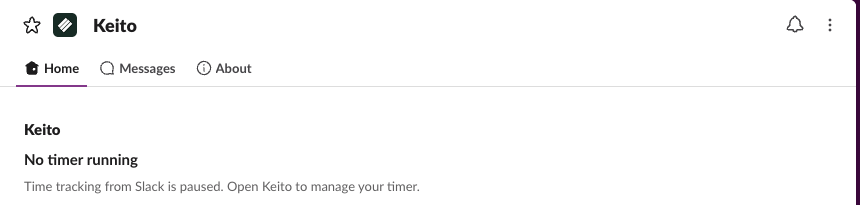
You can also open Keito’s Home tab in Slack for your link state, latest result, timer snapshot, and available actions. A snapshot does not tick continuously; refresh it to see a newer value. Check the resulting entry in Keito’s Day view if you need to edit it.
Check Hourly Budgets
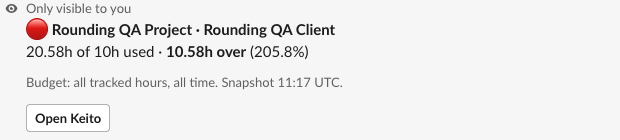
Run /keito budget and choose a project. The private result shows the budget period, hours used, total hours, remaining hours or overage, and when the numbers were captured. It does not show money, rates, costs, notes, or per-person figures. Projects without a supported hourly budget are not reported in Slack; open Keito for their full report.
Keito administrators can use /keito status @person for a linked teammate’s timer. That summary omits notes. Other members cannot inspect teammates’ timers through this command.
Share A Budget To An Approved Channel
Channel sharing is a separate beta capability and may be switched off for your workspace. When enabled:
- Invite the Keito app to a public internal Slack channel.
- A Keito owner or administrator opens Settings → Integrations → Slack → Channels approved for budget sharing and approves that channel, optionally restricting it to one project.
- The administrator runs
/keito budget, selects a project, and chooses Share to a channel. - Review the exact hours-only preview and destination, then select Post. Everyone who can access the channel, including future members, can see the posted summary.
Keito excludes private, archived, externally shared, and Slack Connect channels, as well as channels the app has not joined. Approval can be revoked in Keito. If the channel or approval changes before delivery, the share is refused. A normal /keito budget reply stays private.

Disconnect Or Reconnect
To unlink yourself, run /keito disconnect or use Disconnect my account in Keito’s Slack settings. A Keito owner or administrator can use Disconnect workspace to revoke every member link. A Slack administrator can uninstall the app in Slack. None of these actions deletes time already recorded in Keito.
After an uninstall or workspace reconnection, members must run /keito connect again. Keito does not silently restore old personal links to a new installation.
Troubleshooting
Add to Slack is unavailable
Check that you are a Keito owner or administrator, the workspace is on Business, and Keito has enabled it for the private beta. A subscription problem can also block the integration. Contact Keito support if the settings page says the integration is not available yet.
A command asks me to connect
Run /keito connect and complete both the Keito browser step and the final confirmation in Slack. If the workspace was reinstalled, link again even if you used the integration before.
A project or task is missing
Check your Keito project assignment and whether the project or task is active. The Slack picker rechecks your access and will not offer a project you cannot track against.
A timer command says it is paused
The beta’s time-changing switch may be off. Status, budgets, help, linking, and disconnection can remain available. Your existing Keito entries are unaffected.
My budget cannot be shared
The sharing switch may be off. When it is on, a Keito administrator must approve an eligible public internal channel and invite the app to it. Refresh the preview if its destination or approval changed.
I am unsure whether an action saved
Check your Keito Day view or the app’s Home tab before trying the action again. If the result is still unclear, contact Keito support with the approximate time and command; do not send tokens or private time-entry details.