Track time from the Chrome toolbar
The toolbar popup works on any page after you connect an eligible Keito workspace. It shows the workspace, current timer state, project and task fields, and a Timer and Manual tab.
Start a timer
- Select the Keito toolbar icon and confirm the workspace shown at the top.
- On Timer, choose a permitted Project and Task. Add Notes when needed; some tasks require them.
- Select Start timer. The status changes to Running and shows the elapsed time.
- Select Stop when you finish. Keito saves the completed time entry.
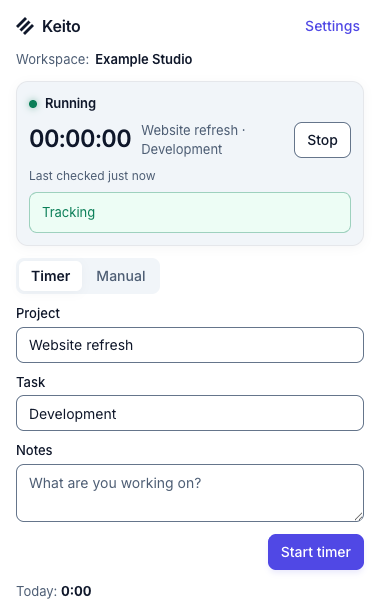
Only one timer can run for your Keito member at a time. If another timer is already running, the popup asks you to confirm a switch before starting the new one. Check the displayed project and task before confirming. If a timer belongs to another workspace, open Keito to resolve it there.
Add manual time
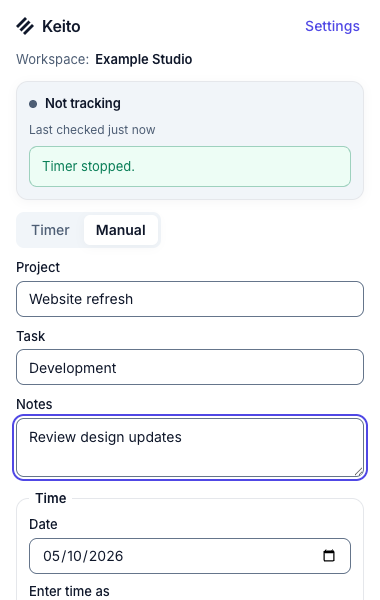
- Open the Manual tab and choose the project and task.
- Select the date and enter either a duration or a start and end time. When an interval crosses midnight, mark Ends next day.
- Add notes if needed and select Save.
- Look for the saved confirmation before closing the popup.
The form uses the workspace time zone. Duration and decimal-hours inputs are alternatives; the form clears one when you fill the other.
If the result is uncertain
An interrupted connection can leave a Start or Stop request with an unknown outcome. When the popup says Needs attention and offers Check again, select Check again to read Keito’s current timer. Do not press Start repeatedly: the first request may already have reached Keito. If the browser is offline, reconnect and check the timer before retrying.
Signing out does not stop an already running timer. Stop it first in the popup or Keito web app if you intend to finish the work. See Troubleshooting for recovery steps.