Track GitHub issues and pull requests
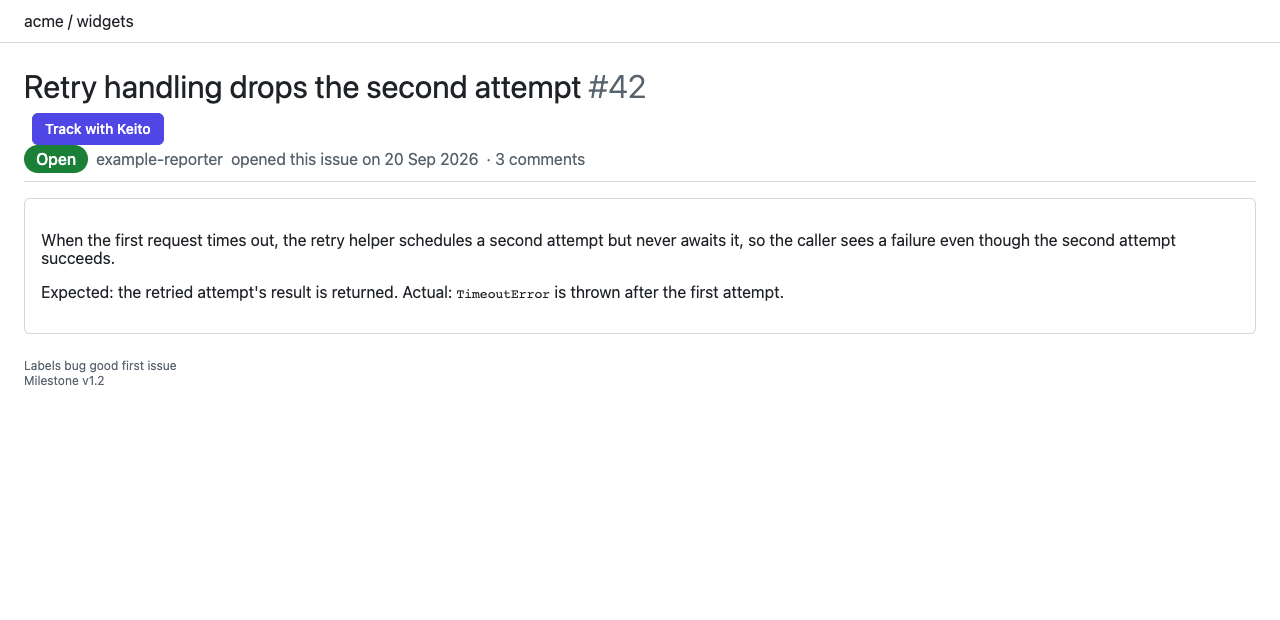
When GitHub is enabled in the extension settings, Track with Keito appears on supported GitHub issue and pull request detail pages at github.com. The button works on private items that your signed-in GitHub account can already view; it does not grant access to a repository.
Enable GitHub
- Connect the extension to your Keito workspace.
- Open Settings in the Keito popup.
- Turn on GitHub, review the
https://github.com/*access request, and choose Enable. - Approve Chrome’s site-access prompt. The status should read Enabled.
- Open or refresh an issue or pull request detail page.
You can leave GitHub off and continue tracking from the toolbar. Site access is optional.
Track an item
- On the issue or pull request, select Track with Keito.
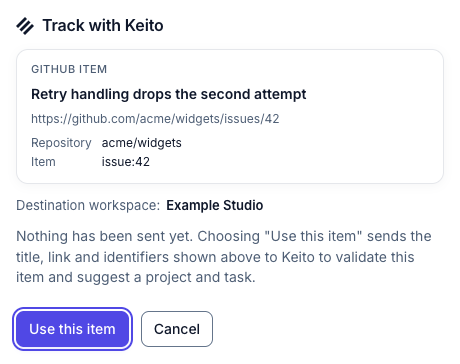
- Review the item title and link in the preview. Select Use this item to ask Keito to validate the reference.
- Choose a permitted Keito project and task, check the notes, and start a timer or use Manual to add time.
- Optionally select Remember for this item so Keito can suggest the same project and task when you revisit it.
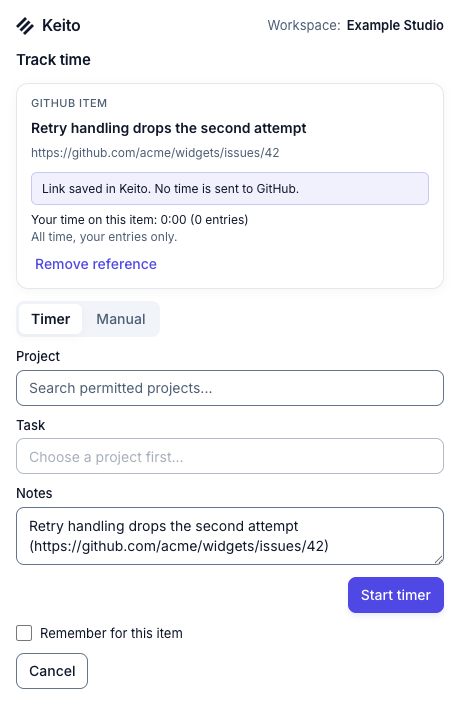
GitHub lists, repository home pages, Discussions, Projects, and GitHub Enterprise Server hosts do not have a button. On a pull request, the conversation, files, commits, and checks detail tabs refer to the same pull request. To remove the reference before saving, choose Remove reference in the Keito form.