Correcting Time on Draft Invoices
Owners and administrators can correct eligible recorded time without withdrawing its approval, and update the draft invoice that includes it. Your workspace must allow this first.
For example, if a draft includes 8 hours at £100 per hour and the correct duration is 7 hours, a time correction can change that draft’s time-based amount from £800 to £700 before tax or discount. You review any changes that affect manual invoice adjustments.
Set up time corrections prepares an older draft for this workflow. It does not start a timer, add new time, send an invoice, or copy it to accounting. You can send an invoice without setting this up.
Find and turn on the workspace setting
- Sign in as the workspace owner or an administrator and select the intended workspace.
- Open Settings → Preferences.
- Scroll past Your preferences to Workspace preferences.
- Find Allow owners and administrators to edit approved time until invoicing is finalized. It sits below Harvest time entry editing and above Post-lock time corrections.
- Hover over the row’s current Blocked value and click the pencil icon. On a keyboard, Tab to Edit Allow owners and administrators to edit approved time until invoicing is finalized and press Enter.
- Select Allowed, then click the checkmark to save. Wait for the saved row to show Allowed.
The setting is Blocked by default and applies to the current workspace. Managers and members cannot change it. If you cannot see Workspace preferences, ask an owner or administrator to check it.
Post-lock time corrections is a separate setting for corrections to locked time; it does not provide this draft invoice updating workflow. See Company Settings.
Find the button on the draft
Open the draft invoice. In Review invoice, Need to correct time on this draft? appears below the invoice preview, with Set up time corrections beside the explanation. It is no longer above the invoice heading. In the classic invoice layout, it appears below the line items.
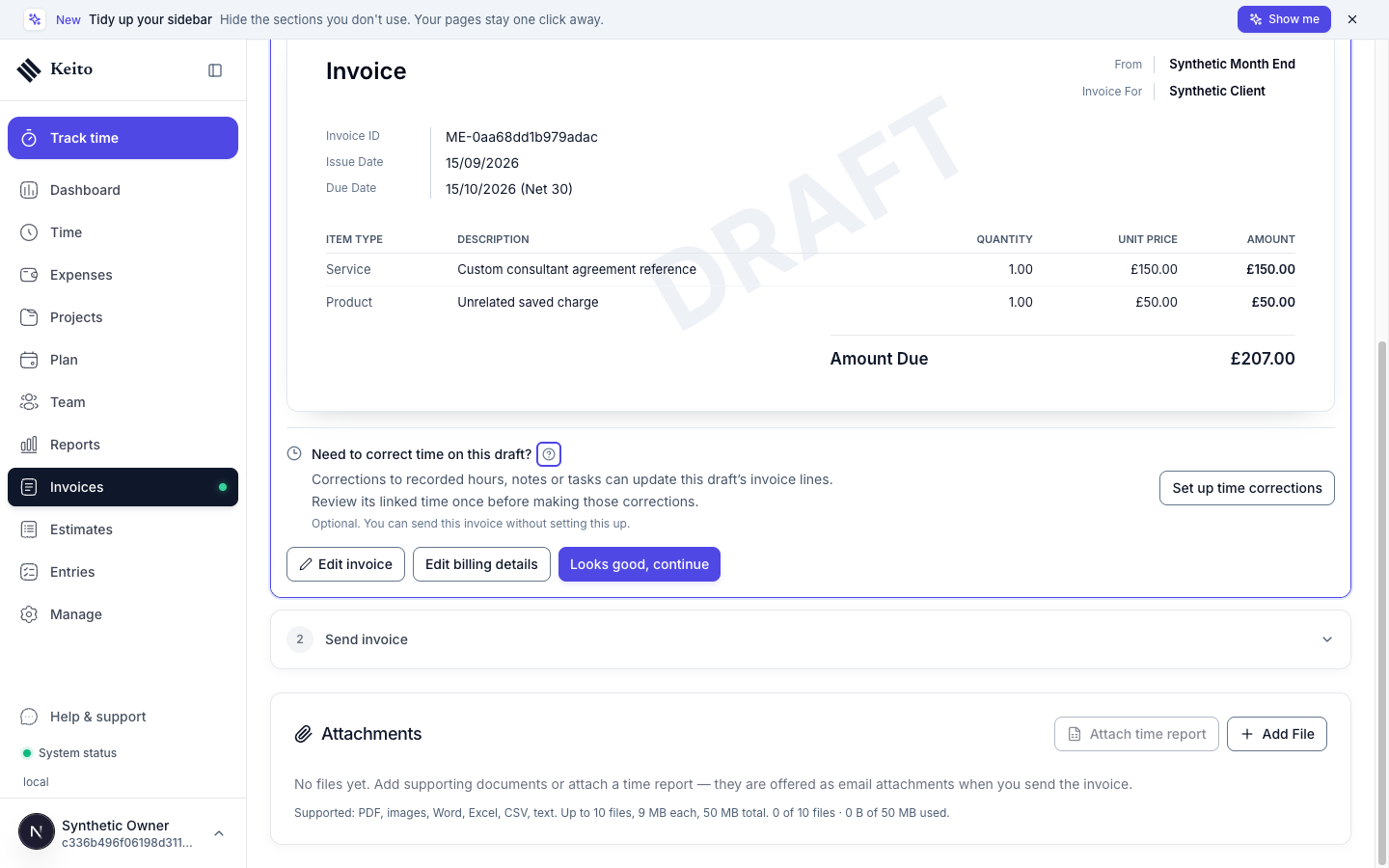
The help icon beside the heading explains the effect on hours and invoice amounts. Hover over it or focus it with the keyboard to read the tooltip.
The action appears only when all of these apply:
- You are a workspace owner or administrator.
- The workspace setting above is Allowed.
- The invoice is an eligible draft that has never been issued.
- It contains older time-based lines linked to recorded time that still need this one-time setup.
Review and save the setup
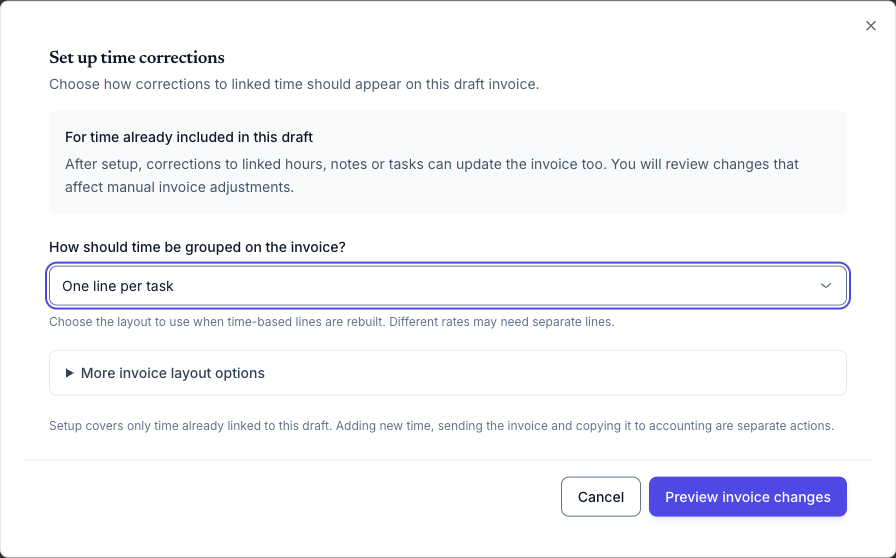
- Click Set up time corrections.
- Choose how time should be grouped when invoice lines are rebuilt: one line per project, task, person, linked work item, or time entry. Different rates may need separate lines.
- If needed, open More invoice layout options to separate time by month or include time-entry notes in grouped descriptions.
- Click Preview invoice changes.
Compare the current and rebuilt descriptions, quantities, rates and amounts. The totals include the whole invoice, including other saved lines, discounts and taxes. Changed totals are highlighted.
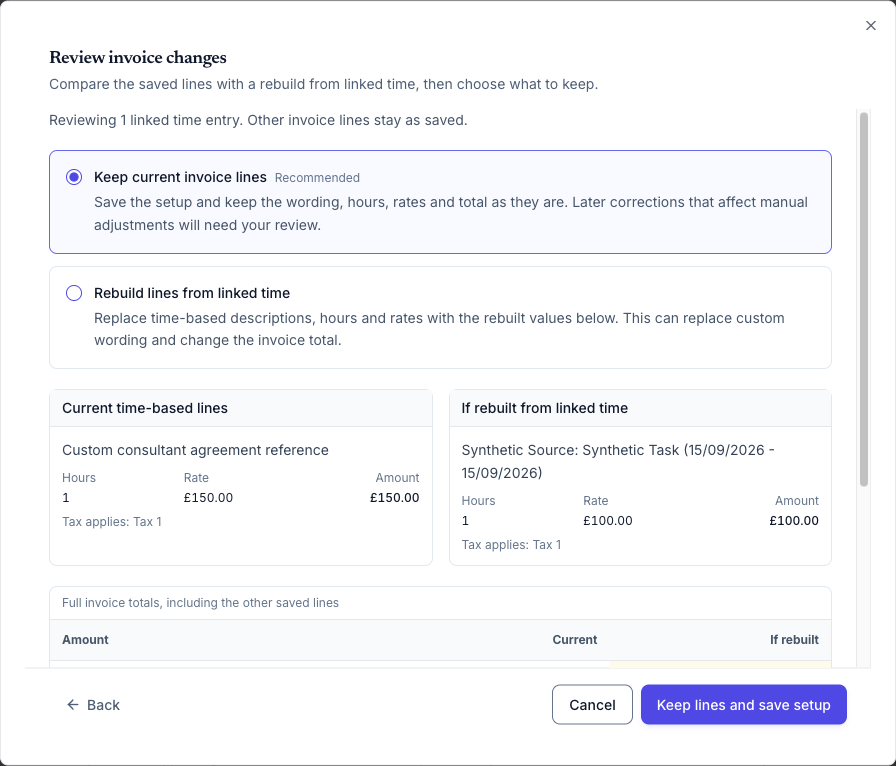
Choose what should happen now:
| Choice | Effect when you save |
|---|---|
| Keep current invoice lines — selected by default | Keeps the current descriptions, hours, rates and total, while preparing the linked time for later corrections. Choose Keep lines and save setup. |
| Rebuild lines from linked time | Replaces the time-based lines with the previewed values. This can replace custom wording and change the invoice total. Choose Rebuild lines and save setup. |
Other invoice lines stay as saved. Back keeps your choices so you can change the grouping and preview again. Cancel makes no changes.
After saving, Keito confirms Time corrections are ready and tells you whether it kept or rebuilt the lines. Setting up the draft does not correct the recorded time itself.
Make the time correction
- Open the affected entry in Day, Week, or Entries.
- Correct its hours, notes, project, task or explicit billability, then save.
- If the correction affects manual invoice adjustments, review the current and proposed values and choose what to keep. Cancelling that review changes neither the time nor the invoice.
- Reopen the draft and check its lines and total before sending it.
Keito saves eligible time corrections and draft invoice updates together. Submission and approval stay in place, and project/task moves preserve saved rates. Project moves for draft-linked time must keep the same client and currency. Making the time non-billable removes its contribution to that draft.
Setup covers only recorded time already linked to the draft. Adding new time is a separate invoice action. Adding missing time to an approved week still requires the week-reopening process. This setting does not enable deleting protected entries, changing their person or date, or editing them through the public API or Desktop app.
Why the button might be missing
| What you see | What to check |
|---|---|
| No setup section while the workspace setting is Blocked | This is expected. The section stays hidden until an owner or administrator saves Allowed. |
| Setting is Allowed, but no setup section | Newer drafts may already support corrections, or the older draft may already have been set up. A draft with only manual lines or no verifiable linked time has nothing to set up. |
| An issued, paid or accounting-linked invoice has no setup action | Finalized and protected billing stays locked. Invoices imported from Harvest, sent to Xero or QuickBooks, or involved in protected online payment/retainer workflows are excluded. |
| You returned an issued invoice to Draft | Returning it to Draft does not reopen its source time. Mark as sent also counts as issuing the invoice, even though it sends no email. |
| The preview or save says the draft or linked time changed | Go back and preview again. Keito requires a fresh comparison before saving. |
| Someone turned the setting off after your preview | Setup cannot be saved. Ask an owner or administrator to check the preference and preview again if it is allowed. |
To turn this workflow off, return to the same workspace setting, choose Blocked, and save. This hides the setup action and stops future use of the workflow; it does not undo corrections already saved.