
Migrate from Forecast
Bring your Forecast schedule into Plan with its original booking dates and daily allocations. Use this guide when Forecast planning is available in your workspace. The import requires a Business plan and workspace owner or administrator access.
Forecast planning and Harvest time tracking are separate choices under Settings → Import → Harvest & Forecast. You can select Forecast planning on its own. You do not need to import Harvest data or have a Harvest time-tracking account.
The screenshots show fictional examples verified in an isolated test environment. They illustrate the workflow and do not establish availability in every workspace.
What comes across
| Forecast information | Import behavior |
|---|---|
| Eligible planning bookings | Original start and end dates, daily allocation in seconds, notes, and working-day settings captured during the scan |
| Clients and projects | Supported details and archived status; explicitly map to existing records where appropriate |
| People | Map to existing workspace members, or keep as planning placeholders without creating login accounts or sending invitations |
| Forecast placeholders | Planning placeholders with the supported source details |
| Actual time, invoices, expenses, and billing rates | Outside the planning import; use the separate Harvest migration for supported Harvest records |
Forecast does not provide a supported public API. This importer reads dated bookings through Forecast’s unsupported interface, which can change. An unsupported response stops the import for review rather than guessing or silently truncating records. Forecast’s weekly and monthly CSV reports contain totals and cannot supply every original booking boundary.
Before you start
- Sign in to the intended Keito workspace as its owner or administrator and check that it has the Business plan.
- Use a Forecast administrator’s personal access token from Harvest ID → Developers → Personal access tokens. Use the token, not your Forecast password.
- Record the Forecast account, date range, expected booking counts, and hours you will verify. Keep a secure source export as an additional reference.
- Agree when the selected source schedule will stop changing while you scan, import, and reconcile it.
Copy the token directly into the import form. Keep tokens, account identifiers, and private source data out of screenshots, support messages, documents, and URLs. The token owner must have administrator access to the Forecast account you intend to import.
1. Choose Forecast planning
Open Settings → Import. Under Harvest & Forecast, select Forecast planning. The setup form appears immediately.
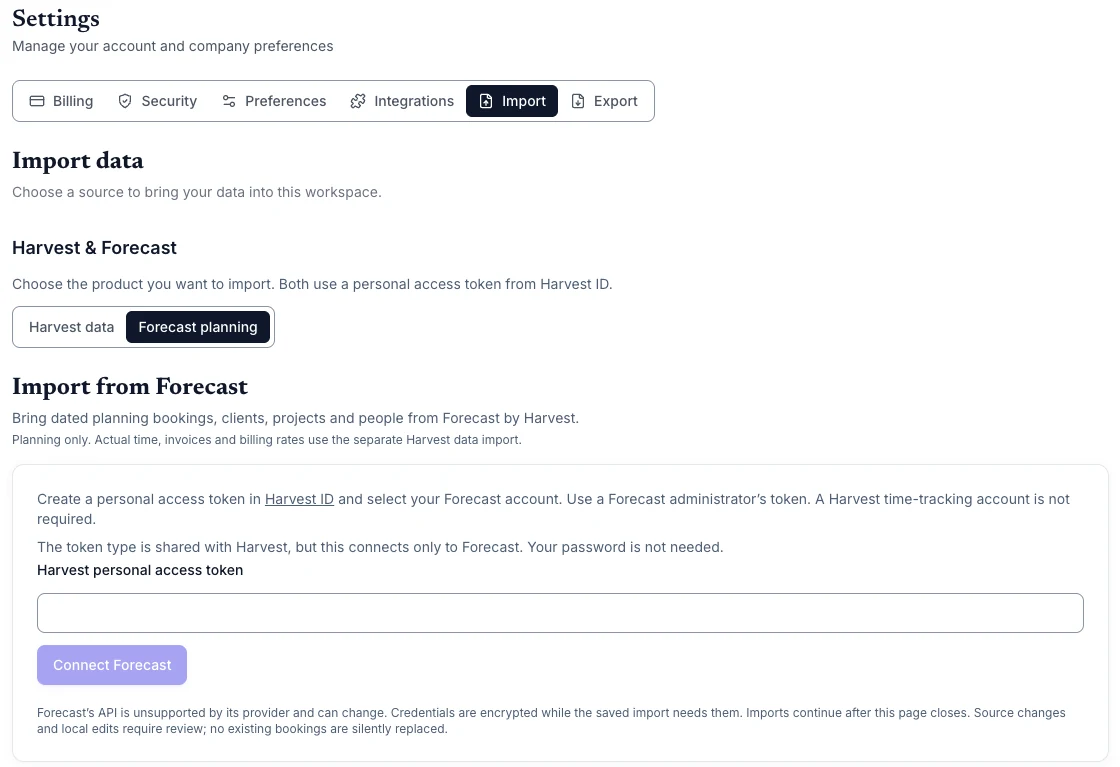
Selecting Forecast opens its own setup. It does not start a Harvest import. Export is a separate Settings tab.
If Forecast setup is unavailable, check your workspace, role, and plan, then contact support.
2. Connect and choose your dates
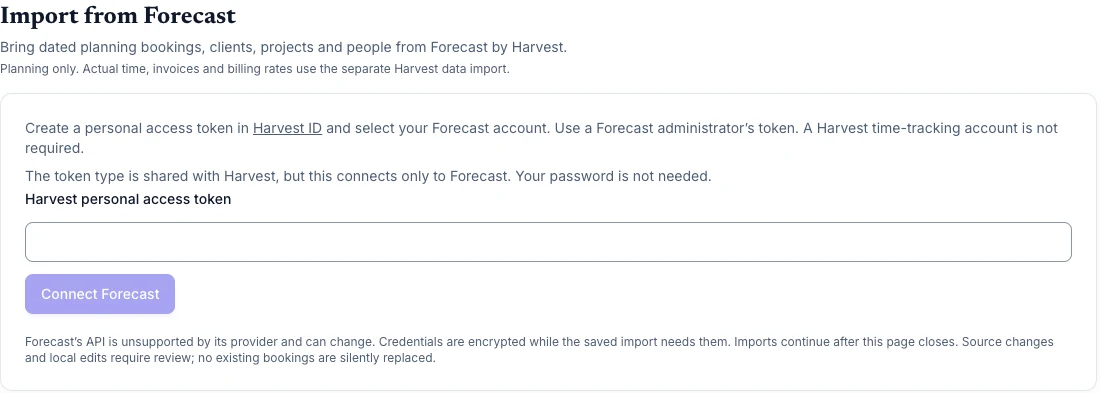
Enter the token in Harvest personal access token, then select Connect Forecast. Choose the intended Forecast account from the accounts the token can access.
Set From date and Through date deliberately. Include both the historical planning and future bookings you need. If you need records older than the displayed default, enter an earlier From date. Check the earliest and latest source bookings independently before treating a scan as complete history.
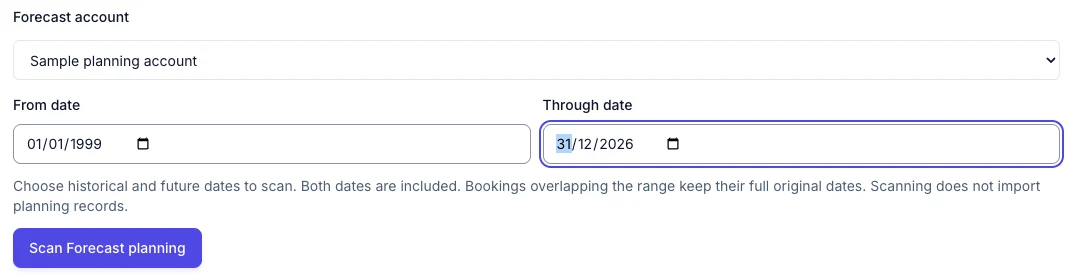
Select Scan Forecast planning. Scanning reads the source and prepares a review; it does not create planning records.
Both dates are included. A booking that overlaps the selected range keeps its full original start and end dates, including dates outside the range. For example, a June 12–20 booking found by a June 15–16 scan retains June 12–20. The dates filter bookings; clients, projects, and people are read for the account.
If a size-limit message asks for a smaller date range, narrow the range and review the new scan. A size-limit result does not establish complete coverage.
3. Review clients, projects, and people
Open Review clients, projects and people mappings before accepting the import.
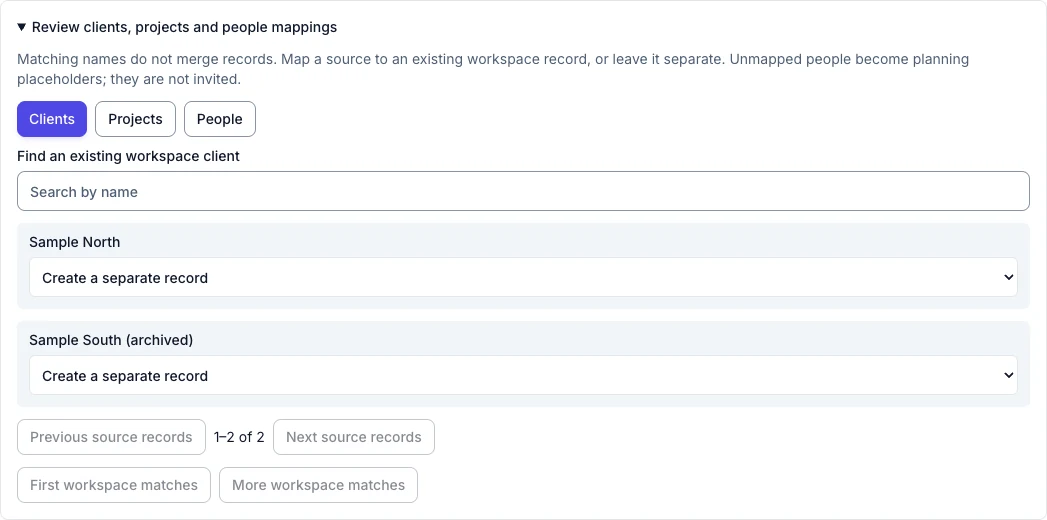
- Select existing destination clients and projects where they represent the same source records. Matching names do not automatically merge records.
- Map a Forecast person to the correct existing workspace member when appropriate. This does not replace that member’s working patterns or capacity settings.
- Leave a person unmapped to create a planning placeholder. This creates no login, invitation, or email.
- Resolve existing-name or project-code conflicts through mapping review before continuing.
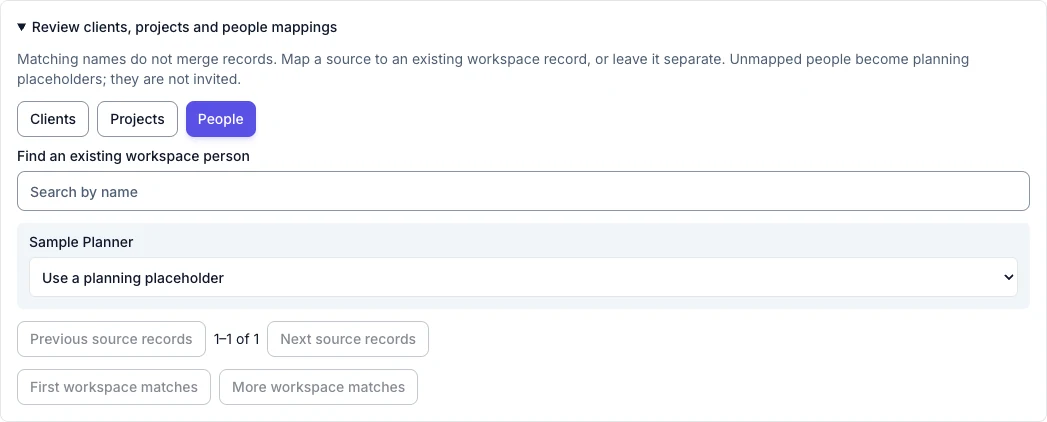
Review archived references as well as active ones. Historical planning should remain associated with the correct project and person.
4. Check the scan and exclusions
Compare source bookings and hours with your source records. Then compare eligible bookings and hours with the records the importer can bring across.
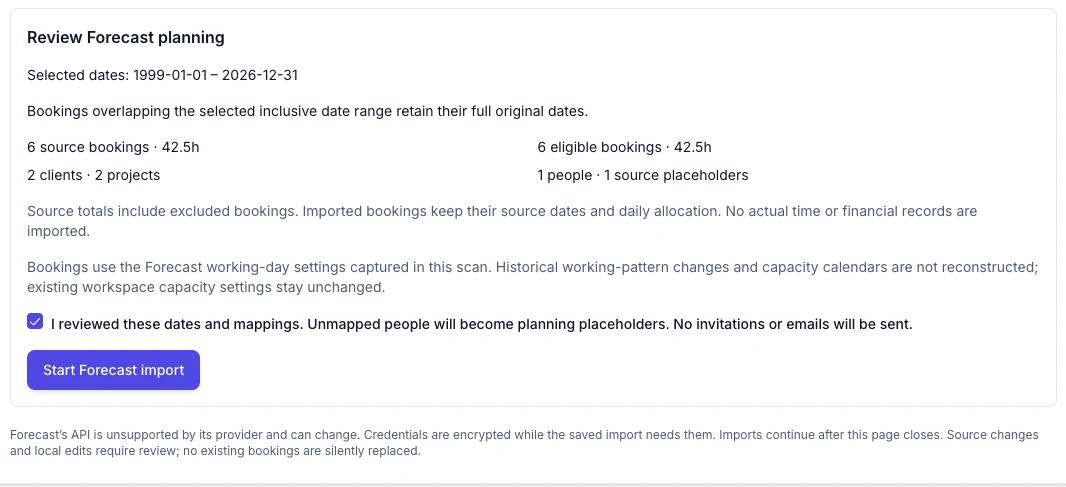
The example above has six eligible bookings totaling 42.5 hours. Your counts will depend on the selected account and dates.
Source totals include excluded bookings. Task-linked bookings currently require a separate acknowledgment to exclude task-linked bookings until their source format is supported. Other counted exclusions can include zero-hour bookings, missing dependencies, unsupported allocations, or unsupported date spans.
An exclusion is not an imported booking. Review every listed reason and decide whether that gap is acceptable before cutover. If you need an excluded record, contact support before relying on the migrated schedule.
Review the calendar limits below, confirm I reviewed these dates and mappings, accept any required exclusions, then select Start Forecast import.
5. Follow progress and reconcile the result
The saved import continues if you leave the page. Return to Forecast planning and open Forecast import history to check the saved run, its progress, and its final results.
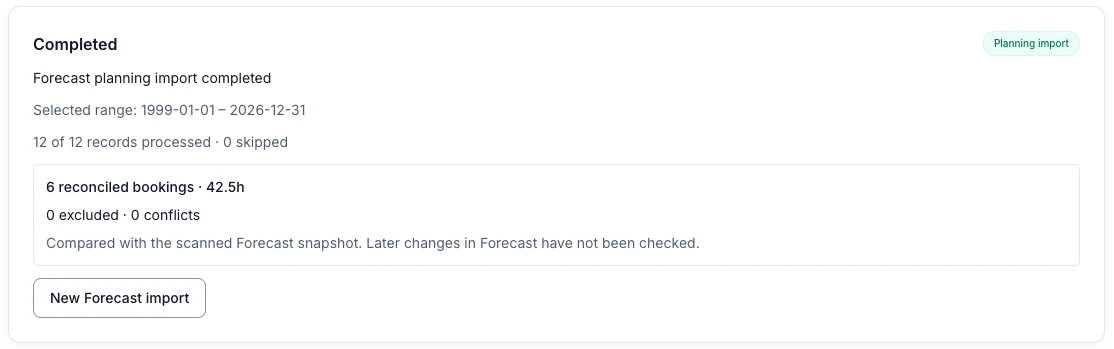
Check reconciled bookings, hours, exclusions, and conflicts. The processed-record count also covers supporting records; it is not the booking count. The example completed with six reconciled bookings and 42.5 hours.
Reconciliation compares imported records with the scanned Forecast snapshot. It does not check changes made in Forecast after the scan. Review those changes separately before signing off.
6. Verify bookings in Plan
Open Plan and navigate to the dates you imported. Check a recent period, your oldest required history, and future planning. Include a booking that crosses the scan boundary and any unusual allocations or days-off settings present in your source.
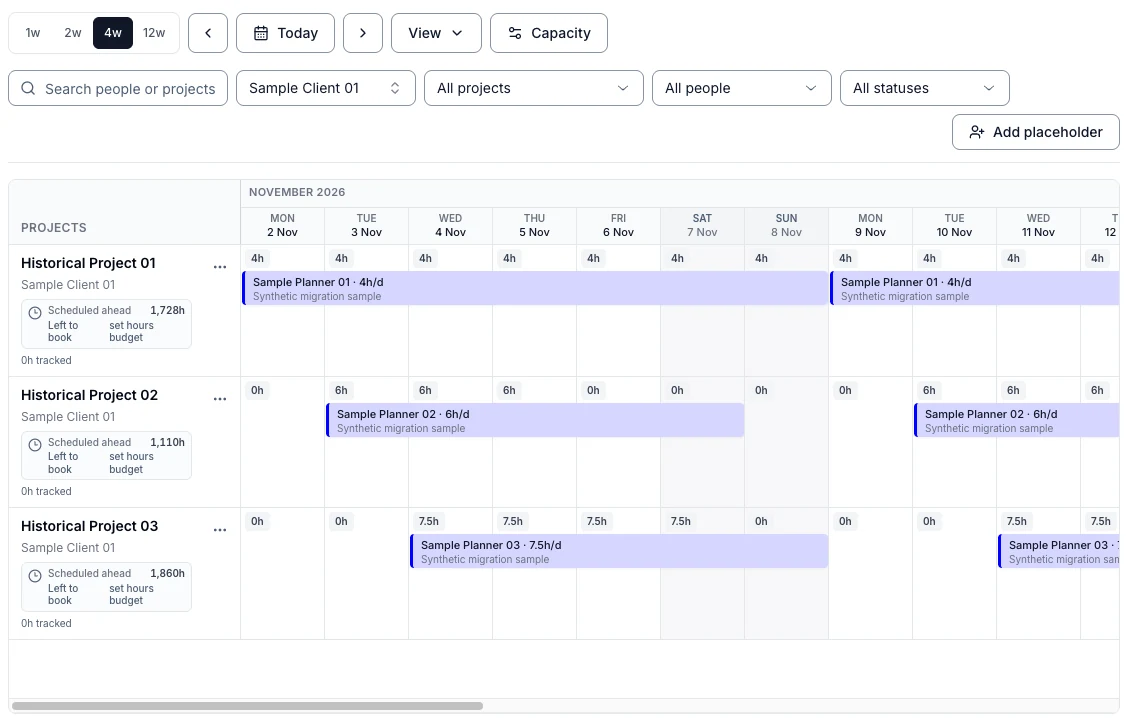
This Plan example uses a larger fictional schedule, filtered to one client. The setup and completion examples above use the smaller six-booking sample.
Confirm the project, person or placeholder, full date boundaries, daily allocation, and notes. Compare hours with the reviewed scan as well as the source. Check archived projects and count every accepted exclusion. Keep a written sign-off of the account, range, scan totals, results, and remaining follow-up without recording the token.
Calendar and capacity limits
Forecast exposes original booking dates and allocation seconds, but does not provide a dated history of changes to a person’s working calendar. Imported bookings use the working-day settings captured during the scan. Historical working-pattern changes cannot be reconstructed.
Source placeholders use Monday–Friday booking rules unless the booking explicitly includes days off. Placeholder capacity does not recreate historical calendars. Existing workspace calendars, holidays, time off, and member capacity are not replaced.
Review ongoing capacity in Plan and capacity planning. Historical availability and utilization can differ from Forecast even when booking dates and allocations are preserved.
Repeat imports, recovery, and cutover
Repeating unchanged source data in the same workspace does not create duplicate bookings. Source changes, local edits, deleted records, and changes to established mappings require review; they are not automatically overwritten or recreated. Repeat imports are not live synchronization or a deletion mirror.
If a run asks you to reconnect, provide a valid administrator token for the same Forecast account. Cancel Forecast import stops further work and retains records already imported. Preserve both source and imported records while investigating a discrepancy.
Before your team switches its schedule:
- Resolve conflicts and sign off every exclusion.
- Compare the saved snapshot with any later source changes.
- Review ongoing working patterns, holidays, time off, and capacity in the destination.
- Agree a clear time after which new planning belongs in Keito.
- Retain source access for your agreed reference and rollback period.
- Revoke or rotate the personal access token after the import and any final repeat runs, considering other integrations that use it.
For a problem, contact support with the selected dates, approximate run time, high-level counts, and non-sensitive error or exclusion reason. Never send the token or private booking notes.
Return to the migration overview, or use the separate Harvest guide if you also need to move actual time and supported financial records.